> For the complete documentation index, see [llms.txt](https://docs.shoppego.my/tutorials/llms.txt). Markdown versions of documentation pages are available by appending `.md` to page URLs; this page is available as [Markdown](https://docs.shoppego.my/tutorials/en/express-cart/pages.md).

# Pages

{% hint style="info" %}
Before you follow these steps, make sure you :

* Already have the product you want to make for **express cart.**
* Already has its own pages for you to enter the **express cart function.**
  {% endhint %}

## Get Product Variant ID

1\. Log in to your Shoppego account.
![](https://3359028955-files.gitbook.io/~/files/v0/b/gitbook-x-prod.appspot.com/o/spaces%2F-Lh09fNwqqta5Vj6Wr8p%2Fuploads%2Fgit-blob-b853fc0189b34fb1d3990f5b1f53fa71deb9d384%2FlCN7aw3FznaFFoOAyya2.jpg?alt=media)

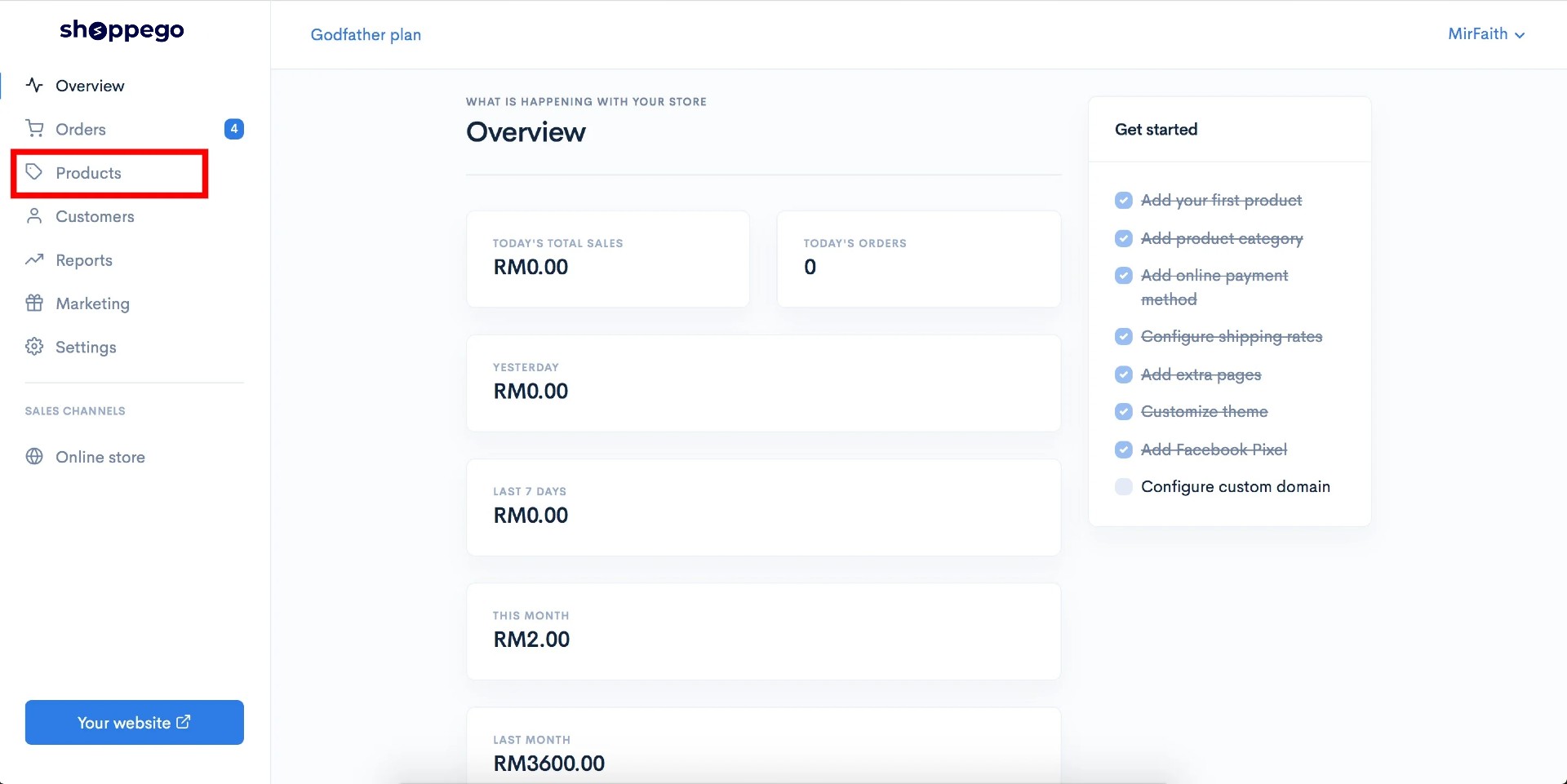
2\. Click on **Products**

![](https://3359028955-files.gitbook.io/~/files/v0/b/gitbook-x-prod.appspot.com/o/spaces%2F-Lh09fNwqqta5Vj6Wr8p%2Fuploads%2Fgit-blob-ed85fb87f9932975c9fe432eb80476f0c54bfd3b%2F3QYpKlTI5mdyrdLeiYts.jpg?alt=media)

3\. Click on the Product for which you want to enter the Express Checkout function.

![](https://3359028955-files.gitbook.io/~/files/v0/b/gitbook-x-prod.appspot.com/o/spaces%2F-Lh09fNwqqta5Vj6Wr8p%2Fuploads%2Fgit-blob-26a14abc50a6d860a5959ebc9ba339513ccd4228%2Fi3S3XPC8L5SjJS1W4hLs.jpg?alt=media)

4\. Click on **Express checkout**

![](https://3359028955-files.gitbook.io/~/files/v0/b/gitbook-x-prod.appspot.com/o/spaces%2F-Lh09fNwqqta5Vj6Wr8p%2Fuploads%2Fgit-blob-63331b50a798a09959bd25f4266257564261b27b%2Fbqs406u5zwylQ0lJnPQ6.jpg?alt=media)

5\. Select the variant that you want your customers to continue to buy and save the link

![](https://3359028955-files.gitbook.io/~/files/v0/b/gitbook-x-prod.appspot.com/o/spaces%2F-Lh09fNwqqta5Vj6Wr8p%2Fuploads%2Fgit-blob-2bff2afddf3c01414e4255d589dda2a89fb84b60%2FiA6m613XvwBy9vep3yLN.jpg?alt=media)

6\. Based on the URL link, you only need to save the product variant ID. For example the link you get is [**https://mirfaith.myshoppegram.com/cart/57085:1**](https://mirfaith.myshoppegram.com/cart/57085:1)

So you need to save **57085** only to use in the next step.

## Setting on Pages

1\. Log in to your Shoppego account.

![](https://3359028955-files.gitbook.io/~/files/v0/b/gitbook-x-prod.appspot.com/o/spaces%2F-Lh09fNwqqta5Vj6Wr8p%2Fuploads%2Fgit-blob-b853fc0189b34fb1d3990f5b1f53fa71deb9d384%2FlCN7aw3FznaFFoOAyya2.jpg?alt=media)

2\. Click on **Online Store** -> **Pages**

![](https://3359028955-files.gitbook.io/~/files/v0/b/gitbook-x-prod.appspot.com/o/spaces%2F-Lh09fNwqqta5Vj6Wr8p%2Fuploads%2Fgit-blob-2f8191bbc0c8e548025e830d2511fd6b37e22bdb%2FYW5MKHAFthkHAX6ApmOw.jpg?alt=media)

3\. Click on the Edit button on the pages where you want to enter the **Express Checkout function.**

![](https://3359028955-files.gitbook.io/~/files/v0/b/gitbook-x-prod.appspot.com/o/spaces%2F-Lh09fNwqqta5Vj6Wr8p%2Fuploads%2Fgit-blob-ed38d60c608e94ef30335b39b12ec99881aab367%2FE1metuuRouovYFNz12pX.png?alt=media)

4\. Click on the <> icon to enter your button's custom code

![](https://3359028955-files.gitbook.io/~/files/v0/b/gitbook-x-prod.appspot.com/o/spaces%2F-Lh09fNwqqta5Vj6Wr8p%2Fuploads%2Fgit-blob-bd7aa735486593e48376adcc3be5c9148b5406d8%2FcocGHw3XwzixRJbXOg1v.jpg?alt=media)

5\. Next, you just need to enter this code in the field.

Code: **\<a class="btn btn -success btn-lg text-white " href ="/cart/add?id=enter the ID you got in step 1" target="\_blank">Buy Now \</a>**

**\*\*In the href section, you can enter the link of your variant product that you just got in step 1**

![](https://3359028955-files.gitbook.io/~/files/v0/b/gitbook-x-prod.appspot.com/o/spaces%2F-Lh09fNwqqta5Vj6Wr8p%2Fuploads%2Fgit-blob-a3915aa669ffbbc550acf19c73f0c9e479690756%2FmGZb0URqfJBhu5XNJwYL.jpg?alt=media)

6\. Once done you can click **Save** and see the result by clicking on **Preview** button.

![](https://3359028955-files.gitbook.io/~/files/v0/b/gitbook-x-prod.appspot.com/o/spaces%2F-Lh09fNwqqta5Vj6Wr8p%2Fuploads%2Fgit-blob-89710db2e3398d11ba0b7d57a38486e2392485cf%2FDm5z1QnMT7RPIGXrcZE6.jpg?alt=media)

## Additional Info

If you want to change your button styling, you can refer to this link for more information: <https://getbootstrap.com/docs/4.0/components/buttons/>

If you want to make your customers continue to enter 3 products directly into their cart you can separate each product variant ID with a comma symbol.

For example: /cart /add? Id = 57085,12345

{% hint style="info" %}
**A maximum of only 3 ID variants can be entered.**
{% endhint %}