> For the complete documentation index, see [llms.txt](https://docs.shoppego.my/tutorials/llms.txt). Markdown versions of documentation pages are available by appending `.md` to page URLs; this page is available as [Markdown](https://docs.shoppego.my/tutorials/en/files/awbs.md).
# AWBs
Shoppego now allows you to **print AWBs (Air Waybills)** in bulk at once.
With this function, you do not need to open and print each AWB individually. All AWBs generated for a batch of orders can be printed together with just a single click.
For every order processed via integration with any shipping provider, you can check its specific AWB on this page.
## On this Page:
* [How to Print an AWB](#how-to-print-an-awb)
* [Important information](#important-information)
## How to Print an AWB
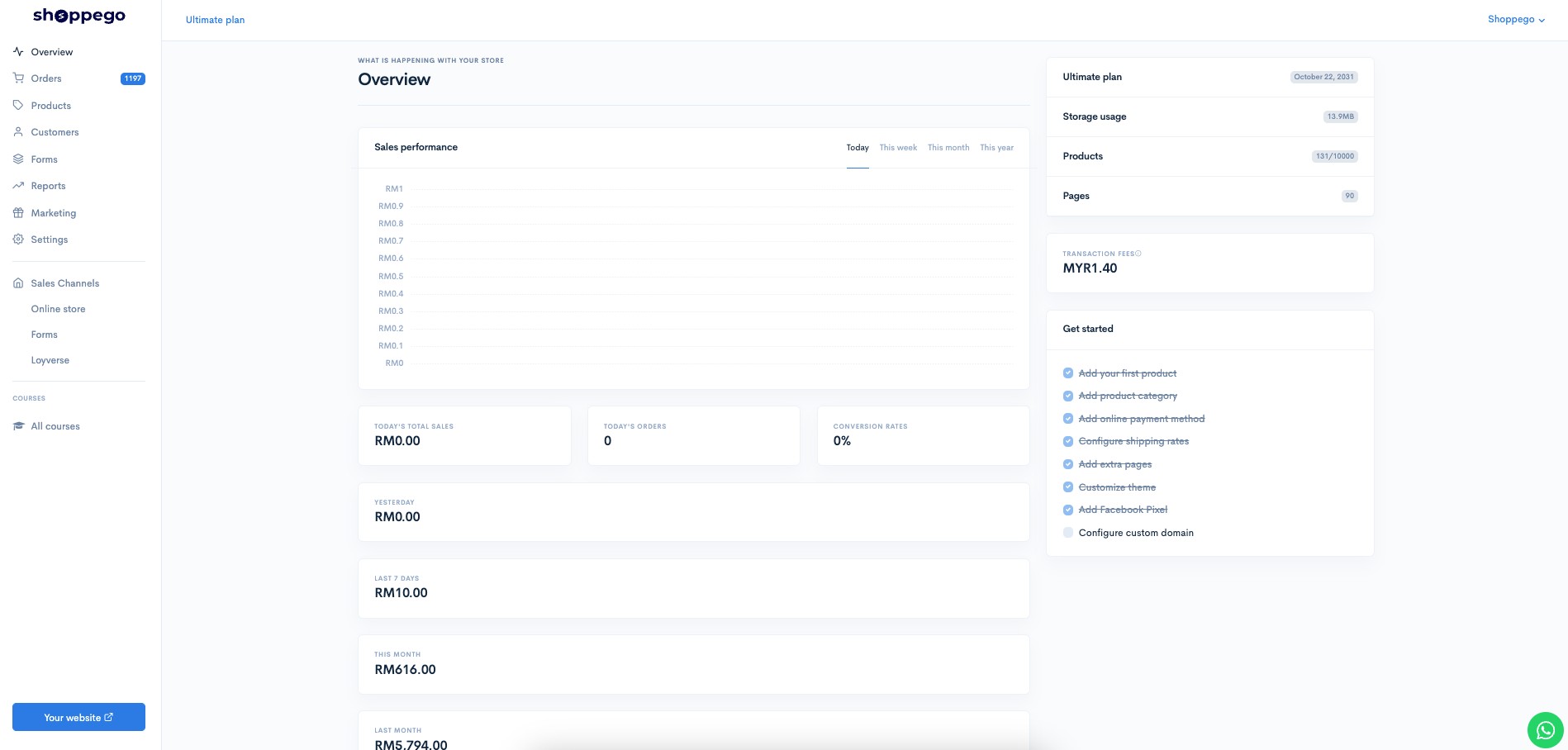
1. Log in to your Shoppego account
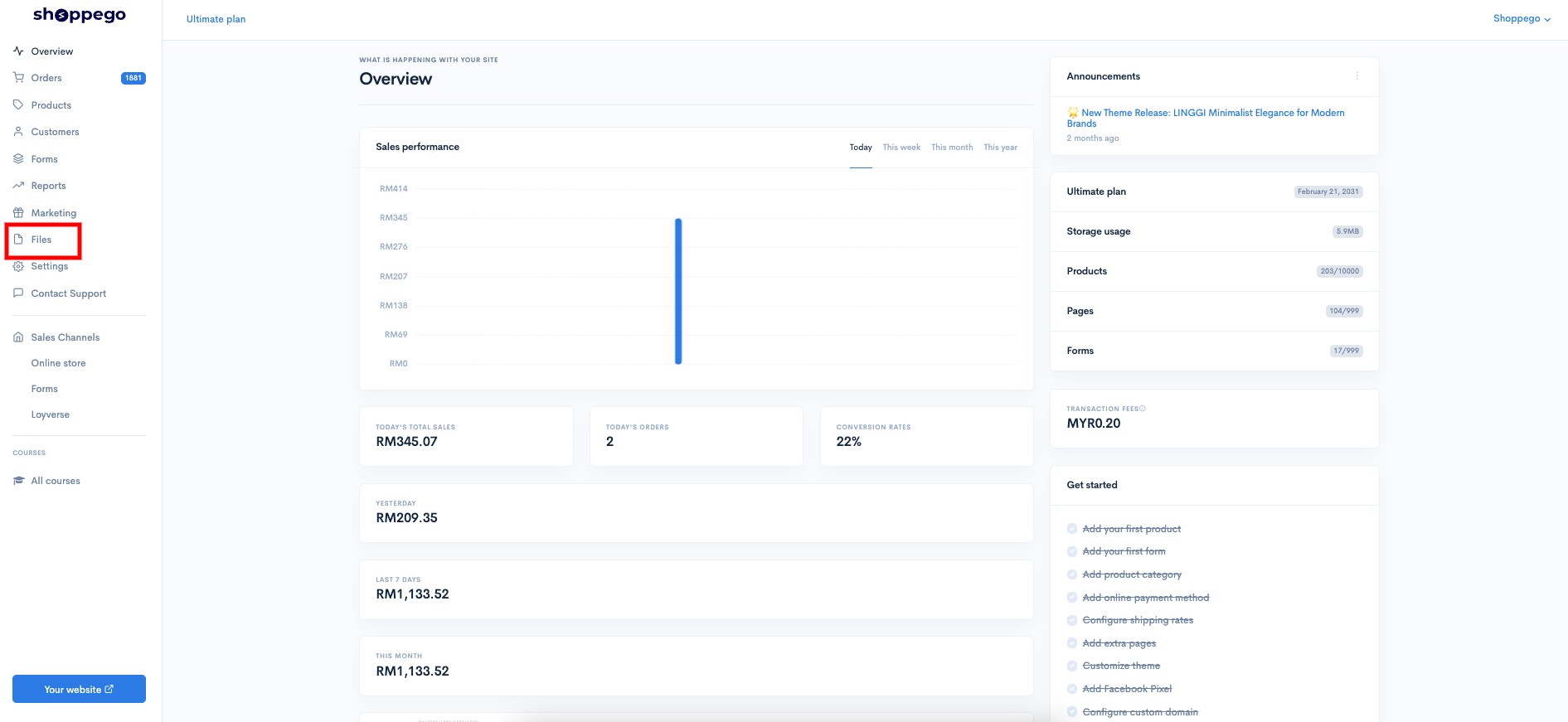
2. Click on **Files**
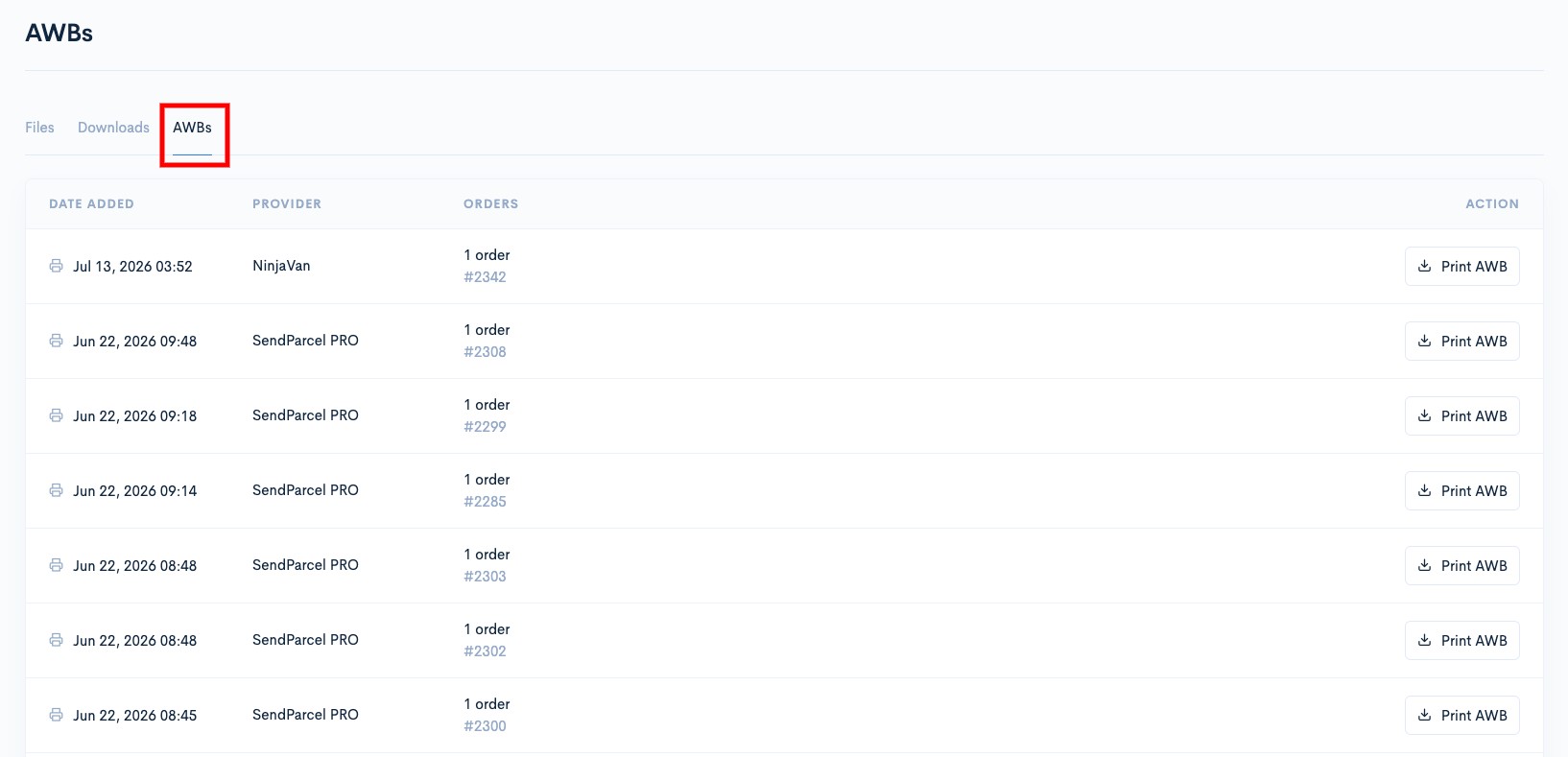
3. Click on **AWBs**
On this page, you will see a list of generated AWBs along with details such as:
| Parameter | Description |
| -------------- | ------------------------------------------- |
| **Date Added** | Date and time AWB was generated |
| **Provider** | Provider or courier used |
| **Orders** | List of orders associated with the AWB |
| **Action** | Actions that can be taken regarding the AWB |
#### Find the AWB group you want to print.
Each AWB record will show the number of orders associated with it.
For example:
> **DHL eCommerce**\
> 3 orders\
> \#21566, #21567, #21568
This means there are **3 AWBs** associated with the order.
#### Click "Print All AWB" or "Print AWB"
After locating the group of AWBs to be printed, click the **"Print All AWB" button for bulk shipments** and **"Print AWB" for single shipments**.
Shoppego will open the AWB provided by the courier so that you can print it.
## Important Information
The "**Print All AWB**" function is **available only for the DHL Ecommerce shipping provider**.
The **"Print All AWB" function is available only for the DHL Ecommerce shipping provider**.
Therefore, **we recommend that you print the AWB as soon as it is generated or after the shipment booking has been made**.
The old AWB link may no longer be usable if the courier has terminated access to it.
> **Important**: If the AWB link is no longer accessible, you may need to retrieve the AWB from the relevant courier.