> For the complete documentation index, see [llms.txt](https://docs.shoppego.my/tutorials/llms.txt). Markdown versions of documentation pages are available by appending `.md` to page URLs; this page is available as [Markdown](https://docs.shoppego.my/tutorials/en/online-store/menus/customer-registration.md).

# Customer Registration

The use of customer registration function is for the user to register for your Shoppego web.

{% hint style="info" %}
\*\*<mark style="color:red;">**Note**</mark>: This function only available for **Standard**, **Premium** and **Ultimate.**
{% endhint %}

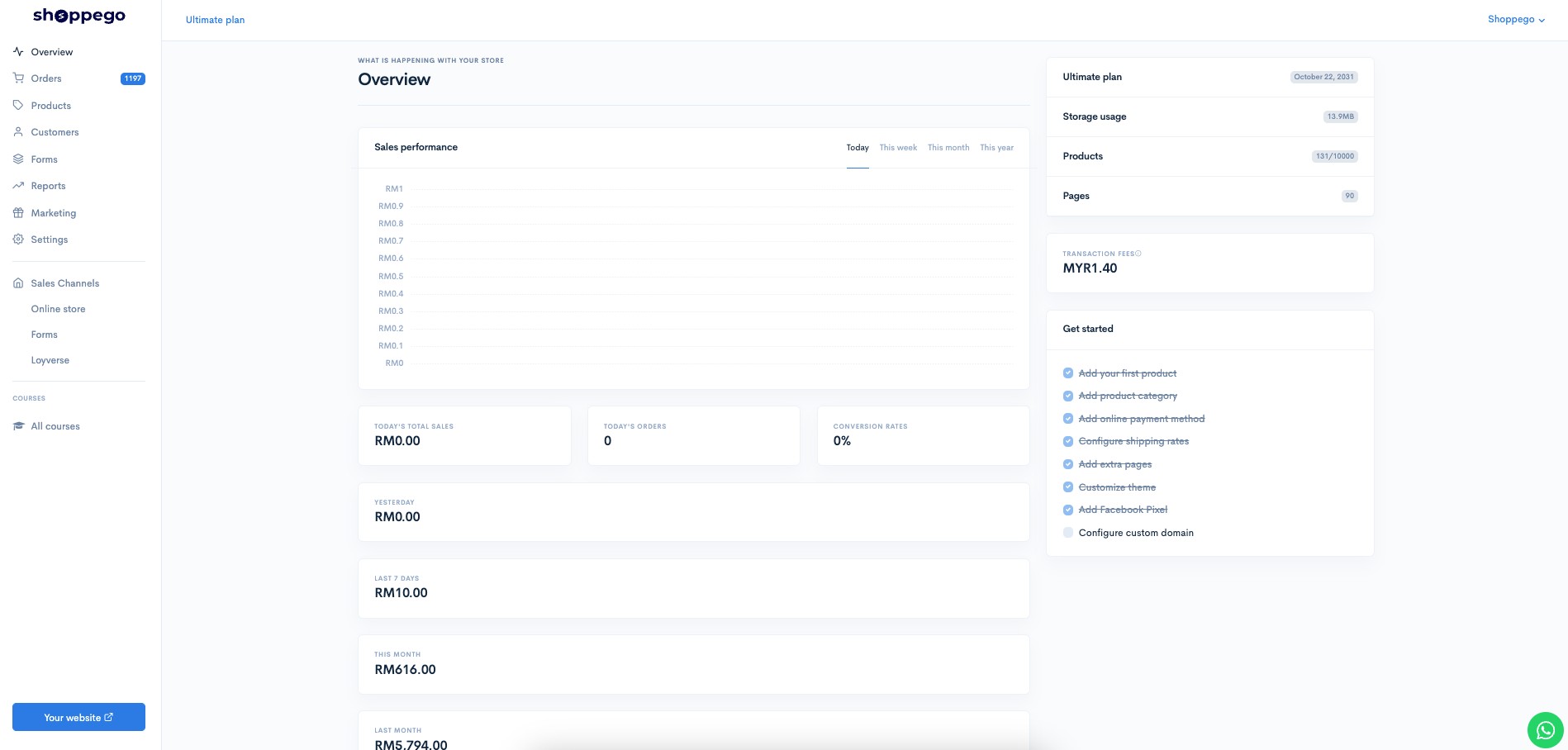
1. Login and go to dashboard section.
![](https://3359028955-files.gitbook.io/~/files/v0/b/gitbook-x-prod.appspot.com/o/spaces%2F-Lh09fNwqqta5Vj6Wr8p%2Fuploads%2Fgit-blob-b853fc0189b34fb1d3990f5b1f53fa71deb9d384%2FlCN7aw3FznaFFoOAyya2.jpg?alt=media)

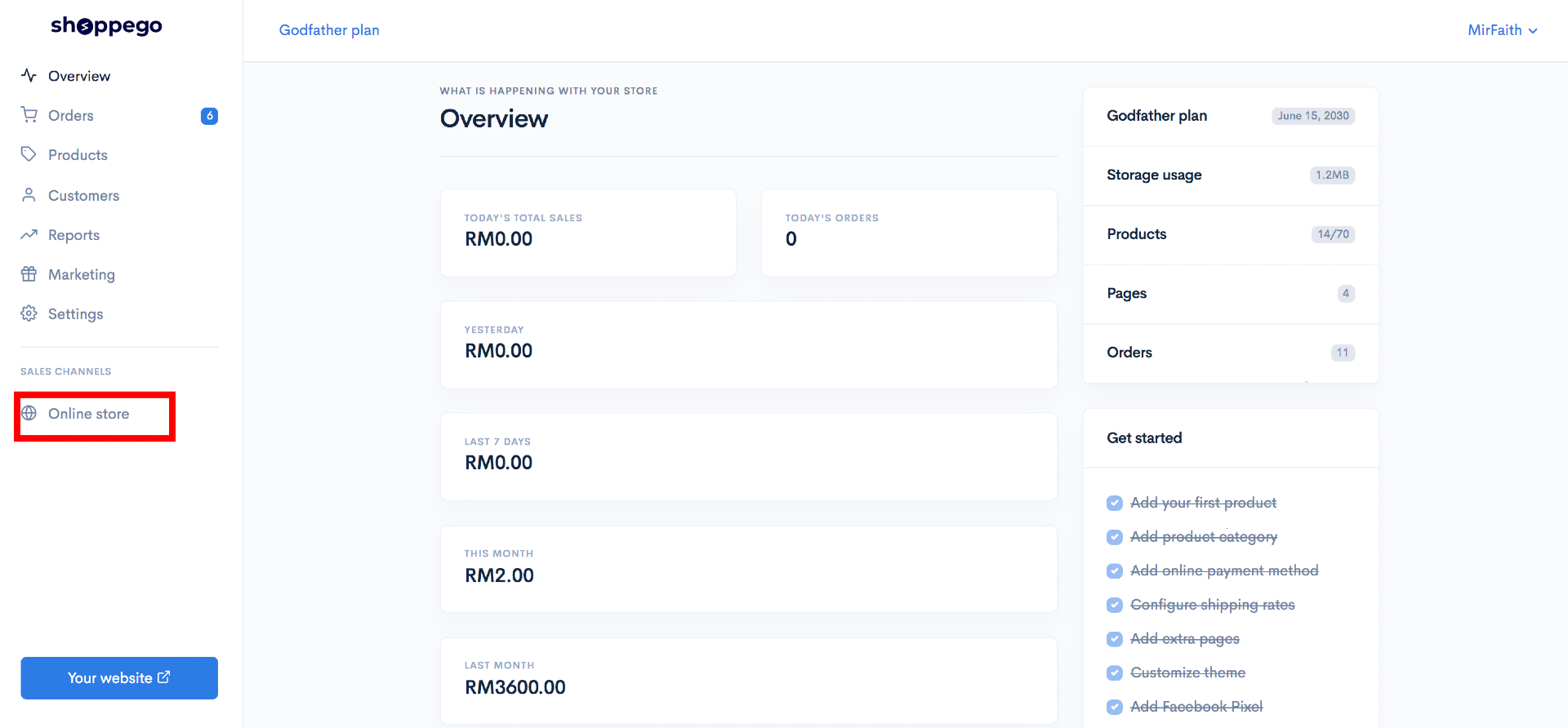
2. Click on **Online store**

<figure><img src="https://3359028955-files.gitbook.io/~/files/v0/b/gitbook-x-prod.appspot.com/o/spaces%2F-Lh09fNwqqta5Vj6Wr8p%2Fuploads%2Fgit-blob-70c4a33377466661b7d9ad083aec0c73abcda6de%2FVCvdwwBNMP2Wl4iZzvCi.png?alt=media" alt=""><figcaption></figcaption></figure>

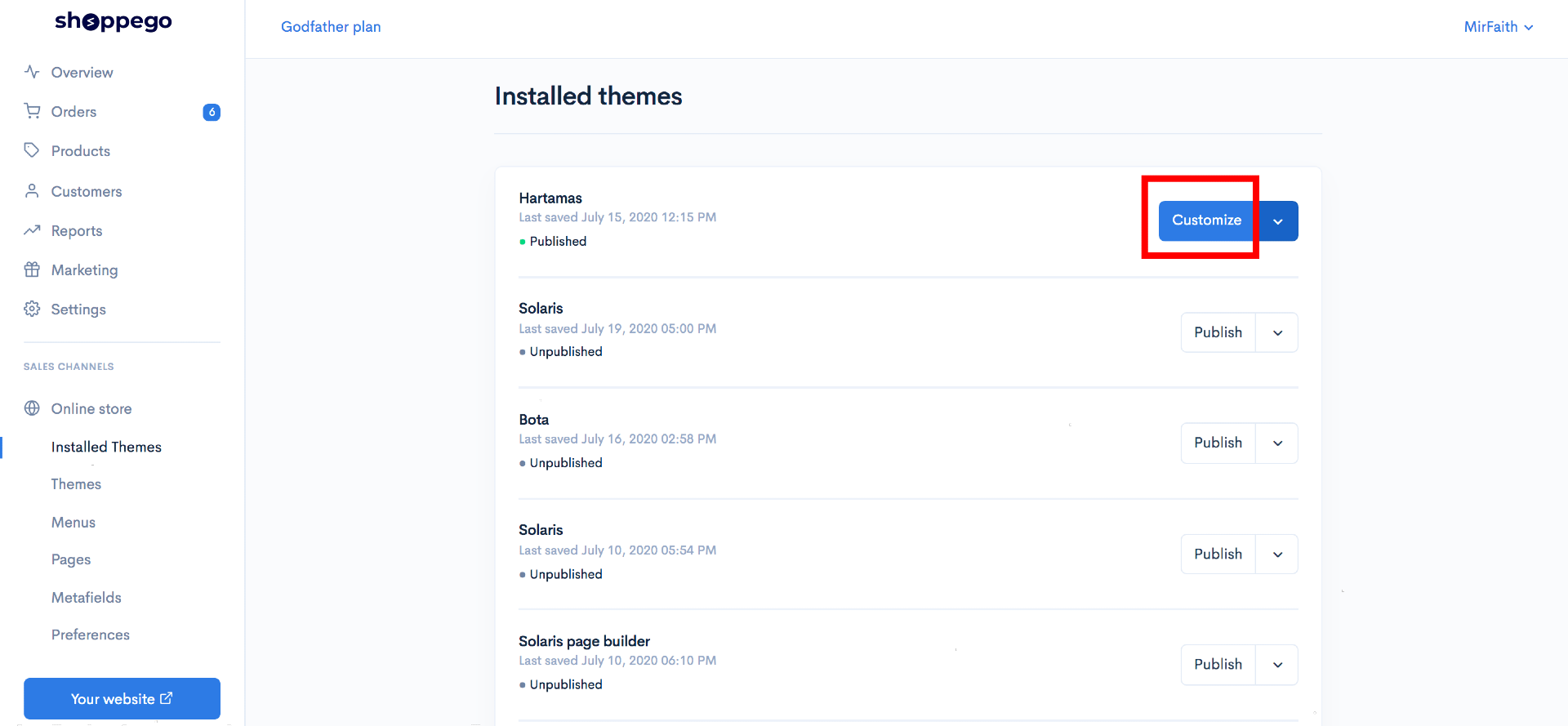
3. Click on **Customize**

<figure><img src="https://3359028955-files.gitbook.io/~/files/v0/b/gitbook-x-prod.appspot.com/o/spaces%2F-Lh09fNwqqta5Vj6Wr8p%2Fuploads%2Fgit-blob-c4a7a7719894e396f51856c305f82fe70b89a38a%2Fmt4xjjrNEq2BpXAtQZ2o.png?alt=media" alt=""><figcaption></figcaption></figure>

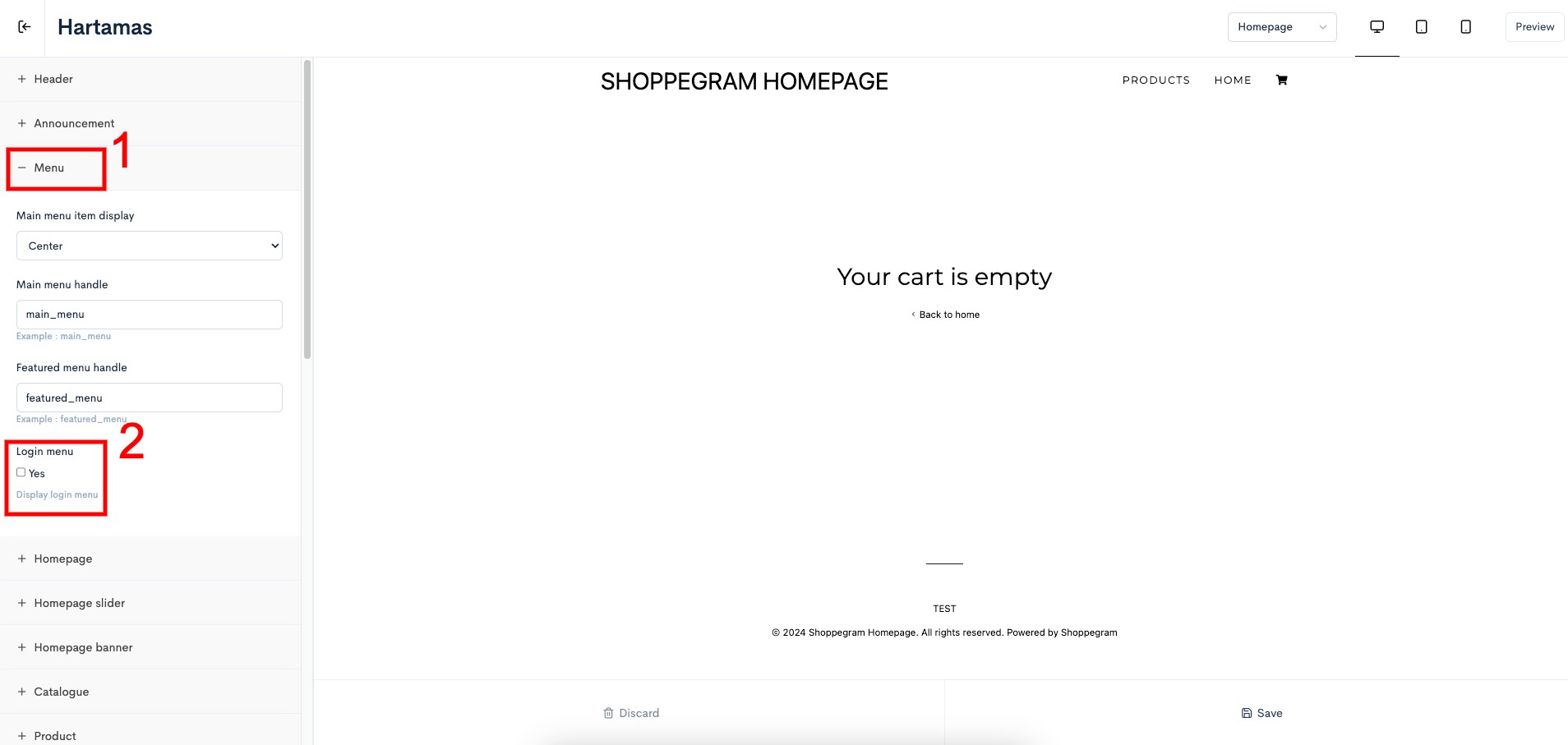
4. Click on the **Header tab for Tampin & Solaris themes**. Meanwhile, **the Menu tab for Hartamas themes**. Then, tick **the Login menu checkbox**

<figure><img src="https://3359028955-files.gitbook.io/~/files/v0/b/gitbook-x-prod.appspot.com/o/spaces%2F-Lh09fNwqqta5Vj6Wr8p%2Fuploads%2Fgit-blob-9656b5e9f562241612abd200583f496e3b7fcc88%2F1dx75YTeyBdGKbQsUpGo.jpg?alt=media" alt=""><figcaption></figcaption></figure>

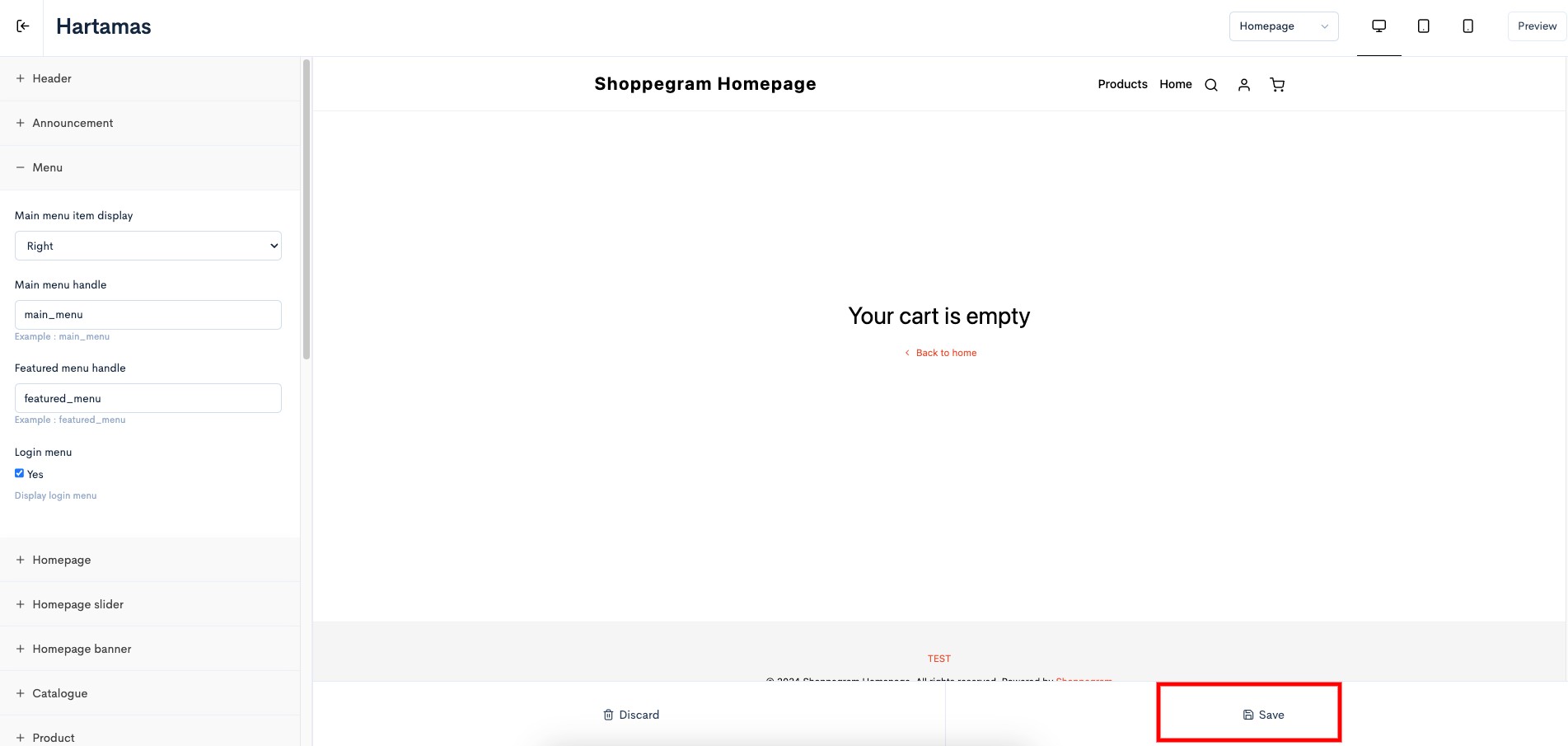
5. Once done click **Save**

<figure><img src="https://3359028955-files.gitbook.io/~/files/v0/b/gitbook-x-prod.appspot.com/o/spaces%2F-Lh09fNwqqta5Vj6Wr8p%2Fuploads%2Fgit-blob-30f4b3c4bf4c6f046ff3ff615378ef5b6a357b58%2FARbmPAX4q0BYzkQgdaet.jpg?alt=media" alt=""><figcaption></figcaption></figure>

## Website preview

For the storefront section, login function should be like these.

![](https://3359028955-files.gitbook.io/~/files/v0/b/gitbook-x-prod.appspot.com/o/spaces%2F-Lh09fNwqqta5Vj6Wr8p%2Fuploads%2Fgit-blob-5aebba4f01433d25a45548a5623af178fead832f%2FEkeZOU7LNQalrkSCcKS8.jpg?alt=media)

And after you're login, logout button should be like these.

![](https://3359028955-files.gitbook.io/~/files/v0/b/gitbook-x-prod.appspot.com/o/spaces%2F-Lh09fNwqqta5Vj6Wr8p%2Fuploads%2Fgit-blob-5bfc651e93830ab9328b9f77b695c65f99929114%2FTzKl3OfcVyazprU2GaDt.jpg?alt=media)

## **Customer Dashboard**

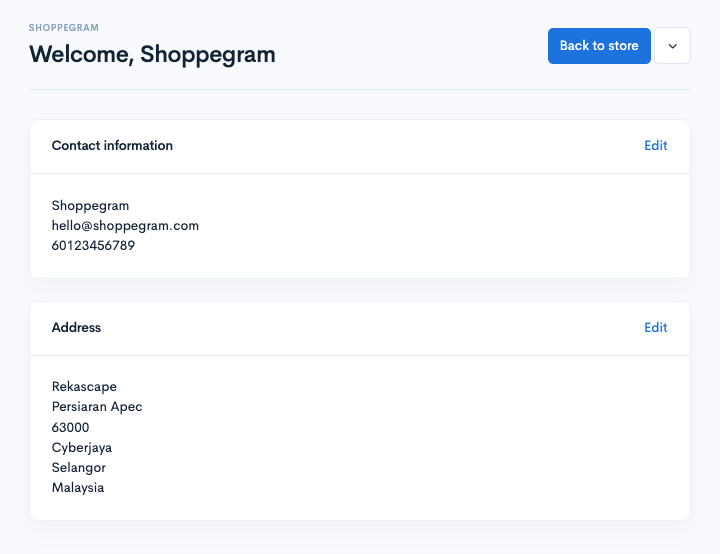
This is an example of a display when a customer has successfully logged into their account on your website:

<figure><img src="https://3359028955-files.gitbook.io/~/files/v0/b/gitbook-x-prod.appspot.com/o/spaces%2F-Lh09fNwqqta5Vj6Wr8p%2Fuploads%2Fgit-blob-e7a3067f06b74ab969928932aed7dded3eee7d14%2FmpHlN6jcnhAquEsrczPk.png?alt=media" alt=""><figcaption></figcaption></figure>

### Update Contact Information or Address

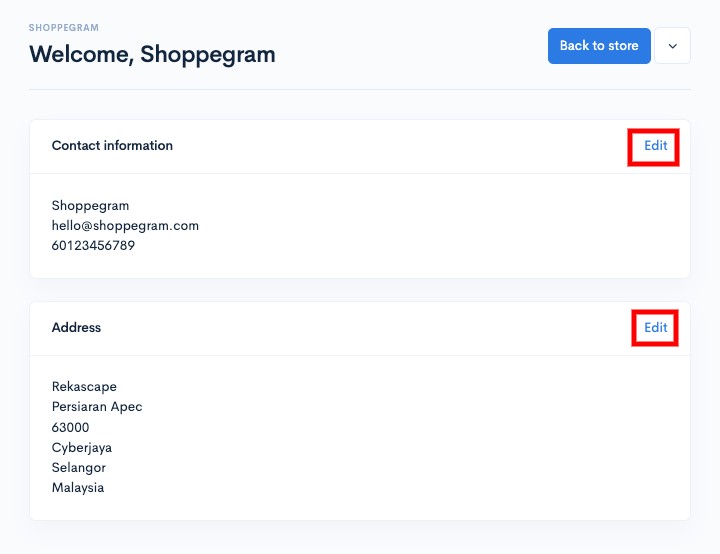
1. Through this page, your customers can click on any **Edit** button to update either their **Contact information** or **Address**.

<figure><img src="https://3359028955-files.gitbook.io/~/files/v0/b/gitbook-x-prod.appspot.com/o/spaces%2F-Lh09fNwqqta5Vj6Wr8p%2Fuploads%2Fgit-blob-d9c76f8a08381a33823eb48b8a286dd55f2e6249%2FdWK6k1WqYC4JCUEvxgsZ.jpg?alt=media" alt=""><figcaption></figcaption></figure>

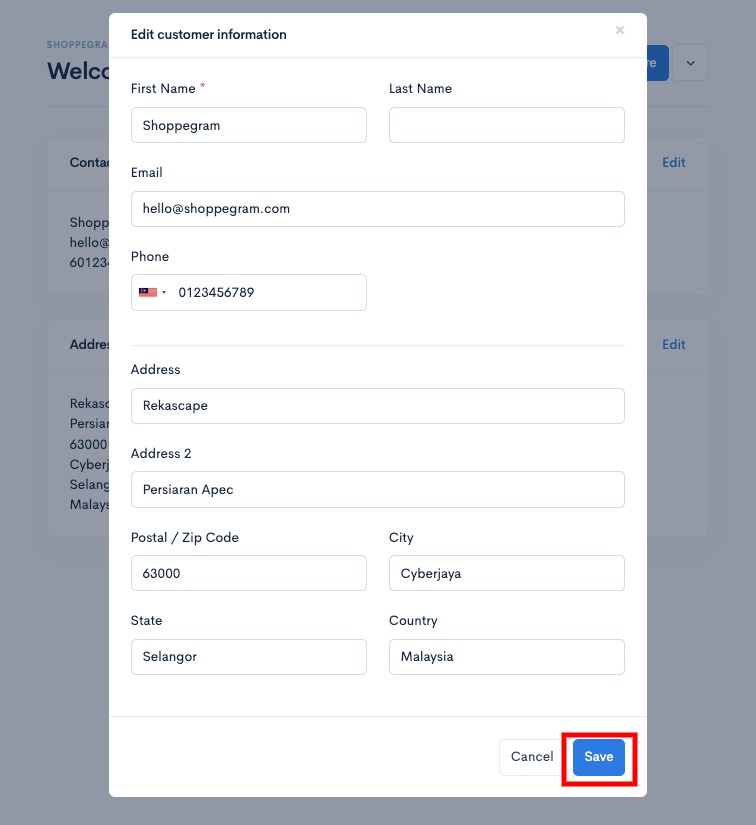
2. Make sure that once they have finished updating the information, they click on the **Save** button to save the settings.

<figure><img src="https://3359028955-files.gitbook.io/~/files/v0/b/gitbook-x-prod.appspot.com/o/spaces%2F-Lh09fNwqqta5Vj6Wr8p%2Fuploads%2Fgit-blob-5d03524115ccf1436dc6f8ac42689f75602714df%2F3tO7tMA7Hft3UDdABx7g.jpg?alt=media" alt=""><figcaption></figcaption></figure>

### Viewing Purchases History

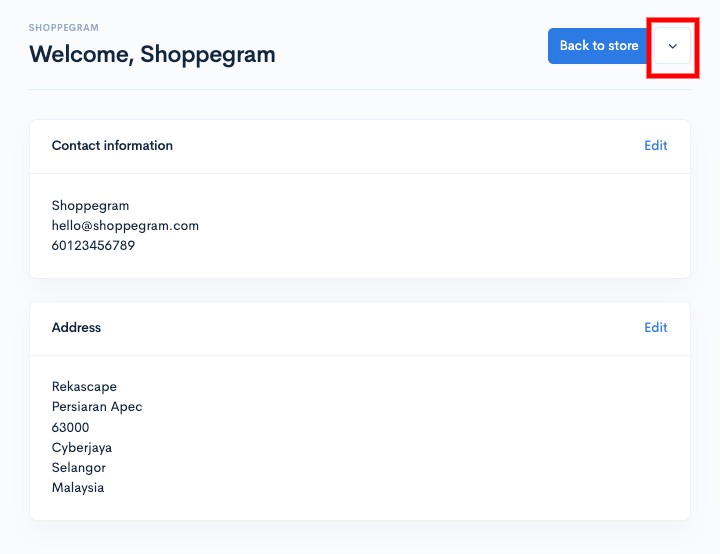
1. Your customers can see their previous orders by clicking on the **arrow icon button**.

<figure><img src="https://3359028955-files.gitbook.io/~/files/v0/b/gitbook-x-prod.appspot.com/o/spaces%2F-Lh09fNwqqta5Vj6Wr8p%2Fuploads%2Fgit-blob-a1e2e208e51dc36a83d70a91ecf37bb4d1281885%2F86aWSrKsxY3HNFLgwGb8.jpg?alt=media" alt=""><figcaption></figcaption></figure>

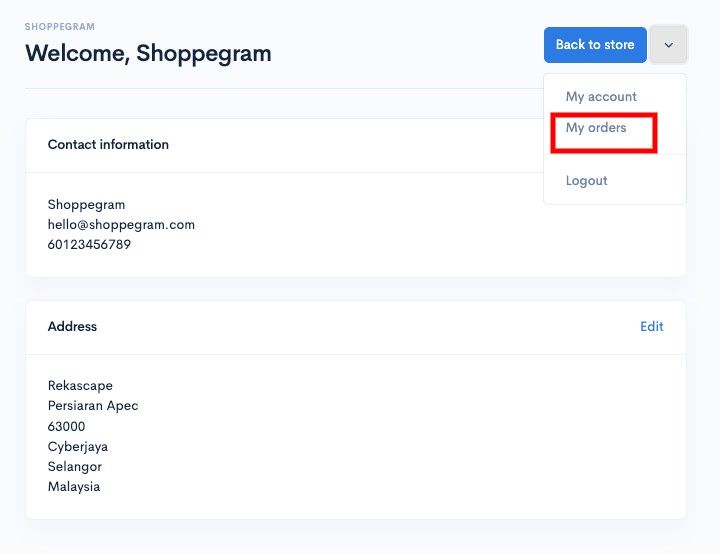
2. Then, they can click on **My orders**

<figure><img src="https://3359028955-files.gitbook.io/~/files/v0/b/gitbook-x-prod.appspot.com/o/spaces%2F-Lh09fNwqqta5Vj6Wr8p%2Fuploads%2Fgit-blob-2a7327d21a55f329abbfb7da8c33204eaf4c4890%2FaDaiZewF5prZzw1jPnFx.jpg?alt=media" alt=""><figcaption></figcaption></figure>

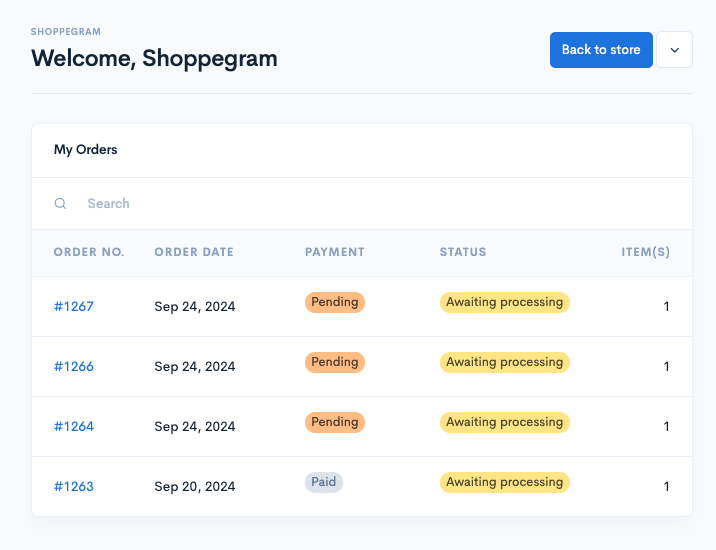
3. Later, they will be taken to a page that has a display of all the orders they have ever made.

<figure><img src="https://3359028955-files.gitbook.io/~/files/v0/b/gitbook-x-prod.appspot.com/o/spaces%2F-Lh09fNwqqta5Vj6Wr8p%2Fuploads%2Fgit-blob-3ee1c669edc522deb962ae59477adece5ca90727%2FtjTJTFbCDm8yLOoHg4pa.png?alt=media" alt=""><figcaption></figcaption></figure>

### Search Order

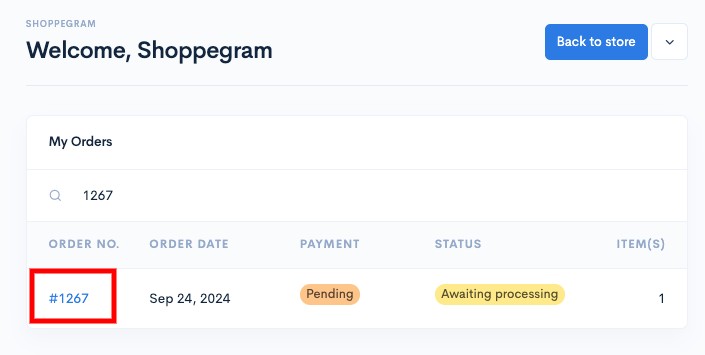
Through this page, customers can **search for their order using their order number to be entered into the search field**

<figure><img src="https://3359028955-files.gitbook.io/~/files/v0/b/gitbook-x-prod.appspot.com/o/spaces%2F-Lh09fNwqqta5Vj6Wr8p%2Fuploads%2Fgit-blob-20760689ccb45dd26fb2f44510bad33e12430dcb%2FSEdmFME8cxPdGqJsXvyE.jpg?alt=media" alt=""><figcaption></figcaption></figure>

### Get Invoice Order

1. Through this page as well, customers can get an invoice for each of their orders by **clicking on the order**

<figure><img src="https://3359028955-files.gitbook.io/~/files/v0/b/gitbook-x-prod.appspot.com/o/spaces%2F-Lh09fNwqqta5Vj6Wr8p%2Fuploads%2Fgit-blob-80b2cfc67130c050cf7ed592cdb76ce7a0ae9ba7%2FLVPl6uyuxFOWqfjalQSw.jpg?alt=media" alt=""><figcaption></figcaption></figure>

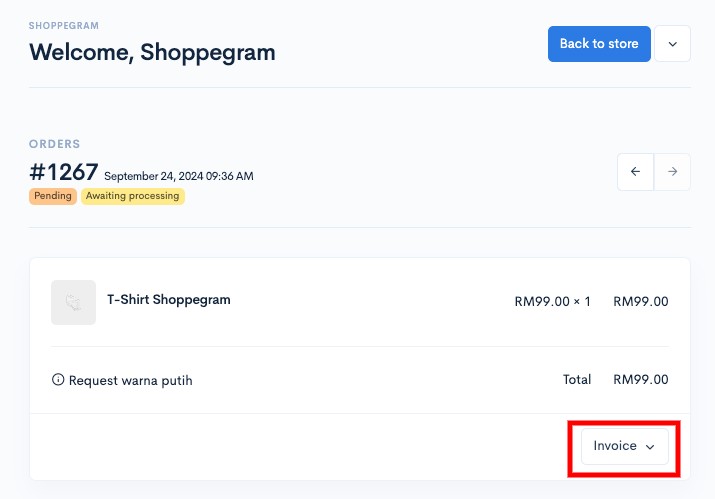
2. Then, click on the **Invoice** button

<figure><img src="https://3359028955-files.gitbook.io/~/files/v0/b/gitbook-x-prod.appspot.com/o/spaces%2F-Lh09fNwqqta5Vj6Wr8p%2Fuploads%2Fgit-blob-ac9c7e2c734d1dbd33e1c42dd22ccb8fe3ca6723%2FgMFl8ScXLt46iMuoWNHJ.jpg?alt=media" alt=""><figcaption></figcaption></figure>

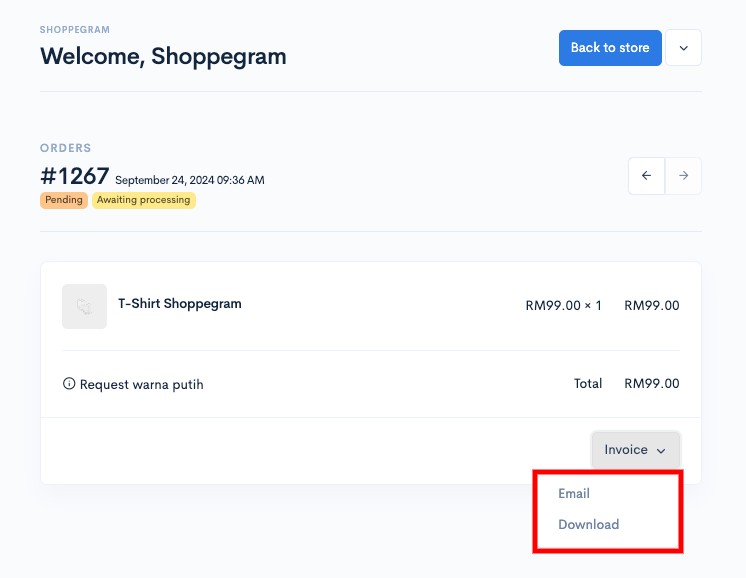
3. Next, customers can choose whether they want to directly **Download the invoice** for the order or **send the invoice to the email** they want (<mark style="color:red;">**only 3 emails are allowed**</mark>)

<figure><img src="https://3359028955-files.gitbook.io/~/files/v0/b/gitbook-x-prod.appspot.com/o/spaces%2F-Lh09fNwqqta5Vj6Wr8p%2Fuploads%2Fgit-blob-14eab1d47f8db9cafa1799908fbcb8b1e5cf8af4%2F9t3JV3PSBYWqloebJmG5.jpg?alt=media" alt=""><figcaption></figcaption></figure>

### Return to Website

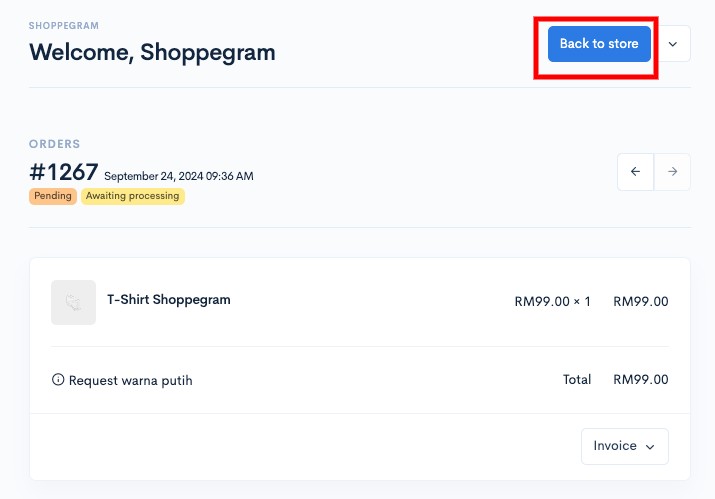
If customers want to return to your website page, they can click on the **Back to store** button

<figure><img src="https://3359028955-files.gitbook.io/~/files/v0/b/gitbook-x-prod.appspot.com/o/spaces%2F-Lh09fNwqqta5Vj6Wr8p%2Fuploads%2Fgit-blob-ff661724ff288d9e787d67b4f7b8fa913a7803ac%2Fg1AQ1J5KyiaM9zAt7v96.jpg?alt=media" alt=""><figcaption></figcaption></figure>

## Additional Info <a href="#info-tambahan" id="info-tambahan"></a>

* If your customer needs to login and register before proceeding to checkout. You have to set this up **Settings ->** **Checkout ->** enable **Force Login** and **Enable** **Customer Registration** and **Save**.

{% hint style="info" %}
\*\***Force login** means users are forced to register first before proceed to checkout. If this button is enabled, the user should have login or register first.
{% endhint %}

![](https://3359028955-files.gitbook.io/~/files/v0/b/gitbook-x-prod.appspot.com/o/spaces%2F-Lh09fNwqqta5Vj6Wr8p%2Fuploads%2Fgit-blob-6d55a57158889426790a7f9b119ffbf9dee2a159%2FO94BWBmTyYxePxH7UHLH.jpg?alt=media)

* Pelanggan anda juga sudah **tidak perlu masukkan** sebarang maklumat seperti **Nama** atau **Password** **sewaktu proses log masuk atau pendaftaran** akaun nanti. Mereka **hanya perlu** **masukkan** maklumat **email** mereka sahaja dan sistem akan automatik **hantar 1-time password melalui email** mereka nanti.Your customers also **no longer need to enter** any information, such as **Name** or **Password** during the **login or account registration process**. They **only need to enter** their **email** information and the system will automatically send a **1-time password via email** later.

This is the login/register view that customers will see later:

<figure><img src="https://3359028955-files.gitbook.io/~/files/v0/b/gitbook-x-prod.appspot.com/o/spaces%2F-Lh09fNwqqta5Vj6Wr8p%2Fuploads%2Fgit-blob-e7fe2249916bb6d9f8ab542ea38871e3ff01a66d%2FHIKVPCEQixqdMtQ286o4.png?alt=media" alt=""><figcaption></figcaption></figure>

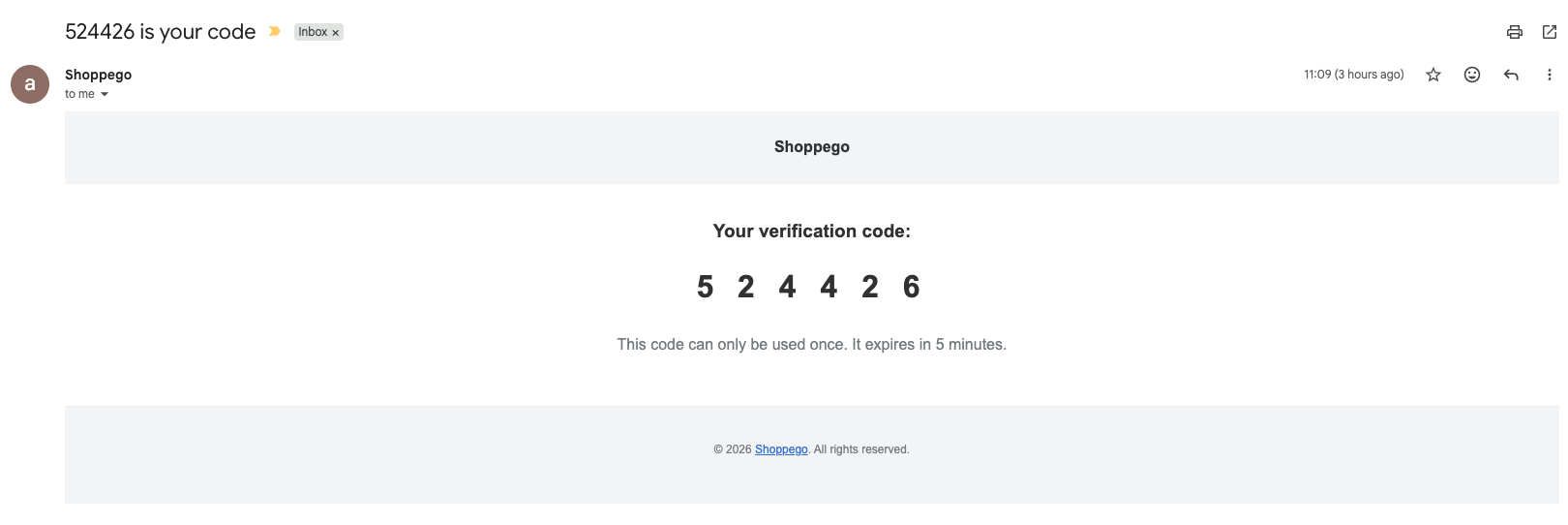
This is an example of an email that customers will receive:
<figure><img src="https://3359028955-files.gitbook.io/~/files/v0/b/gitbook-x-prod.appspot.com/o/spaces%2F-Lh09fNwqqta5Vj6Wr8p%2Fuploads%2Fgit-blob-a0fee543916840446bb41ba1660c4a1974ba1096%2F0EFMQoTeLGA9ORnRaMZA.png?alt=media" alt=""><figcaption></figcaption></figure>