> For the complete documentation index, see [llms.txt](https://docs.shoppego.my/tutorials/llms.txt). Markdown versions of documentation pages are available by appending `.md` to page URLs; this page is available as [Markdown](https://docs.shoppego.my/tutorials/en/online-store/menus/main-menu.md).
# Main Menu
Two steps for setting up menus by linking Page or Categories :
1. Creating **Page/Category**:
Tutorial to **create pages**: [Pages](/tutorials/en/online-store/pages/build-pages.md)
{% content-ref url="/pages/vbhtT4MWUO5DUswHVNbV" %}
[Build pages](/tutorials/en/online-store/pages/build-pages.md)
{% endcontent-ref %}
Tutorial to **create Categories**: [Categories](/tutorials/en/products/categories.md)
{% content-ref url="/pages/uuKH7DD5HX8fxPxYodny" %}
[Categories](/tutorials/en/products/categories.md)
{% endcontent-ref %}
## **Part 1 : Create Main menu**.
Log in to your account and head over to dashboard **Online Store** -> **Menus** and you will see this section.

Click on the word **Main Menu**. A display similar to the one below will appear. Be advised there are tabs for the **Menu** and also tabs for **Menu Items**.
{% hint style="info" %}
Note: **Pages** or **Categories** should only be added to the **Menu Items** and **not the Menu**.
{% endhint %}

## Part 2 : Create Menu Items
Click the **Menu Items** tab and make sure this kind of section comes out then click on **Menu items.**
{% hint style="info" %} \*\*Note\*\*: \*\*Pages\*\* or \*\*Categories\*\* should only be added to the \*\*Menu Items\*\* and \*\*not the Menu\*\*.
{% endhint %}

Next, click the "**Add menu item**" button. In the **Title** field, enter any name that represents your **page**.
In the link field, **only enter the handle.**
* **Pages**: **/pages/your-page-name**
* **Categories**: **/categories/your-category-name**
{% hint style="info" %}
\*\***Attention**: Make sure you **do not**** put a space** between **/** and your **page name**. Same goes with categories.
{% endhint %}
For example:
* **/pages/your-page-name** ✅
* **/pages/****<->****your-page-name**❌
### 1 : To get the link for Pages
There are **two ways** to get the link according to your builder interface:
1. **Pages**: Go to **Online store** -> **Pages** -> click on the **Edit** button on the **Page** name and copy the **URL**.

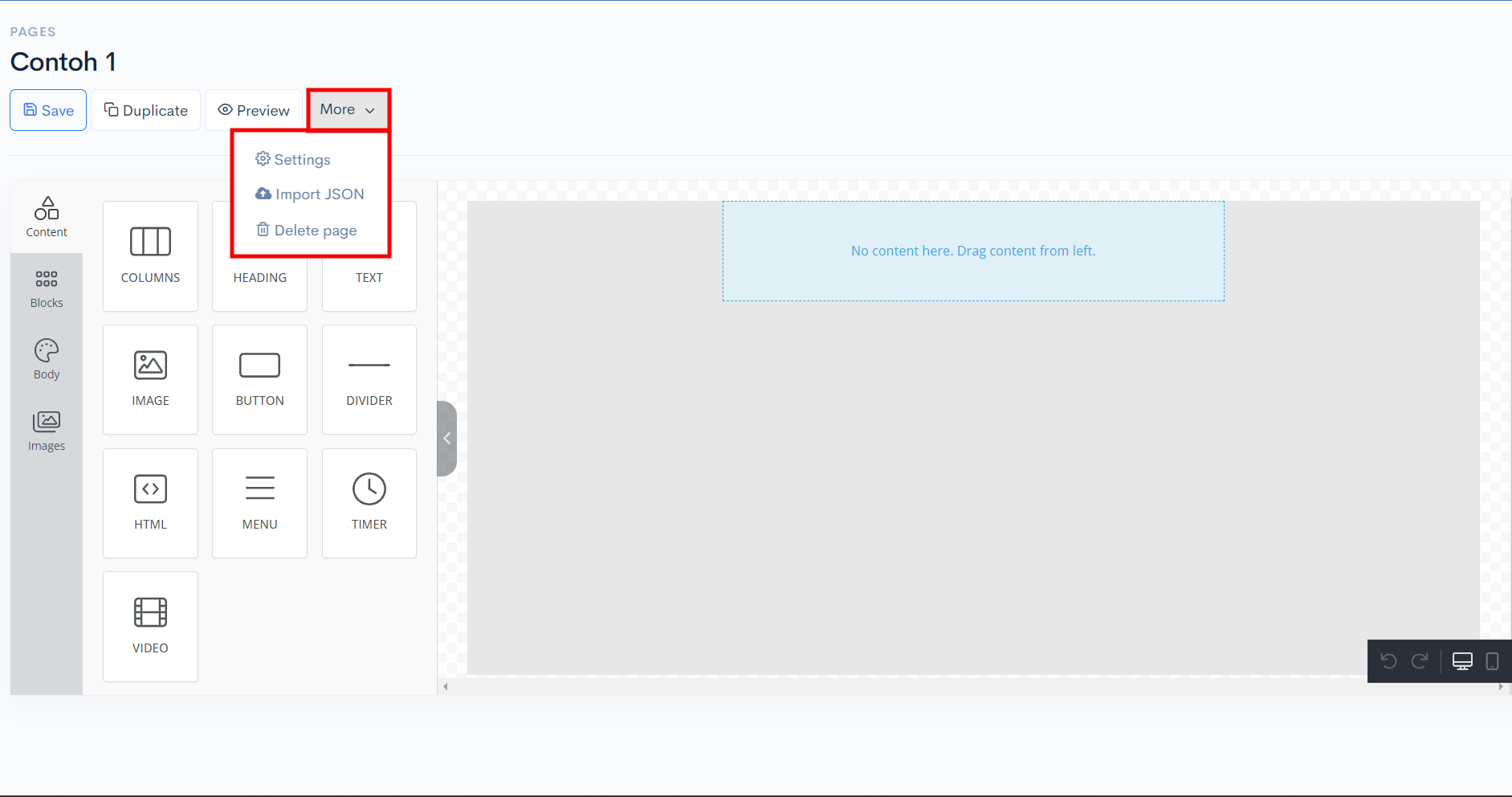
2. **Pages**: Go to **Online store** -> **Pages**-> **Edit** -> **More** -> **Settings** -> **SEO** -> copy **URL**.
### 2 : To get Link for Categories
**Categories**: go to **Products** -> **Categories** -> click **Edit** on **categories** -> click **SEO** tab copy **URL**

Paste the **URL** in Link **textfield**. The example are below.
{% hint style="info" %} \*\*Note\*\*: Please ensure that the \*\*spelling in the Link menu items\*\* that you have \*\*copied from SEO\*\* \*\*Pages\*\* and \*\*SEO Categories\*\* is the \*\*same\*\*.
{% endhint %}

Click Add button and you will see new menu list on your web.

## Part 3 : Function of Drag and Drop
### 1 : Dropdown Menu
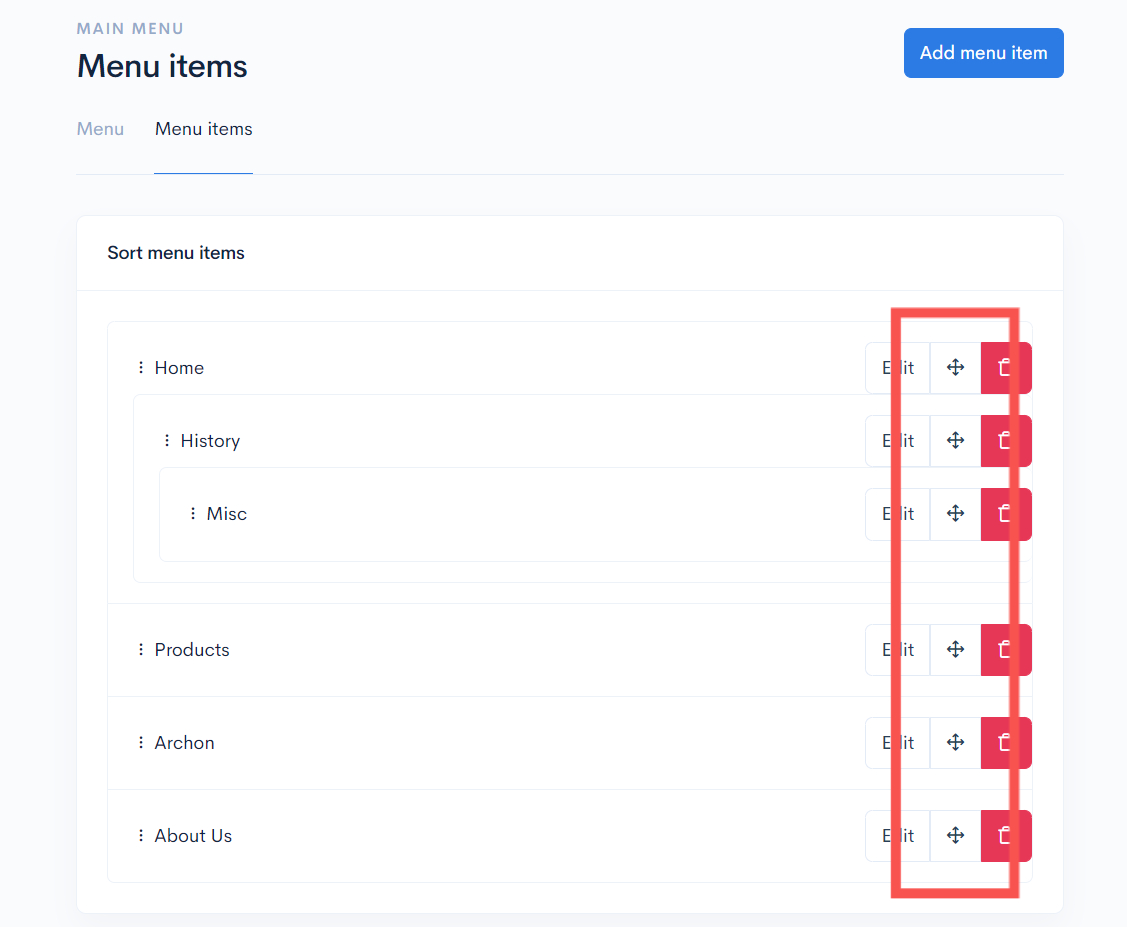
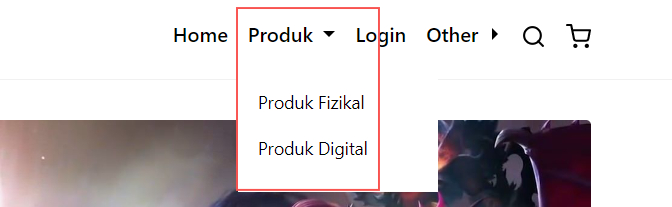
You can also perform the **Drag and Drop function** on your **menu items**. Simply hover the mouse pointer to the arrow icon and click to **DRAG and DROP.**
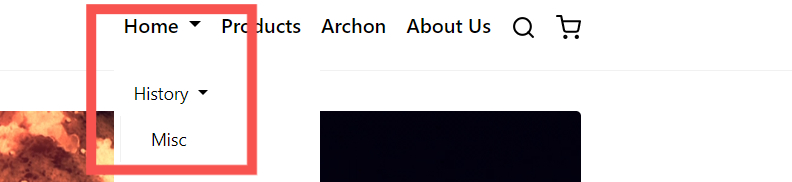
And then, you will be able to see the display on the **menu on your website has changed.**
### 2 : Dropdown Header Link
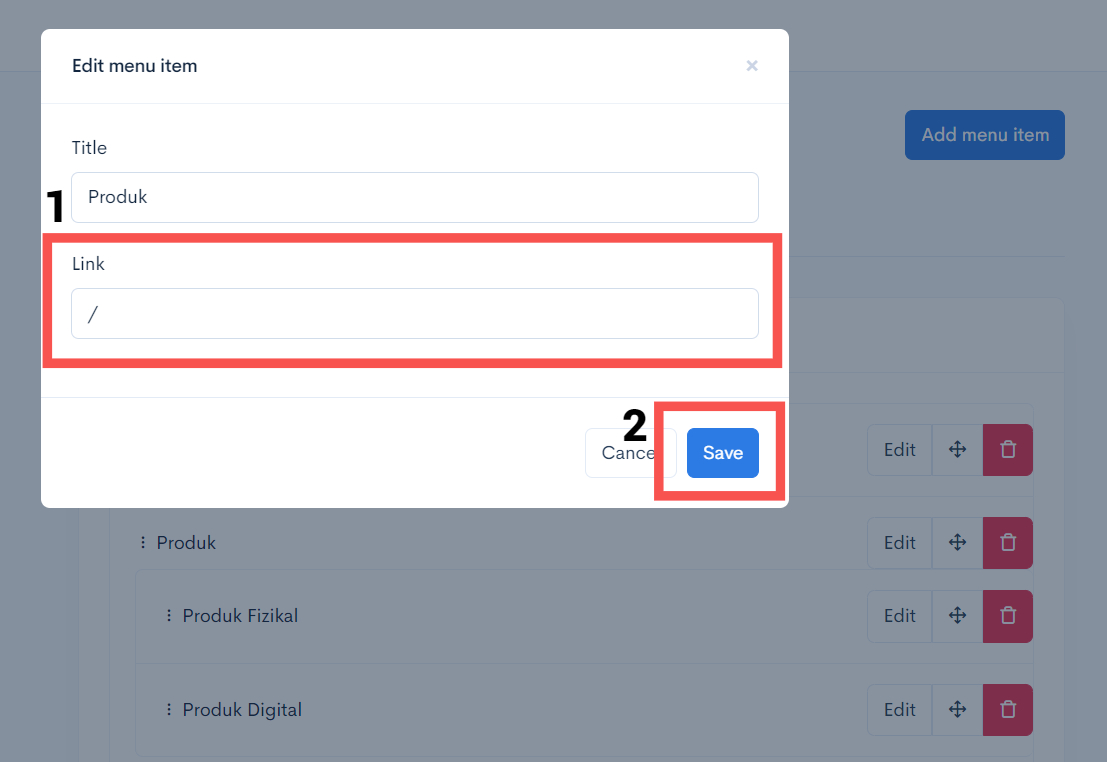
If you want to create a **header for a menu** **without**** a specific link**, you just need to **put a /** in the **Link field (1)**. After that, you can press the **Save button (2)**.
Your menu display will look like the following:
{% hint style="info" %}
The tier dropdown can only be created up to **3 tiers** only.
{% endhint %}