> For the complete documentation index, see [llms.txt](https://docs.shoppego.my/tutorials/llms.txt). Markdown versions of documentation pages are available by appending `.md` to page URLs; this page is available as [Markdown](https://docs.shoppego.my/tutorials/en/overview/plan-settings.md).
# Plan Settings
You can manage your store's pricing subscription to change your plan or close your store entirely. Your pricing plan determines the Shoppego features and functions available to your store, as well as your monthly or annual costs.
To set up a subscription you need to go to the plan selection page on the Shoppego dashboard.
## On this page:
* [Access Plan Page](#access-plan-page)
* [Choose/Switch Subscription](#choose-or-switch-subscription)
* [Update payment information](#update-payment-information)
* [Cancel subscription](#cancel-subscription)
## Access Plan Page
1\. Log in to your Shoppego account
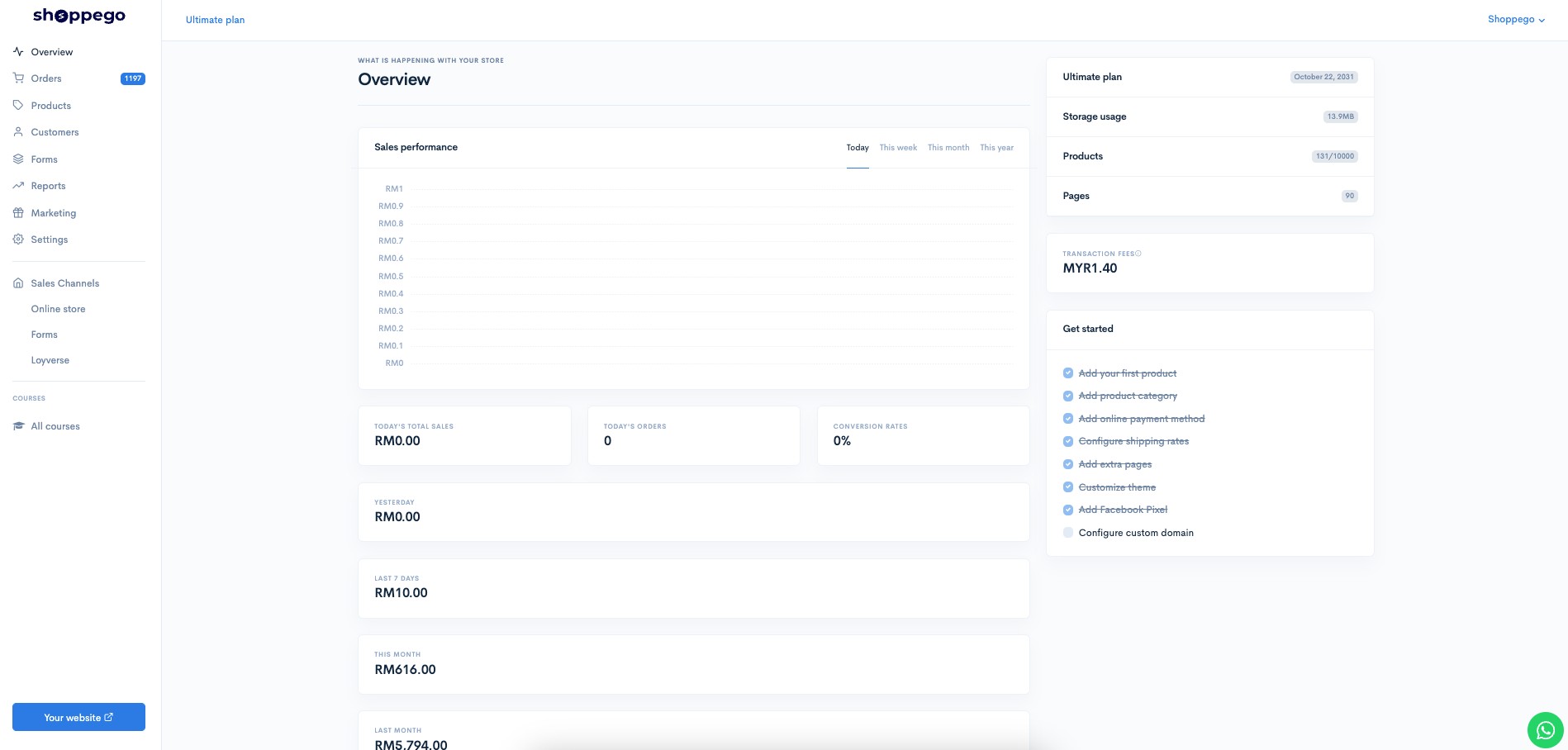
2\. Click on **your plan name (In the upper column)**

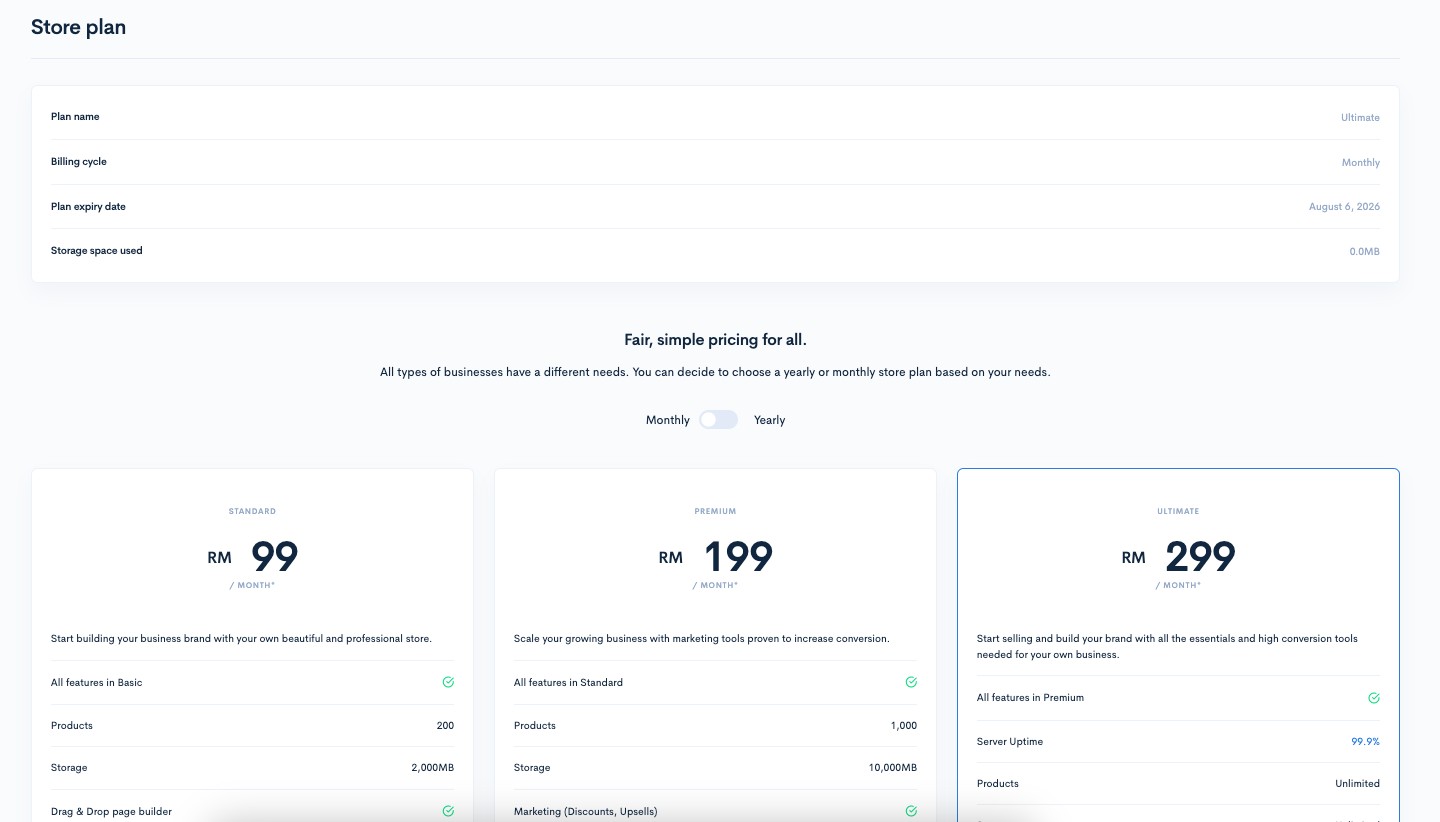
You will then see your existing subscription details as well as a selection of other plans.
Among the information you can view is:
| Parameters | Description |
| ---------------------- | ----------------------------------------------- |
| **Plan name** | Name of the existing subscription plan |
| **Billing cycle** | Existing subscription types: yearly or monthly. |
| **Plan expiry date** | Current subscription expiry date |
| **Storage space used** | The amount of storage that has been used |
## Choose or Switch Subscription
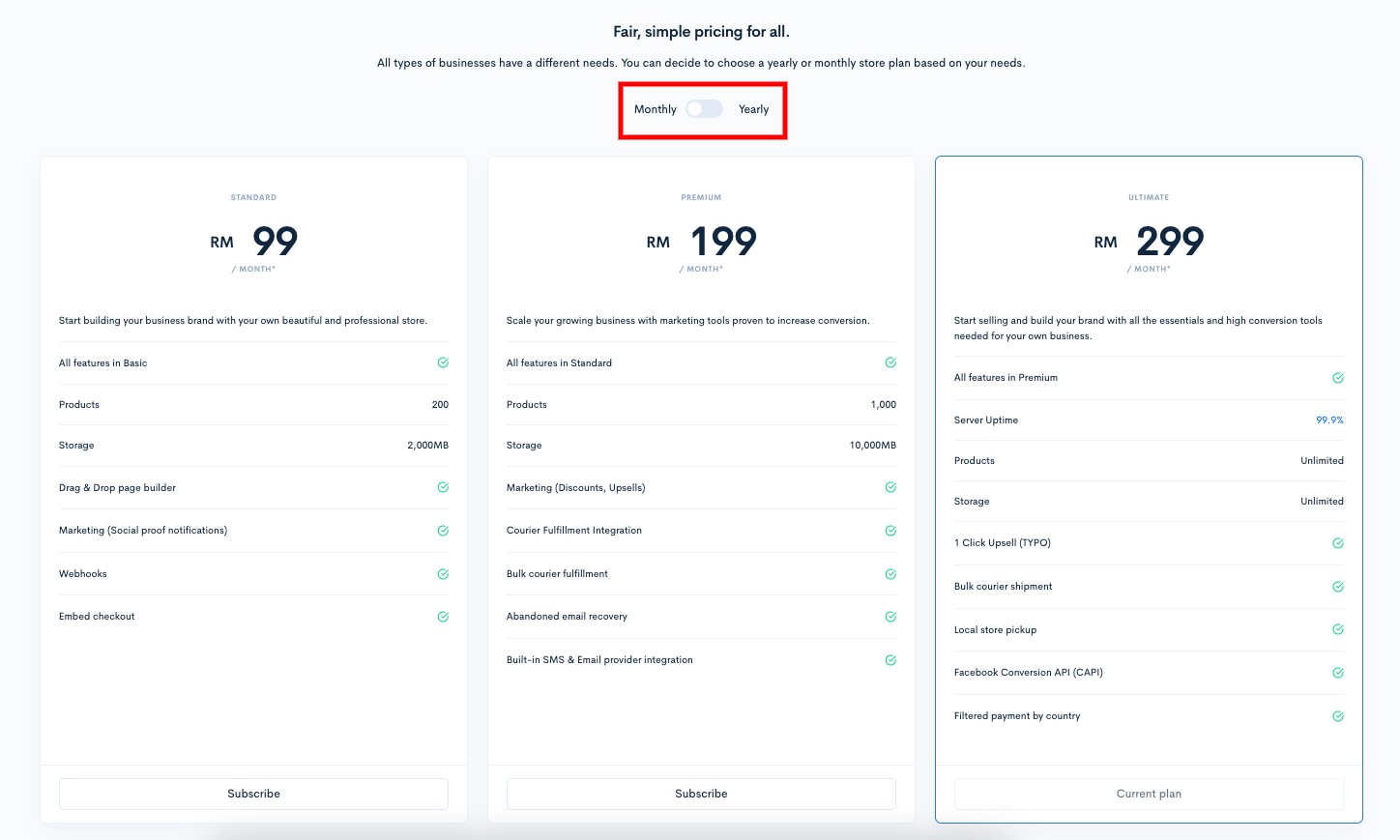
To subscribe or switch subscriptions, simply click the "**Subscribe**" button for the plan you want.

You can also select your preferred subscription type either monthly or yearly by clicking the **Monthly/Yearly** toggle.
## Update payment information
1. To update your payment information, you need to access the Stripe management dashboard by clicking the "**Manage plan**" button (located at the bottom of the page).

2. Next, you can view the settings available to you, such as **adding a card**, **changing card payment details**, **updating billing information**, and **reviewing invoices**.

## Cancel Subscription
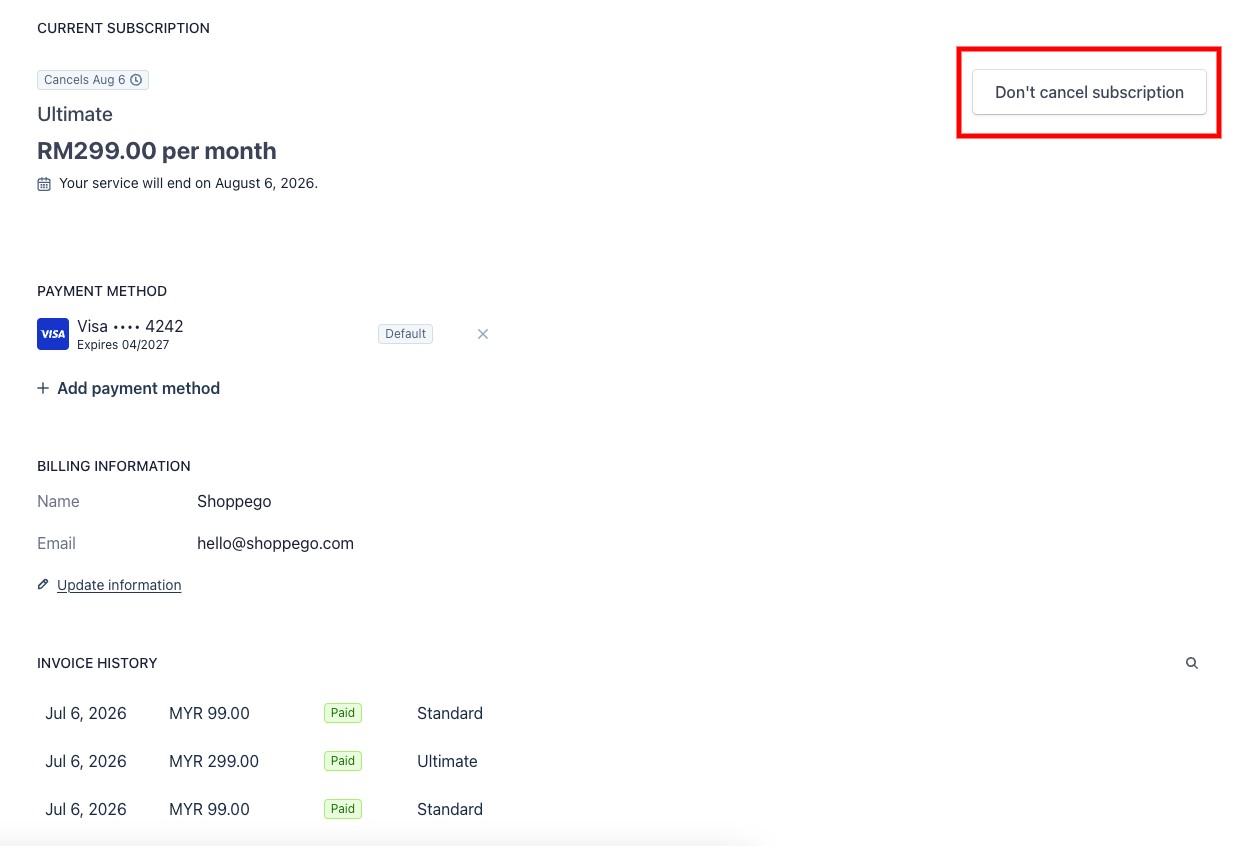
1. To cancel your subscription, you need to access the Stripe management dashboard by clicking the "**Manage plan**" button (located at the bottom of the page).

2. Next, you can click on the "**Cancel subscription**" button.

**Once completed, you will no longer be subject to any deductions for future subscriptions.**
If you wish to cancel the subscription cancellation, you can click the "**Don't cancel subscription**" button, and the usual charges will apply.
{% hint style="info" %}
**Additional information**: All payments are processed via the Stripe system. Shoppego does not store any sensitive payment information, and you can manage all your details through the billing page.
{% endhint %}