> For the complete documentation index, see [llms.txt](https://docs.shoppego.my/tutorials/llms.txt). Markdown versions of documentation pages are available by appending `.md` to page URLs; this page is available as [Markdown](https://docs.shoppego.my/tutorials/en/products/bundles/buy-1-bundle-and-clearance.md).

# Buy 1 Bundle and Clearance

In this tutorial scenario, you will set up a **Bundle product with clearance stock**.

Example products used in this scenario are **Tabby Pants Honey Mustard** and **Tabby Pants Teal Blue.** Follow the steps below to set up a **Bundle product with clearance stock:**

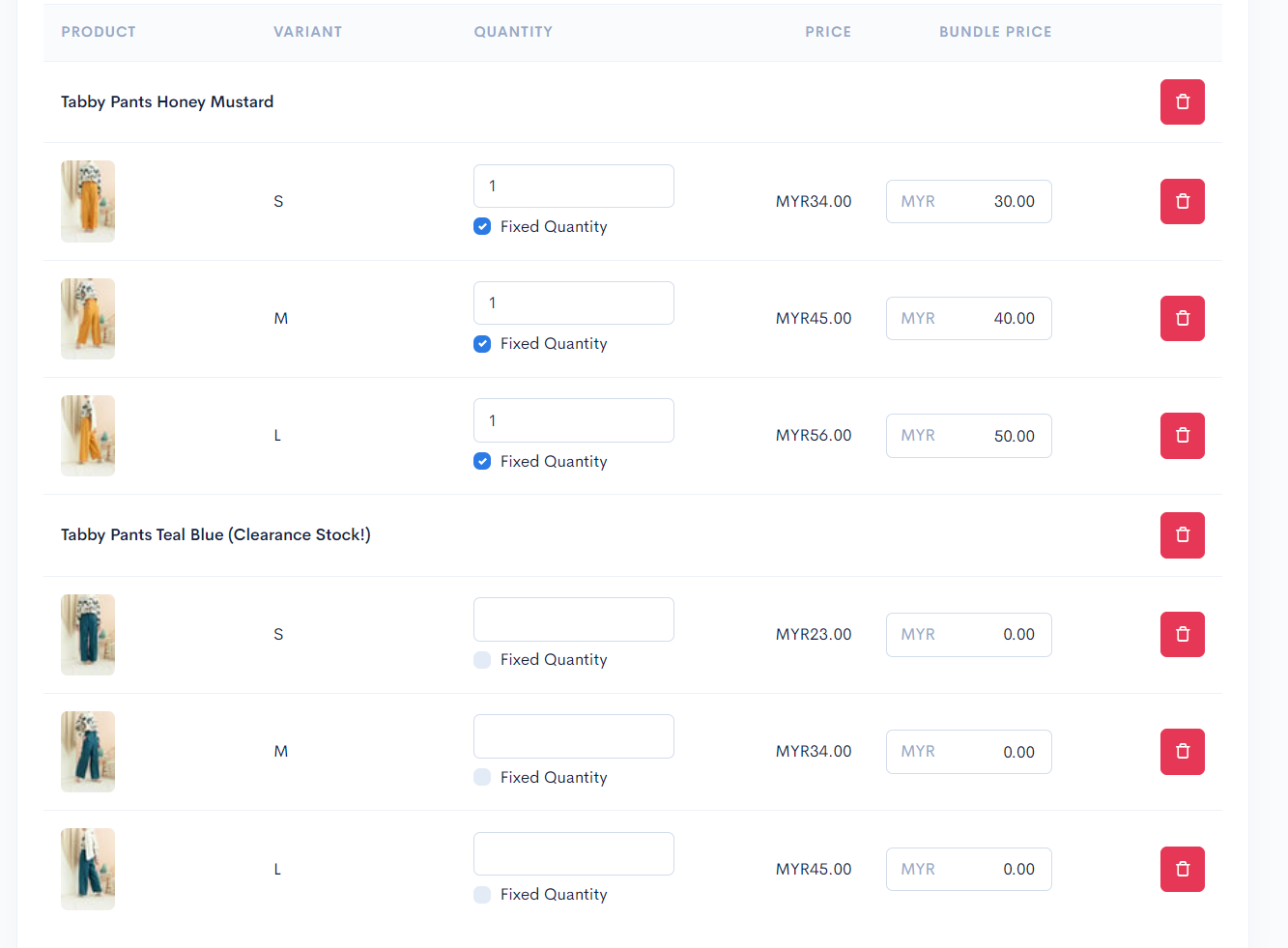
1. Add the products you want customers to buy to the bundle product, as shown below:

{% hint style="info" %}
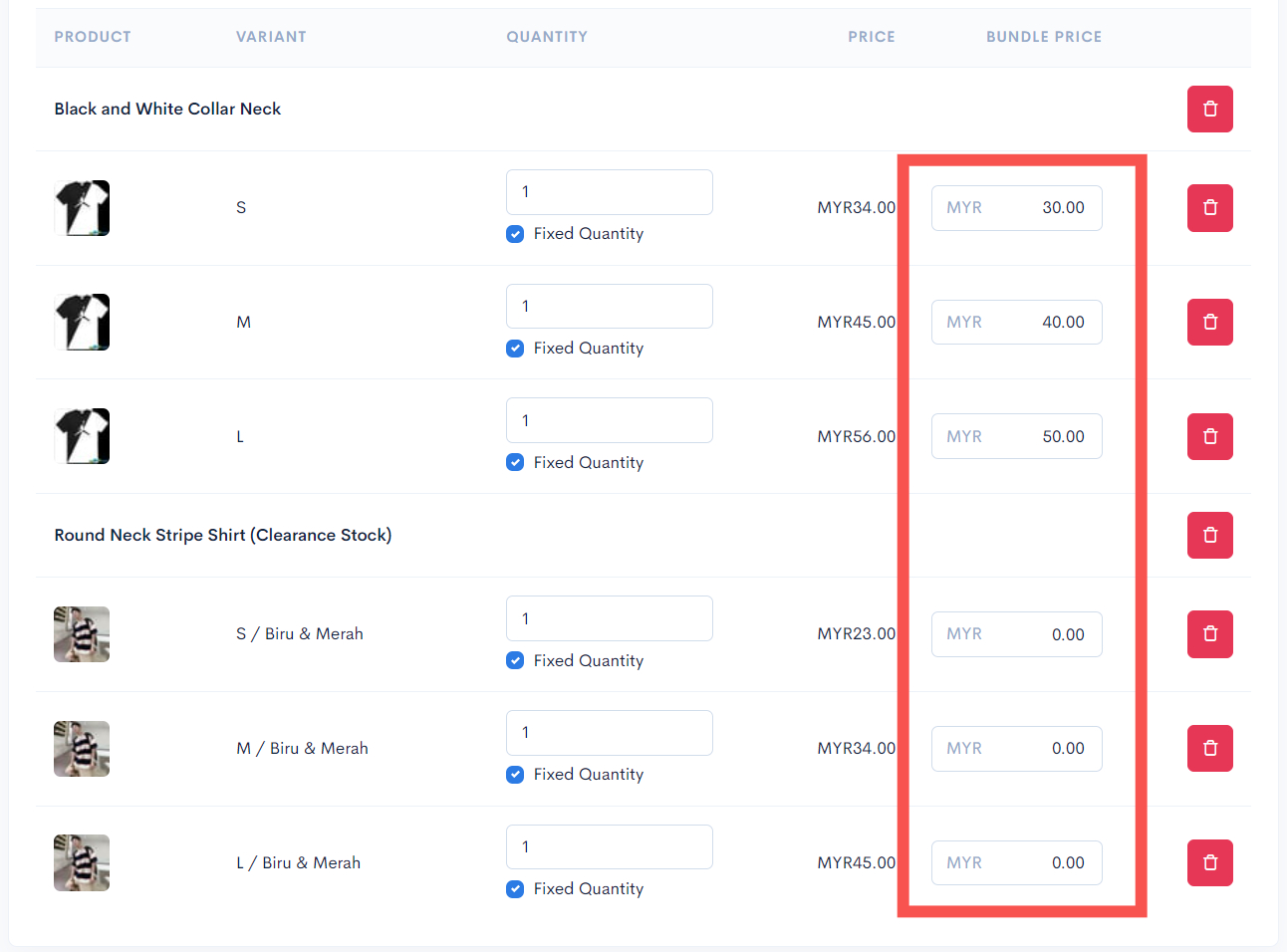
For the Clearance Item, you can either enter a **value of 0 (100% discount)** or **your own price** for the clearance stock.
{% endhint %}

<figure><img src="https://3359028955-files.gitbook.io/~/files/v0/b/gitbook-x-prod.appspot.com/o/spaces%2F-Lh09fNwqqta5Vj6Wr8p%2Fuploads%2Fgit-blob-6d73db353ffdde49a3c62920c185367d367603dc%2FhkqIESTCW4iX1V4uzRSa.png?alt=media" alt=""><figcaption></figcaption></figure>

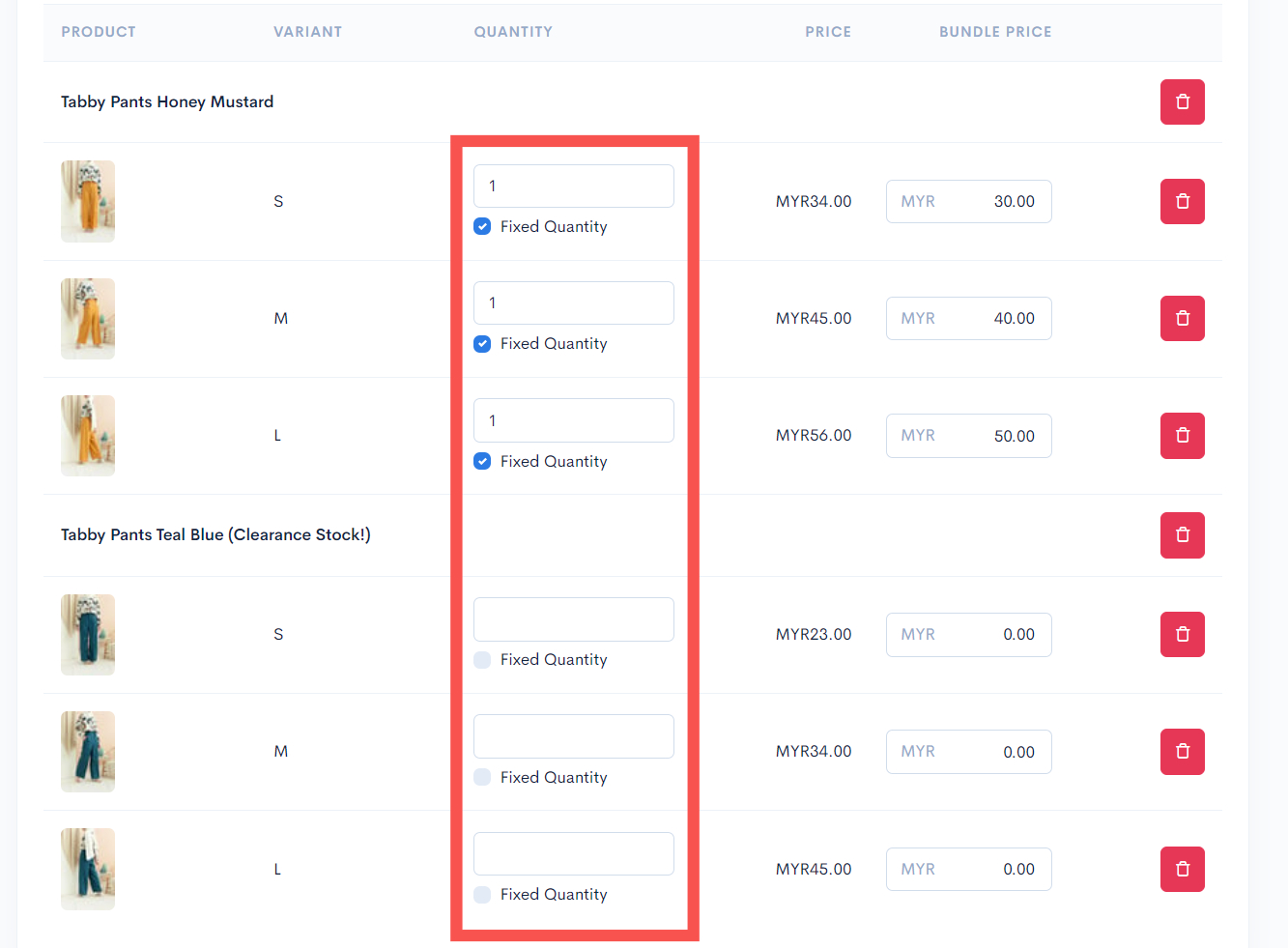
2. Tick the Fixed quantity checkbox for each product in the bundle and enter a value of 1 for each available quantity field.

{% hint style="info" %}
This setting ensures that customers can only choose one item per product.
{% endhint %}

<figure><img src="https://3359028955-files.gitbook.io/~/files/v0/b/gitbook-x-prod.appspot.com/o/spaces%2F-Lh09fNwqqta5Vj6Wr8p%2Fuploads%2Fgit-blob-81423009ec0d985bb94f3b517c5112eaab1b1388%2FCSmkXdJhwKO5Cy4ikgfe.jpg?alt=media" alt=""><figcaption></figcaption></figure>

3. Enter a price for each product in the Bundle price field.

<figure><img src="https://3359028955-files.gitbook.io/~/files/v0/b/gitbook-x-prod.appspot.com/o/spaces%2F-Lh09fNwqqta5Vj6Wr8p%2Fuploads%2Fgit-blob-ae20b30a73f47de94082fdea115c56795e0ae973%2F7fgbYqJwv3YNfL4YpzD5.jpg?alt=media" alt=""><figcaption></figcaption></figure>

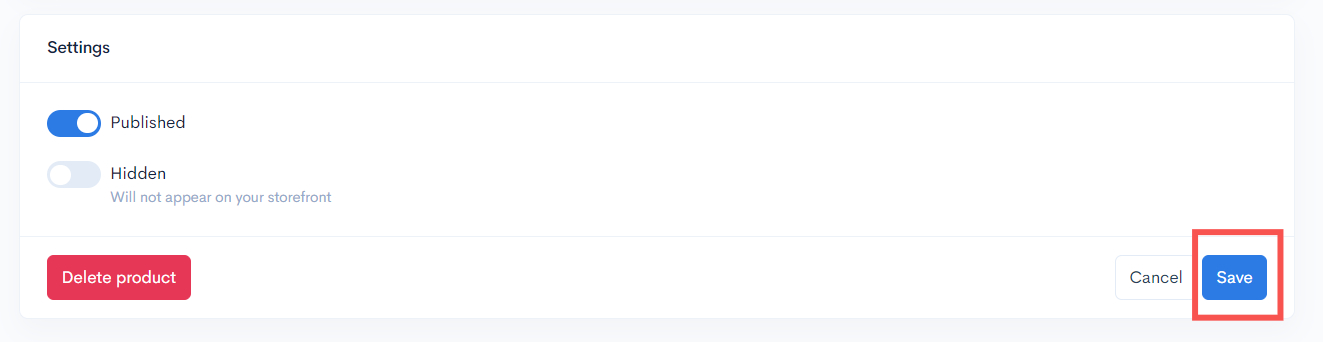
4. Click the Save button when finished.

<figure><img src="https://3359028955-files.gitbook.io/~/files/v0/b/gitbook-x-prod.appspot.com/o/spaces%2F-Lh09fNwqqta5Vj6Wr8p%2Fuploads%2Fgit-blob-2012f71eb93edf7d1f670cfa317cac5bbe0de59b%2FBoLE0GhYjoucs5BwyqGr.jpg?alt=media" alt=""><figcaption></figcaption></figure>

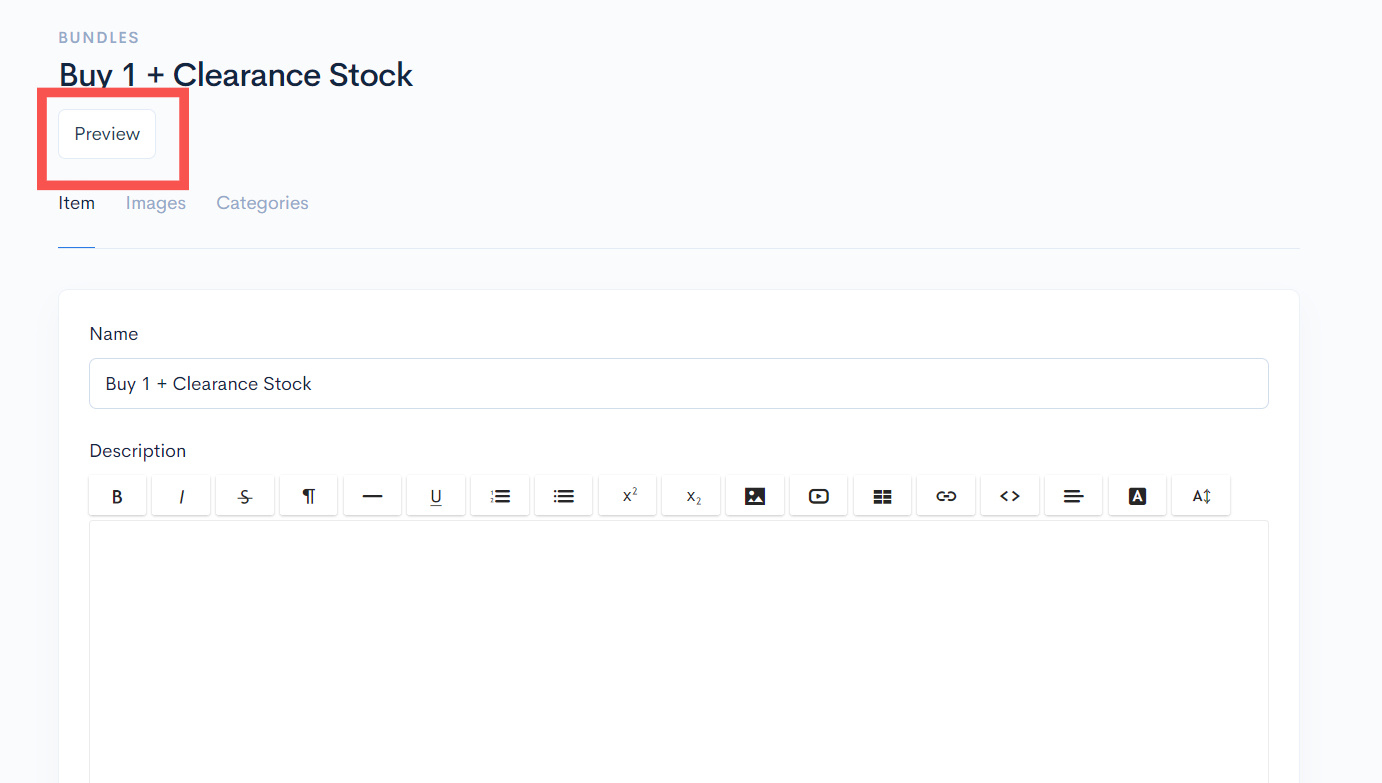
5. You can click the Preview button to see what your bundle product looks like and try to make a purchase.

<figure><img src="https://3359028955-files.gitbook.io/~/files/v0/b/gitbook-x-prod.appspot.com/o/spaces%2F-Lh09fNwqqta5Vj6Wr8p%2Fuploads%2Fgit-blob-338d8ff971223a24876b7cc13f4ee9993f03a187%2FwjP0lbbjTGgIfcY7LwES.jpg?alt=media" alt=""><figcaption></figcaption></figure>

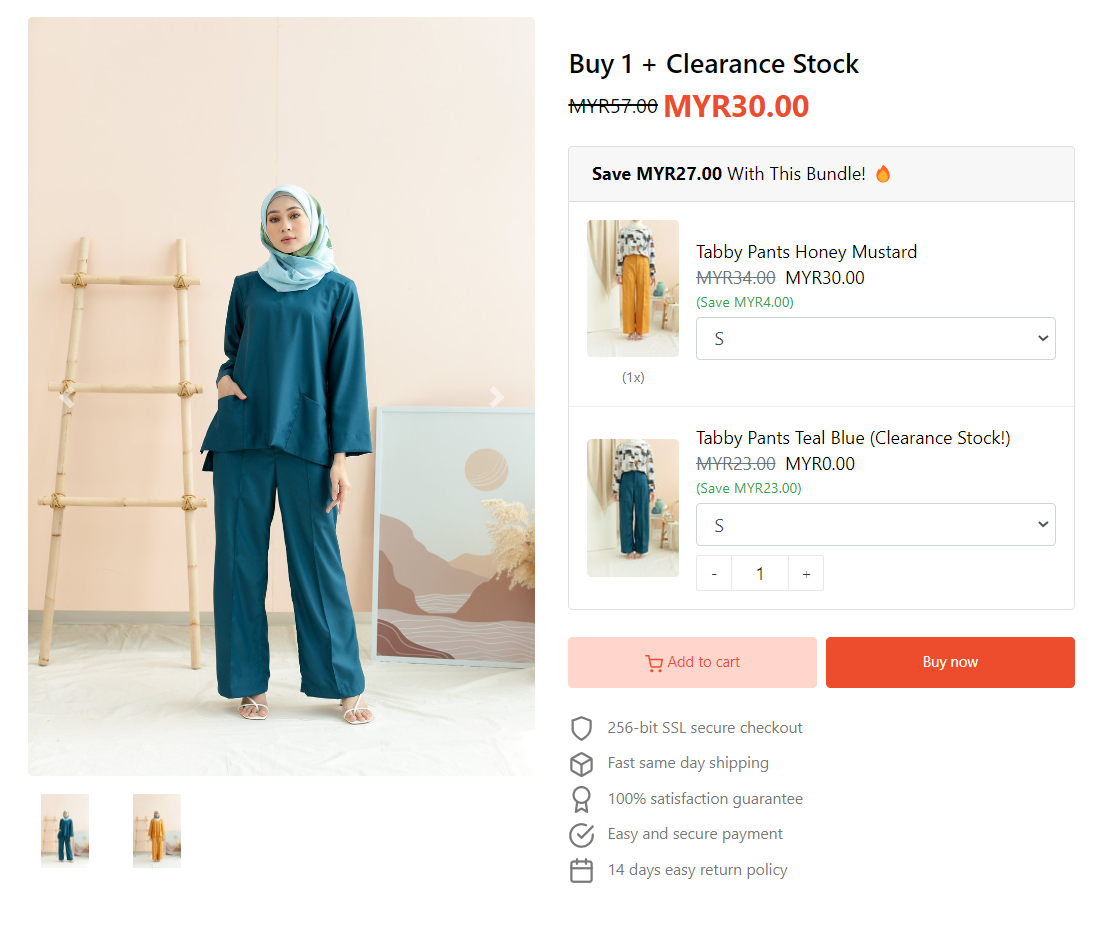
This is the display of the product bundle on the website (Themes Hartamas):
<figure><img src="https://3359028955-files.gitbook.io/~/files/v0/b/gitbook-x-prod.appspot.com/o/spaces%2F-Lh09fNwqqta5Vj6Wr8p%2Fuploads%2Fgit-blob-ce62069bbaf2bde8c82ddad035d66a2732dab9a9%2FrEDYkO5GLa3Xz8KllQ3X.png?alt=media" alt=""><figcaption></figcaption></figure>