> For the complete documentation index, see [llms.txt](https://docs.shoppego.my/tutorials/llms.txt). Markdown versions of documentation pages are available by appending `.md` to page URLs; this page is available as [Markdown](https://docs.shoppego.my/tutorials/en/products/bundles/buy-2-product-1-price.md).

# Buy 2 Product 1 Price

{% hint style="info" %}
To create a product bundle for this scenario, you will need to have **two different types of products.**
{% endhint %}

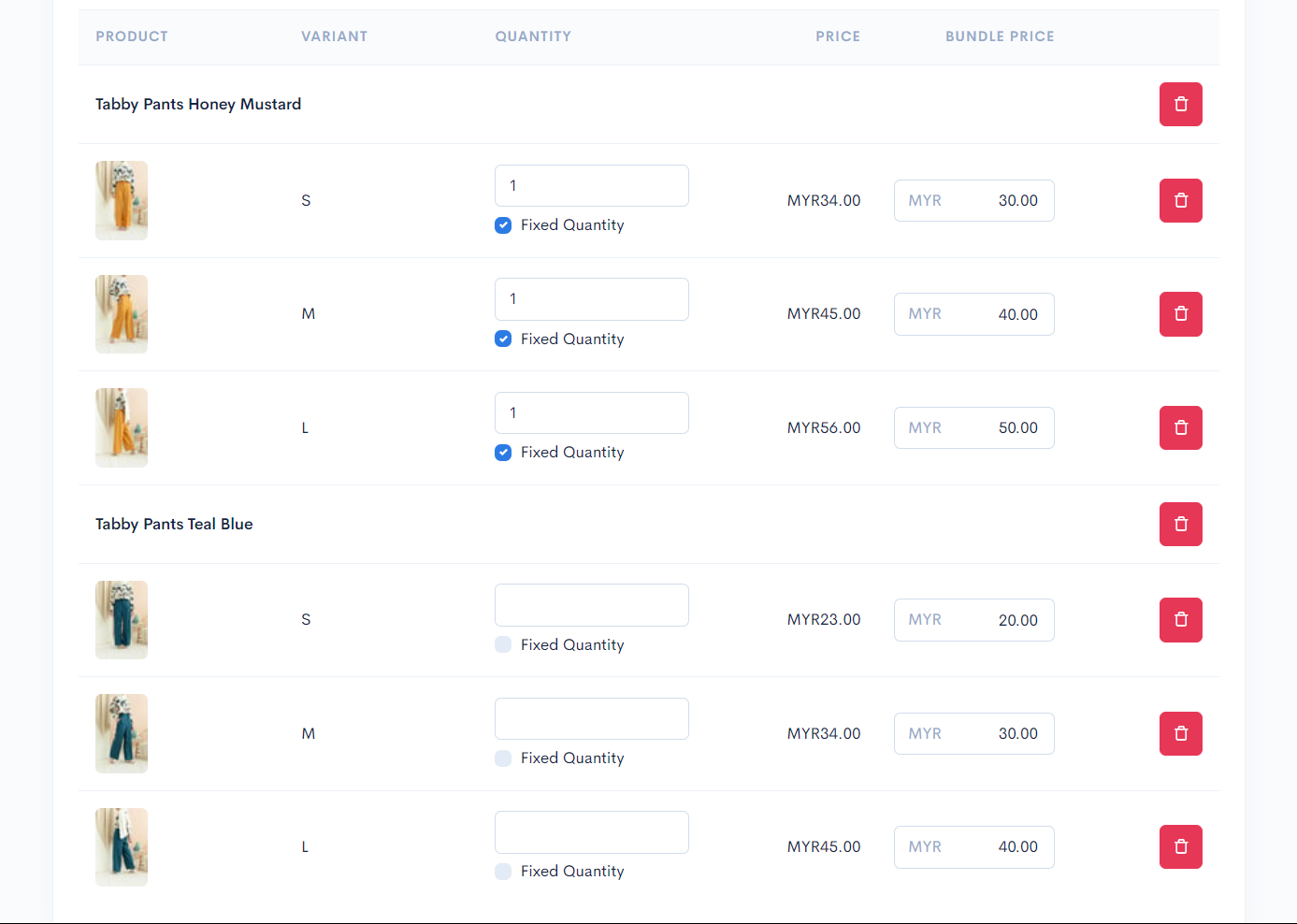
Example products used in this scenario are the **Tabby Pants Honey Mustard** and **Tabby Pants Teal Blue.** You can refer to the steps below for setting up the bundle product:

1. Enter the products that you want your customers to buy as shown in the following display:

<figure><img src="https://3359028955-files.gitbook.io/~/files/v0/b/gitbook-x-prod.appspot.com/o/spaces%2F-Lh09fNwqqta5Vj6Wr8p%2Fuploads%2Fgit-blob-611839522e7a98d900fb876161341b640e1e3572%2FQyZ8SqNaiECSNdT7YKWz.png?alt=media" alt=""><figcaption></figcaption></figure>

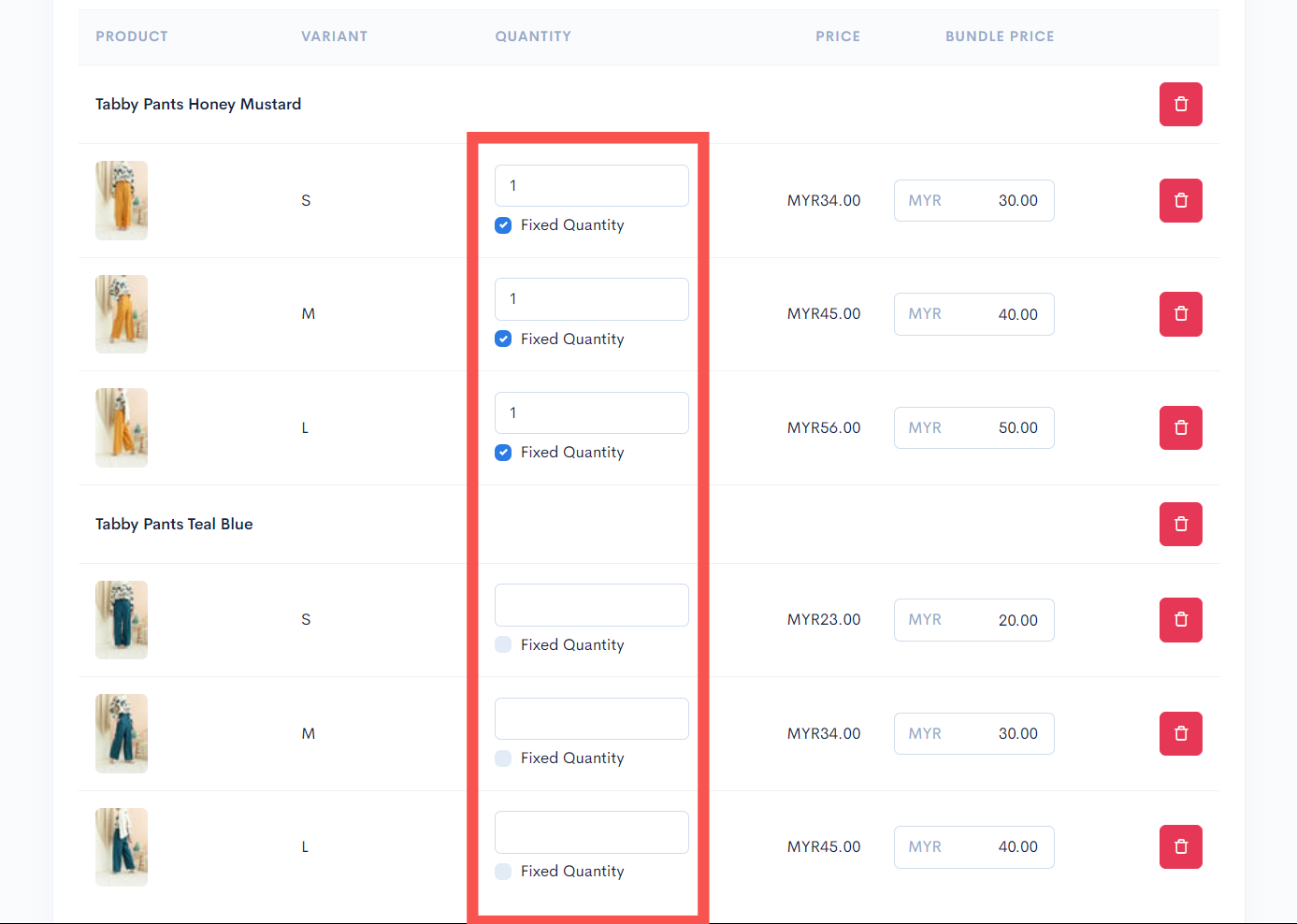
2. Then, you can tick the checkbox for **"Fixed quantity"** on each product setting and enter a value of 1 for each quantity field available.

{% hint style="info" %}
This setting ensures that customers can only **select one unit** for each product in the bundle.
{% endhint %}

<figure><img src="https://3359028955-files.gitbook.io/~/files/v0/b/gitbook-x-prod.appspot.com/o/spaces%2F-Lh09fNwqqta5Vj6Wr8p%2Fuploads%2Fgit-blob-2f473e49b1b0fd04ecbed38e277cf5cb8ba3b485%2FRqpOYmusBWHwR6yowsBj.jpg?alt=media" alt=""><figcaption></figcaption></figure>

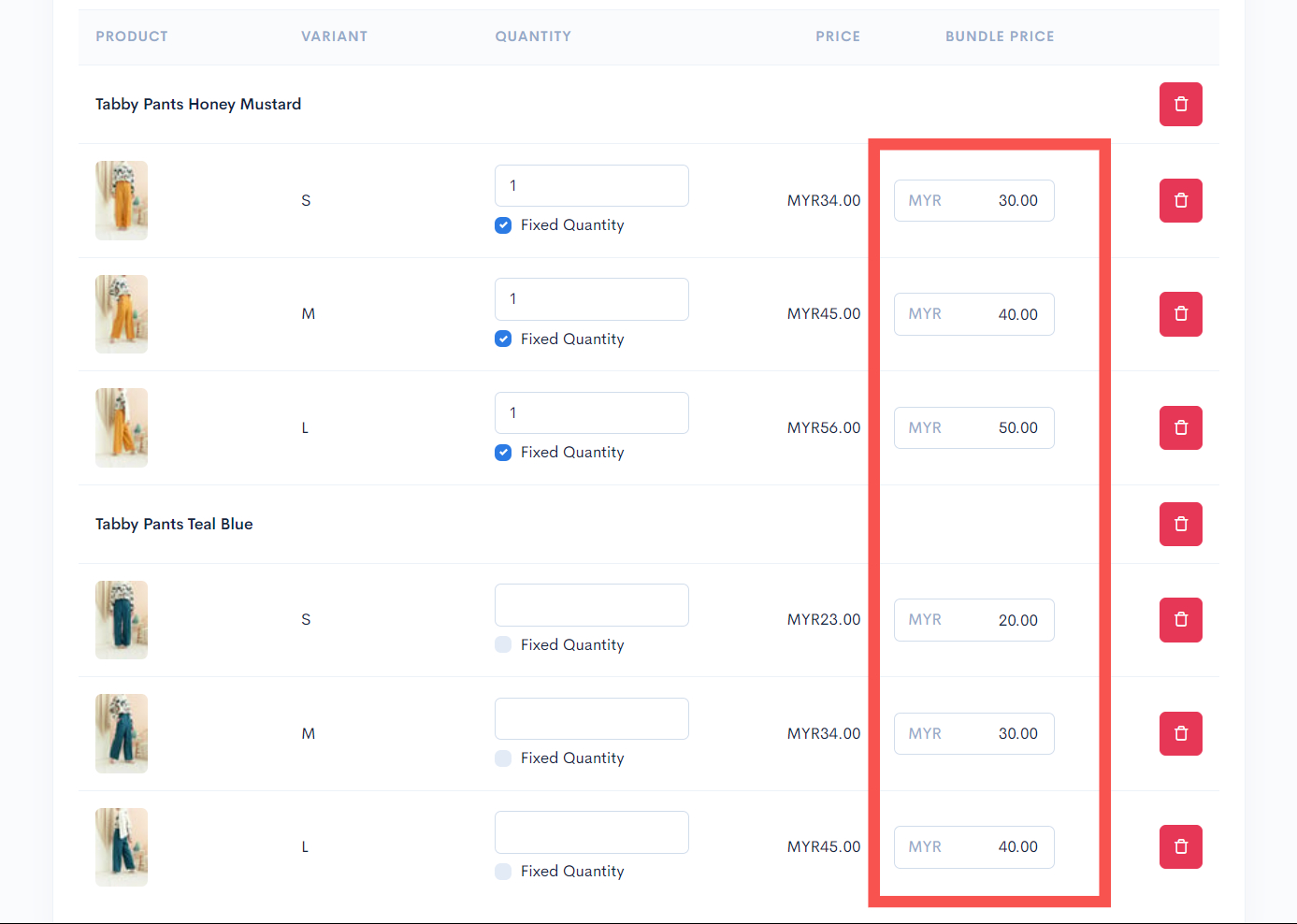
3. You can enter the price for each product.

<figure><img src="https://3359028955-files.gitbook.io/~/files/v0/b/gitbook-x-prod.appspot.com/o/spaces%2F-Lh09fNwqqta5Vj6Wr8p%2Fuploads%2Fgit-blob-380915b0a66393dcffa2d1fa30db2af730d0ce86%2Fb9ZqHuJjHos7KHsU0uqD.jpg?alt=media" alt=""><figcaption></figcaption></figure>

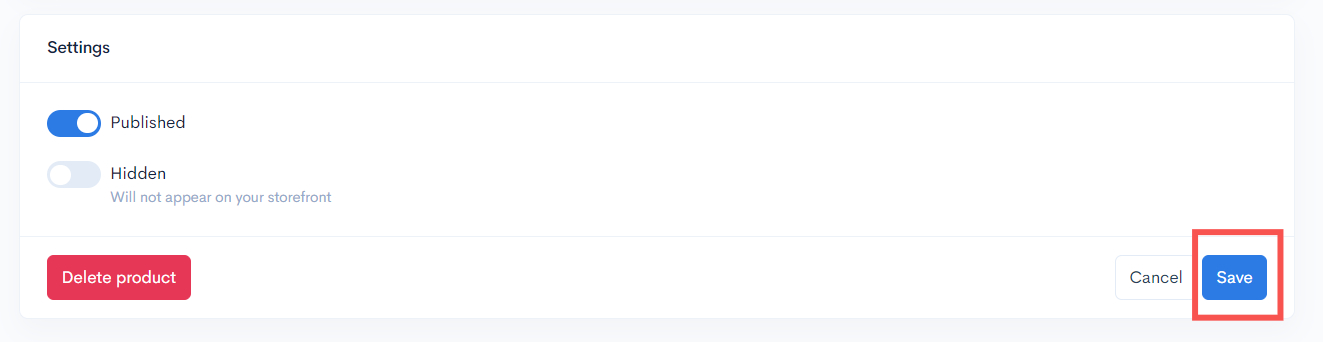
4. After you're done, click on the Save button.

<figure><img src="https://3359028955-files.gitbook.io/~/files/v0/b/gitbook-x-prod.appspot.com/o/spaces%2F-Lh09fNwqqta5Vj6Wr8p%2Fuploads%2Fgit-blob-2012f71eb93edf7d1f670cfa317cac5bbe0de59b%2FBoLE0GhYjoucs5BwyqGr.jpg?alt=media" alt=""><figcaption></figcaption></figure>

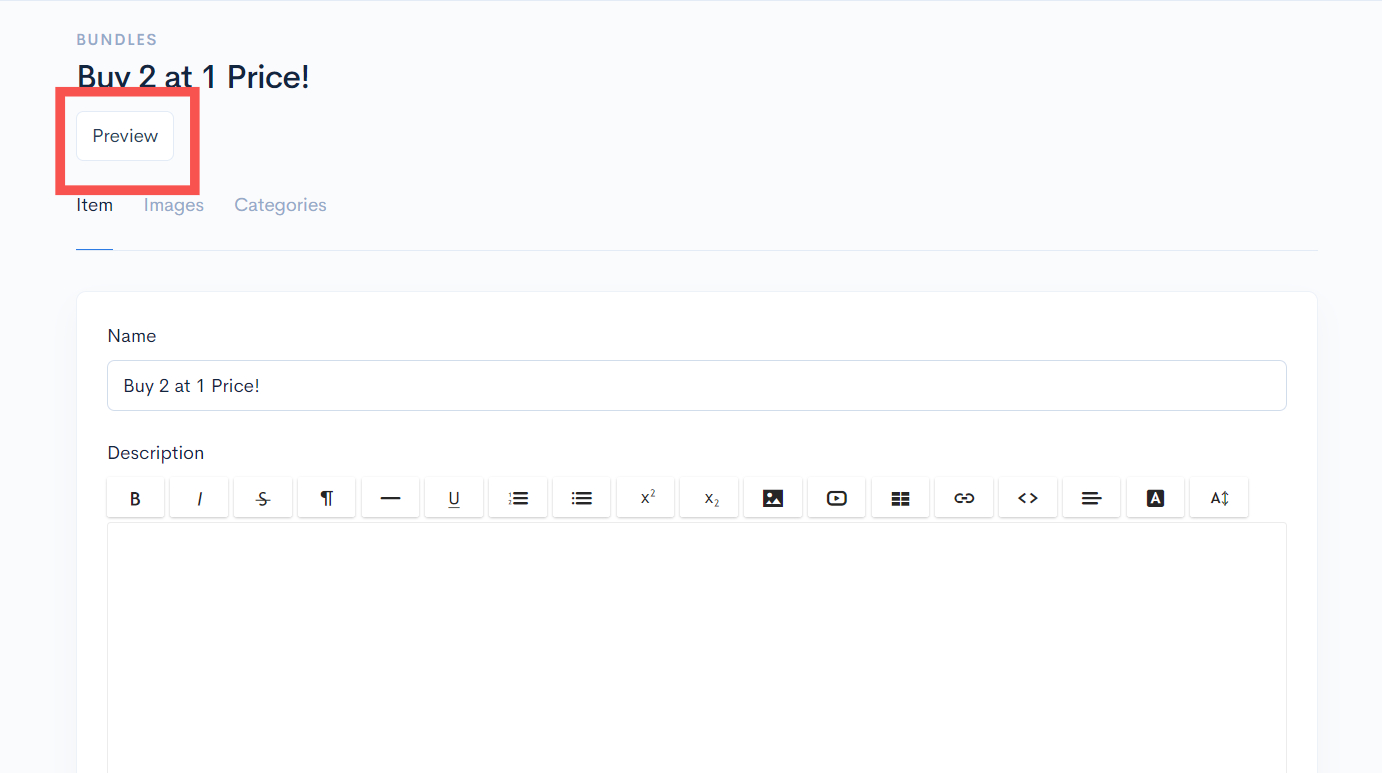
5. You can click on the Preview button to preview your product bundle and try to make a purchase.

<figure><img src="https://3359028955-files.gitbook.io/~/files/v0/b/gitbook-x-prod.appspot.com/o/spaces%2F-Lh09fNwqqta5Vj6Wr8p%2Fuploads%2Fgit-blob-787fb283206572c667504156279c22b4ce88c75c%2FhQwbjbp5sbfCrQaAOV7O.jpg?alt=media" alt=""><figcaption></figcaption></figure>

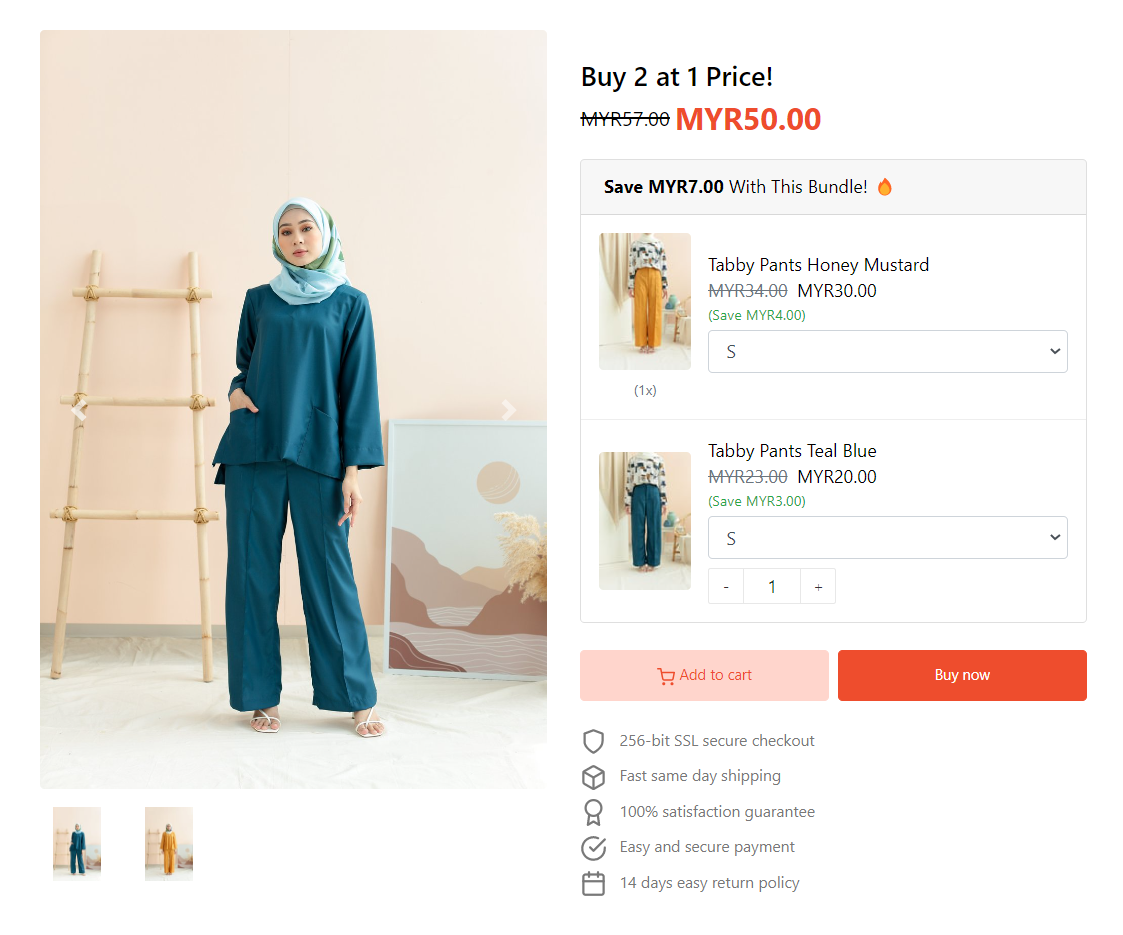
This is the display of the product bundle on the website (Themes Hartamas):
<figure><img src="https://3359028955-files.gitbook.io/~/files/v0/b/gitbook-x-prod.appspot.com/o/spaces%2F-Lh09fNwqqta5Vj6Wr8p%2Fuploads%2Fgit-blob-bd240f957aa507c10fd4710b12c782dbcbc9127d%2FN8YLTsUyYkPhJTYQg2fj.png?alt=media" alt=""><figcaption></figcaption></figure>