> For the complete documentation index, see [llms.txt](https://docs.shoppego.my/tutorials/llms.txt). Markdown versions of documentation pages are available by appending `.md` to page URLs; this page is available as [Markdown](https://docs.shoppego.my/tutorials/en/products/bundles/buy-3-for-rm-100.md).

# Buy 3 for RM 100

To set up a product bundle for this scenario, you can refer to the steps below:

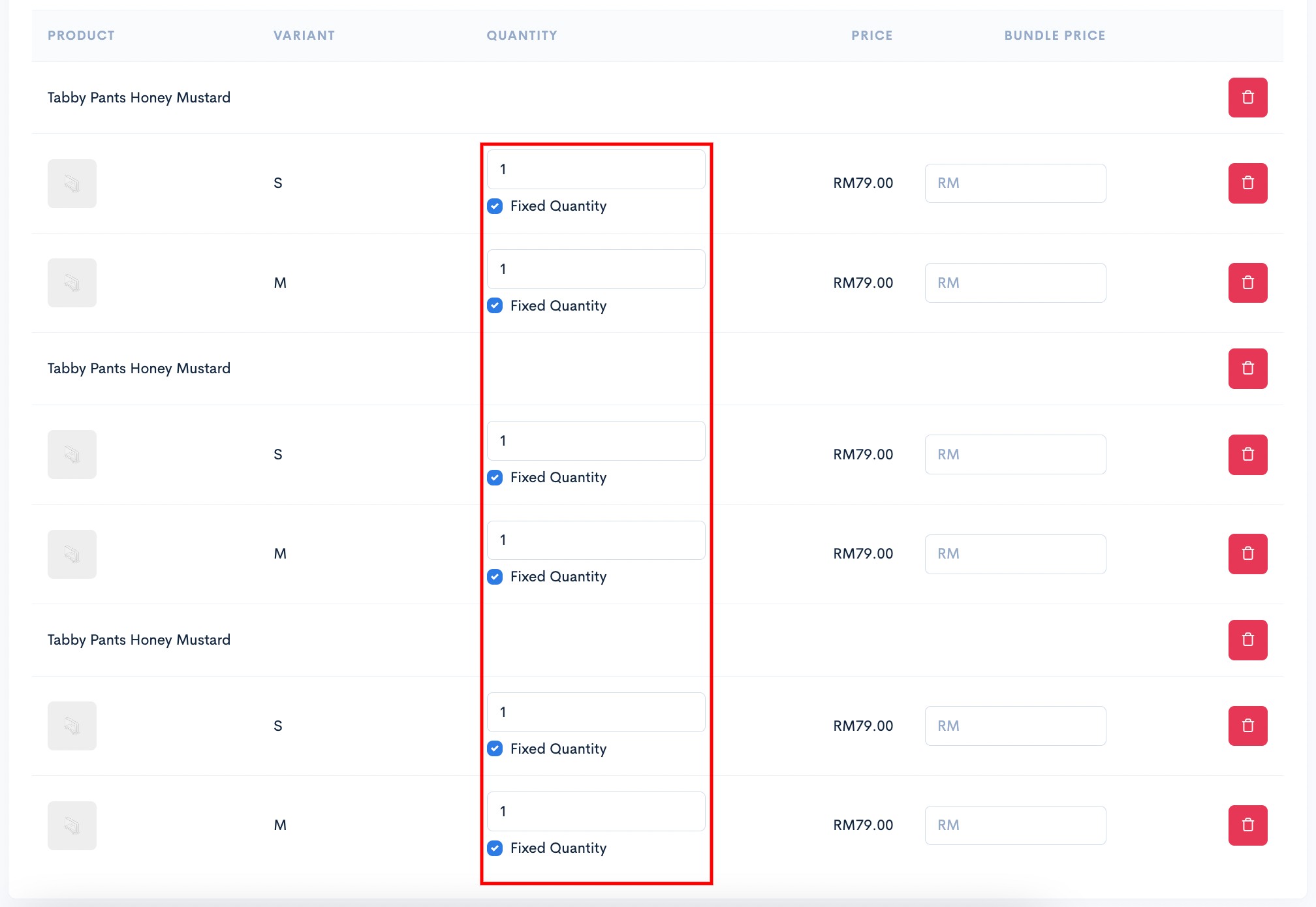
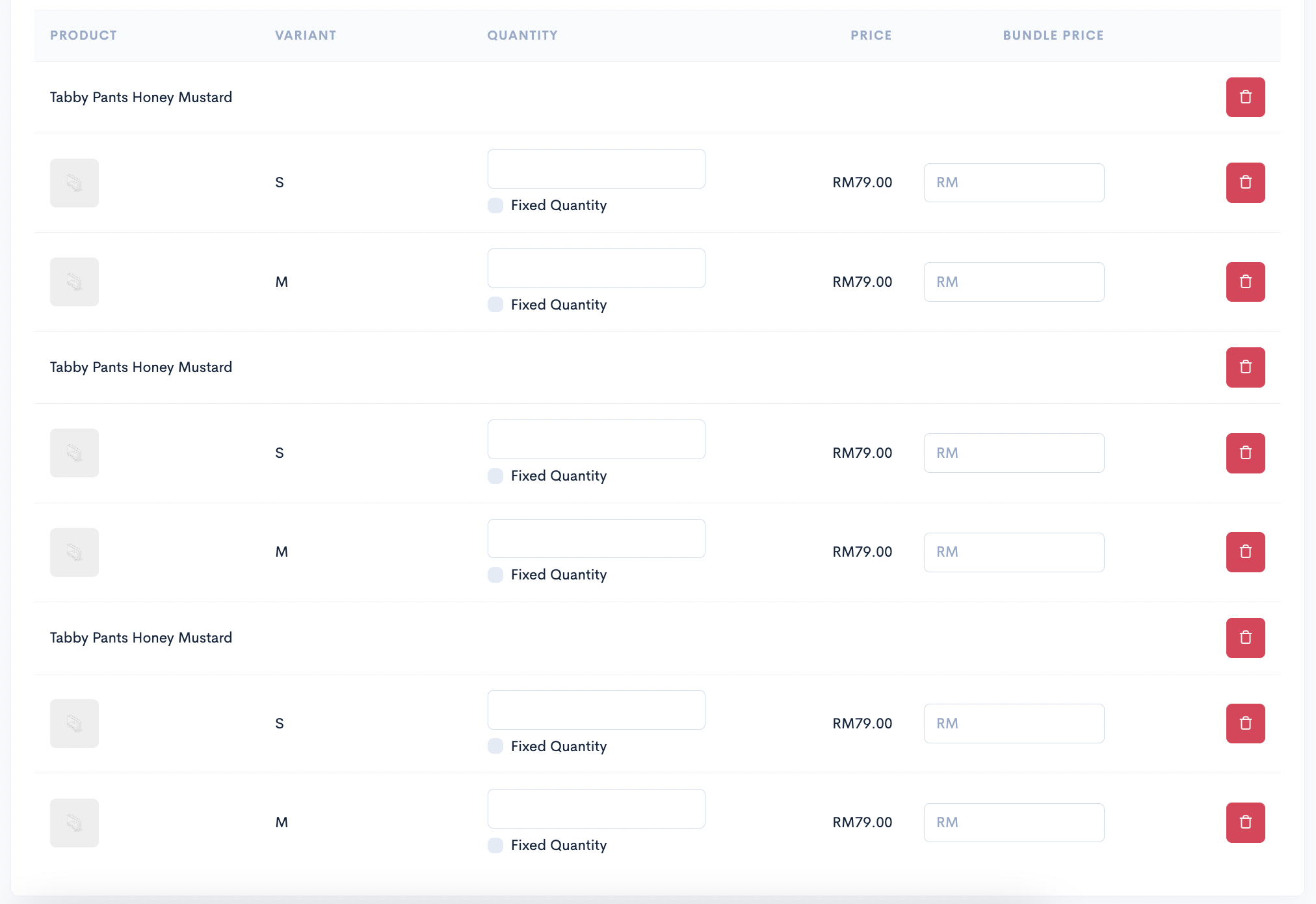
1. Firstly, you can add the product that you want customers to buy three times. Make sure you have added the product three times as shown in the display below:

<figure><img src="https://3359028955-files.gitbook.io/~/files/v0/b/gitbook-x-prod.appspot.com/o/spaces%2F-Lh09fNwqqta5Vj6Wr8p%2Fuploads%2Fgit-blob-7d5390da915b12cfd254659e7f5d85609ec311e0%2FivQ3YzWivXfM0CYf24QC.png?alt=media" alt=""><figcaption></figcaption></figure>

2. After that, you can tick on the Fixed quantity checkbox on each product setting and enter a value of 1 in each quantity field available.

{% hint style="info" %}
This setting will ensure that customers can **only choose 1** item for each product option.
{% endhint %}

<figure><img src="https://3359028955-files.gitbook.io/~/files/v0/b/gitbook-x-prod.appspot.com/o/spaces%2F-Lh09fNwqqta5Vj6Wr8p%2Fuploads%2Fgit-blob-ce0c42cacedad1d0179fd92d17dcac60a88116b3%2Fk3UaaVpx0ILA4N55aax9.jpg?alt=media" alt=""><figcaption></figcaption></figure>

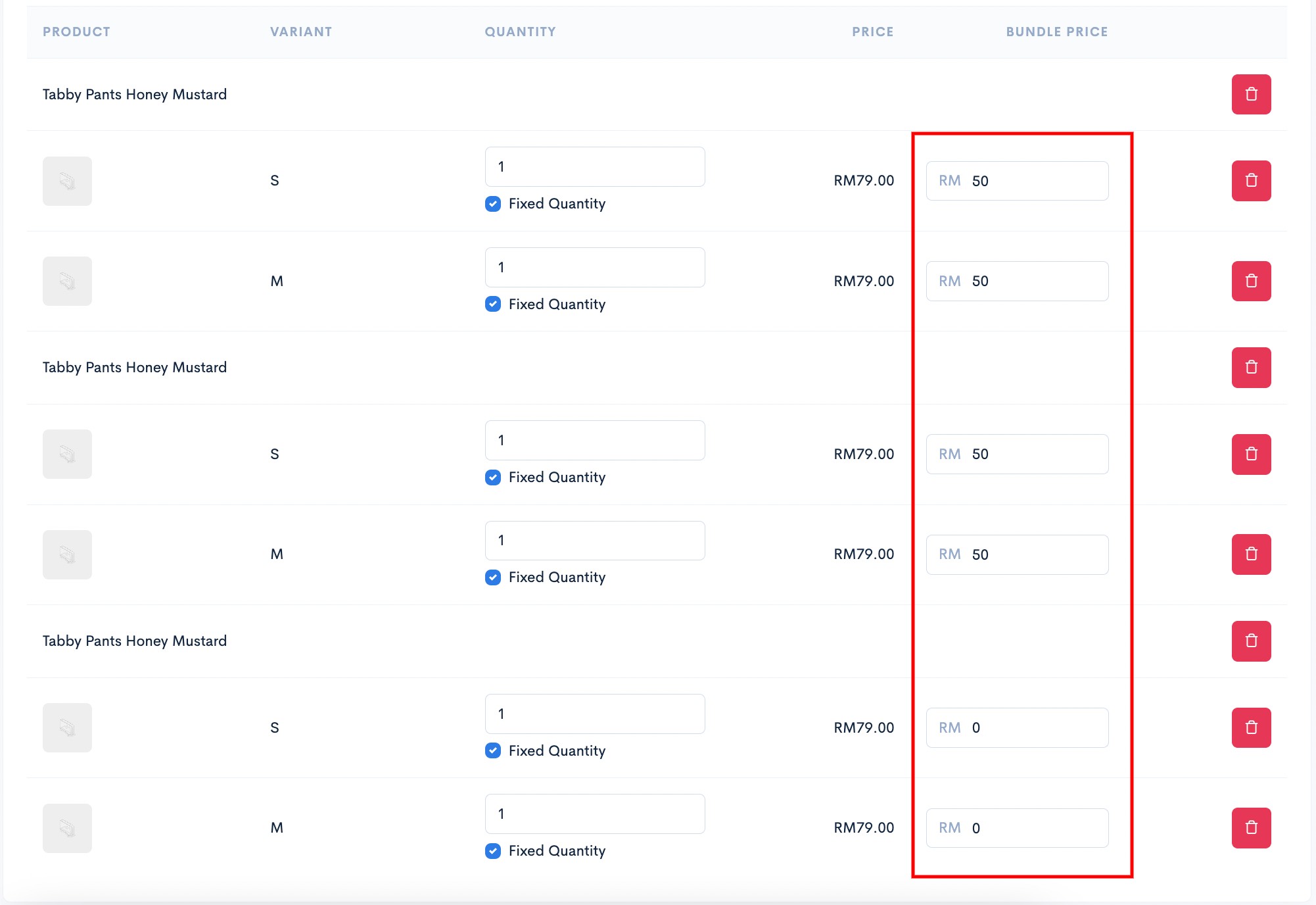
3. Next, you can enter the price for each product in the Bundle price field to ensure that the total amount for the three products is RM100 as you desire. You can also enter the value of 0 in this field.

<figure><img src="https://3359028955-files.gitbook.io/~/files/v0/b/gitbook-x-prod.appspot.com/o/spaces%2F-Lh09fNwqqta5Vj6Wr8p%2Fuploads%2Fgit-blob-12fd773555fbe9261fa14af6db8c0161e635b5e3%2FCP37P36DkjraOYJAy1jQ.jpg?alt=media" alt=""><figcaption></figcaption></figure>

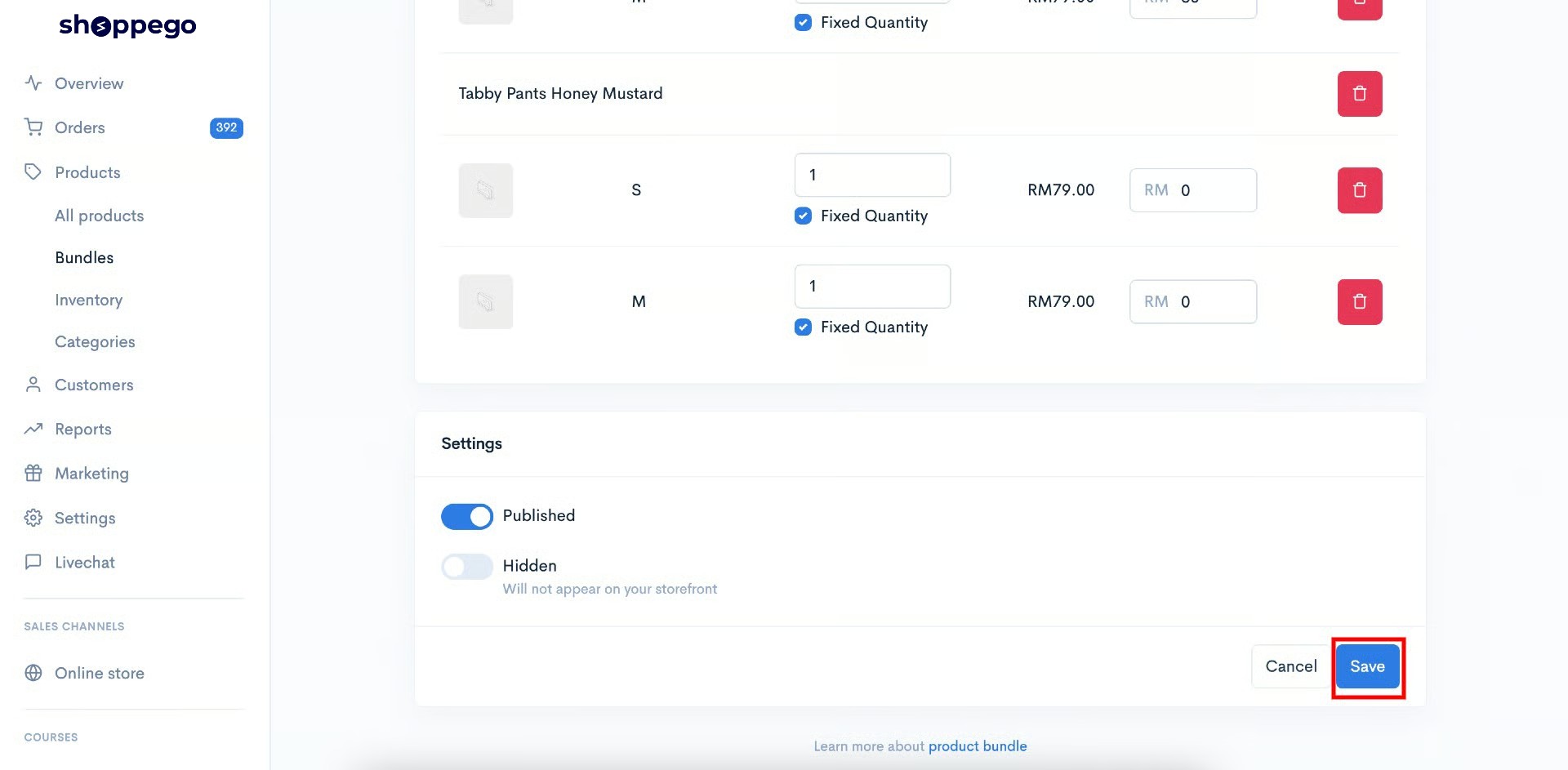
3. After finishing the setup, click on Save.

<figure><img src="https://3359028955-files.gitbook.io/~/files/v0/b/gitbook-x-prod.appspot.com/o/spaces%2F-Lh09fNwqqta5Vj6Wr8p%2Fuploads%2Fgit-blob-0485f93e02d76279073700db3f8937e0063c9063%2FA6GKOClhgXfmzyTcQXRj.jpg?alt=media" alt=""><figcaption></figcaption></figure>

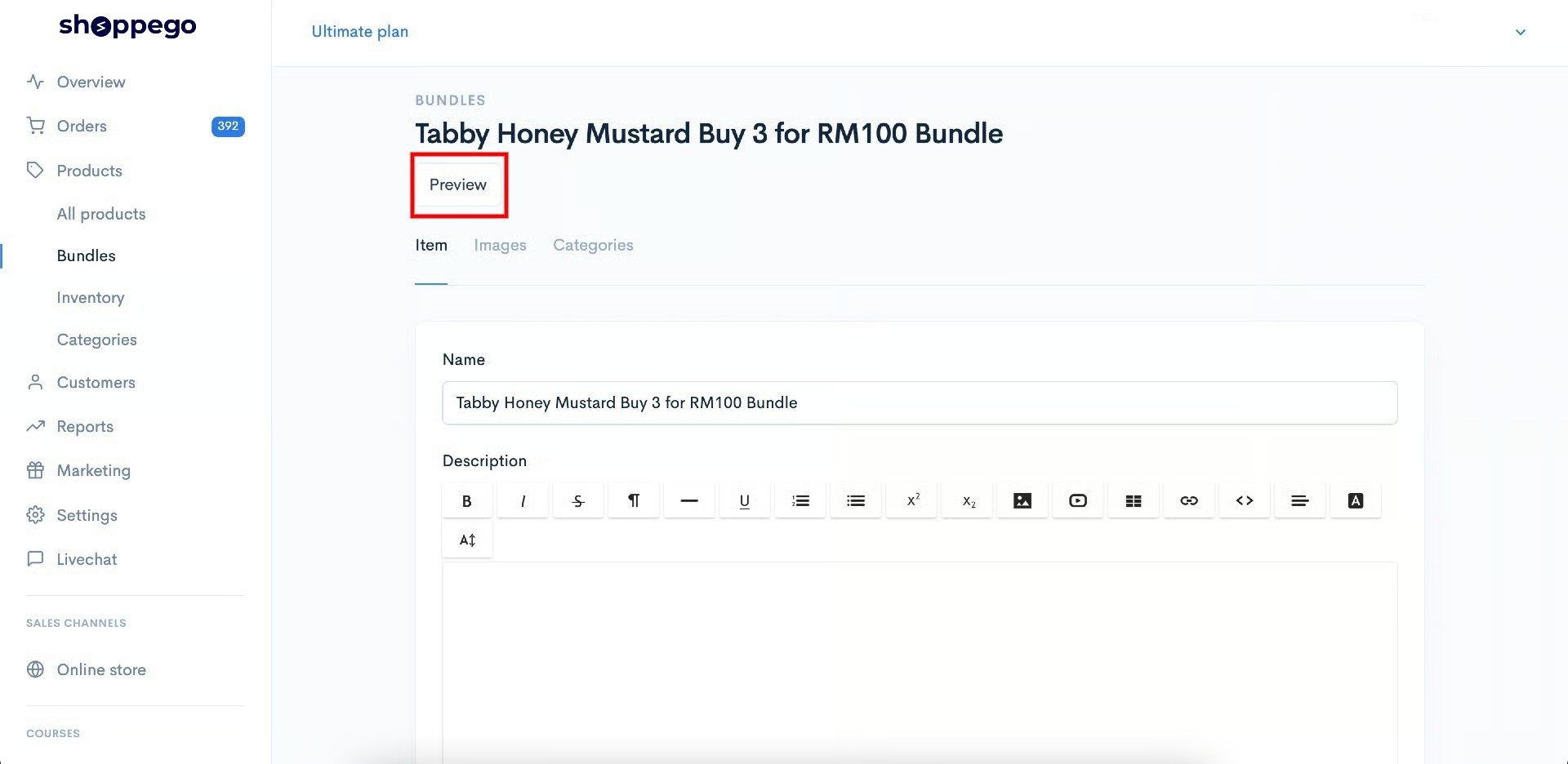
Now that your product bundle settings are completed, you can click on the Preview button to see your product bundle and try to make a purchase.

<figure><img src="https://3359028955-files.gitbook.io/~/files/v0/b/gitbook-x-prod.appspot.com/o/spaces%2F-Lh09fNwqqta5Vj6Wr8p%2Fuploads%2Fgit-blob-c07da9c5a11778b3a2a58162d75c50d350638d0b%2FdMwd6ANhdp53WddVERJt.jpg?alt=media" alt=""><figcaption></figcaption></figure>

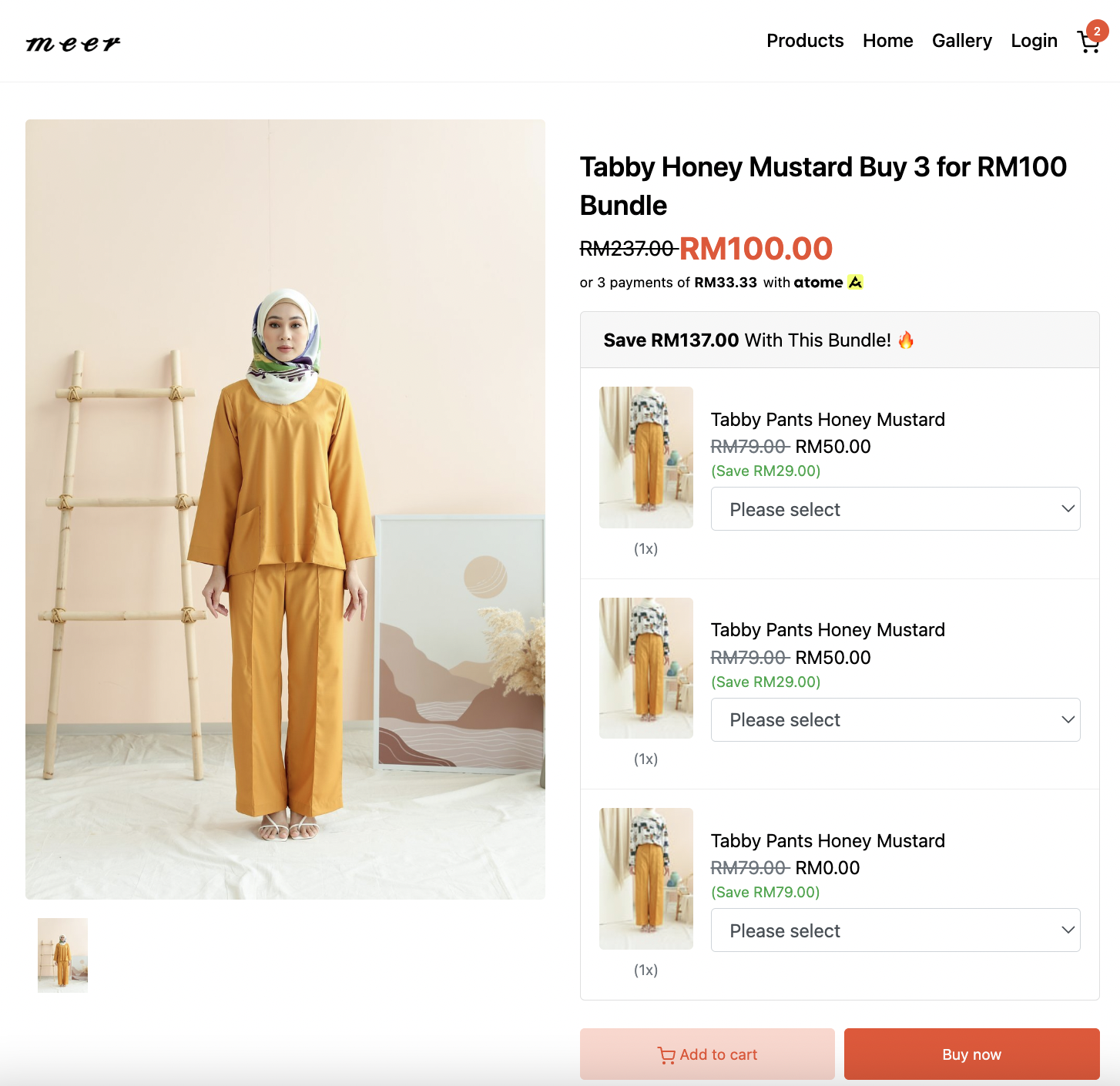
This is the display of the bundle product on the website (Hartamas theme):
<figure><img src="https://3359028955-files.gitbook.io/~/files/v0/b/gitbook-x-prod.appspot.com/o/spaces%2F-Lh09fNwqqta5Vj6Wr8p%2Fuploads%2Fgit-blob-16e1b1bfbd697c5ecc4b3858f0e7bb3c53b41d18%2FLyKtLjtTwrqlsycgBu8C.png?alt=media" alt=""><figcaption></figcaption></figure>