
> For the complete documentation index, see [llms.txt](https://docs.shoppego.my/tutorials/llms.txt). Markdown versions of documentation pages are available by appending `.md` to page URLs; this page is available as [Markdown](https://docs.shoppego.my/tutorials/en/products/variants/variants-for-combo-promo.md).

# Variants for Combo Promo

## Setting Variants for Combo Promo

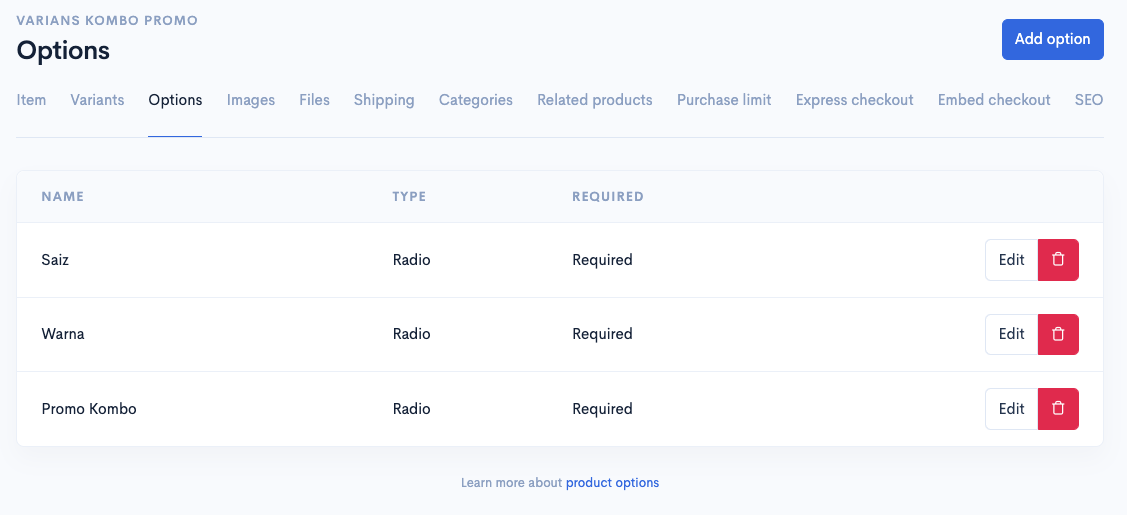
The process is the same as setting up your **options** and **variants** for a product. You can refer to the example below:

{% content-ref url="/pages/URi9key0yGqF0YqIxNKL" %}
[Options](/tutorials/en/products/options.md)
{% endcontent-ref %}

{% content-ref url="/pages/loflFJeQw7OzFeVyj08a" %}
[Variants Setup](/tutorials/en/products/variants/variants-setup.md)
{% endcontent-ref %}

{% hint style="info" %}
\*\*<mark style="color:red;">**Note**</mark>: In this example, we will be using **3 options** which are **Size, Color,** and **Combo Promo**.
{% endhint %}

<figure><img src="https://3359028955-files.gitbook.io/~/files/v0/b/gitbook-x-prod.appspot.com/o/spaces%2F-Lh09fNwqqta5Vj6Wr8p%2Fuploads%2Fgit-blob-db58e7bd47e61621ba41ce7c83636b3c0e1fe394%2FqVOpoDJQLpGncVEOmNAR.png?alt=media" alt=""><figcaption></figcaption></figure>

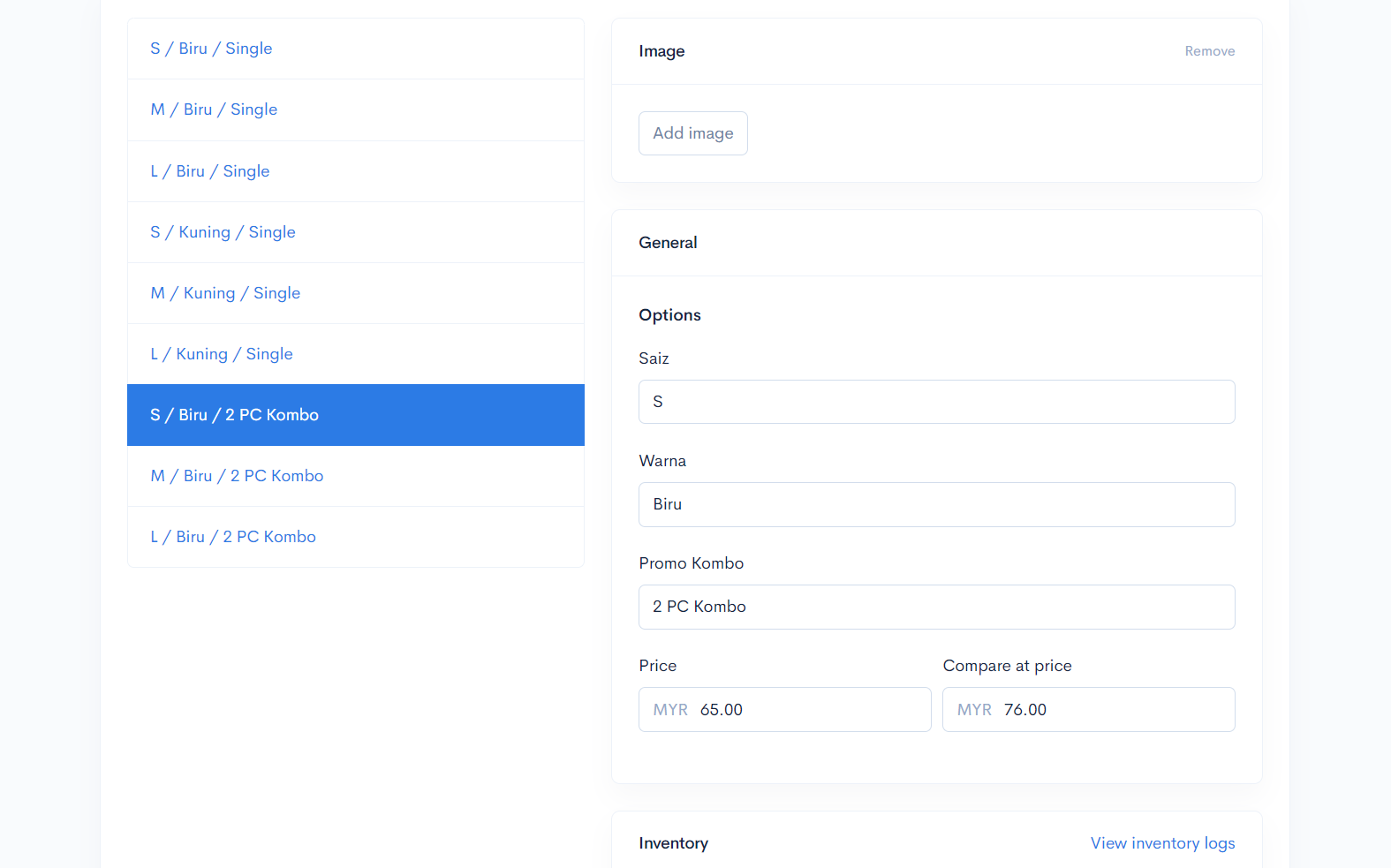
1. Click on the **"Add variant"** button to add another **combo variant**, for example, as shown below.
2. In the **"Name"** section, you can enter the name, for example, as shown below.
3. Let's put the name **"2 PC Combo"** in the **"Promo Combo"** field.

<figure><img src="https://3359028955-files.gitbook.io/~/files/v0/b/gitbook-x-prod.appspot.com/o/spaces%2F-Lh09fNwqqta5Vj6Wr8p%2Fuploads%2Fgit-blob-32020cbb286ef18fa7c06cdc11fc144bfd063ae6%2FrIsLwG7YWQMkLmAWogij.png?alt=media" alt=""><figcaption></figcaption></figure>

## Inventory

### 1. View Inventory Logs

{% hint style="info" %}
\*\*<mark style="color:red;">**Note**</mark>: The **SKU section** is for **monitoring data for your product** and <mark style="color:red;">**not**</mark>**&#x20;for updating stock.**
{% endhint %}

In this section, you can view changes or track the quantity made in the product stock section.

1. Click on **view inventory logs**.

<figure><img src="https://3359028955-files.gitbook.io/~/files/v0/b/gitbook-x-prod.appspot.com/o/spaces%2F-Lh09fNwqqta5Vj6Wr8p%2Fuploads%2Fgit-blob-9ab491cf66176dc1ce2c863265e87a987c14fd7f%2FZhWoo5AbRIo4a8qW30Kx.png?alt=media" alt=""><figcaption></figcaption></figure>

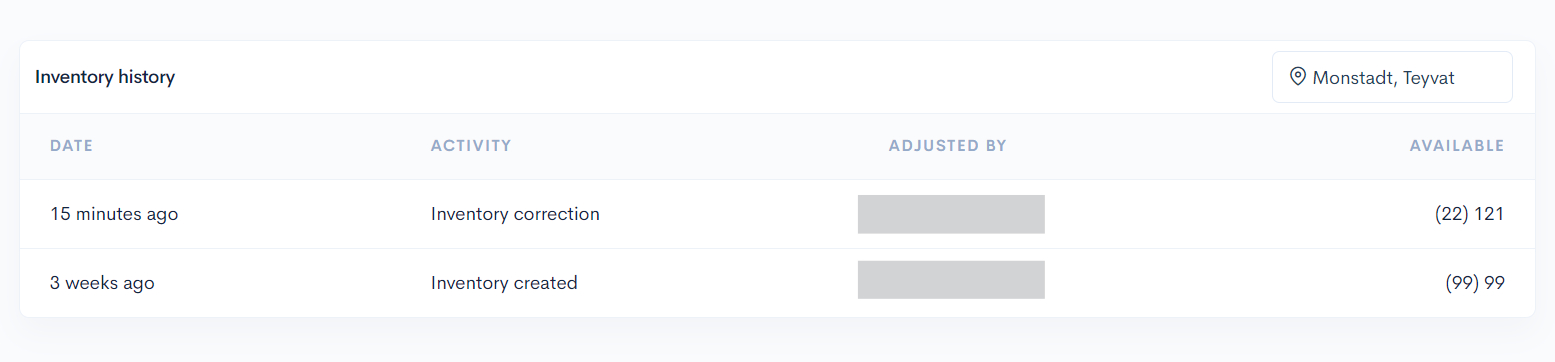
2. In this section, all changes made to the product stock quantity will be recorded.

<figure><img src="https://3359028955-files.gitbook.io/~/files/v0/b/gitbook-x-prod.appspot.com/o/spaces%2F-Lh09fNwqqta5Vj6Wr8p%2Fuploads%2Fgit-blob-6066b6ecd3188e201905fdbb278951be8d64b167%2F6BbhvSW3EFgyg9090m10.png?alt=media" alt=""><figcaption></figcaption></figure>

<table><thead><tr><th width="143">Field</th><th>Description</th></tr></thead><tbody><tr><td><strong>Address</strong></td><td><strong>You can change the address in this section to view the logs based on location.</strong></td></tr><tr><td><strong>Date</strong></td><td><strong>Each change made will have a date recorded.</strong></td></tr><tr><td><strong>Activity</strong></td><td><strong>Refers to the thing you did when changing stock quantity.</strong></td></tr><tr><td><strong>Adjusted by</strong></td><td><strong>Refers to the person who made the change to the stock.</strong></td></tr><tr><td><strong>Available</strong></td><td><strong>Referring to the latest stock value.</strong></td></tr></tbody></table>

### 2. Product Stock

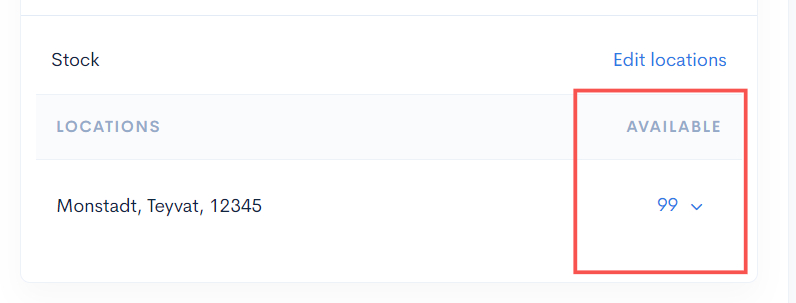
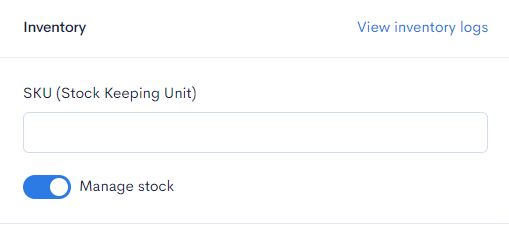
1. To **add product stock**, you need to enter it in the space provided. You only need to **click on the dropdown.**

<figure><img src="https://3359028955-files.gitbook.io/~/files/v0/b/gitbook-x-prod.appspot.com/o/spaces%2F-Lh09fNwqqta5Vj6Wr8p%2Fuploads%2Fgit-blob-1fad8b291a03018374043ed7b05876b698e2f220%2FwdOygixkmnD7w13SxKh8.jpg?alt=media" alt=""><figcaption></figcaption></figure>

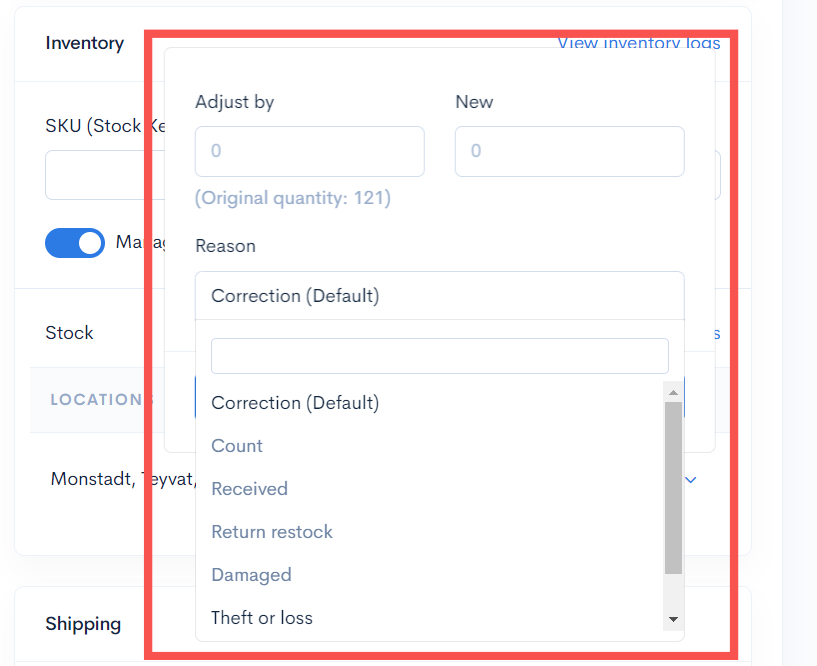
2. After that, you can **select the reason or information** related to the change in your product stock.

<figure><img src="https://3359028955-files.gitbook.io/~/files/v0/b/gitbook-x-prod.appspot.com/o/spaces%2F-Lh09fNwqqta5Vj6Wr8p%2Fuploads%2Fgit-blob-60bafad6dbdd3c3b81384ebb3c4a0ec8d1ab840e%2FYu8F9hTI0aZtbWbDX3aQ.jpg?alt=media" alt=""><figcaption></figcaption></figure>

3. You will see the latest updated value for your product stock.

{% hint style="info" %}
If the Manage Stock button is <mark style="color:red;">**not**</mark>**&#x20;turned on**, your product will be considered to have **unlimited stock**.
{% endhint %}

<figure><img src="https://3359028955-files.gitbook.io/~/files/v0/b/gitbook-x-prod.appspot.com/o/spaces%2F-Lh09fNwqqta5Vj6Wr8p%2Fuploads%2Fgit-blob-2e35f22571913bd16ca4d9eaa40e03756875a778%2FFCPnWMw1Hexr5r6teGsR.png?alt=media" alt=""><figcaption></figcaption></figure>

4. If you press the **View Inventory Logs button**, you will see a list of information regarding the changes to your product stock.

<figure><img src="https://3359028955-files.gitbook.io/~/files/v0/b/gitbook-x-prod.appspot.com/o/spaces%2F-Lh09fNwqqta5Vj6Wr8p%2Fuploads%2Fgit-blob-e198d78eeb2e8610786834220d9ef4fa50947f41%2FU4SfKlNeluUWCmDESHTU.jpg?alt=media" alt=""><figcaption></figcaption></figure>

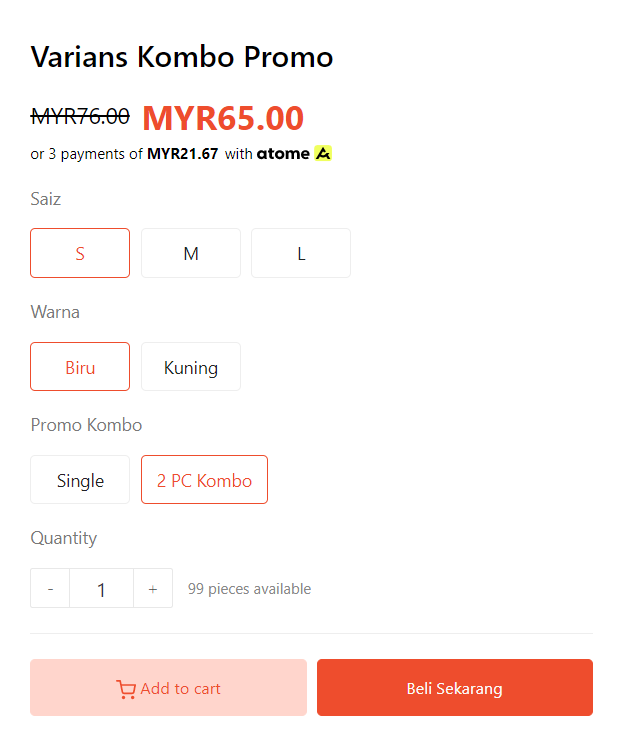
The result on your website is as shown below.

<figure><img src="https://3359028955-files.gitbook.io/~/files/v0/b/gitbook-x-prod.appspot.com/o/spaces%2F-Lh09fNwqqta5Vj6Wr8p%2Fuploads%2Fgit-blob-2b9ff7b04e4d11974bc1201de817109332b0f881%2Fgf5Q8W76jaSrpugvNte3.png?alt=media" alt=""><figcaption></figcaption></figure>

## Additional Information

If you find that your **Combo Promo** is <mark style="color:red;">**Sold Out**</mark>, you need to check your **Variants**, as it is possible that you did :

* <mark style="color:red;">**not add**</mark> that specific **Promo Combo** Variant.
* <mark style="color:red;">**not have Stock**</mark> at **Inventory**.

<figure><img src="https://3359028955-files.gitbook.io/~/files/v0/b/gitbook-x-prod.appspot.com/o/spaces%2F-Lh09fNwqqta5Vj6Wr8p%2Fuploads%2Fgit-blob-02725be4d7efef070fa37d71f8d5e68450f38556%2FZNh8Fc1QWKUsQbgofmHb.png?alt=media" alt=""><figcaption></figcaption></figure>