> For the complete documentation index, see [llms.txt](https://docs.shoppego.my/tutorials/llms.txt). Markdown versions of documentation pages are available by appending `.md` to page URLs; this page is available as [Markdown](https://docs.shoppego.my/tutorials/en/settings/accounting-providers/bukku.md).

# Bukku

{% hint style="success" %}
This feature is available for **Ultimate** plans only.
{% endhint %}

## On this page:

* [Settings that need to be configured](#settings-that-need-to-be-configured)
* [Settings at Bukku](#settings-at-bukku)
* [Settings at Shoppego](#settings-at-shoppego)
* [How to Perform a Manual Sync](#how-to-perform-a-manual-sync)

## Settings that need to be configured:

* Complete your details in your Bukku account.
* Ensure you have entered the TIN and SSM details in your store's Location settings.
* Make sure your customers also have TIN information
* [Obtain the **Access Token** and **Company Subdomain** for your Bukku account.](#settings-at-bukku)
* [Do the setting in the Shoppego dashboard](#settings-at-shoppego)

{% hint style="danger" %}
**If you or your customers do not have TIN and SSM information, the purchase data will not be synced to your Bukku dashboard.**
{% endhint %}

{% hint style="warning" %}
**You can obtain all the information and settings mentioned above by contacting Bukku.**
{% endhint %}

## Settings at Bukku

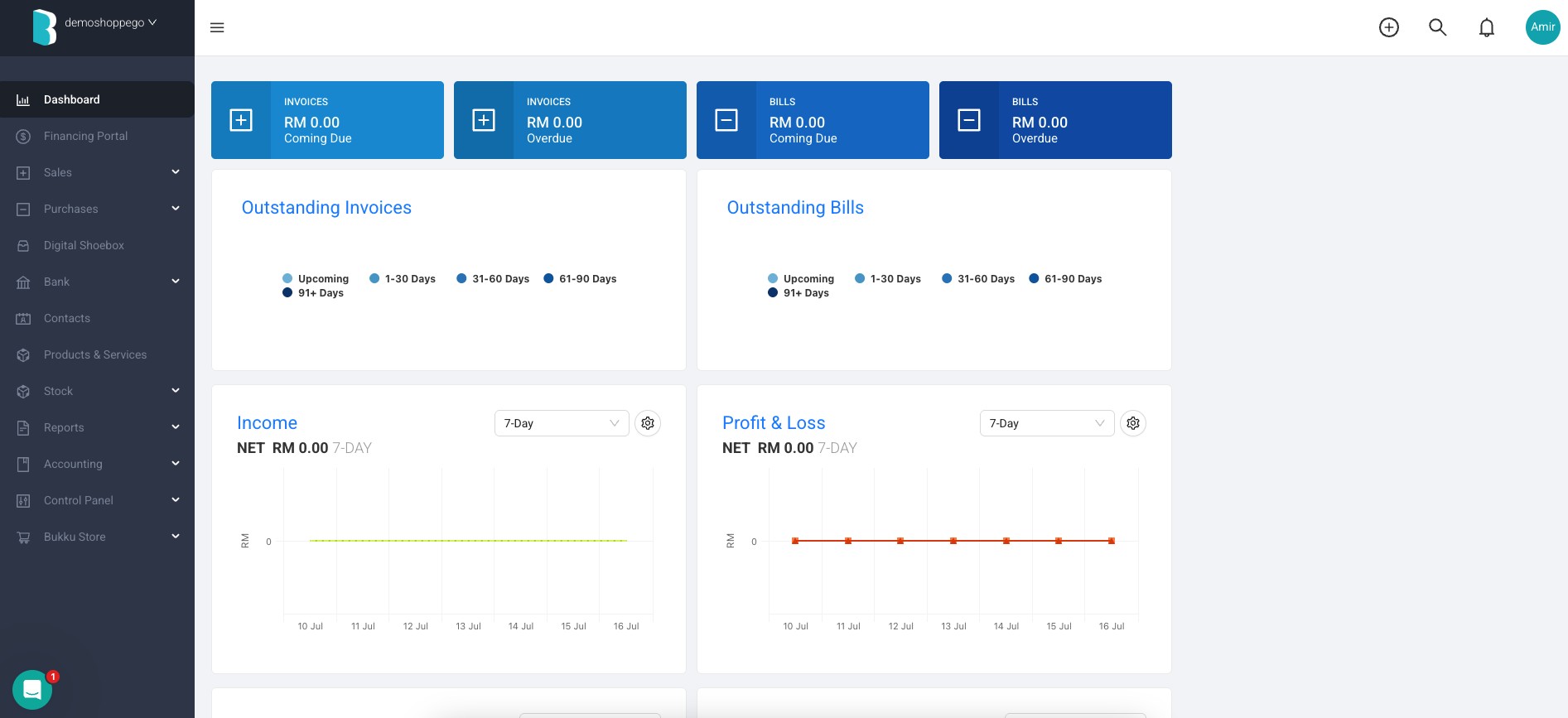
1. Log in to your Bukku account

<figure><img src="https://3359028955-files.gitbook.io/~/files/v0/b/gitbook-x-prod.appspot.com/o/spaces%2F-Lh09fNwqqta5Vj6Wr8p%2Fuploads%2Fgit-blob-b4555e0cff38b2f04cfd65c2f0c5568043eab8a8%2F56sogLRuw9KzVtvzJ31h.jpg?alt=media" alt=""><figcaption></figcaption></figure>

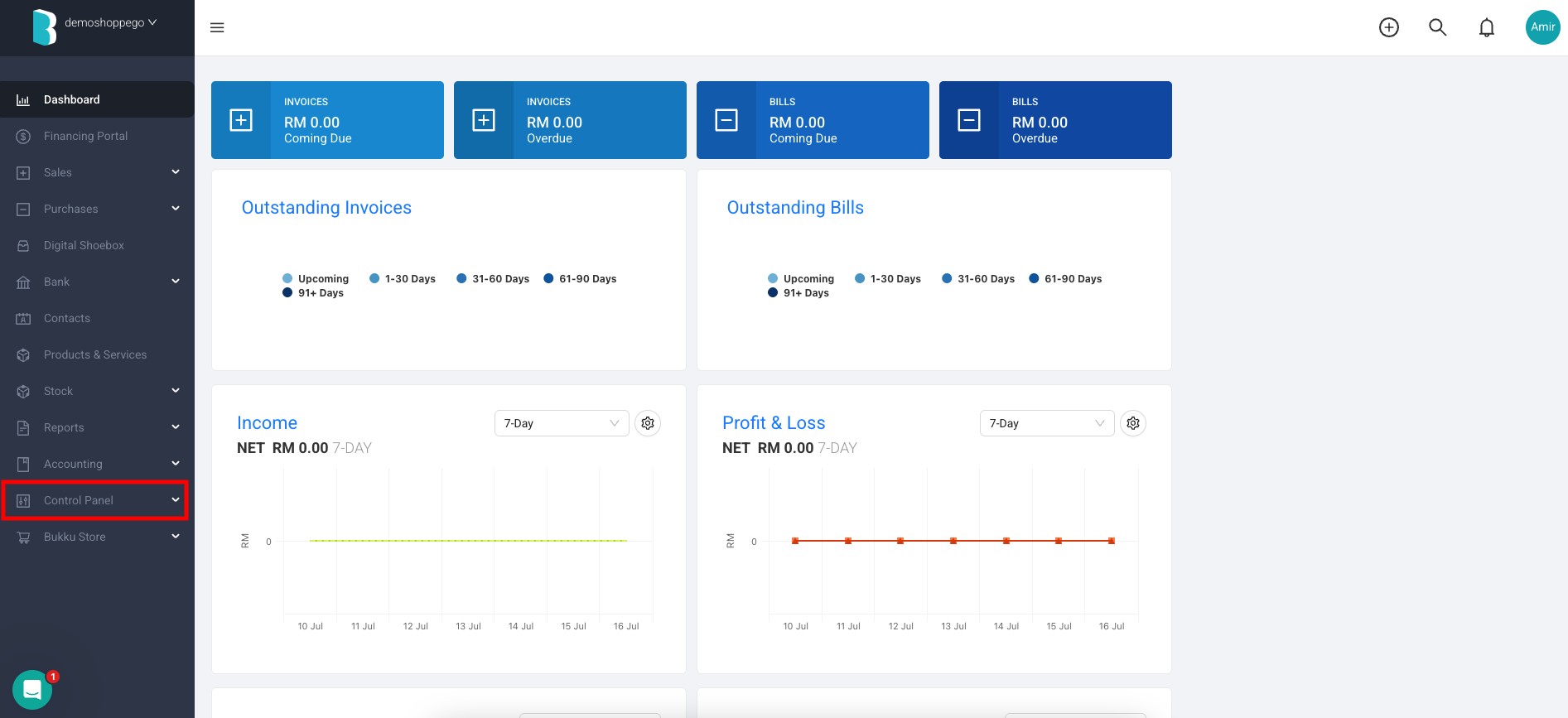
2. Click on "**Control Panel**".

<figure><img src="https://3359028955-files.gitbook.io/~/files/v0/b/gitbook-x-prod.appspot.com/o/spaces%2F-Lh09fNwqqta5Vj6Wr8p%2Fuploads%2Fgit-blob-53da19474e98ac922430d257ebcb0390d812afa9%2FVoBTEIIUTZqB9QXex9mD.jpg?alt=media" alt=""><figcaption></figcaption></figure>

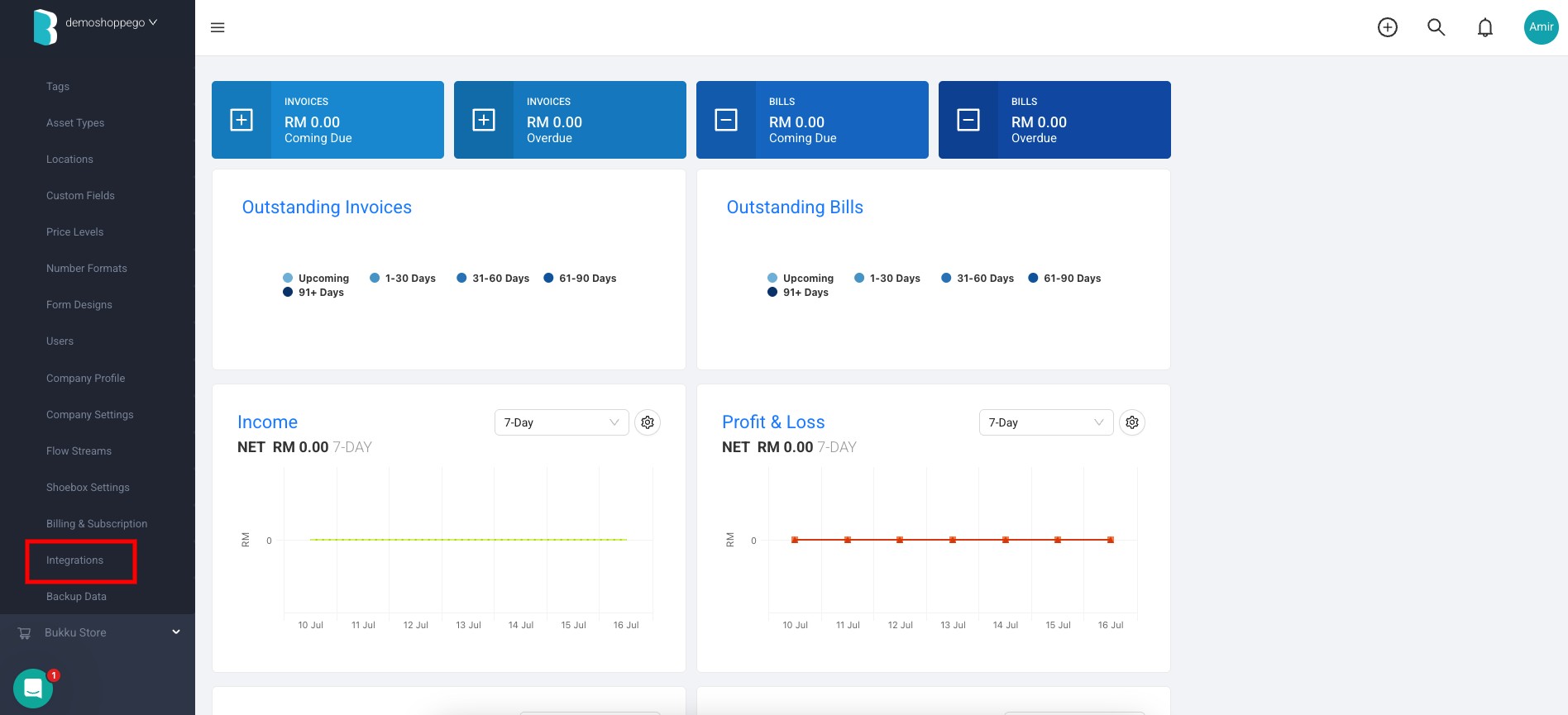
3. Click on "**Integrations**"

<figure><img src="https://3359028955-files.gitbook.io/~/files/v0/b/gitbook-x-prod.appspot.com/o/spaces%2F-Lh09fNwqqta5Vj6Wr8p%2Fuploads%2Fgit-blob-4ea0a6c91497b7d97e70fa9d2574b858313b6f66%2F1R9uBmR8LSjlOYvx2yu5.jpg?alt=media" alt=""><figcaption></figcaption></figure>

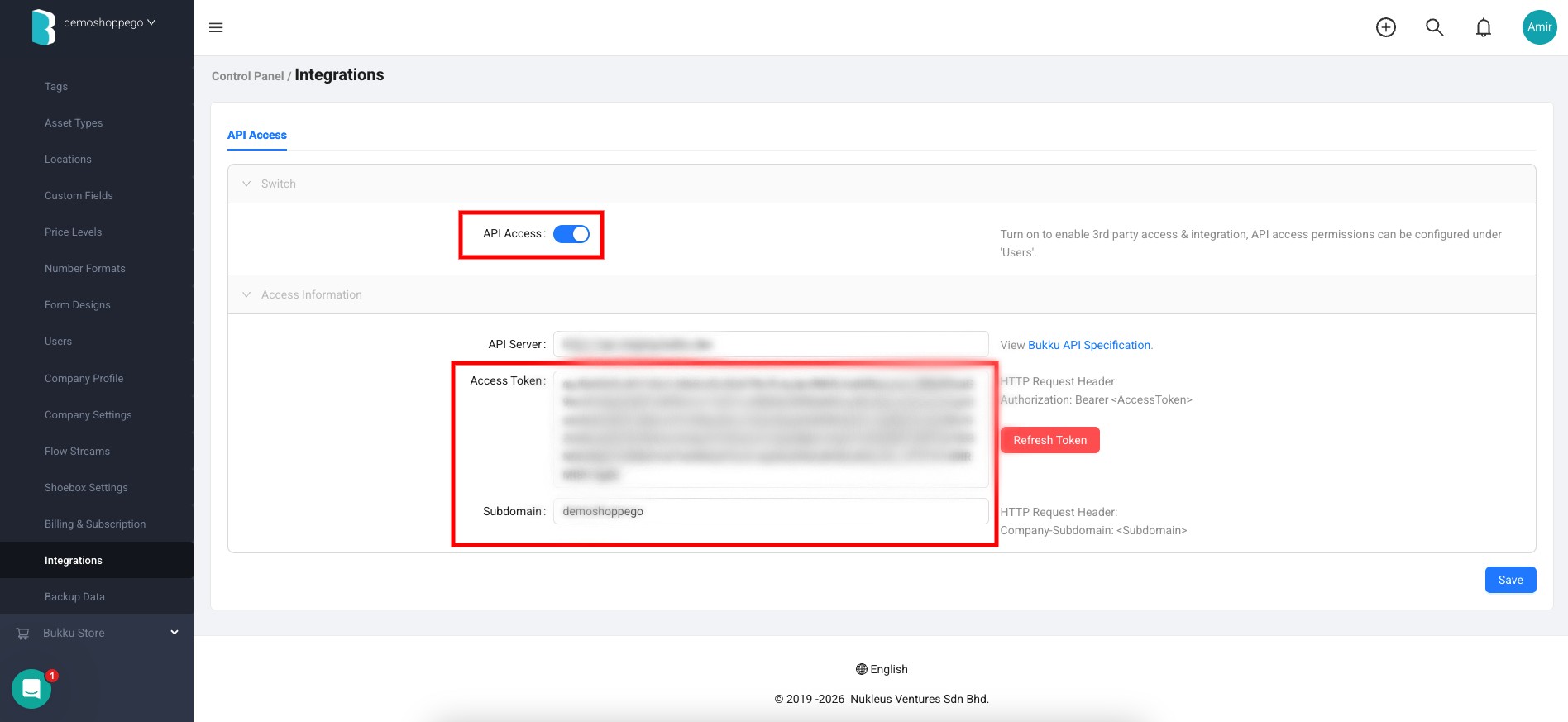
4. You can tick the "**API Access**" option. Next, you will be able to view the "**Access token**" and "**Subdomain**" for your Bukku account. Save the "**Access token**" and "**Subdomain**" so you can enter them into the settings section of the Shoppego dashboard.

<figure><img src="https://3359028955-files.gitbook.io/~/files/v0/b/gitbook-x-prod.appspot.com/o/spaces%2F-Lh09fNwqqta5Vj6Wr8p%2Fuploads%2Fgit-blob-3b342b0f0702a9569ad9747da3cae4c7adb597a7%2FIuJrYue3ovoTZFFtPsIr.jpg?alt=media" alt=""><figcaption></figcaption></figure>

## Settings at Shoppego

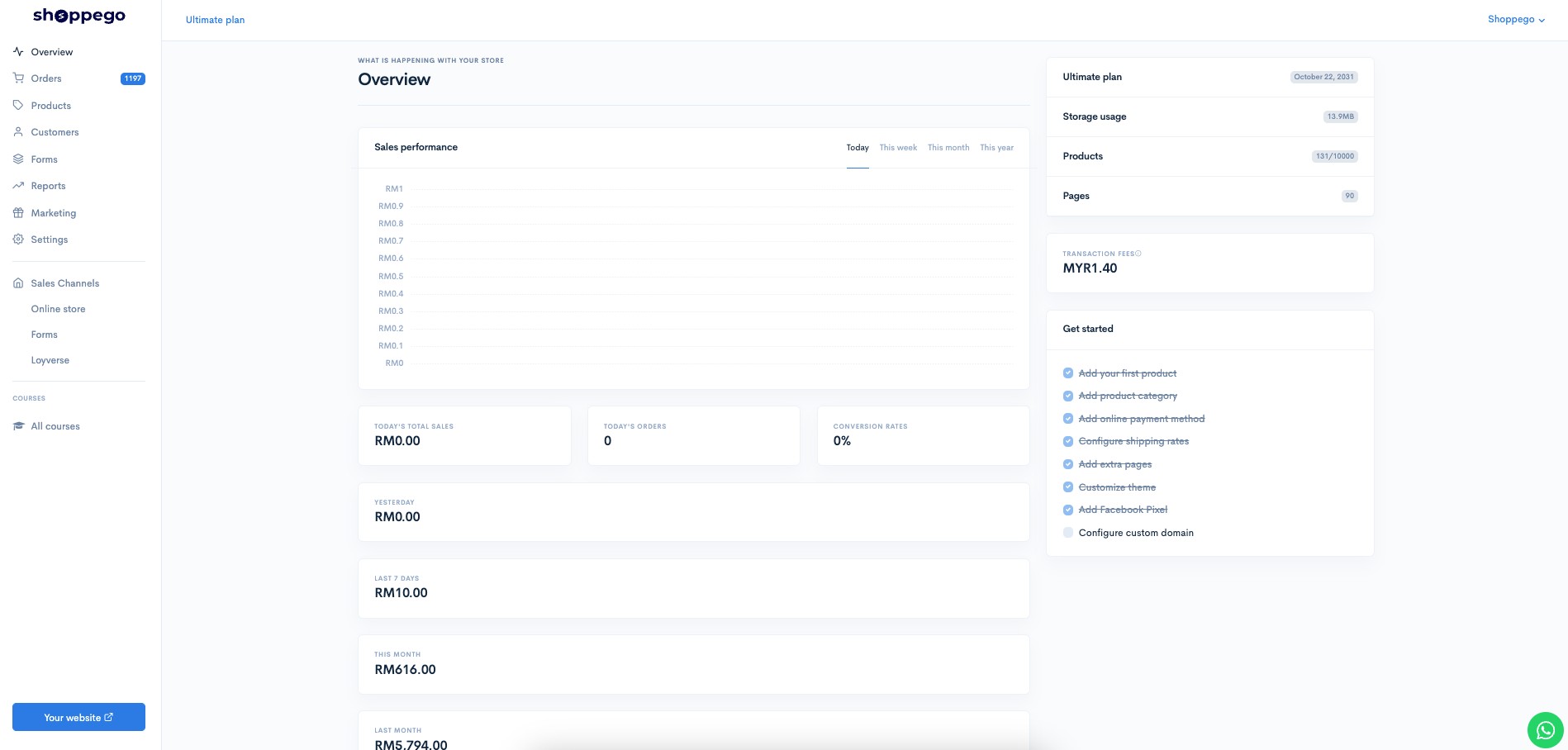
Once you have all the information required for the integration, you can follow the steps below to set it up in your Shoppego account.

1. Log in to your Shoppego account.

<figure><img src="https://3359028955-files.gitbook.io/~/files/v0/b/gitbook-x-prod.appspot.com/o/spaces%2F-Lh09fNwqqta5Vj6Wr8p%2Fuploads%2Fgit-blob-b853fc0189b34fb1d3990f5b1f53fa71deb9d384%2FlCN7aw3FznaFFoOAyya2.jpg?alt=media" alt=""><figcaption></figcaption></figure>

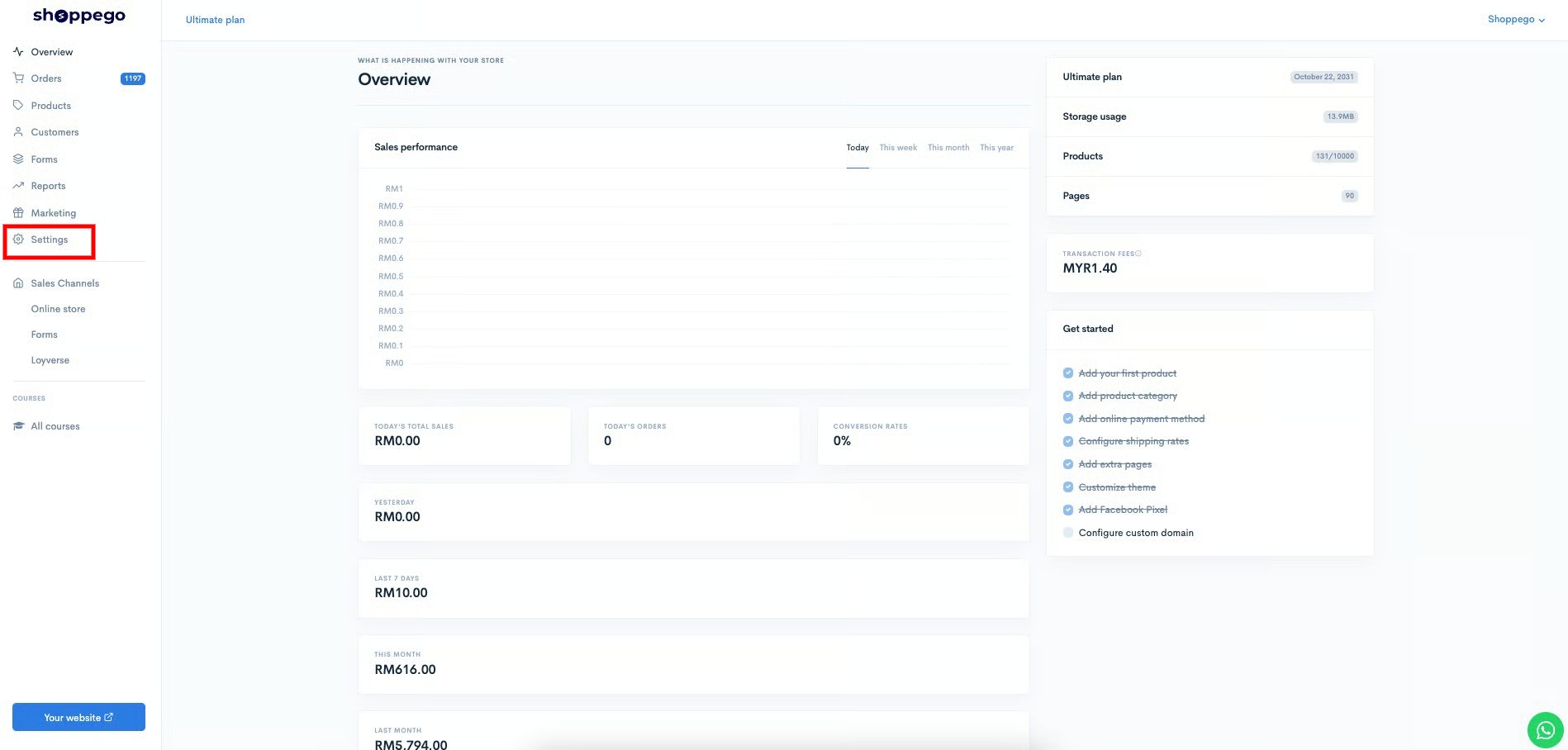
2. Click on **Settings**

<figure><img src="https://3359028955-files.gitbook.io/~/files/v0/b/gitbook-x-prod.appspot.com/o/spaces%2F-Lh09fNwqqta5Vj6Wr8p%2Fuploads%2Fgit-blob-9ae8b66b366958146673b78216b78ff0e8f12b90%2FVsK9zs6aZtUfKK1hcCiM.jpg?alt=media" alt=""><figcaption></figcaption></figure>

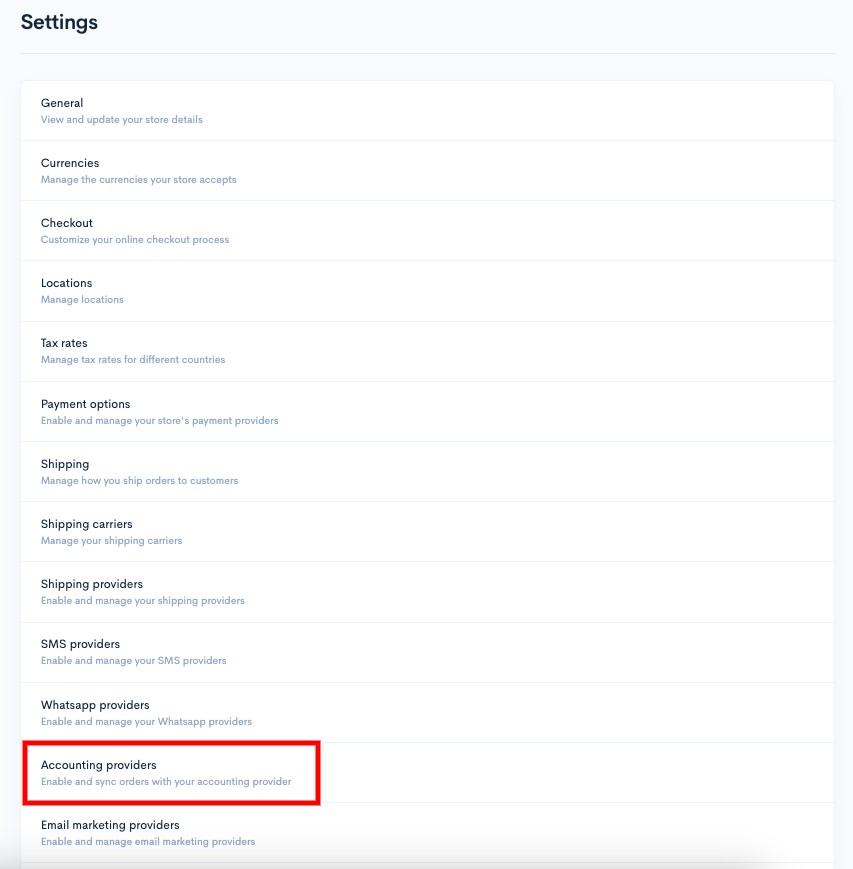
3. Click on **Accounting providers**

<figure><img src="https://3359028955-files.gitbook.io/~/files/v0/b/gitbook-x-prod.appspot.com/o/spaces%2F-Lh09fNwqqta5Vj6Wr8p%2Fuploads%2Fgit-blob-3c009ec7291dc2e0e7fbb522d467c0dfc91d76a1%2FSkN6PTJscDylyOTwFNU8.jpg?alt=media" alt=""><figcaption></figcaption></figure>

4. Click **Edit/Activate** on **Accounting provider Bukku**

<figure><img src="https://3359028955-files.gitbook.io/~/files/v0/b/gitbook-x-prod.appspot.com/o/spaces%2F-Lh09fNwqqta5Vj6Wr8p%2Fuploads%2Fgit-blob-53927b8c9606e2ed42579ece3f779dfdd71cc57c%2F3icFSMc2mCtkpFnUBWjw.jpg?alt=media" alt=""><figcaption></figcaption></figure>

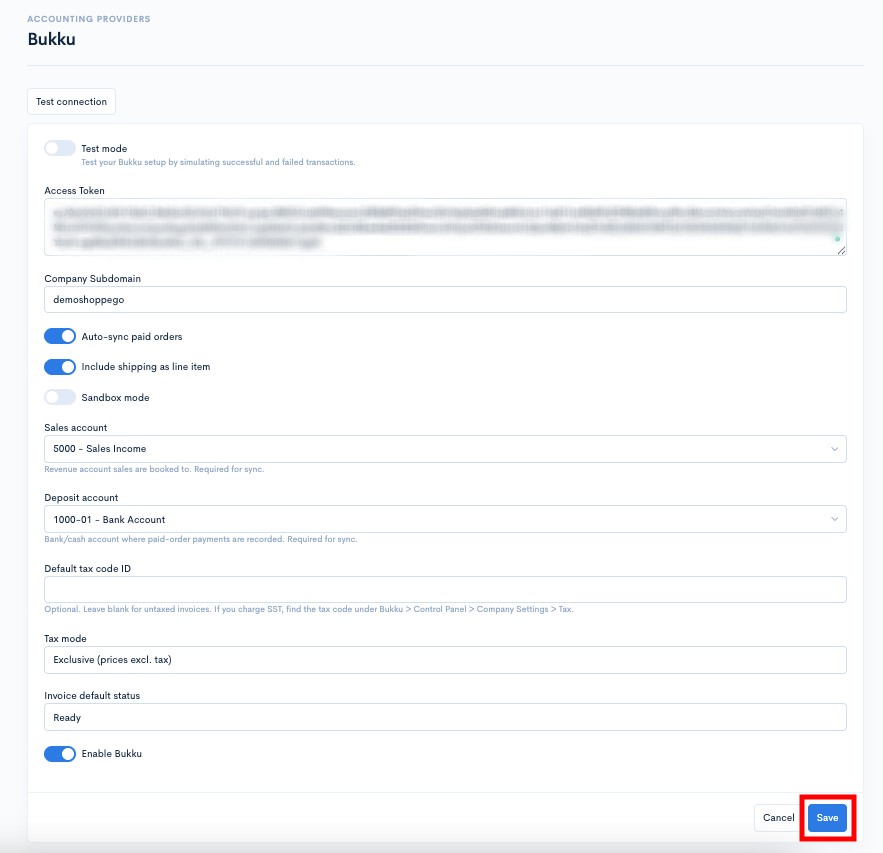
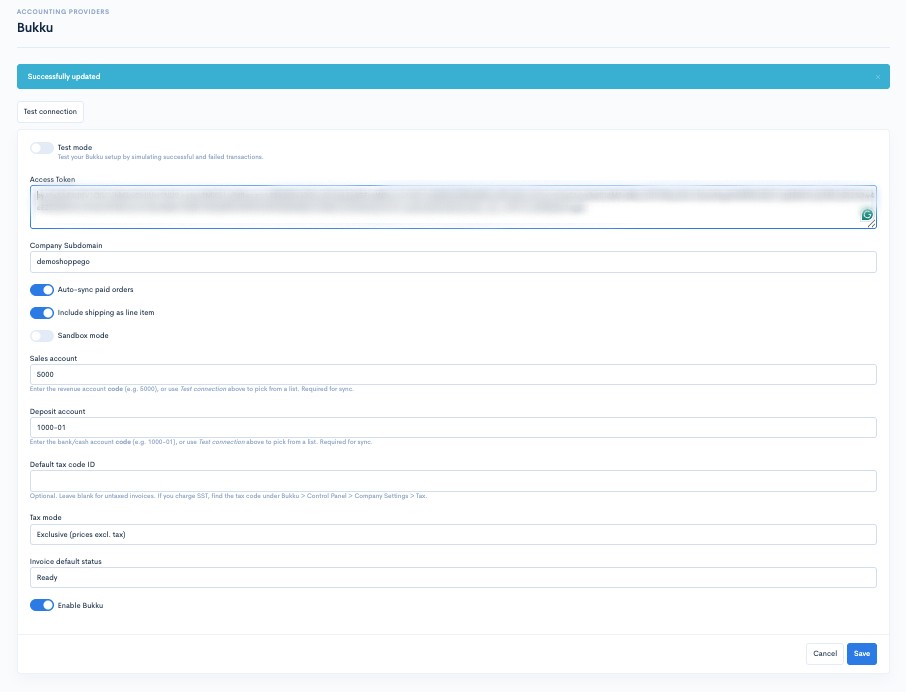
5. Then, you can enter all that information into the available fields and click **Save**.

**After entering the "Access Token" and "Company Subdomain" information, you can click the "Test connection" button first to allow the system to retrieve your "Sales account" and "Deposit account" details.**

<table><thead><tr><th width="193">Parameters</th><th>Description</th></tr></thead><tbody><tr><td><strong>Test mode</strong></td><td>You can enable this toggle if you are using a developer account from Bukku itself.</td></tr><tr><td><strong>Access Token</strong></td><td>You can enter the <strong>Access Token</strong> for your Bukku account.</td></tr><tr><td><strong>Company Subdomain</strong></td><td>You can enter a <strong>Subdomain</strong> for your Bukku account.</td></tr><tr><td><strong>Auto-sync paid orders</strong></td><td>You can enable this toggle if you want every paid order placed through your website to be automatically transferred to your Bukku account.</td></tr><tr><td><strong>Include shipping as line item</strong></td><td>You can enable this toggle if you wish to import the customer's order shipping information into your Bukku account.</td></tr><tr><td><strong>Sandbox mode</strong></td><td>You can toggle this switch if you wish to test your integration.</td></tr><tr><td><strong>Sales account</strong></td><td>You can select a Sales account for your Bukku account.</td></tr><tr><td><strong>Deposit account</strong></td><td>You can select the Deposit account for your Bukku account.</td></tr><tr><td><strong>Default tax code ID</strong></td><td>You can enter your tax code (if applicable).</td></tr><tr><td><strong>Tax mode</strong></td><td>You can select your tax mode.</td></tr><tr><td><strong>Invoice default status</strong></td><td>You can set the status for the invoices that will be imported into your Bukku account.</td></tr><tr><td><strong>Enable Bukku</strong></td><td>You need to enable this toggle to ensure you can use this Bukku integration.</td></tr></tbody></table>

<figure><img src="https://3359028955-files.gitbook.io/~/files/v0/b/gitbook-x-prod.appspot.com/o/spaces%2F-Lh09fNwqqta5Vj6Wr8p%2Fuploads%2Fgit-blob-e1e151ebcc084e9f8ebb141083eb5c689166ee19%2FN3aP9QGEdwlnqWnWfz2N.jpg?alt=media" alt=""><figcaption></figcaption></figure>

6. The integration setup process with the Bukku platform is now complete and successful.

<figure><img src="https://3359028955-files.gitbook.io/~/files/v0/b/gitbook-x-prod.appspot.com/o/spaces%2F-Lh09fNwqqta5Vj6Wr8p%2Fuploads%2Fgit-blob-3bbbfe191e31775e8d3ad18a2dbe46216295881f%2F6oohVFgC07QQ9QFJ4jNP.jpg?alt=media" alt=""><figcaption></figcaption></figure>

## How to Perform a Manual Sync

The setup tutorial in this section guides you on how to manually sync any order you choose to the Bukku platform.

1. Log in to the **Shoppego Dashboard** -> **Orders** on the left panel.

<figure><img src="https://3359028955-files.gitbook.io/~/files/v0/b/gitbook-x-prod.appspot.com/o/spaces%2F-Lh09fNwqqta5Vj6Wr8p%2Fuploads%2Fgit-blob-430ef58f77dd3f572d4177d48bc97c5b06bc82c5%2F3GH71QI9UtN2dyOxtc9r.jpg?alt=media" alt=""><figcaption></figcaption></figure>

2. **Select** and **click** on the order you want to do the manual sync

![](https://3359028955-files.gitbook.io/~/files/v0/b/gitbook-x-prod.appspot.com/o/spaces%2F-Lh09fNwqqta5Vj6Wr8p%2Fuploads%2Fgit-blob-0b477509f1f865d1bad2a9f4995903e61f57704d%2FlasUUilnpBxcaM16QKJd.png?alt=media)

3. Press the **More button and select Re-sync to Bukku**

![](https://3359028955-files.gitbook.io/~/files/v0/b/gitbook-x-prod.appspot.com/o/spaces%2F-Lh09fNwqqta5Vj6Wr8p%2Fuploads%2Fgit-blob-1cbf7833f19f0e8efd92aabde4cb350e57a76bec%2FMz1Nbvj8AZja7HIIjWmh.jpg?alt=media)

4\. Once completed, your order should be visible in the Bukku platform

![](https://3359028955-files.gitbook.io/~/files/v0/b/gitbook-x-prod.appspot.com/o/spaces%2F-Lh09fNwqqta5Vj6Wr8p%2Fuploads%2Fgit-blob-a1c2b3e460f712d07642a96d071cf5a2ac60e88c%2FMyRtuJOwRGOOguxxSPLt.jpg?alt=media)

You can view every order received from Shoppego on the Bukku platform under the following section:

**Bukku Dashboard > Sales > Invoice > All**