> For the complete documentation index, see [llms.txt](https://docs.shoppego.my/tutorials/llms.txt). Markdown versions of documentation pages are available by appending `.md` to page URLs; this page is available as [Markdown](https://docs.shoppego.my/tutorials/en/settings/captcha-providers/cloudflare-turnstile.md).

# Cloudflare Turnstile

Before you follow the steps below, make sure you have a Cloudflare Turnstile account. If you don't have one yet, you can register at the link below:

There are 2 pieces of data you need to integrate Cloudflare Turnstile with the Shoppego system:

* Site key
* Secret key

## Settings on Cloudflare Turnstile

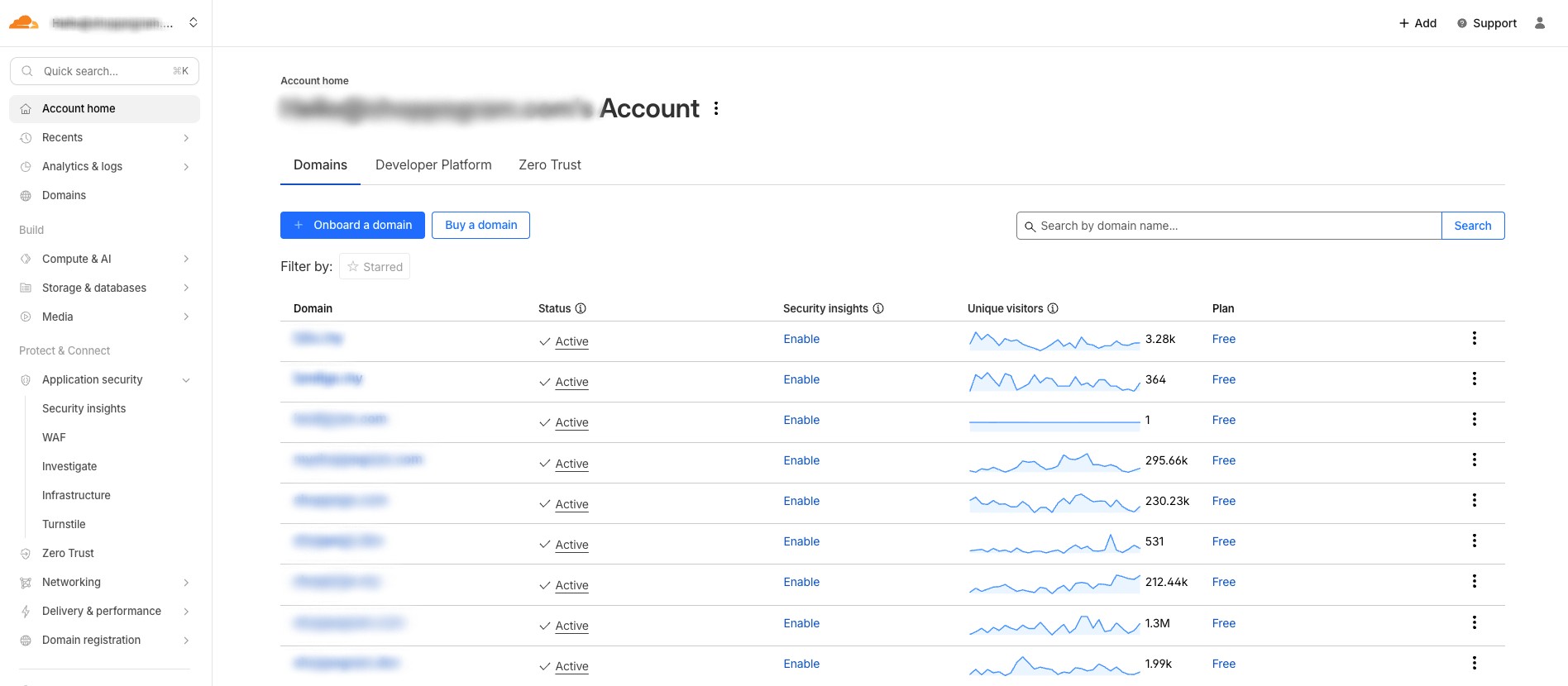
1. You can log in to your Cloudflare dashboard first.

<figure><img src="https://3359028955-files.gitbook.io/~/files/v0/b/gitbook-x-prod.appspot.com/o/spaces%2F-Lh09fNwqqta5Vj6Wr8p%2Fuploads%2Fgit-blob-d6b9309ff951b9a9b064625d61377f6230cb6562%2F88PyYDqTx9CQobeOYWFX.jpg?alt=media" alt=""><figcaption></figcaption></figure>

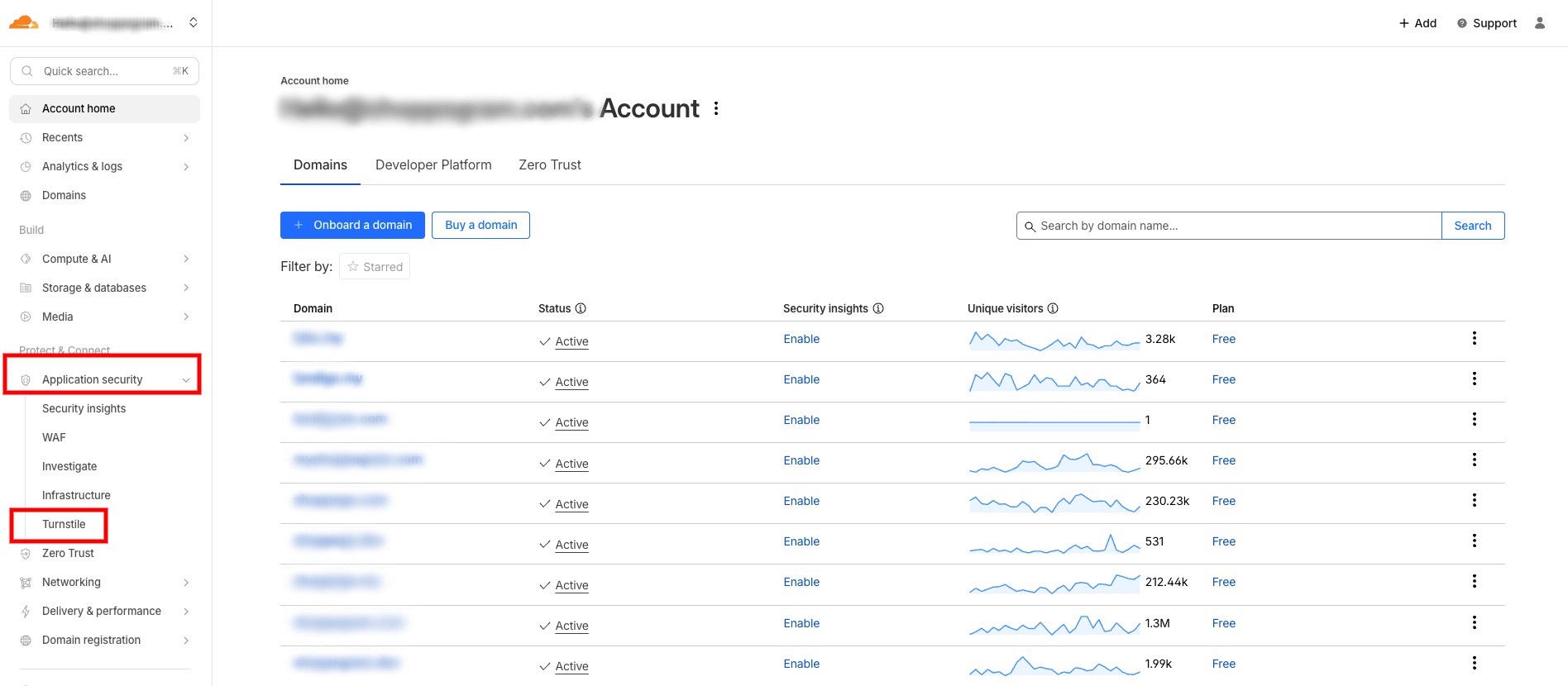
2. Click on **Application security** and **Turnstile**

<figure><img src="https://3359028955-files.gitbook.io/~/files/v0/b/gitbook-x-prod.appspot.com/o/spaces%2F-Lh09fNwqqta5Vj6Wr8p%2Fuploads%2Fgit-blob-b42181832811dd3c7a85f3395d53ccf13d474a3d%2FjMYVhxd0kOw1Nsu5LWK6.jpg?alt=media" alt=""><figcaption></figcaption></figure>

3. Then, you can click **Add widget**

<figure><img src="https://3359028955-files.gitbook.io/~/files/v0/b/gitbook-x-prod.appspot.com/o/spaces%2F-Lh09fNwqqta5Vj6Wr8p%2Fuploads%2Fgit-blob-1a8a073fc9bc84f3411dfb80c261ab0e8d51b079%2FOwAfBlsf5Av0D5fUgM0i.jpg?alt=media" alt=""><figcaption></figcaption></figure>

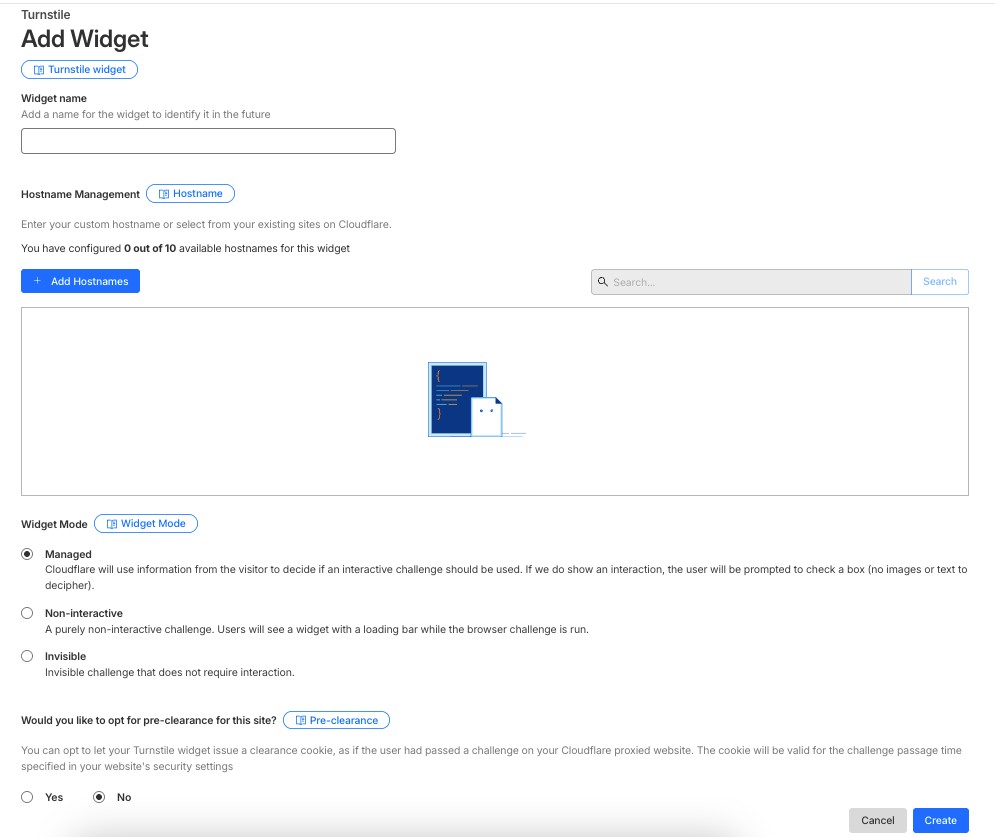
4. Later, you will be able to see the settings you need to make. For "**Widget name**" you can enter a name text for your reference later.

<figure><img src="https://3359028955-files.gitbook.io/~/files/v0/b/gitbook-x-prod.appspot.com/o/spaces%2F-Lh09fNwqqta5Vj6Wr8p%2Fuploads%2Fgit-blob-22c6857d49a687d5ce82db60127d21be952b15d2%2Fz1quo5AFcYn9T8BALlyb.jpg?alt=media" alt=""><figcaption></figcaption></figure>

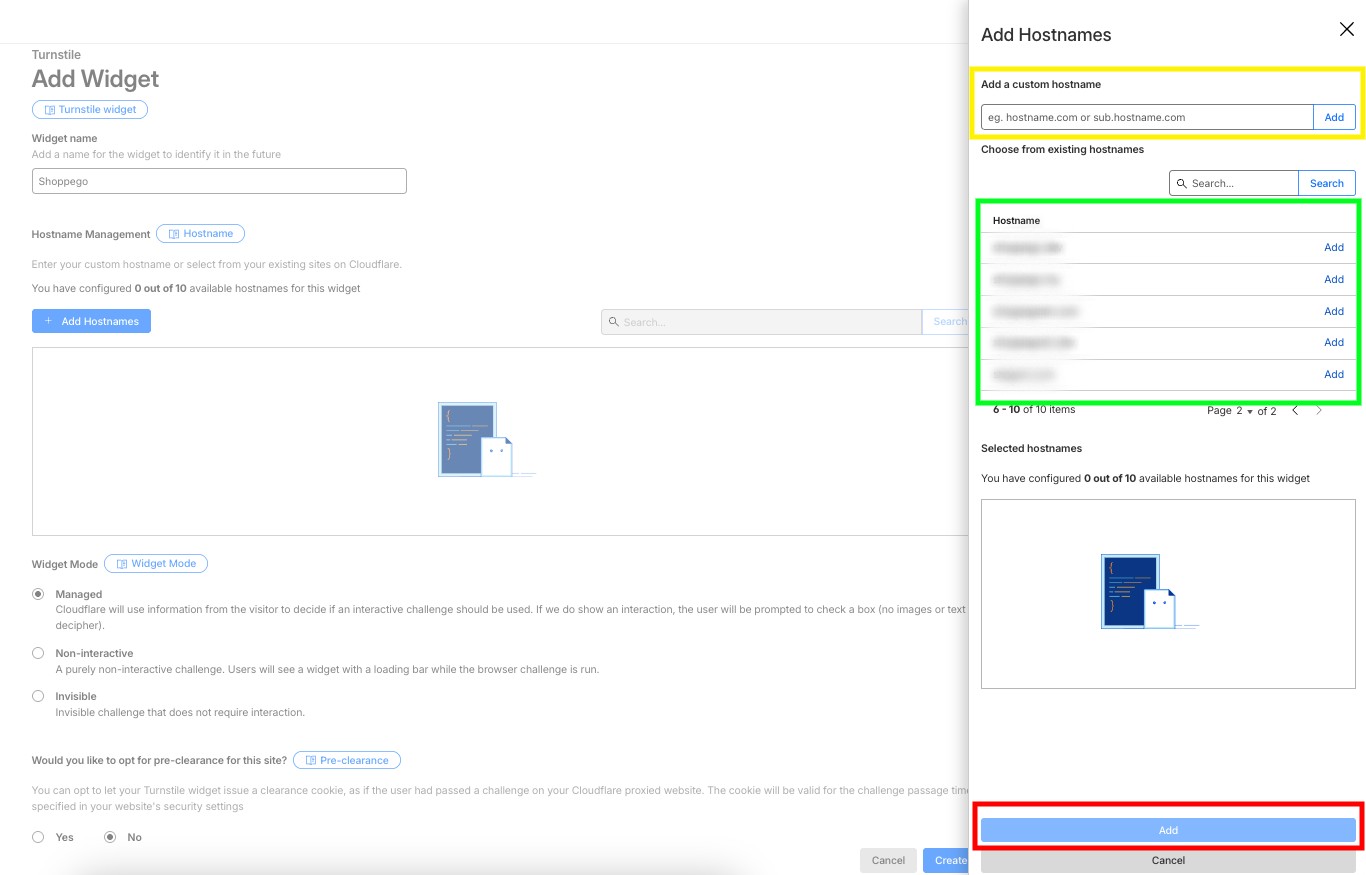
5. Then, you need to set the Hostnames by clicking on the "**Add Hostnames**" button.

<figure><img src="https://3359028955-files.gitbook.io/~/files/v0/b/gitbook-x-prod.appspot.com/o/spaces%2F-Lh09fNwqqta5Vj6Wr8p%2Fuploads%2Fgit-blob-87d4466f3fe2ad672f9b20f1c2076da76cb7f81f%2FODp3ptkcFhM3j6k6J0bH.jpg?alt=media" alt=""><figcaption></figcaption></figure>

If you **do not have a hostname/domain set in your Cloudflare account**, you can **enter your hostname/domain in the Custom hostname section (Highlighted in yellow)**.\
\
If your **hostname/domain is already in your Cloudflare account**, you can **continue to make the selection as shown (Highlighted in green)**.\
\
Once done, click **Add**

<figure><img src="https://3359028955-files.gitbook.io/~/files/v0/b/gitbook-x-prod.appspot.com/o/spaces%2F-Lh09fNwqqta5Vj6Wr8p%2Fuploads%2Fgit-blob-8c0a4ed1330066faa1efde63f254acfbba7f7205%2FvyuUuwR0qbs2EVQB0Fbp.jpg?alt=media" alt=""><figcaption></figcaption></figure>

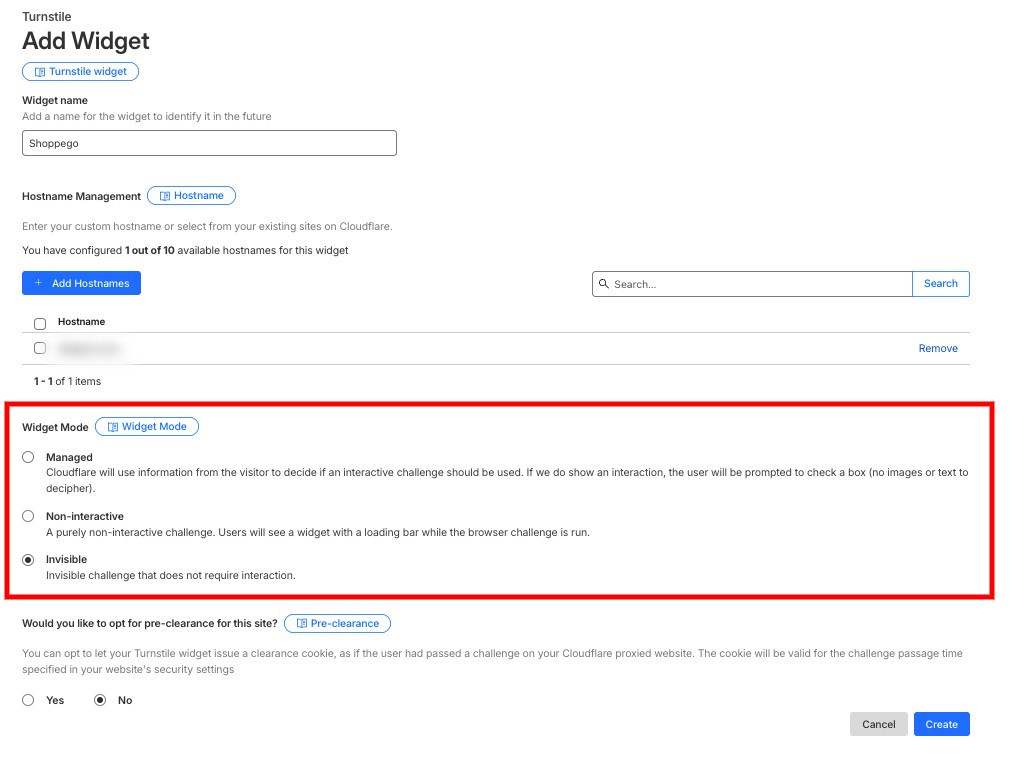
6. Next, for the "**Widget Mode**" setting, you can set it to whatever you want. We recommend setting it to "**Invisible**".

<figure><img src="https://3359028955-files.gitbook.io/~/files/v0/b/gitbook-x-prod.appspot.com/o/spaces%2F-Lh09fNwqqta5Vj6Wr8p%2Fuploads%2Fgit-blob-2ee33809a88754cb70ad3d255598013ec095eb45%2Fe5mz4NeznMMUAx7QyxX5.jpg?alt=media" alt=""><figcaption></figcaption></figure>

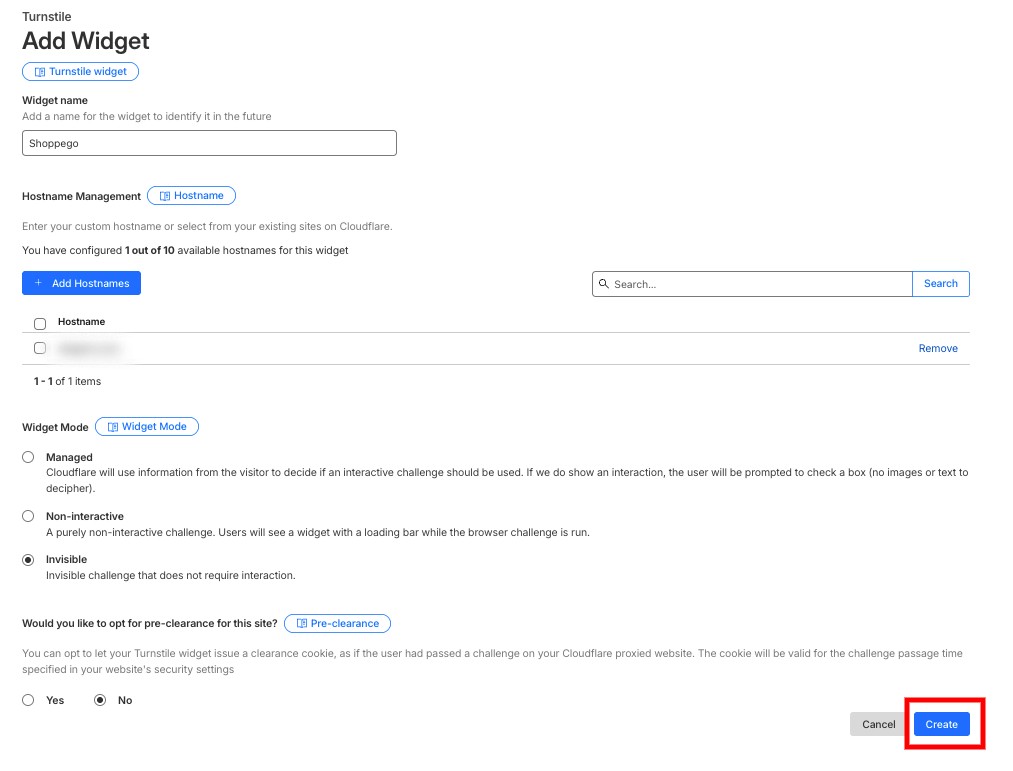
7. Once finished, click **Create**

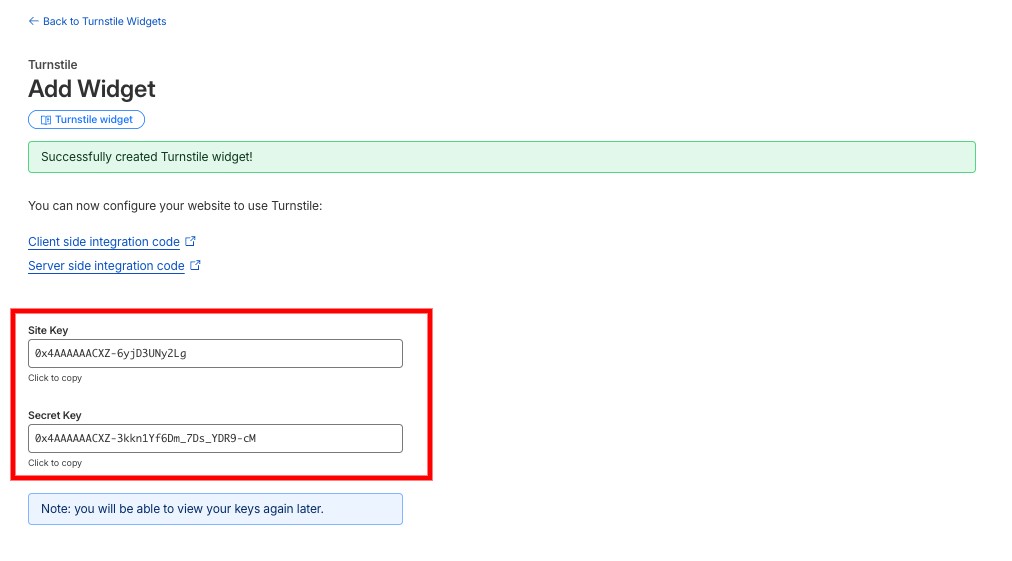
<figure><img src="https://3359028955-files.gitbook.io/~/files/v0/b/gitbook-x-prod.appspot.com/o/spaces%2F-Lh09fNwqqta5Vj6Wr8p%2Fuploads%2Fgit-blob-a1982c08338a71ca49e5a2cb6cc01f9403873850%2FR7oFT0Qg3wWEUyg8FAIn.jpg?alt=media" alt=""><figcaption></figcaption></figure>

Now, you can see the "**Site key**" and "**Secret key**", which you need to enter in the settings on the Shoppego dashboard later.

<figure><img src="https://3359028955-files.gitbook.io/~/files/v0/b/gitbook-x-prod.appspot.com/o/spaces%2F-Lh09fNwqqta5Vj6Wr8p%2Fuploads%2Fgit-blob-e24d9e43ecf7386eb9c7d32dfb4b22310d32ba7a%2FNBMafyuwTpKwTU50F3MY.jpg?alt=media" alt=""><figcaption></figcaption></figure>

## Setting up in Shoppego

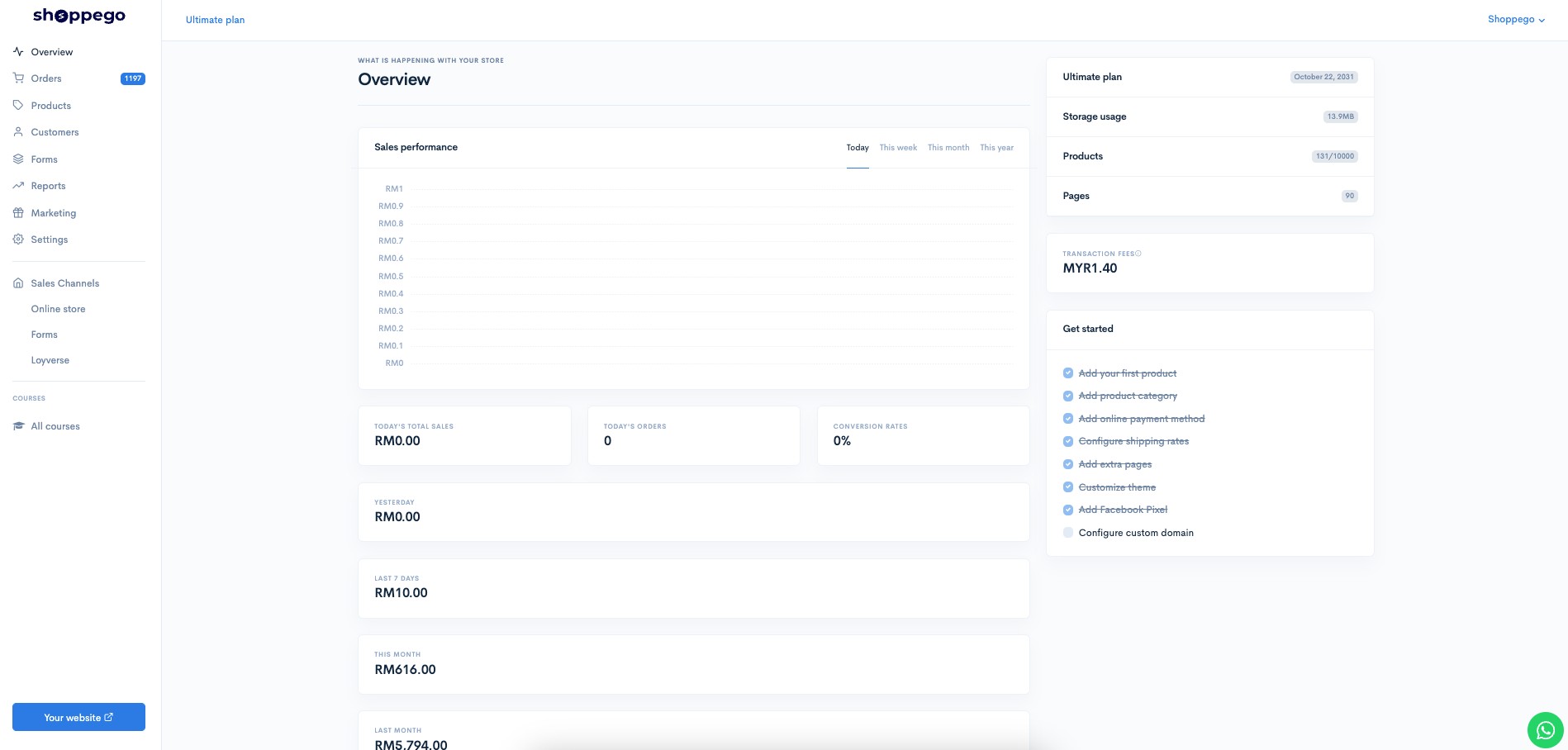
1. Log in to your Shoppego account.

<figure><img src="https://3359028955-files.gitbook.io/~/files/v0/b/gitbook-x-prod.appspot.com/o/spaces%2F-Lh09fNwqqta5Vj6Wr8p%2Fuploads%2Fgit-blob-b853fc0189b34fb1d3990f5b1f53fa71deb9d384%2FlCN7aw3FznaFFoOAyya2.jpg?alt=media" alt=""><figcaption></figcaption></figure>

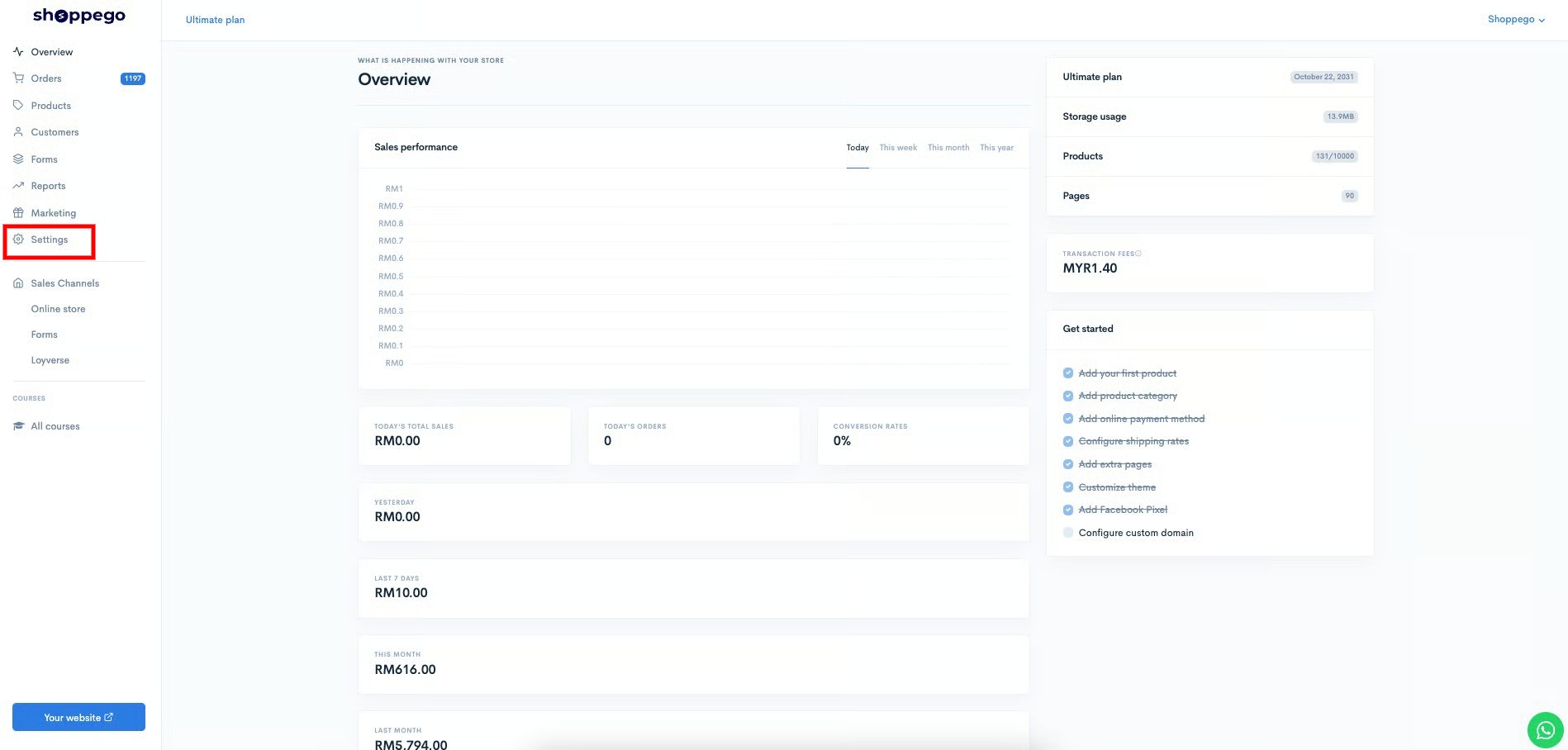
2. Click on **Settings**

<figure><img src="https://3359028955-files.gitbook.io/~/files/v0/b/gitbook-x-prod.appspot.com/o/spaces%2F-Lh09fNwqqta5Vj6Wr8p%2Fuploads%2Fgit-blob-9ae8b66b366958146673b78216b78ff0e8f12b90%2FVsK9zs6aZtUfKK1hcCiM.jpg?alt=media" alt=""><figcaption></figcaption></figure>

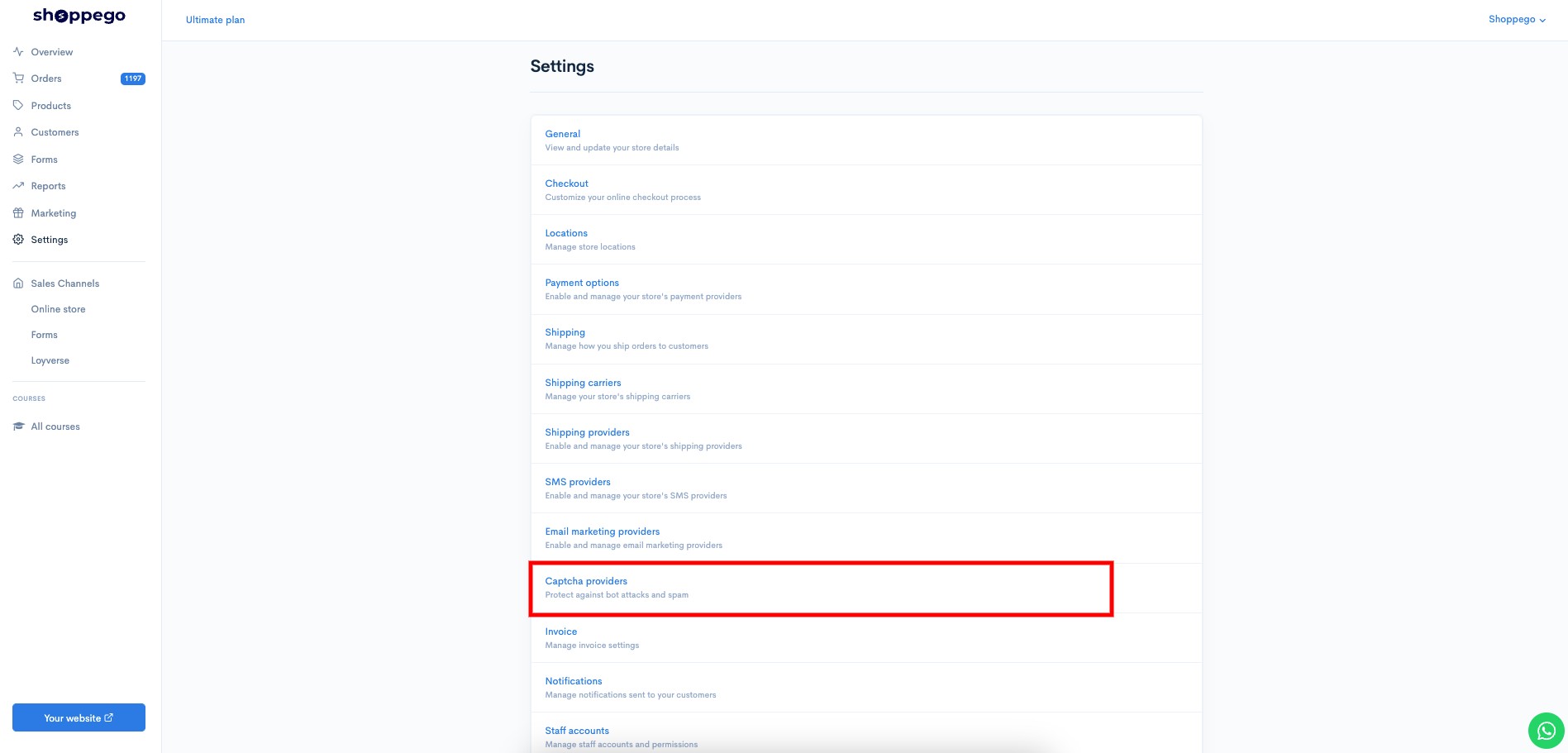
3. Click on **Captcha providers**

<figure><img src="https://3359028955-files.gitbook.io/~/files/v0/b/gitbook-x-prod.appspot.com/o/spaces%2F-Lh09fNwqqta5Vj6Wr8p%2Fuploads%2Fgit-blob-6daa58e0a2990c8d98da79c989b9ad9aa0c02f45%2FWTAu7U4FoU0pJaCJ60S7.jpg?alt=media" alt=""><figcaption></figcaption></figure>

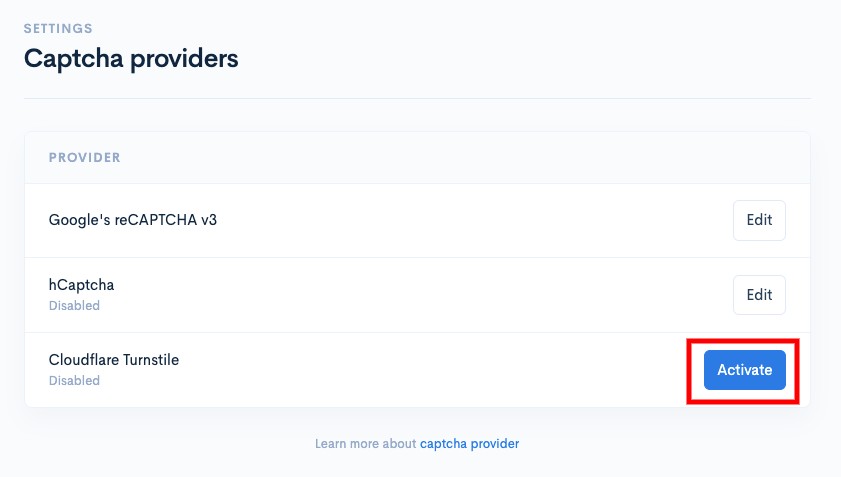
4. Click on the **Activate/Edit** button for the provider type "**Cloudflare Turnstile**"

<figure><img src="https://3359028955-files.gitbook.io/~/files/v0/b/gitbook-x-prod.appspot.com/o/spaces%2F-Lh09fNwqqta5Vj6Wr8p%2Fuploads%2Fgit-blob-a6a2a40334cca3464b1f8c8f18df713fe4fb59c9%2FcbXRJ3HCKz0wbjySNxLu.jpg?alt=media" alt=""><figcaption></figcaption></figure>

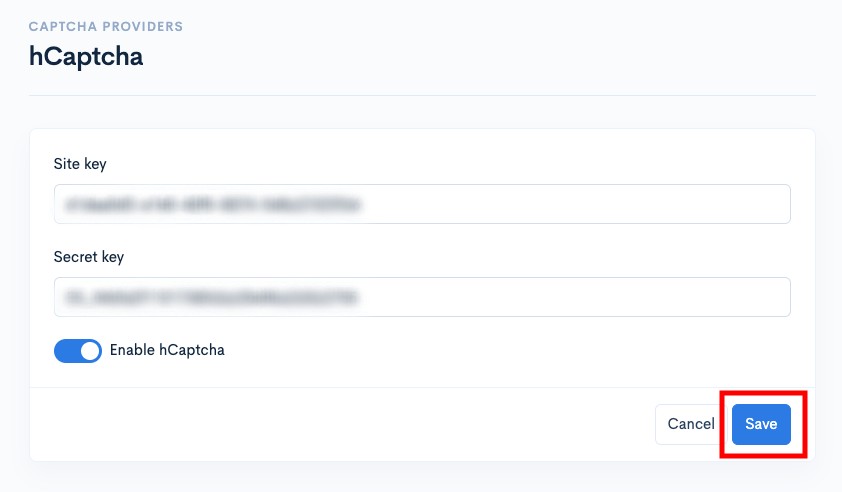
5. Then, you can **enter your Cloudflare Turnstile Site key** and **Secret key** in the spaces provided. Make sure to **tick the Enable toggle** and click **Save**

<figure><img src="https://3359028955-files.gitbook.io/~/files/v0/b/gitbook-x-prod.appspot.com/o/spaces%2F-Lh09fNwqqta5Vj6Wr8p%2Fuploads%2Fgit-blob-684bcb65330cb51accc842249f9e880a1a5c0620%2FsE3K4qVvNryEZTIXvLBg.jpg?alt=media" alt=""><figcaption></figcaption></figure>

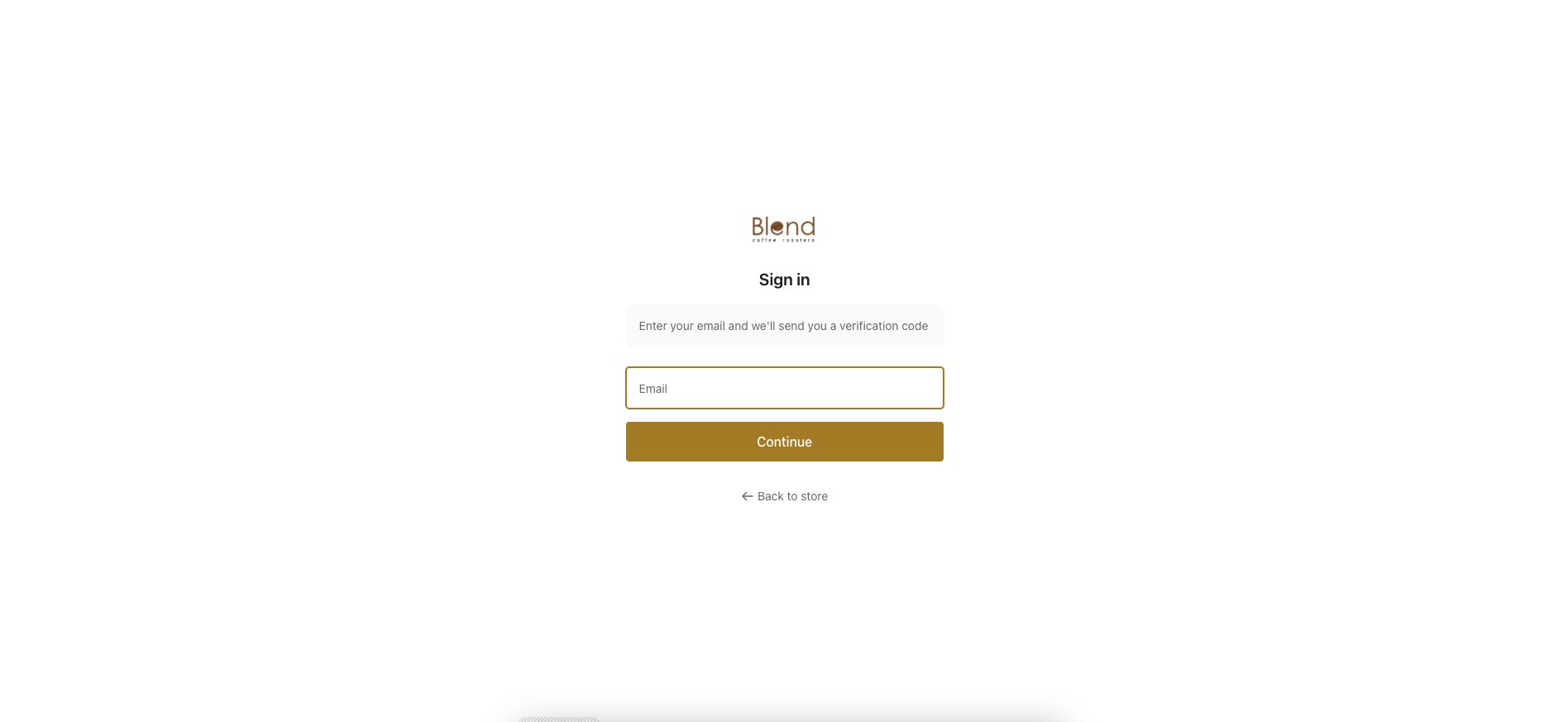
Now your setup is complete. You should be able to see the Cloudflare logo (If you are using "Widget mode" "Manage") displayed on the "Forms" page and also the "Login" page of your website.
<figure><img src="https://3359028955-files.gitbook.io/~/files/v0/b/gitbook-x-prod.appspot.com/o/spaces%2F-Lh09fNwqqta5Vj6Wr8p%2Fuploads%2Fgit-blob-2d7995f5efb5628403db7a2e63abfe1985f97b6c%2Fin9s3cRCKwnP8DMIzgh2.jpg?alt=media" alt=""><figcaption></figcaption></figure>