> For the complete documentation index, see [llms.txt](https://docs.shoppego.my/tutorials/llms.txt). Markdown versions of documentation pages are available by appending `.md` to page URLs; this page is available as [Markdown](https://docs.shoppego.my/tutorials/en/settings/captcha-providers/hcaptcha.md).

# hCaptcha

Before you follow the steps below, make sure you have an hCAptcha account. If you don't have one yet, you can register at the link below:

There are 2 pieces of data you need to integrate hCaptcha with the Shoppego system:

* Site key
* Secret key

## Setting in hCaptcha

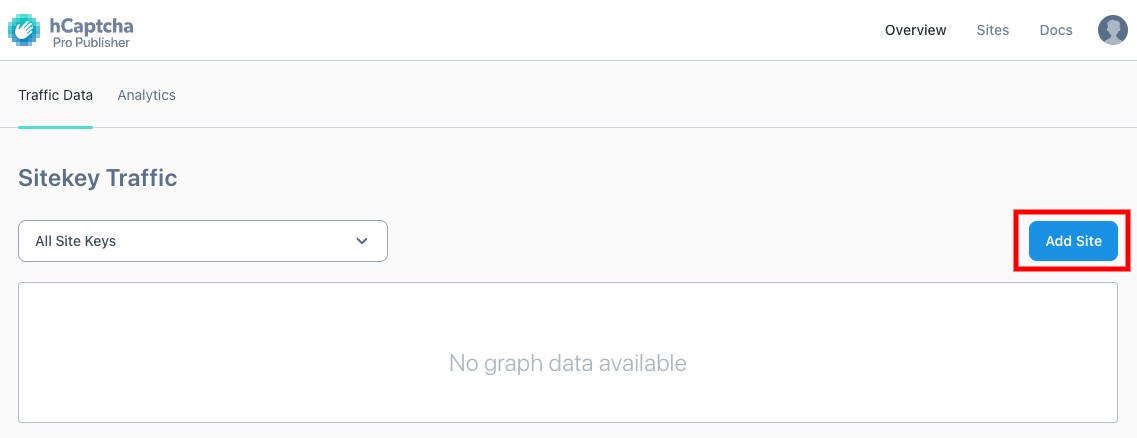
1. You can get this data by clicking on **Add Site**.

<figure><img src="https://3359028955-files.gitbook.io/~/files/v0/b/gitbook-x-prod.appspot.com/o/spaces%2F-Lh09fNwqqta5Vj6Wr8p%2Fuploads%2Fgit-blob-5a21468ed69f705c8a371332236112f8cd69edf3%2FyyyI0nhEyLiKte03rqfR.jpg?alt=media" alt=""><figcaption></figcaption></figure>

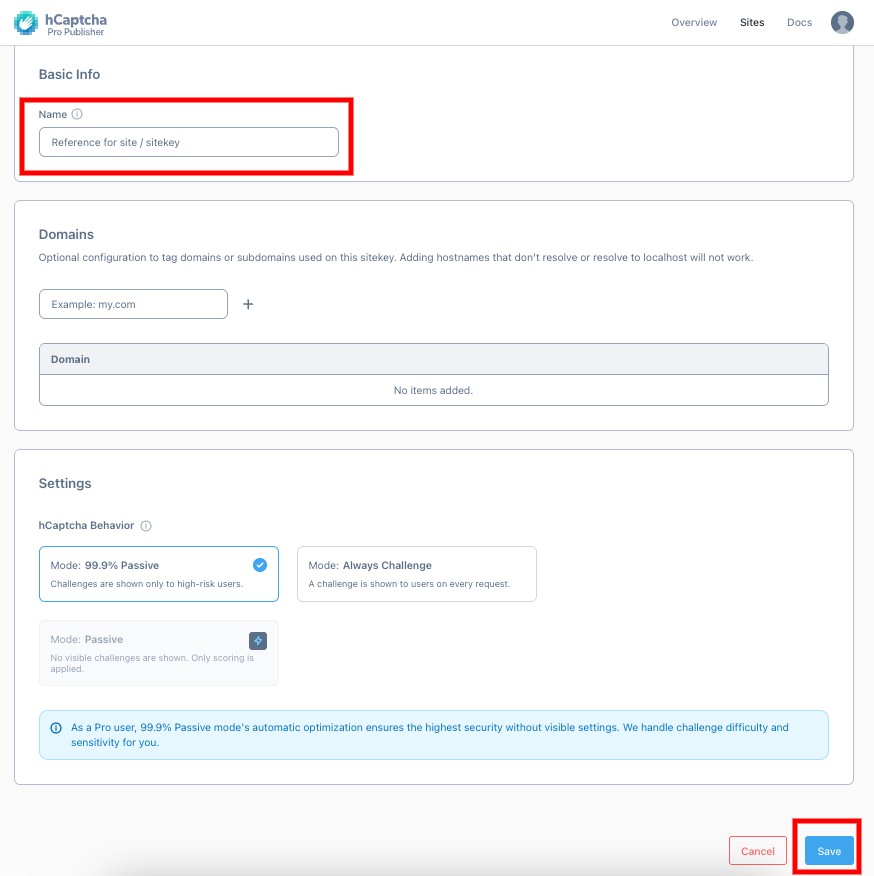
2. Then, **enter your Site name for reference (make sure all letters are lowercase)**. When finished click **Save**

<figure><img src="https://3359028955-files.gitbook.io/~/files/v0/b/gitbook-x-prod.appspot.com/o/spaces%2F-Lh09fNwqqta5Vj6Wr8p%2Fuploads%2Fgit-blob-84375c43d2b49d322ab6ea5c8425c5e2e903212f%2F0bQ7H5TQiuBcf4PiFCt2.jpg?alt=media" alt=""><figcaption></figcaption></figure>

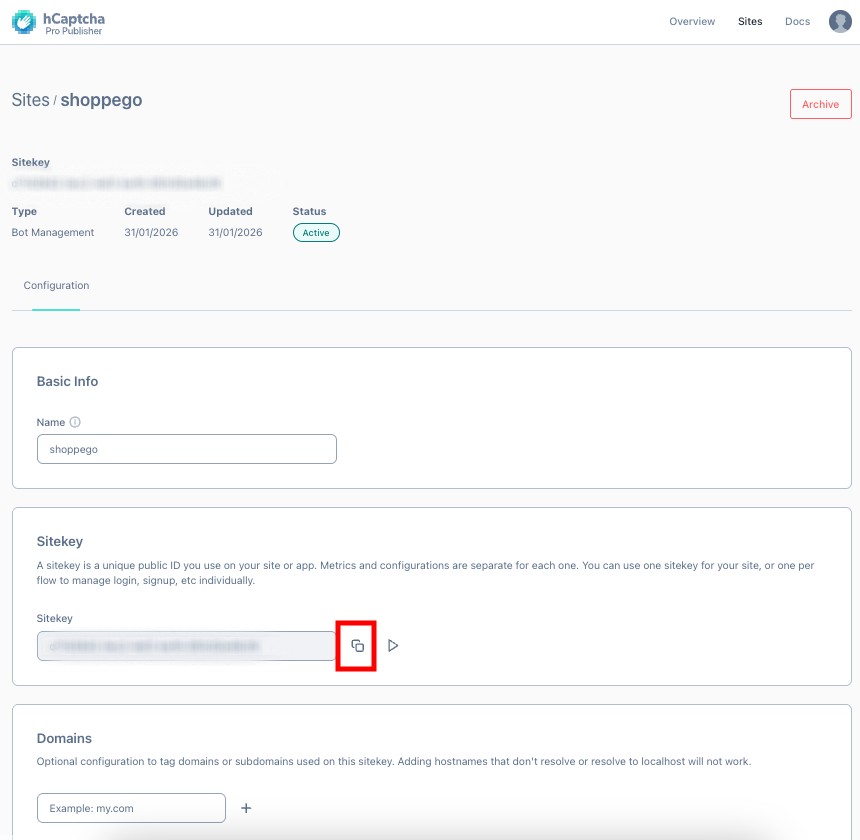
3. Later, you will be **able to see your Site key**. You can **copy it to enter in the settings on the Shoppego dashboard later**.

<figure><img src="https://3359028955-files.gitbook.io/~/files/v0/b/gitbook-x-prod.appspot.com/o/spaces%2F-Lh09fNwqqta5Vj6Wr8p%2Fuploads%2Fgit-blob-e0c1cf09624f30d8651db35a0c664dbbdb76ec1c%2FkGY7onUU5fls5DGadLyU.jpg?alt=media" alt=""><figcaption></figcaption></figure>

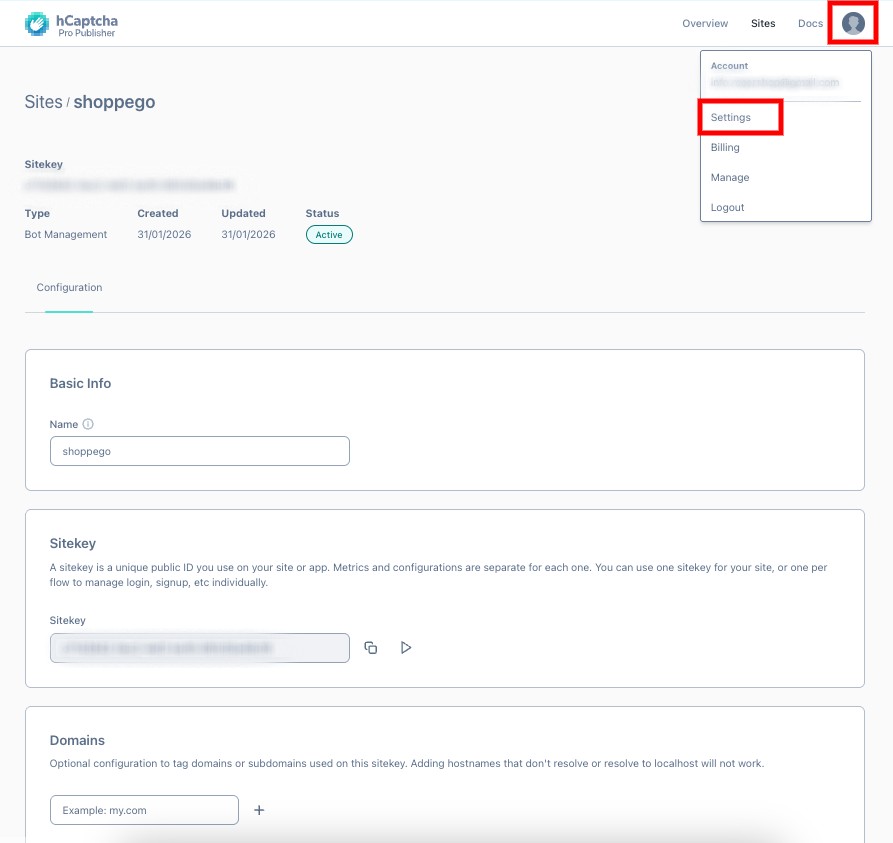
For the **Secret key**, you should have created it when you **first registered your hCaptcha** **account**. If you have **forgotten your Secret key**, you can click on your **account menu** and select **Settings**.

<figure><img src="https://3359028955-files.gitbook.io/~/files/v0/b/gitbook-x-prod.appspot.com/o/spaces%2F-Lh09fNwqqta5Vj6Wr8p%2Fuploads%2Fgit-blob-d984bbf034010b40a16bec915bfe8a345ca812f4%2FmxTMCQ46VynvXFnZiZmu.jpg?alt=media" alt=""><figcaption></figcaption></figure>

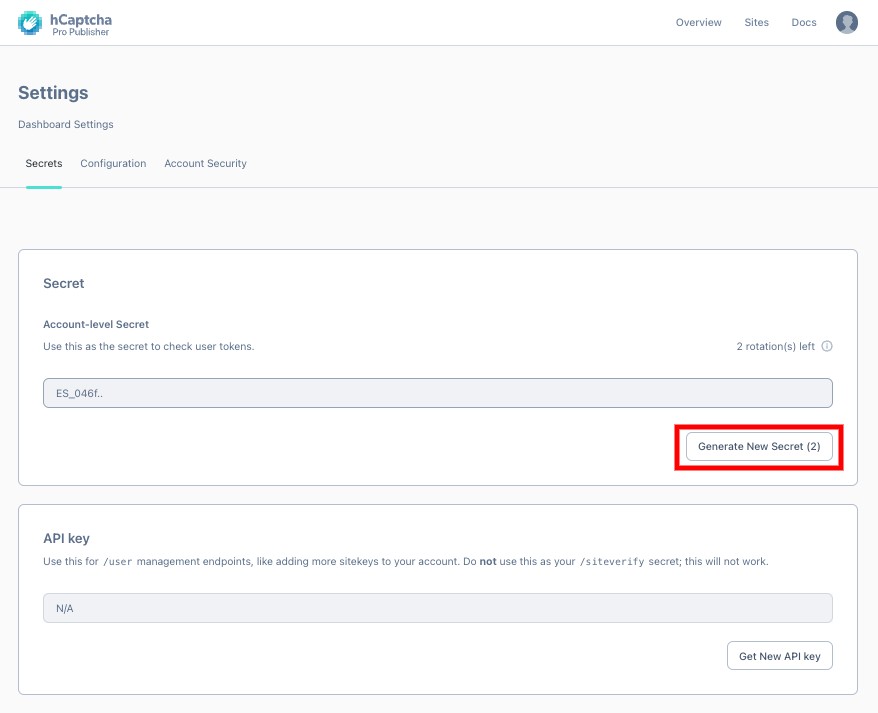
Then, you can click on **Generate New Secret** and **copy your new secret key** to **enter in the settings in Shoppego**.

<figure><img src="https://3359028955-files.gitbook.io/~/files/v0/b/gitbook-x-prod.appspot.com/o/spaces%2F-Lh09fNwqqta5Vj6Wr8p%2Fuploads%2Fgit-blob-5feb96632aa8dd573a295c60d3ecdfd67a60f666%2FGy1d279dpiViI2PWq0VV.jpg?alt=media" alt=""><figcaption></figcaption></figure>

## Setting in Shoppego

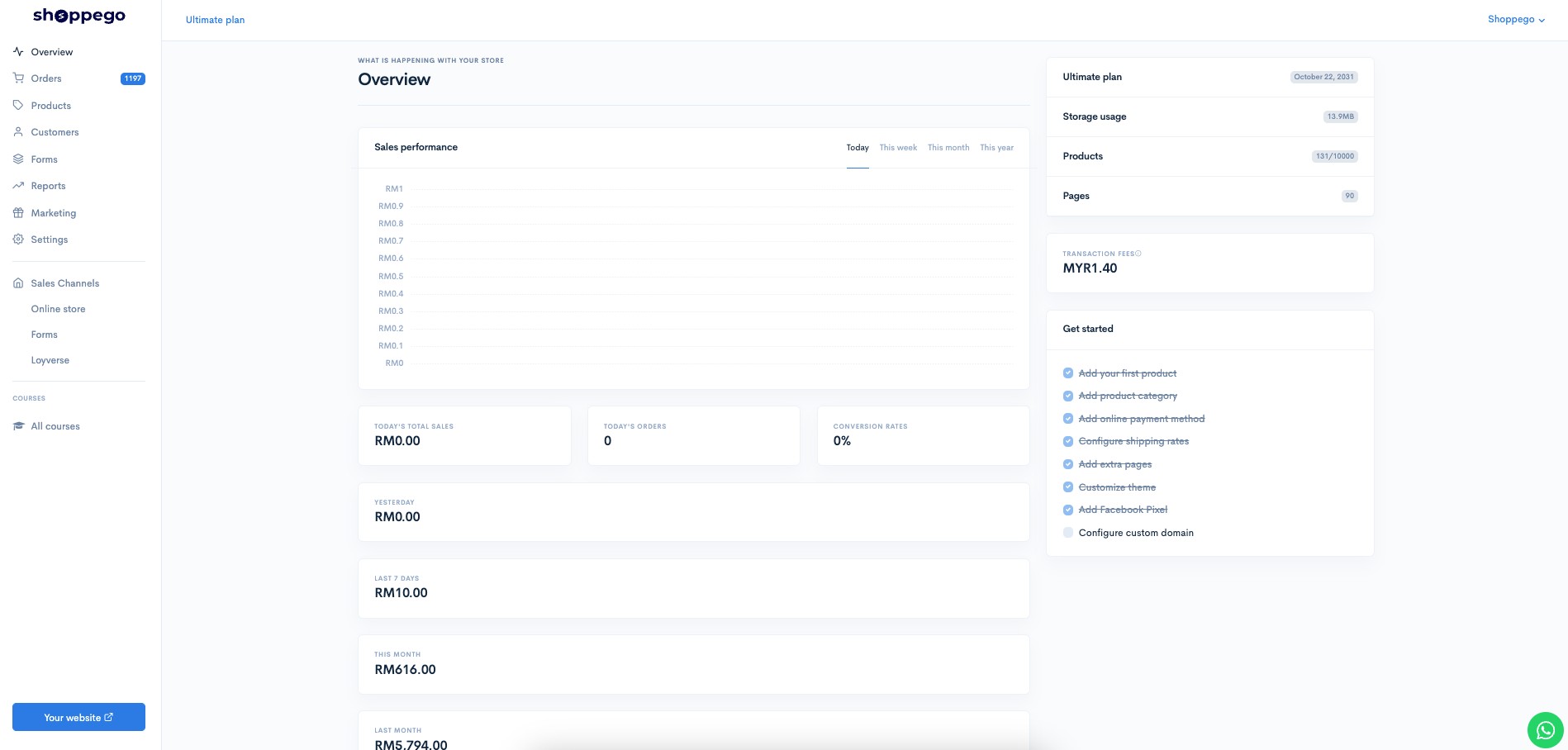
1. Log in to your Shoppego account.

<figure><img src="https://3359028955-files.gitbook.io/~/files/v0/b/gitbook-x-prod.appspot.com/o/spaces%2F-Lh09fNwqqta5Vj6Wr8p%2Fuploads%2Fgit-blob-b853fc0189b34fb1d3990f5b1f53fa71deb9d384%2FlCN7aw3FznaFFoOAyya2.jpg?alt=media" alt=""><figcaption></figcaption></figure>

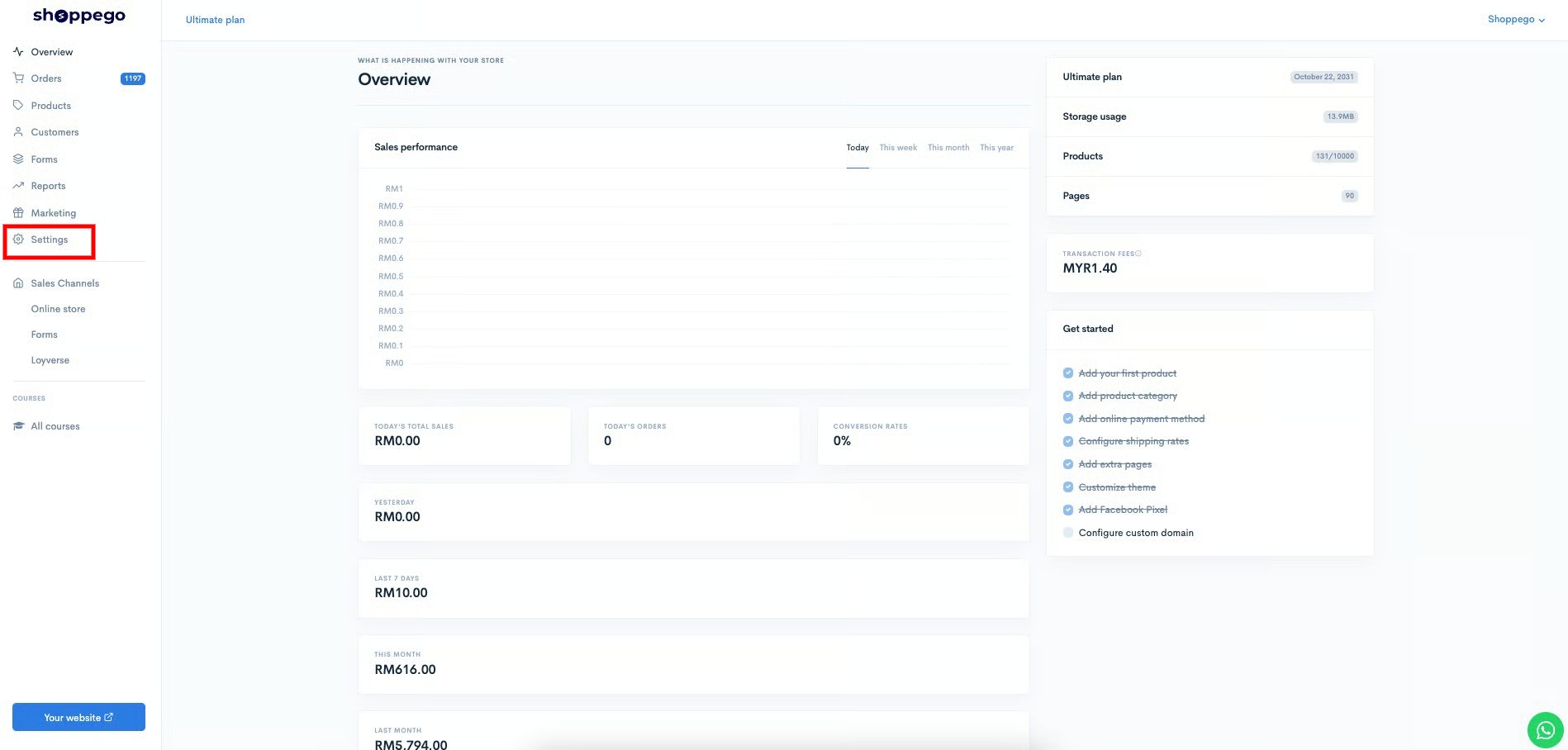
2. Click on **Settings**

<figure><img src="https://3359028955-files.gitbook.io/~/files/v0/b/gitbook-x-prod.appspot.com/o/spaces%2F-Lh09fNwqqta5Vj6Wr8p%2Fuploads%2Fgit-blob-9ae8b66b366958146673b78216b78ff0e8f12b90%2FVsK9zs6aZtUfKK1hcCiM.jpg?alt=media" alt=""><figcaption></figcaption></figure>

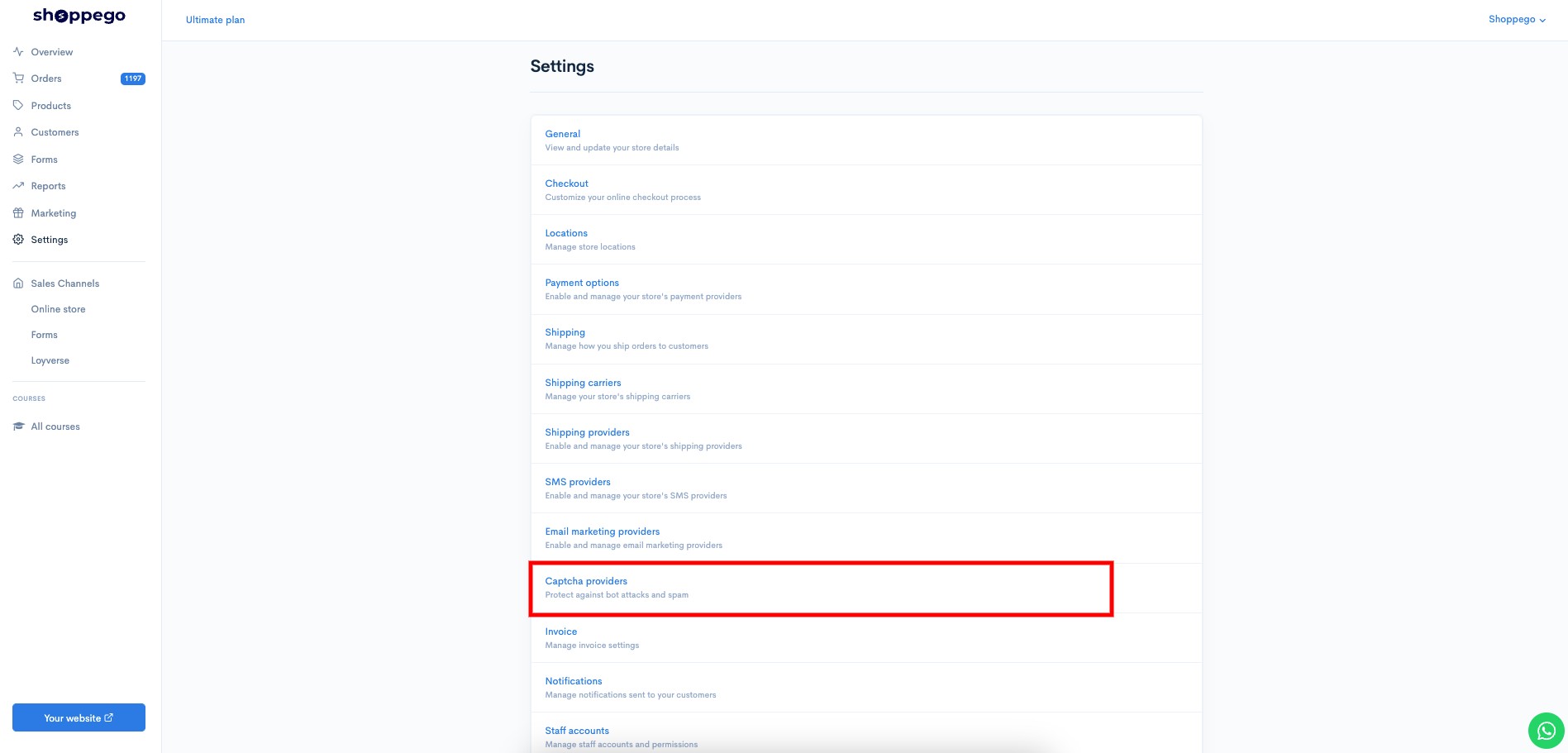
3. Click on **Captcha providers**

<figure><img src="https://3359028955-files.gitbook.io/~/files/v0/b/gitbook-x-prod.appspot.com/o/spaces%2F-Lh09fNwqqta5Vj6Wr8p%2Fuploads%2Fgit-blob-6daa58e0a2990c8d98da79c989b9ad9aa0c02f45%2FWTAu7U4FoU0pJaCJ60S7.jpg?alt=media" alt=""><figcaption></figcaption></figure>

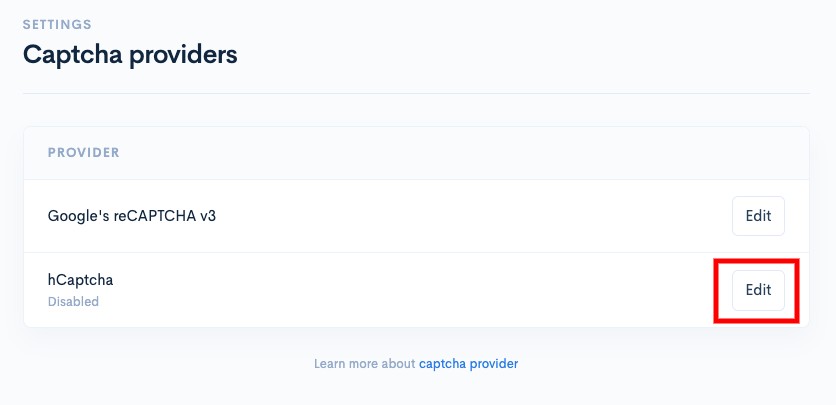
4. Click on the **Activate/Edit** button for the provider type "**hCaptcha**"

<figure><img src="https://3359028955-files.gitbook.io/~/files/v0/b/gitbook-x-prod.appspot.com/o/spaces%2F-Lh09fNwqqta5Vj6Wr8p%2Fuploads%2Fgit-blob-95b81163aab6759cc4ee84baa15045e90ff6e127%2FMqxcROPx9LX63Z7YMO4C.jpg?alt=media" alt=""><figcaption></figcaption></figure>

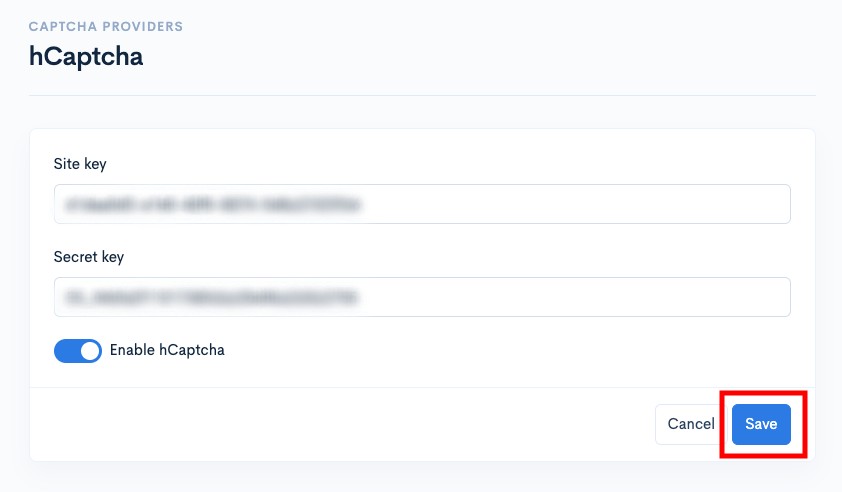
5. Then, you can enter your **Site key** and **hCaptcha Secret key** in the **spaces provided**. Make sure to **tick the Enable toggle** and click **Save**.

<figure><img src="https://3359028955-files.gitbook.io/~/files/v0/b/gitbook-x-prod.appspot.com/o/spaces%2F-Lh09fNwqqta5Vj6Wr8p%2Fuploads%2Fgit-blob-684bcb65330cb51accc842249f9e880a1a5c0620%2FsE3K4qVvNryEZTIXvLBg.jpg?alt=media" alt=""><figcaption></figcaption></figure>

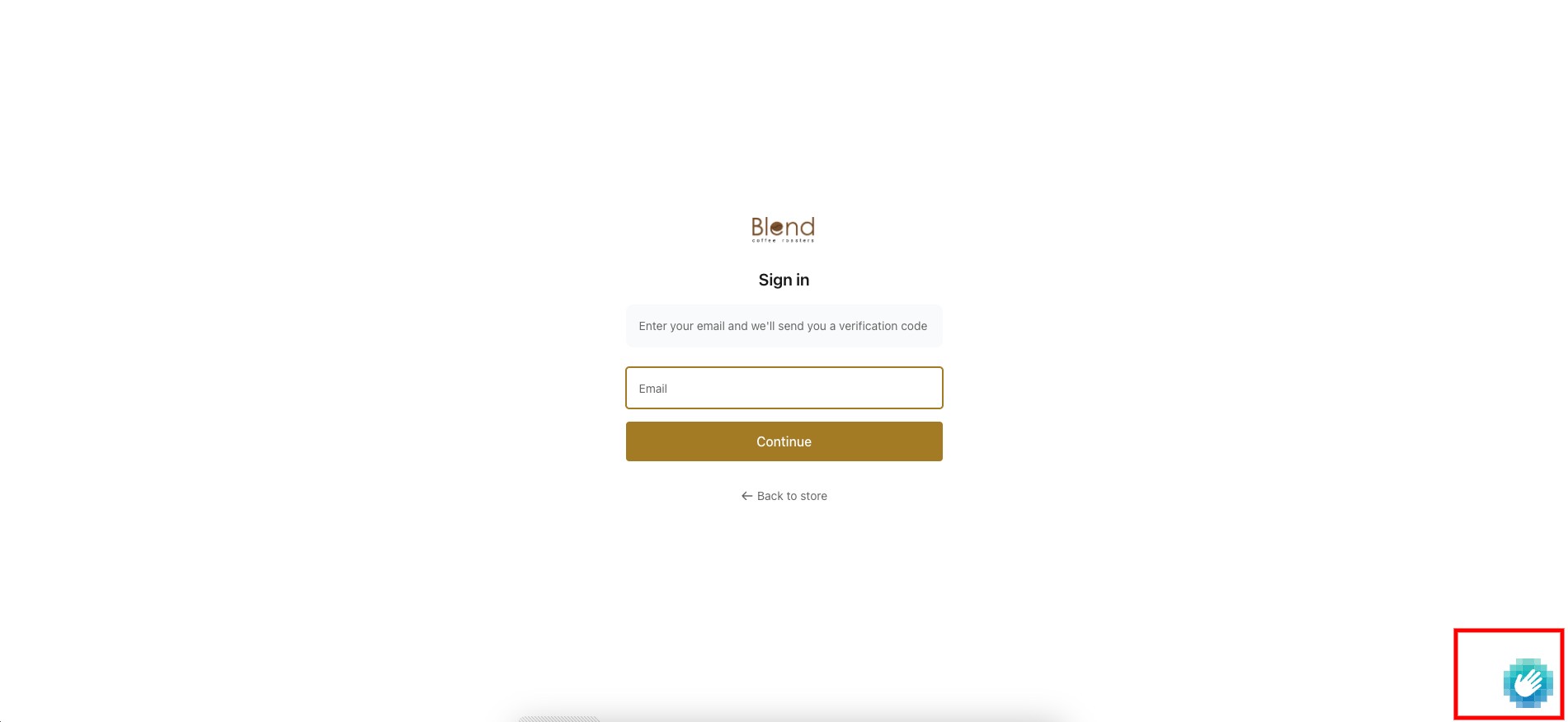
Now your settings are complete. You should be able to see the hCaptcha logo displayed on the "Forms" page and also the "Login" page of your website.
<figure><img src="https://3359028955-files.gitbook.io/~/files/v0/b/gitbook-x-prod.appspot.com/o/spaces%2F-Lh09fNwqqta5Vj6Wr8p%2Fuploads%2Fgit-blob-40ca2640375166f7e07085cabf9b2085bba5b334%2F8iS5YhicGpGF0owQn6xS.jpg?alt=media" alt=""><figcaption></figcaption></figure>