> For the complete documentation index, see [llms.txt](https://docs.shoppego.my/tutorials/llms.txt). Markdown versions of documentation pages are available by appending `.md` to page URLs; this page is available as [Markdown](https://docs.shoppego.my/tutorials/en/settings/currencies.md).

# Currencies

You can change the way currency is displayed in your store to make it easier for your customers to read the amounts.

## On this page

* [Considerations for currency formatting](#considerations-for-currency-formatting)
* [Add your currency formatting](#tambahkan-pemformatan-mata-wang-anda)
* [Example of displaying currency formatting in your store](#example-of-displaying-currency-formatting-in-your-store)

## Considerations for currency formatting

* This currency formatting is only used for display in your store/website to make it easier for your customers to read the amount. On the checkout page, customers will still see the currency according to your store/website's original currency.
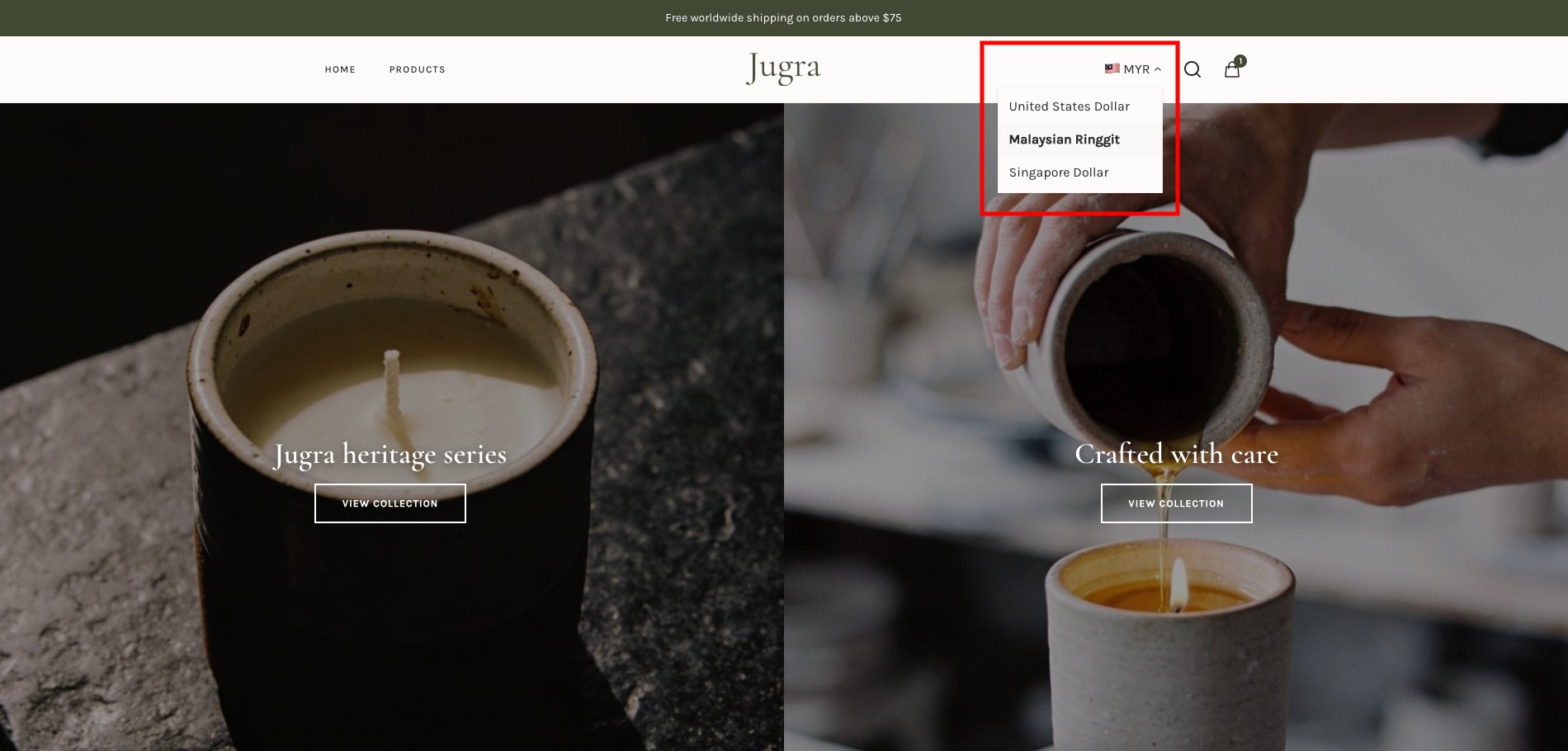
* The currency formatting selection will be based on the customer's IP Address itself (If you have set the currency for that location).
* You can only format currencies for countries such as Malaysia (MYR), Brunei (BND), Indonesia (IDR), United Kingdom (GBP), United States (USD) and Singapore (SGD).
* The currency conversion display will depend entirely on the "Exchange rate" setting you set. The system will not perform the conversion automatically.

## Add your currency formatting

1. Log in to your Shoppego account

<figure><img src="https://3359028955-files.gitbook.io/~/files/v0/b/gitbook-x-prod.appspot.com/o/spaces%2F-Lh09fNwqqta5Vj6Wr8p%2Fuploads%2Fgit-blob-b853fc0189b34fb1d3990f5b1f53fa71deb9d384%2FlCN7aw3FznaFFoOAyya2.jpg?alt=media" alt=""><figcaption></figcaption></figure>

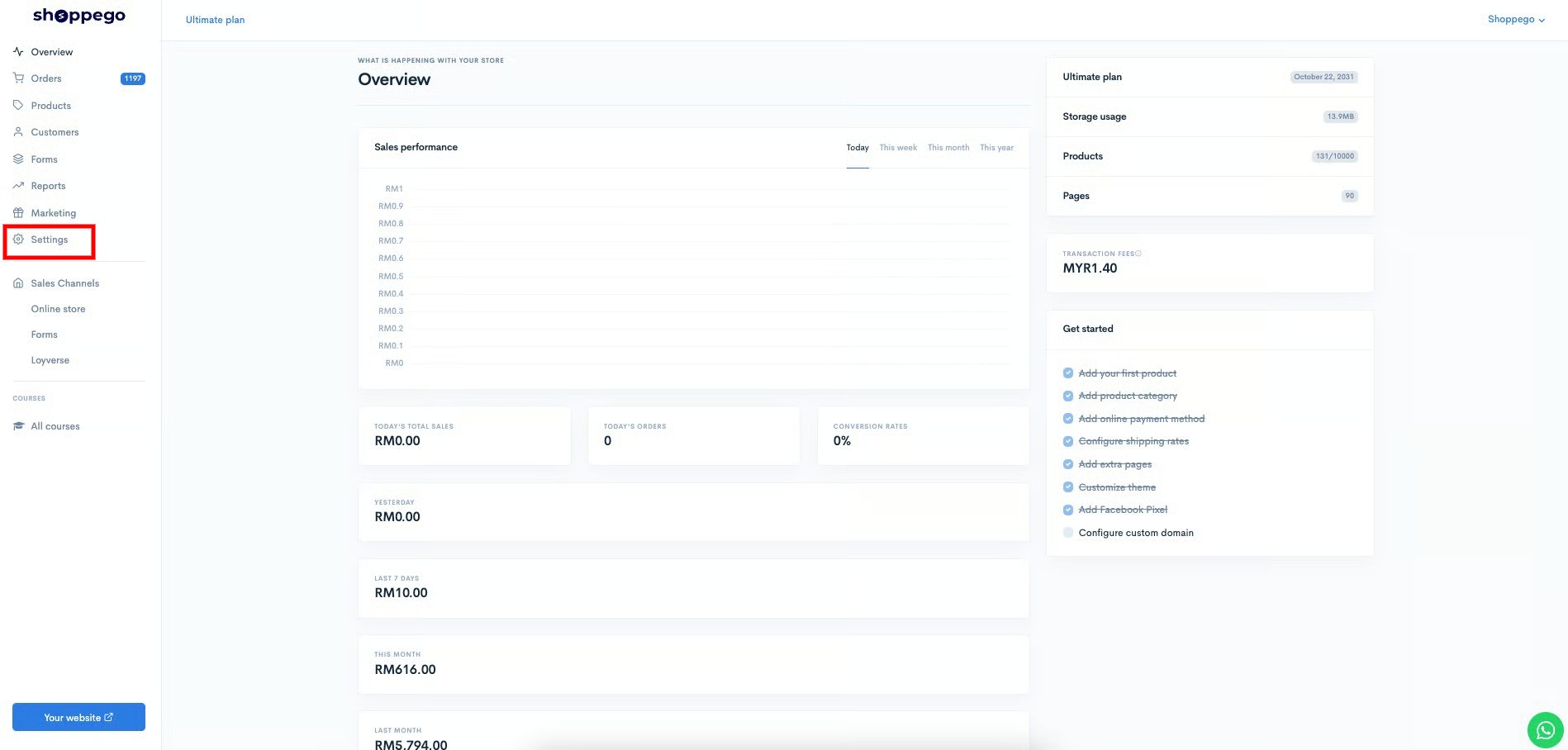
2. Click on **Settings**

<figure><img src="https://3359028955-files.gitbook.io/~/files/v0/b/gitbook-x-prod.appspot.com/o/spaces%2F-Lh09fNwqqta5Vj6Wr8p%2Fuploads%2Fgit-blob-9ae8b66b366958146673b78216b78ff0e8f12b90%2FVsK9zs6aZtUfKK1hcCiM.jpg?alt=media" alt=""><figcaption></figcaption></figure>

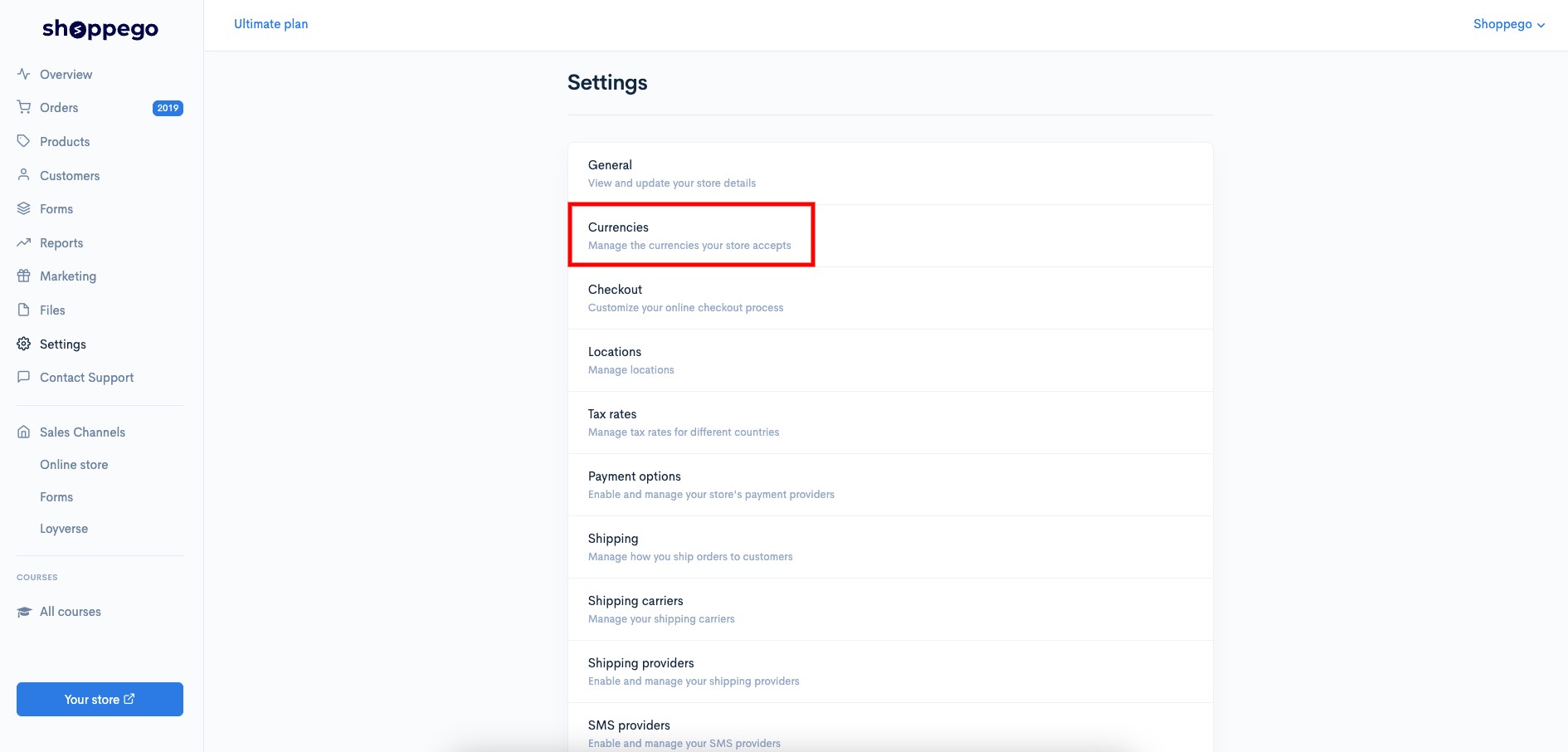
3. Click on **Currencies**

<figure><img src="https://3359028955-files.gitbook.io/~/files/v0/b/gitbook-x-prod.appspot.com/o/spaces%2F-Lh09fNwqqta5Vj6Wr8p%2Fuploads%2Fgit-blob-60cfa8654d2b81edee039ef1f0cc1dc78adc345a%2FfwpbTVwlMJCuM3hNhZ2O.jpg?alt=media" alt=""><figcaption></figcaption></figure>

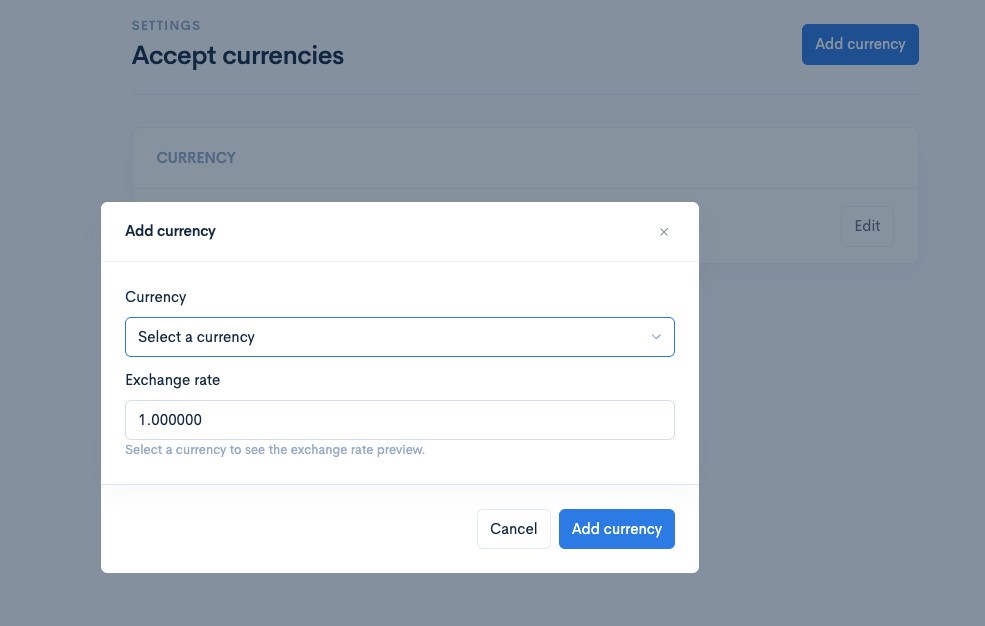
4. Click on **Add currency**

<figure><img src="https://3359028955-files.gitbook.io/~/files/v0/b/gitbook-x-prod.appspot.com/o/spaces%2F-Lh09fNwqqta5Vj6Wr8p%2Fuploads%2Fgit-blob-1d9728ed6fcdbe298d1c214dbe2069c8db1d0a6d%2Fwip7M9pNmba5II820qC1.jpg?alt=media" alt=""><figcaption></figcaption></figure>

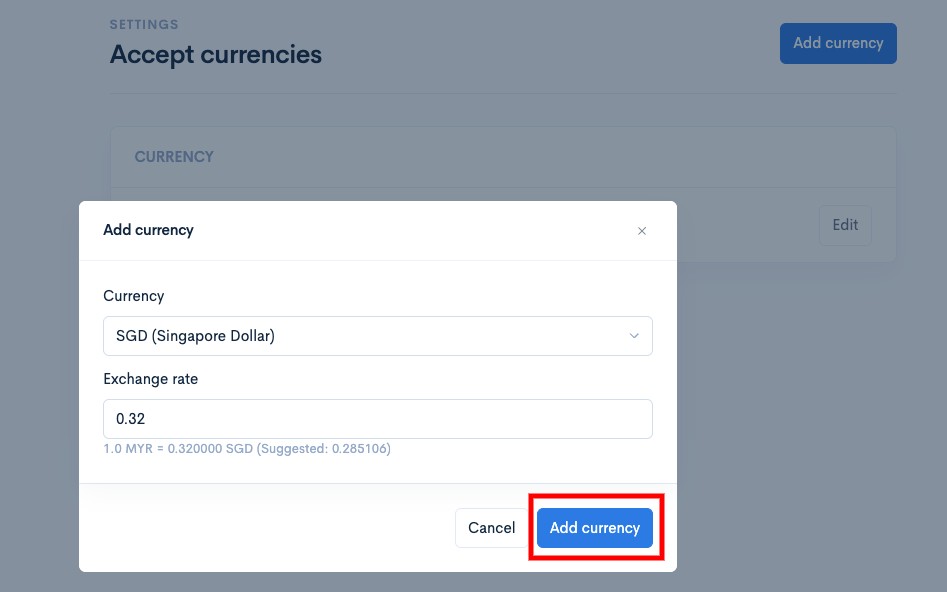
5. Then, you can select the currency you want to add and enter the exchange rate value for that currency.

<figure><img src="https://3359028955-files.gitbook.io/~/files/v0/b/gitbook-x-prod.appspot.com/o/spaces%2F-Lh09fNwqqta5Vj6Wr8p%2Fuploads%2Fgit-blob-9eacb66700e7caea6dc1c3258b8a639895442a5d%2FpejWpzguxEdKUvcIZ8Mo.jpg?alt=media" alt=""><figcaption></figcaption></figure>

6. After finishing click **Add currency**

<figure><img src="https://3359028955-files.gitbook.io/~/files/v0/b/gitbook-x-prod.appspot.com/o/spaces%2F-Lh09fNwqqta5Vj6Wr8p%2Fuploads%2Fgit-blob-75bcfbcb95ed31a6af1f081b1c23c85fea546bd2%2FY07NGiAyHG07GqZiVHnP.jpg?alt=media" alt=""><figcaption></figcaption></figure>

## Example of displaying currency formatting in your store
<figure><img src="https://3359028955-files.gitbook.io/~/files/v0/b/gitbook-x-prod.appspot.com/o/spaces%2F-Lh09fNwqqta5Vj6Wr8p%2Fuploads%2Fgit-blob-8f10c416ca3609ae7a0b7fbc888bdfb5be2ab96e%2FSyVOqXTNgqLDEQKO5WDH.jpg?alt=media" alt=""><figcaption></figcaption></figure>