> For the complete documentation index, see [llms.txt](https://docs.shoppego.my/tutorials/llms.txt). Markdown versions of documentation pages are available by appending `.md` to page URLs; this page is available as [Markdown](https://docs.shoppego.my/tutorials/en/settings/custom-domain/shinjiru.md).
# Shinjiru
There are 3 parts to doing this setting:
* **Part 1**: Get the value for the CNAME record
* **Part 2**: Setting up in Shinjiru
* **Part 3**: Setting up in Shoppego
{% hint style="warning" %}
Make sure **your domain has been purchased and is ready to use for setup**. If you **purchased a ".com" domain, you can continue with this tutorial**.
{% endhint %}
If the **domain is Malaysian** such as "**.my, .com.my, .net.my**" you need to set these DNS records in your own **MYNIC** account or you can contact your **domain provider** to set them.
**Starting February 26, 2026, every Shoppego user only needs to do a CNAME record and every store/website will have the same CNAME record value/setting.**
## **Part 1**: Get the value for the CNAME record
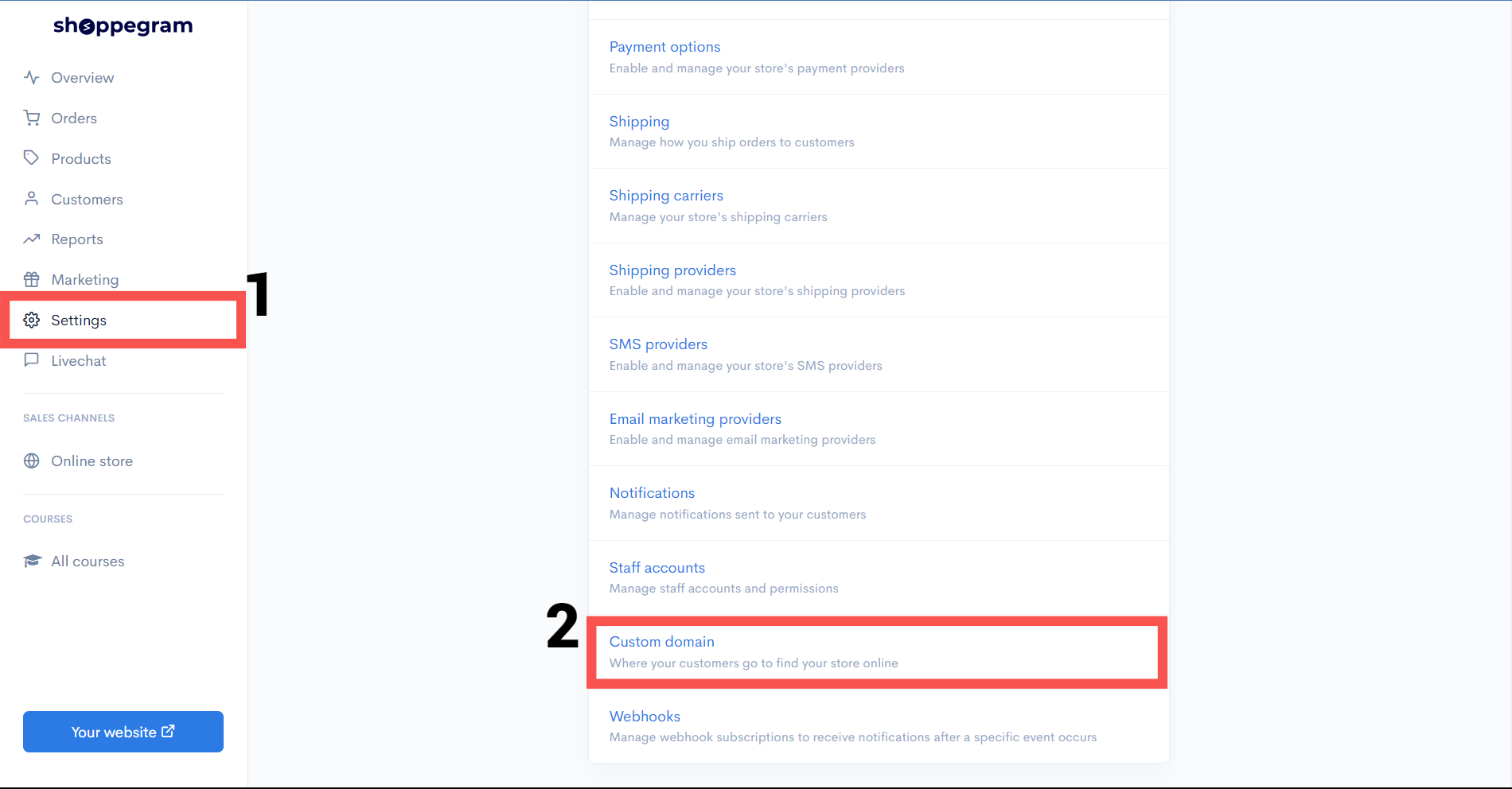
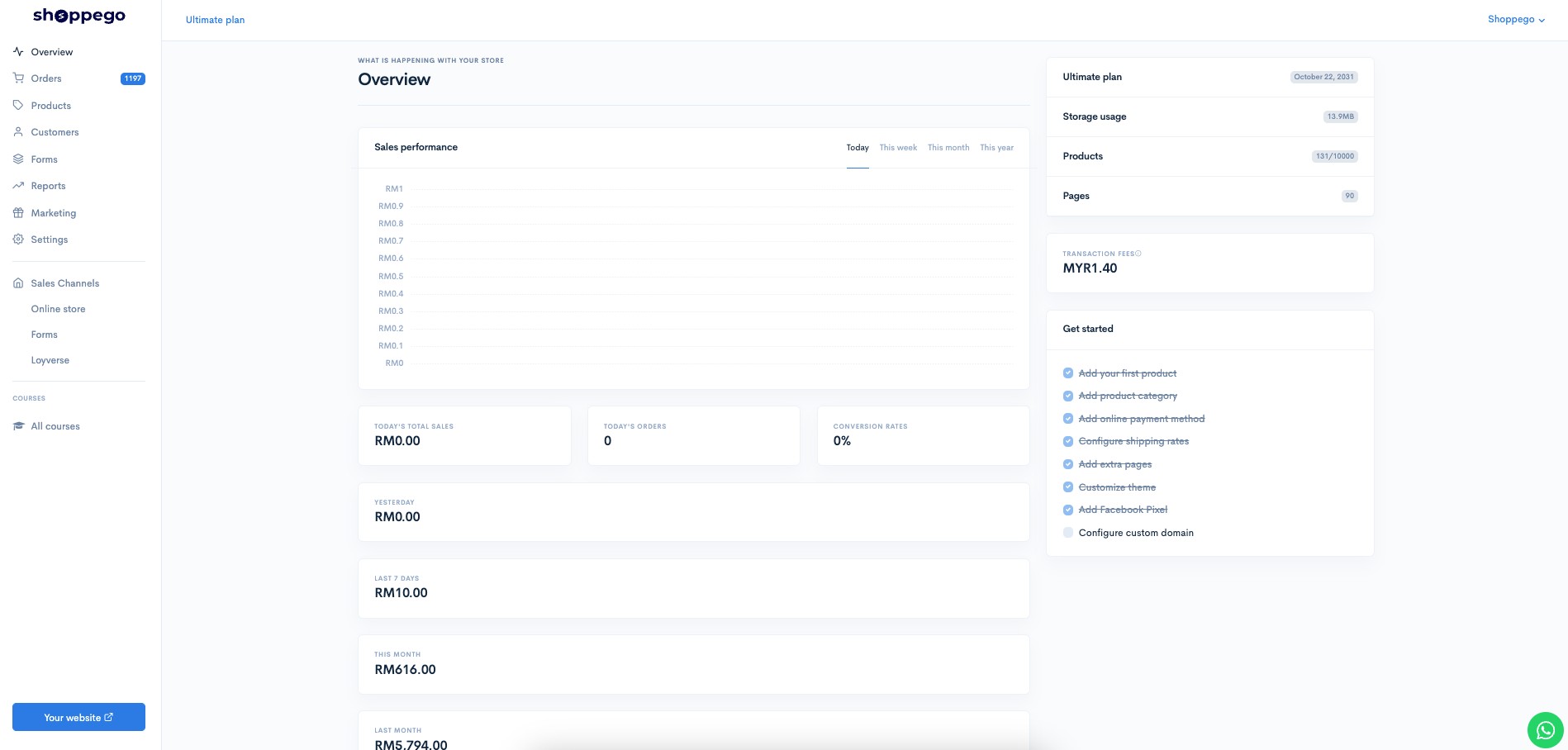
1\. You can log in to the Shoppego dashboard
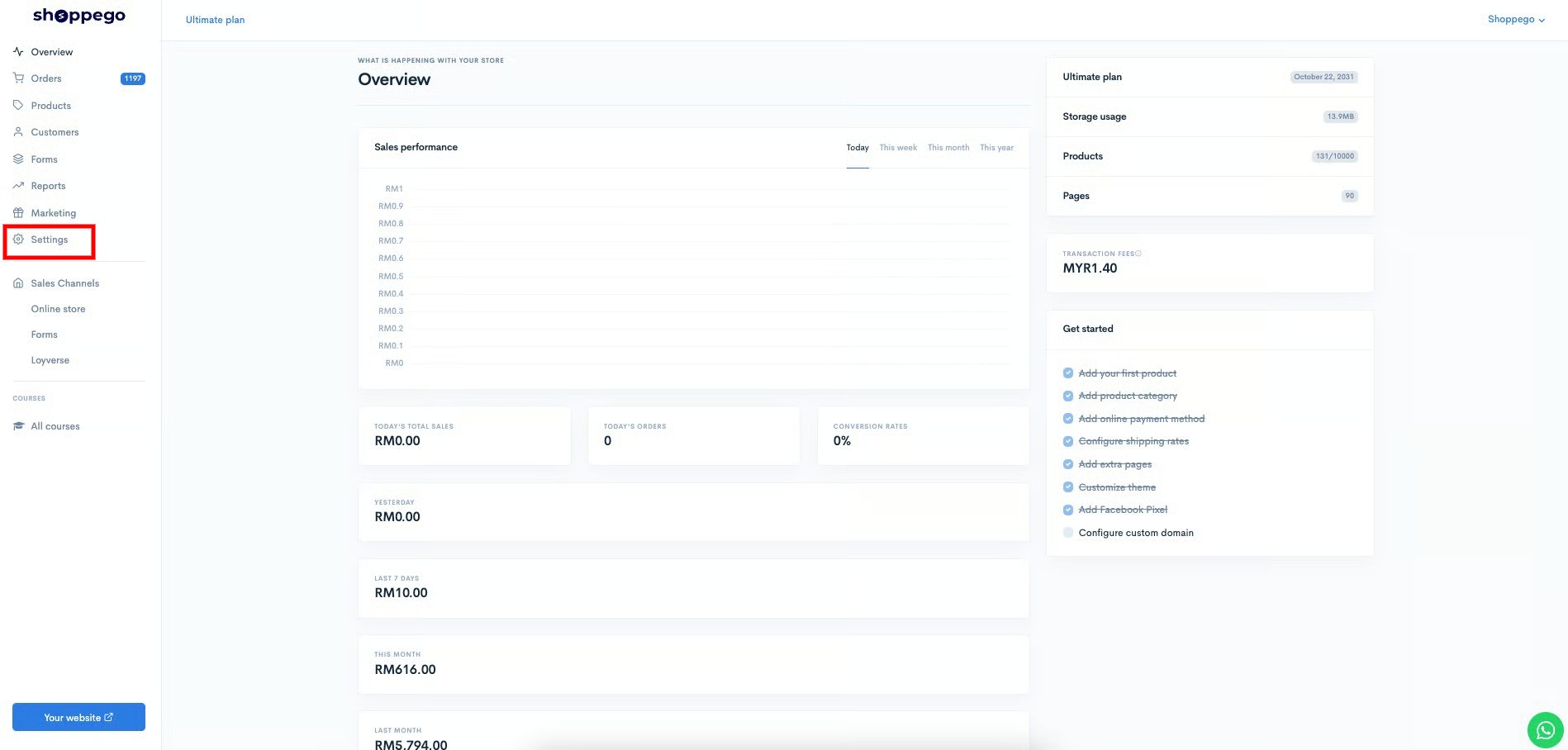
2\. Click on **Settings**
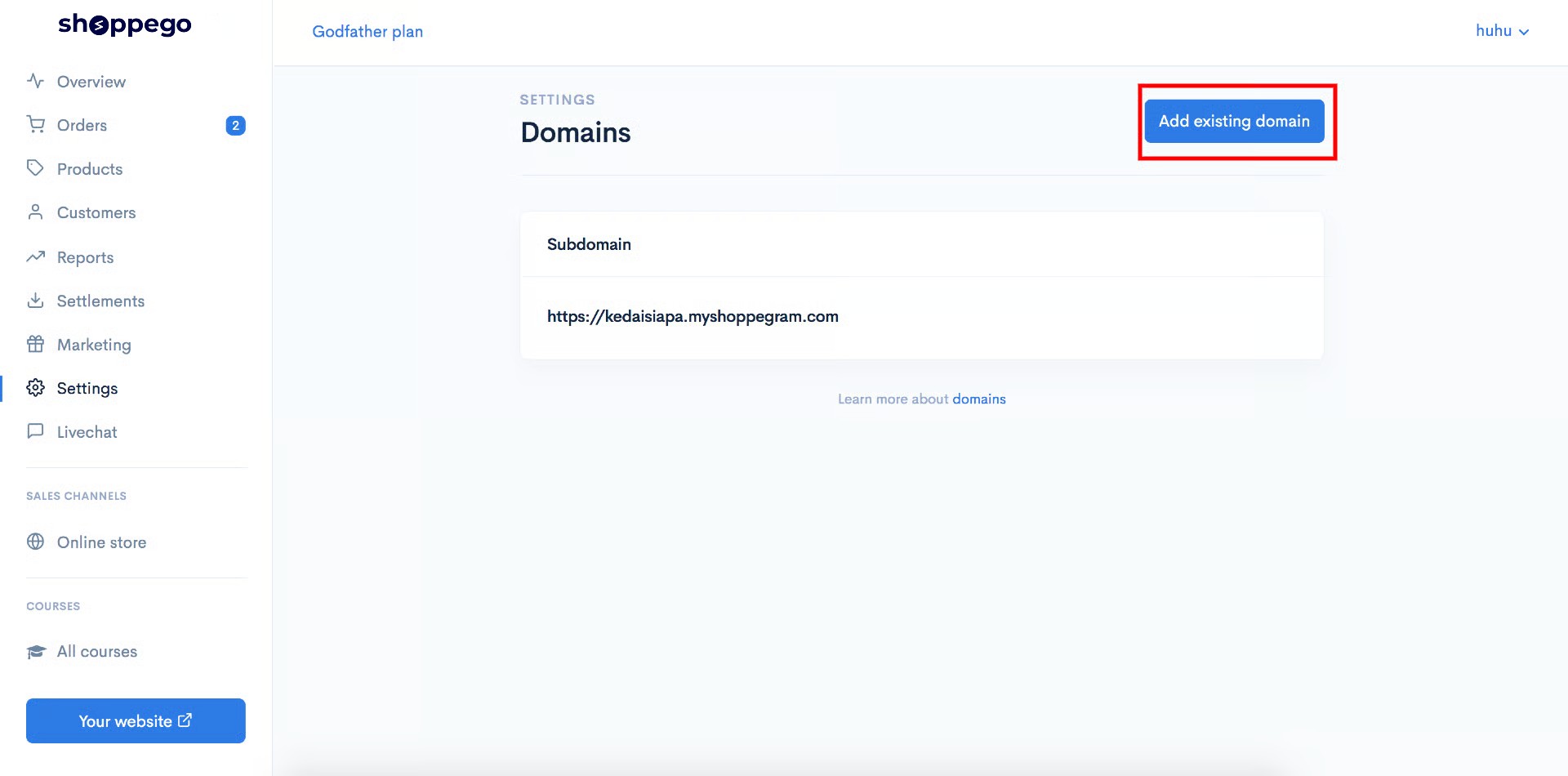
3\. Click on **Custom domain**

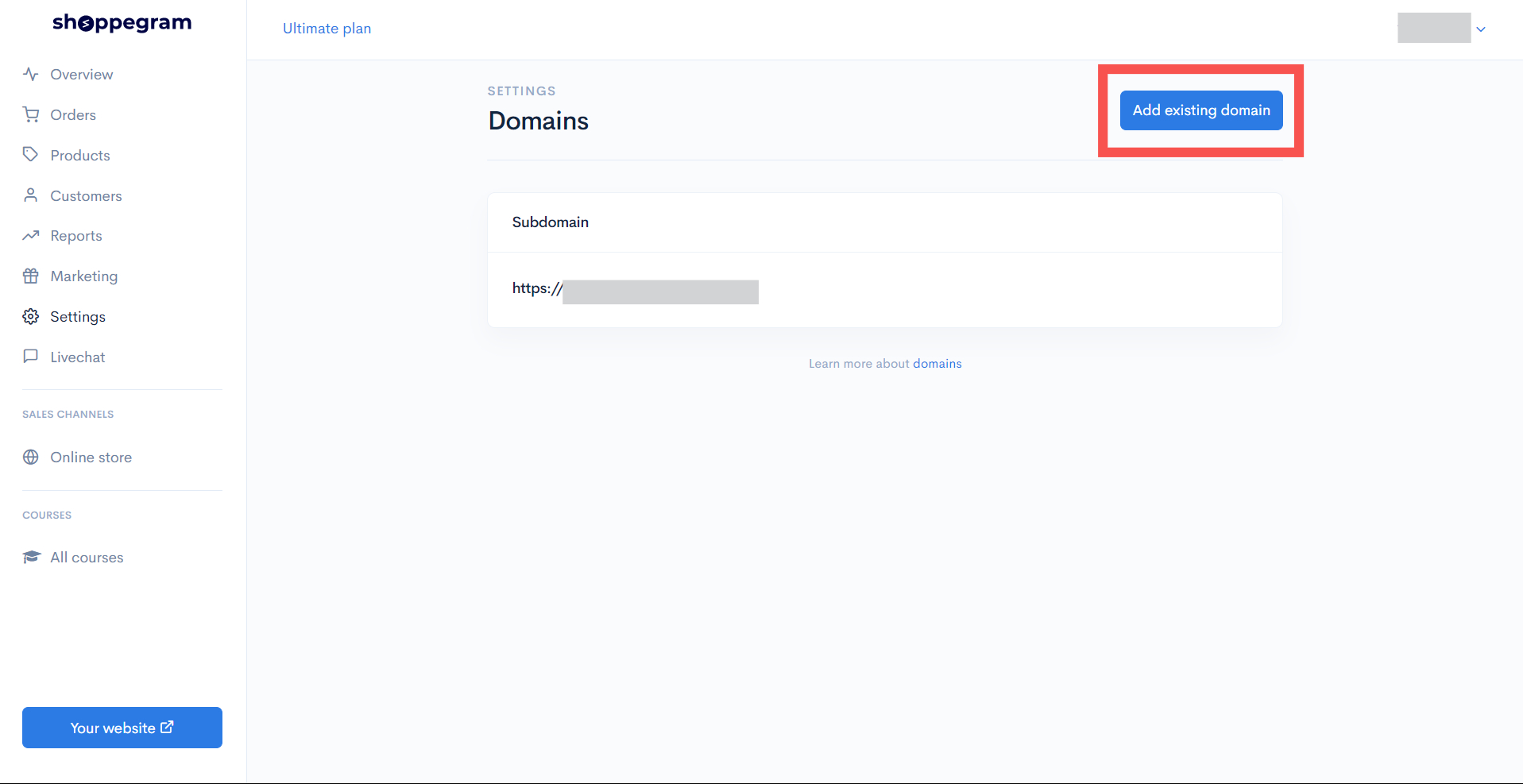
4\. Click on **Add existing domain**
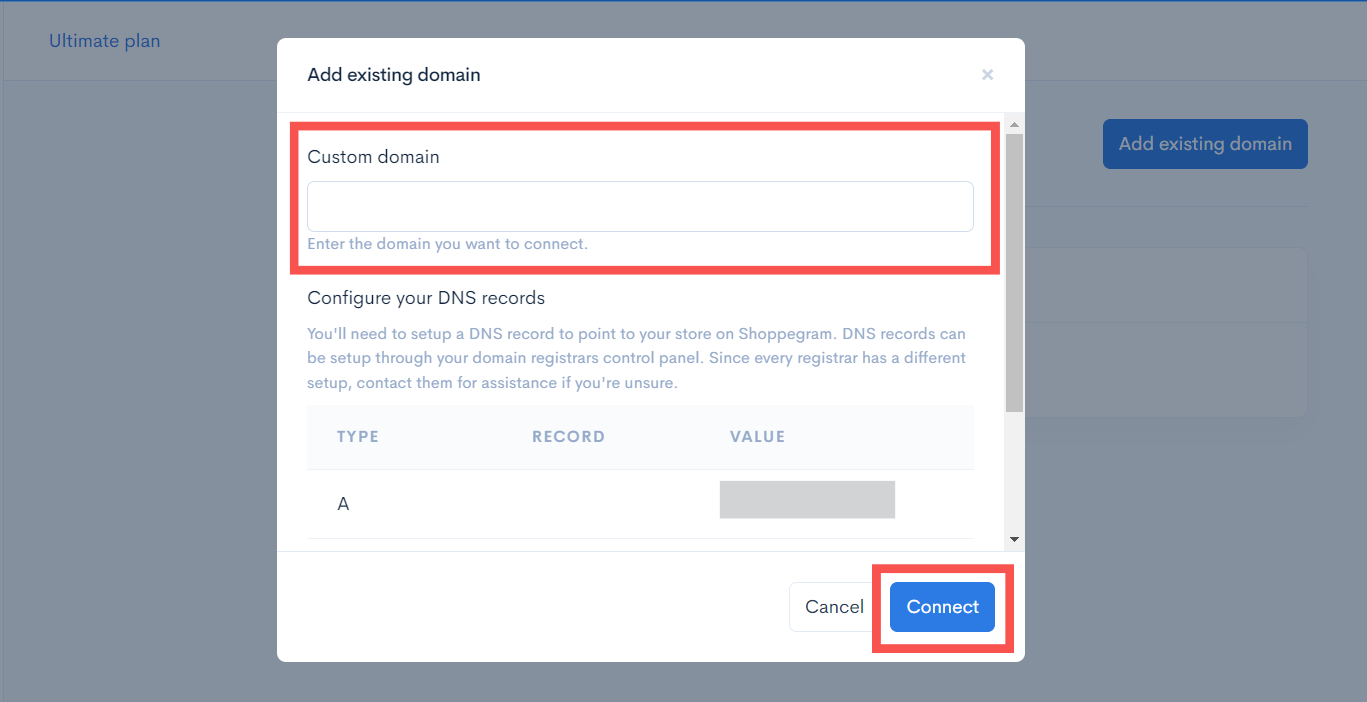
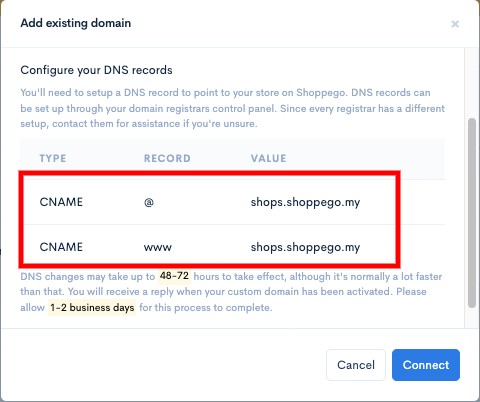
5\. Later, you will be able to see a display that has a **value for your CNAME record**.
{% hint style="info" %}
**CNAME designation in the domain provider.**\
1: If the **CNAME value** is **@**, enter **your domain name** or "**@**" in the **CNAME field** in the domain provider.
{% endhint %}
{% hint style="info" %}
You need to **save the Value** for the **CNAME record** for you to enter in your domain's **DNS record in the domain provider's** system later.
{% endhint %}
## **Part 2**: Setting up in Shinjiru
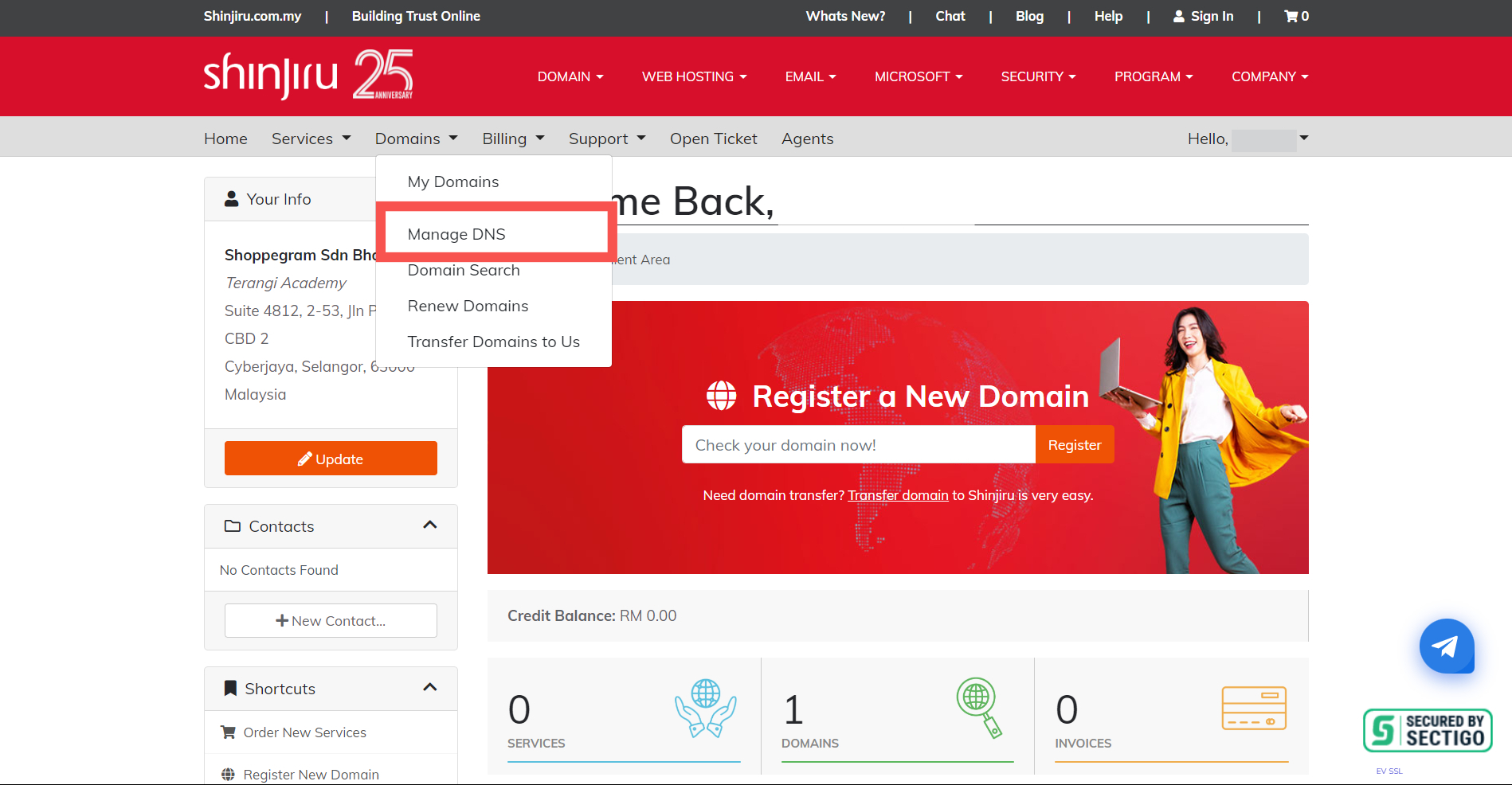
1\. Log into your Shinjiru account and click on **Domain** -> **Manage DNS**
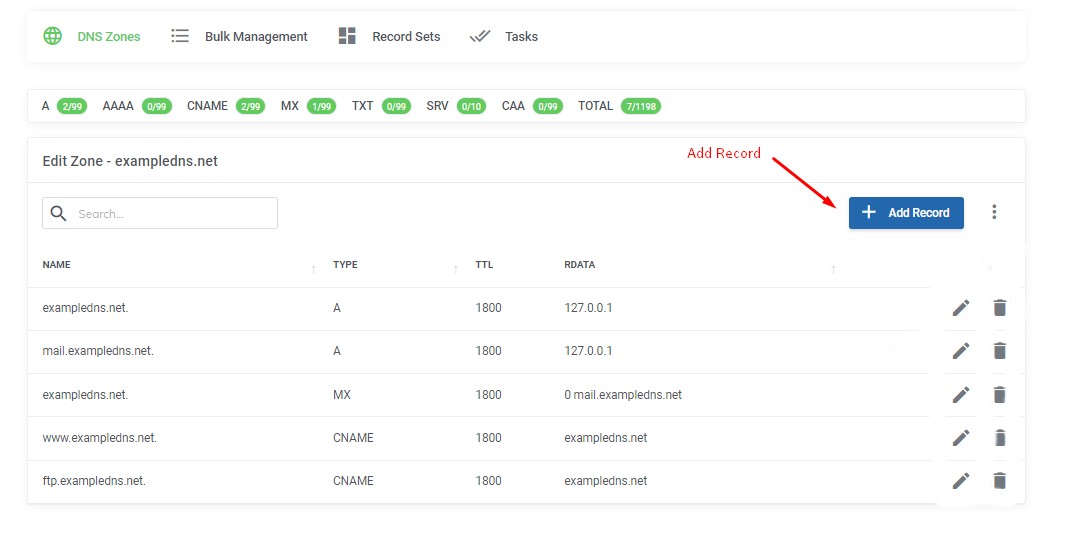
2\. In the **Manage DNS** page, click the **Add record**.
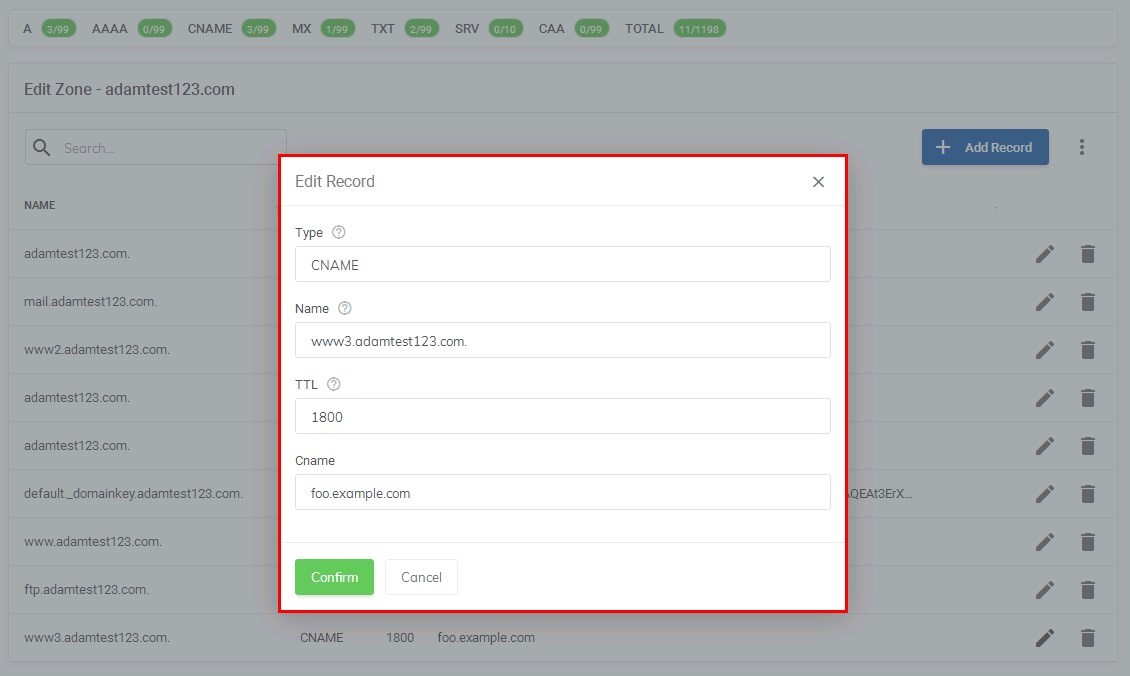
3. A screen will appear for you to set up the **CNAME Record** in this section.
{% hint style="info" %}
**If your domain provider cannot set a CNAME record for the host to the main domain or @, you can transfer DNS management to the Cloudflare system. You can refer to this link for an example of setting:** [**https://docs.shoppego.com/ms/settings/custom-domain/cloudflare**](/tutorials/ms/settings/custom-domain/cloudflare.md)
{% endhint %}
### 1 : Setting Up CNAME Records
1. Setting CNAME Records:
* **Type** : **CNAME**
* **Name** : **@** or your own domain name
* **TTL** : **Default**
* **CNAME** : **shops.shoppego.my**
2. Setting CNAME Record www (optional):
* **Type** : **CNAME**
* **Name** : **www**
* **TTL** : **Default**
* **CNAME** : **shops.shoppego.my**
The process for a domain to be ready to be included on your website takes approximately **12 - 48 hours**.
{% hint style="info" %}
If you **experience any issues** setting up this DNS record, you can **contact the domain provider** to help you set it up.
{% endhint %}
## Additional Information
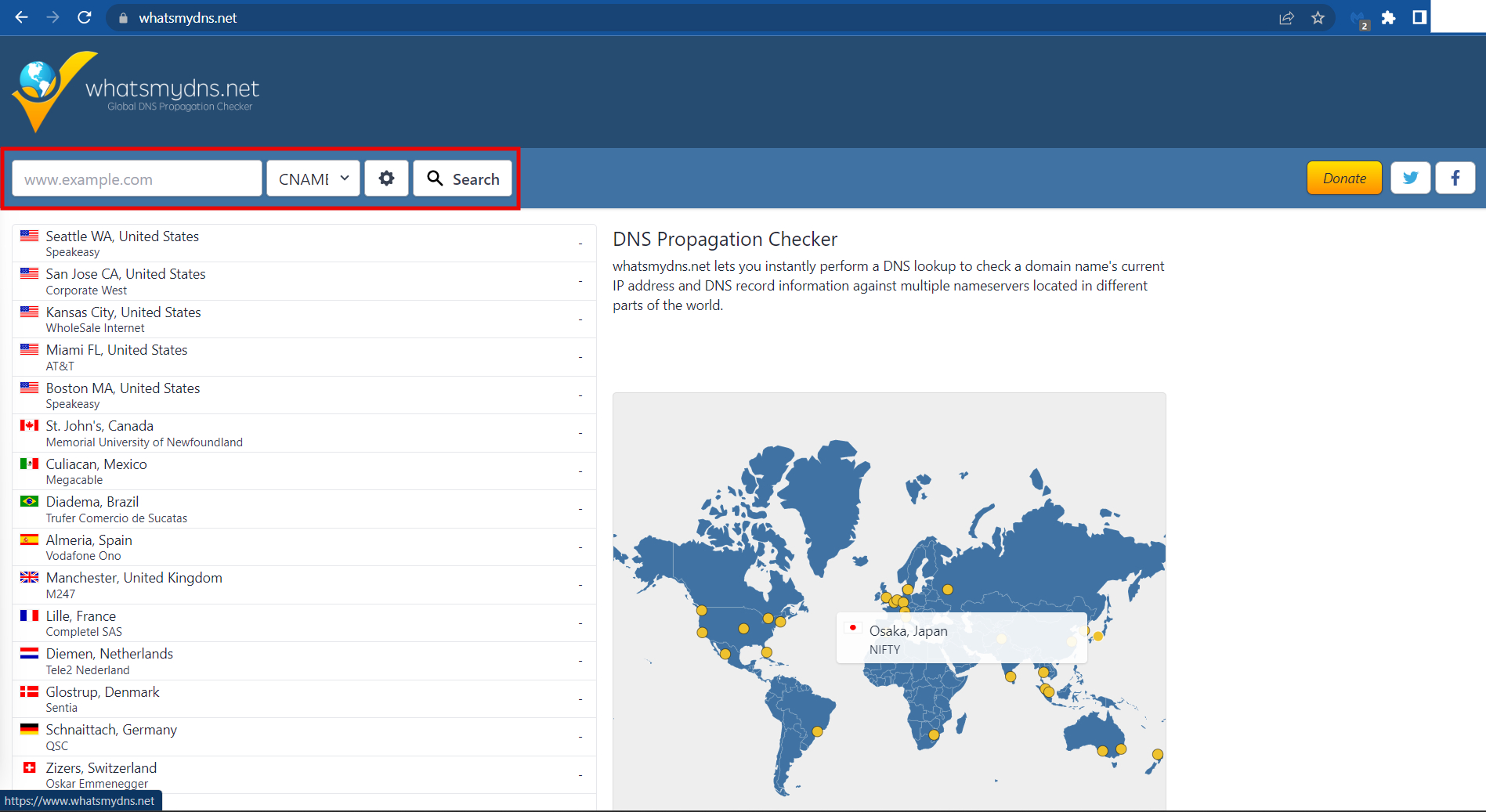
To ensure that your DNS is directed to Shoppego, you can [Check your DNS Here ](https://www.whatsmydns.net/)and make sure the **DNS displayed is the one you have set**.
To check your DNS:
1. You can click this link: [Check your DNS Here](https://www.whatsmydns.net/) or
{% hint style="info" %}
You can **enter your domain name** (**with www** and **without www**) in the space provided. Make sure you have made the changes to the CNAME record check.
{% endhint %}
## Propagation period
You only need to wait for a **period of 48 hours** for the setting to be read and your domain can be used before you make a Custom domain setting in Shoppego.
The shortest time your domain can **be used is within 1 hour**. If not, you need to **wait for a period of 48 hours to 72 hours.** You can check the status of your domain propagation through the link we provided ()
## Part 3: Setting up in Shoppego
1. On the Shoppego Dashboard, you can click **Settings (1)** and scroll down to **Custom Domain (2)**.
2. After that, press **Add Existing Domain**.
3. **Enter the domain name ****without**** www** that you purchased earlier.
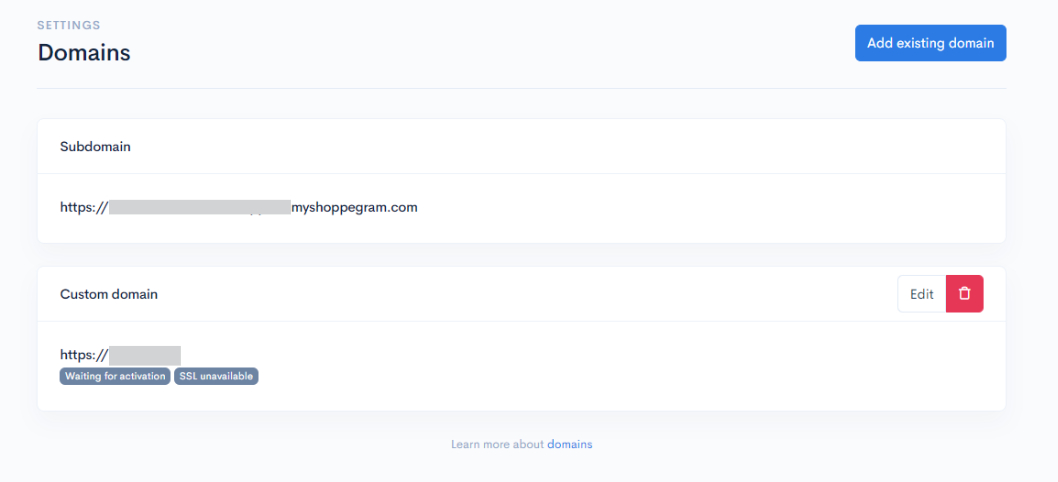
4. When you have successfully entered your domain, the display will change as below:
{% hint style="info" %}
\*\***Note**: If there are **no issues**, the team will take **5-10 minutes to activate your domain**. If your domain still isn't activated within this timeframe, please contact our team.
{% endhint %}
5. If your **Custom Domain** is **ready** and **can be used**, an example display like the following will appear.
{% hint style="success" %}
The words "**Connected**" and "**SSL activated**" will turn **green**. This condition will only occur if all the **settings that have been made are correct.**
{% endhint %}
For a more stable DNS management system, we encourage our users to use Cloudflare. For an example of the setting, please refer to this link:
{% content-ref url="/pages/A32ciCyx4ge4zxalMVoX" %}
[Cloudflare](/tutorials/en/settings/custom-domain/cloudflare.md)
{% endcontent-ref %}
If you are already using the Nameserver from Cloudflare, you can refer to the example settings at this link for changing the Nameserver:
{% content-ref url="/pages/SMgSlP67YLedy3kwqHjk" %}
[Changing Nameserver](/tutorials/en/settings/custom-domain/shinjiru/changing-nameserver.md)
{% endcontent-ref %}