> For the complete documentation index, see [llms.txt](https://docs.shoppego.my/tutorials/llms.txt). Markdown versions of documentation pages are available by appending `.md` to page URLs; this page is available as [Markdown](https://docs.shoppego.my/tutorials/en/settings/email-marketing-providers/brevo.md).

# Brevo

To set up **Brevo**, you need to get an **API Key** from **Brevo** and enter the key you have obtained into the Shoppego system.

## Log in to your Brevo account

1. You can log in to your Brevo account here or at [this link](https://login.brevo.com/): <https://login.brevo.com/>

<figure><img src="https://3359028955-files.gitbook.io/~/files/v0/b/gitbook-x-prod.appspot.com/o/spaces%2F-Lh09fNwqqta5Vj6Wr8p%2Fuploads%2Fgit-blob-f7bedb8992f4d74cdb587989ae16c648ed72fde2%2Fe2GOuF3oQdluWYcEdpZh.jpg?alt=media" alt=""><figcaption></figcaption></figure>

### Get Brevo API key

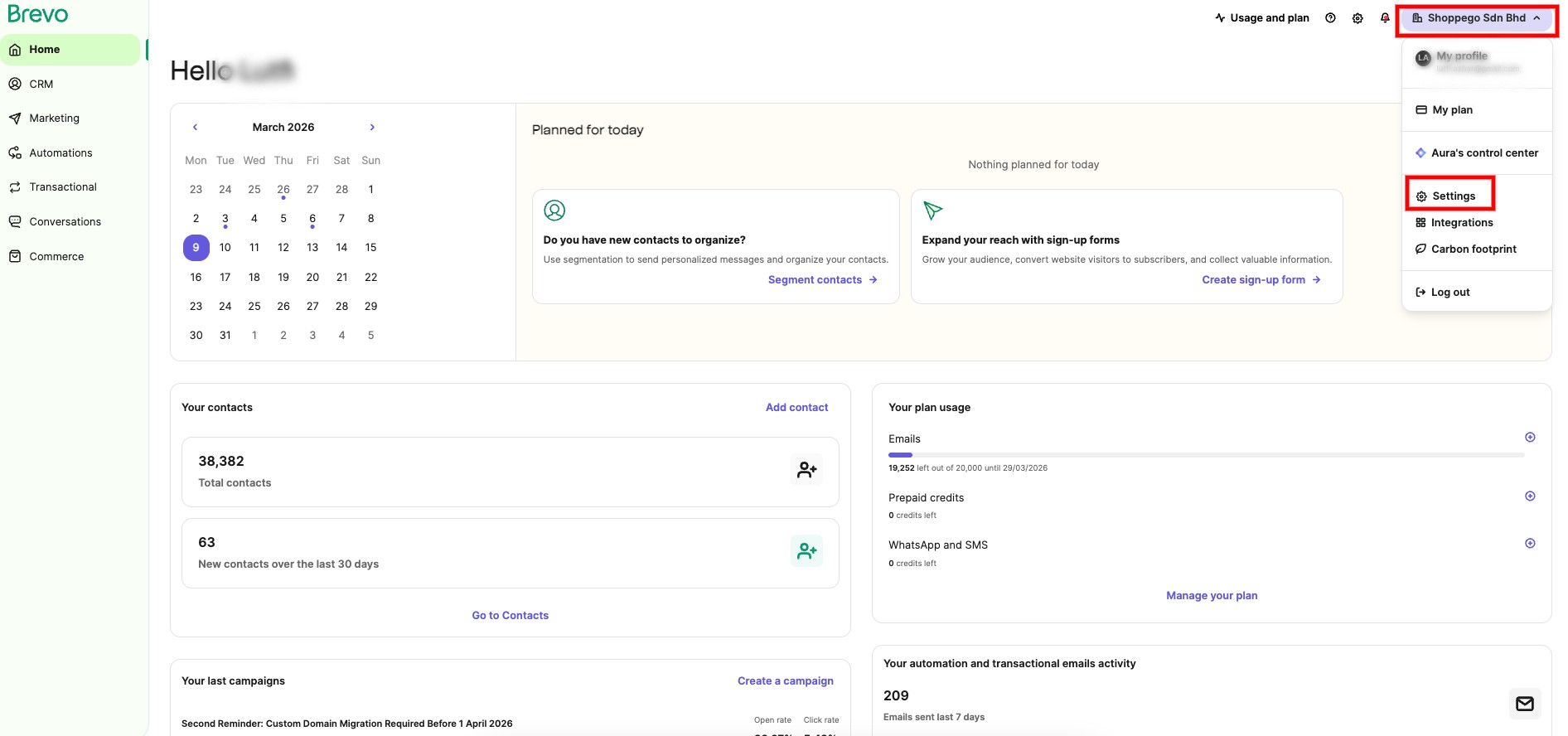
1. You can click on the **profile dropdown menu and select Settings.**

<figure><img src="https://3359028955-files.gitbook.io/~/files/v0/b/gitbook-x-prod.appspot.com/o/spaces%2F-Lh09fNwqqta5Vj6Wr8p%2Fuploads%2Fgit-blob-b532583a28aa64ea440615ccb458ee27e26cff39%2FrRpt5Rvrtdk1rfcQ90eh.jpg?alt=media" alt=""><figcaption></figcaption></figure>

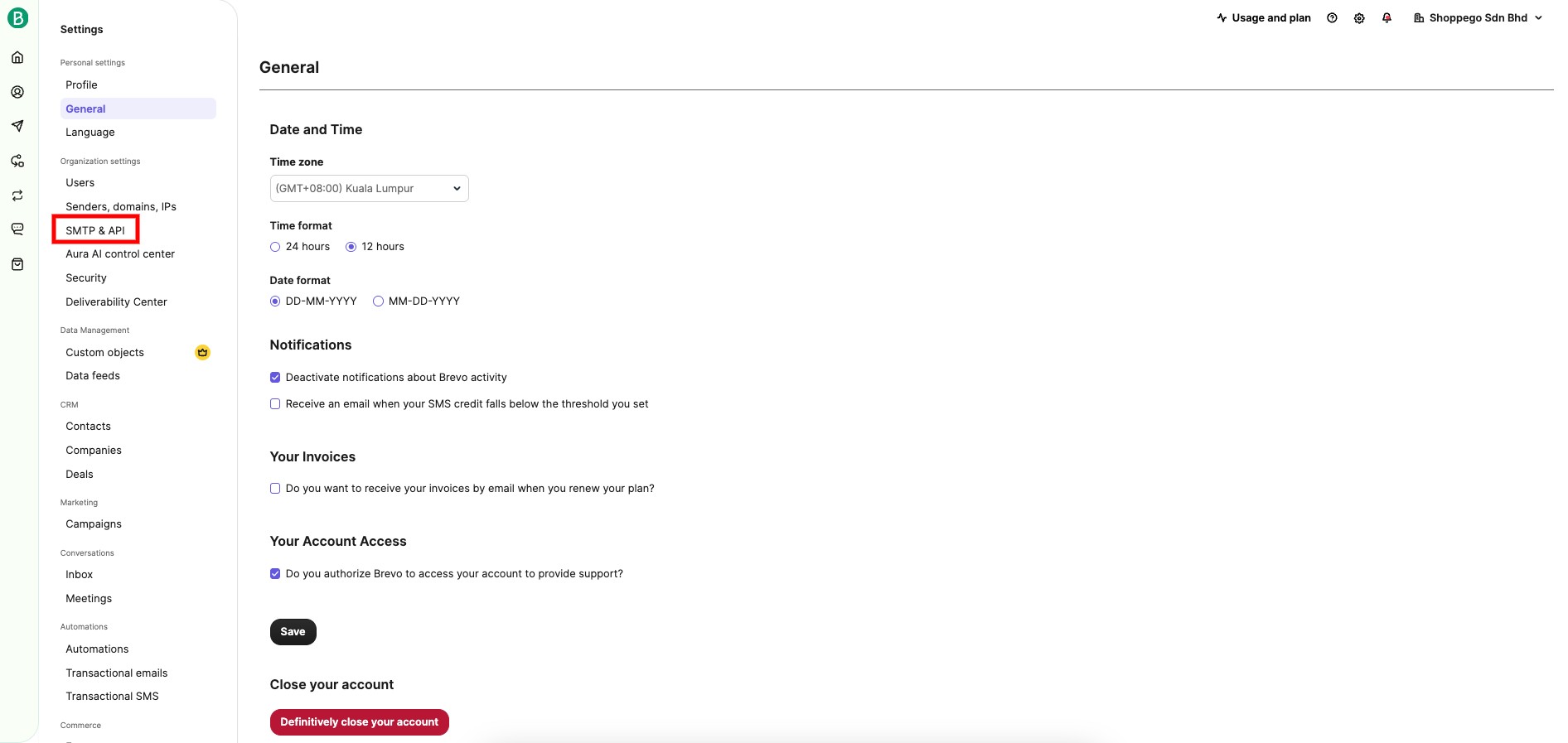
2. After that, you can click on **SMTP & API**

<figure><img src="https://3359028955-files.gitbook.io/~/files/v0/b/gitbook-x-prod.appspot.com/o/spaces%2F-Lh09fNwqqta5Vj6Wr8p%2Fuploads%2Fgit-blob-fa4f6fbc1fb0832af8e6202cf2bca34afcc95dc1%2F698ZJbk6h1nSchy8qOHH.jpg?alt=media" alt=""><figcaption></figcaption></figure>

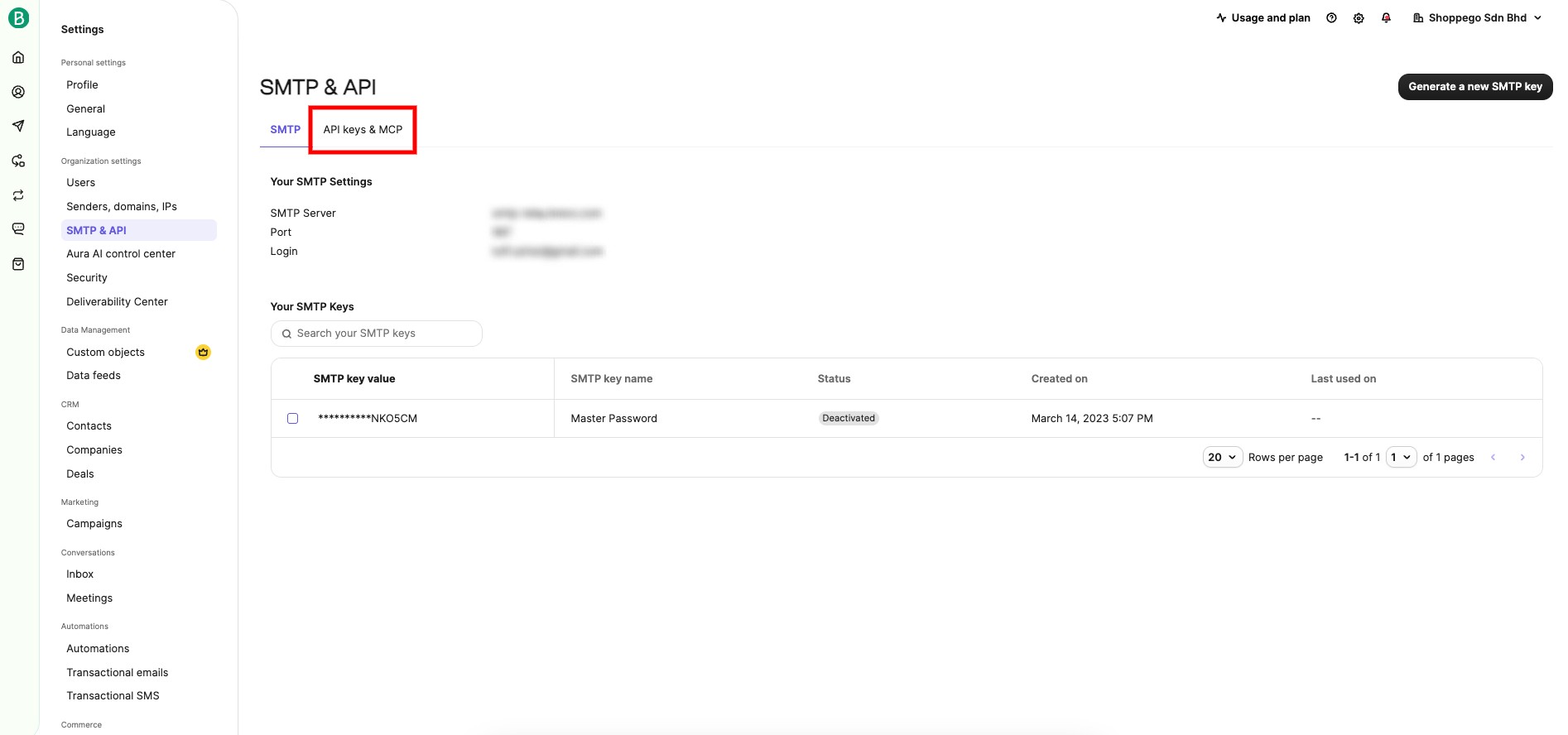
3. Next, you can click on **API keys & MCP**

<figure><img src="https://3359028955-files.gitbook.io/~/files/v0/b/gitbook-x-prod.appspot.com/o/spaces%2F-Lh09fNwqqta5Vj6Wr8p%2Fuploads%2Fgit-blob-d39c7ca94c0980d268ce14e226ea556ad1f1ebc7%2Fkh9zVo9DPtzhEUqsmvEk.jpg?alt=media" alt=""><figcaption></figcaption></figure>

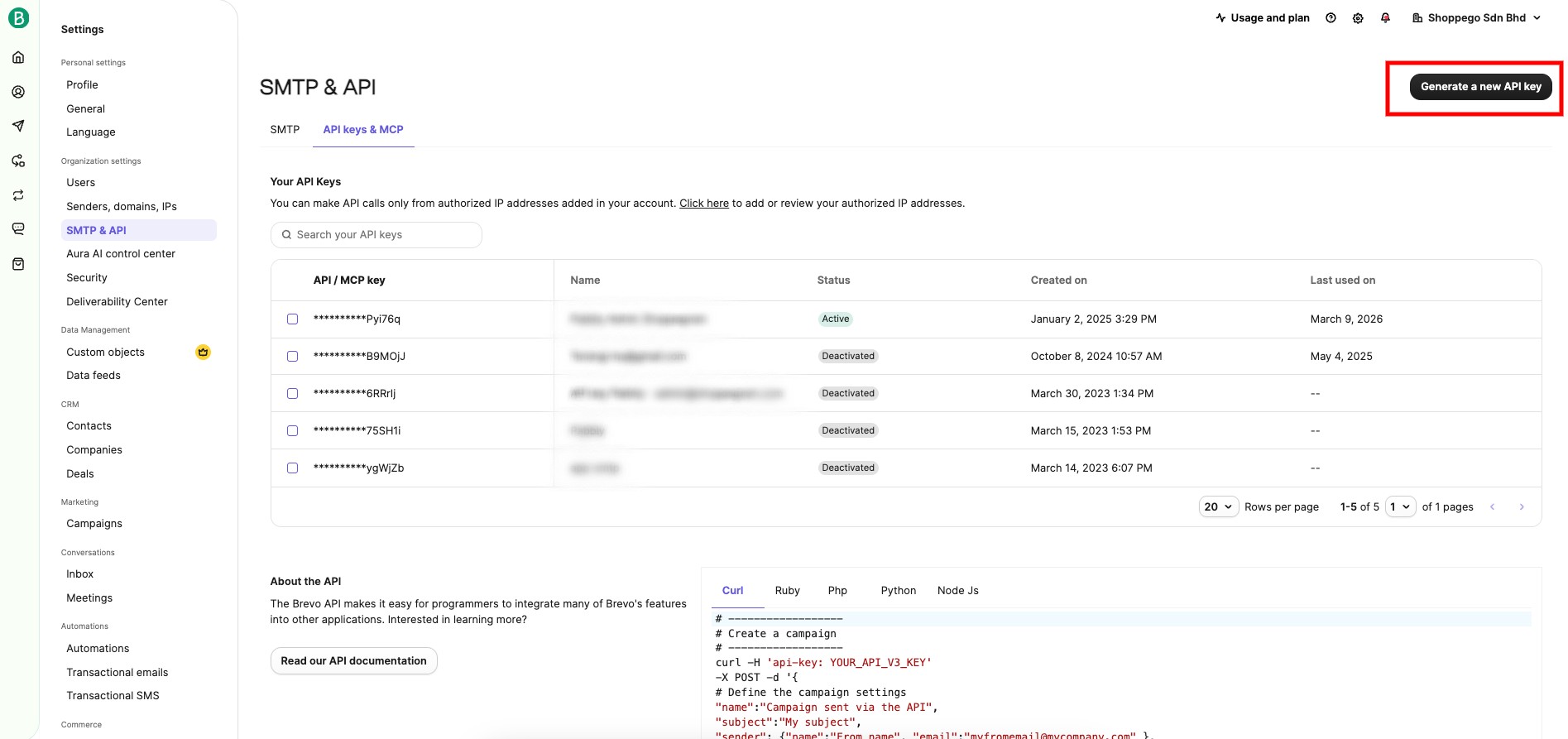
4. After that, you can click on **Generate a new API Key**.

<figure><img src="https://3359028955-files.gitbook.io/~/files/v0/b/gitbook-x-prod.appspot.com/o/spaces%2F-Lh09fNwqqta5Vj6Wr8p%2Fuploads%2Fgit-blob-c6205907ca2b6076cb58a7e493e01f9bc1d5c4ed%2Fr88PVIrhk9NXiRTAoUht.jpg?alt=media" alt=""><figcaption></figcaption></figure>

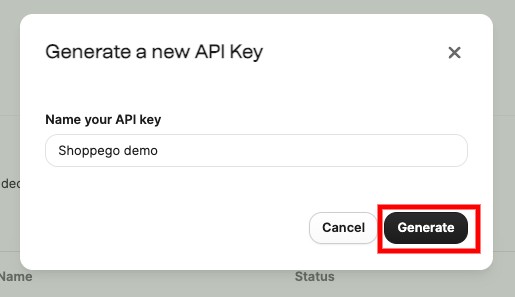
5. Later you will be asked to **enter the name of your API key** and you can click **Generate**.

<figure><img src="https://3359028955-files.gitbook.io/~/files/v0/b/gitbook-x-prod.appspot.com/o/spaces%2F-Lh09fNwqqta5Vj6Wr8p%2Fuploads%2Fgit-blob-7aa165e21fc6fc4d9f0aee2c50a1c57733931ad8%2FUkB2UgNqEvvhKIDiZ2lu.jpg?alt=media" alt=""><figcaption></figcaption></figure>

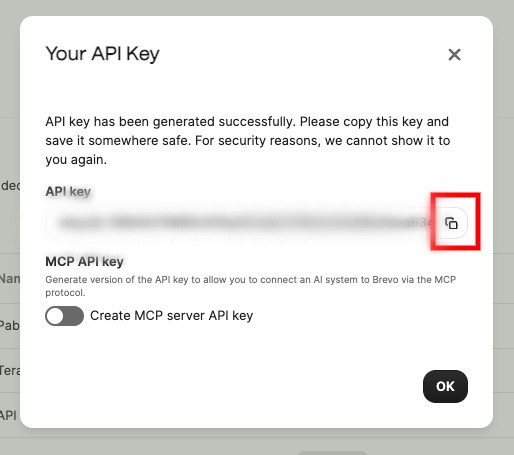
6. Once completed, you will be able to view and **copy your API key** to be used for the integration process on the Shoppego platform later

<figure><img src="https://3359028955-files.gitbook.io/~/files/v0/b/gitbook-x-prod.appspot.com/o/spaces%2F-Lh09fNwqqta5Vj6Wr8p%2Fuploads%2Fgit-blob-2a9ed9a5f569c67dd68170e2704117a94d3ac555%2FlUls7Nv9XvvAkW5qXx1Y.jpg?alt=media" alt=""><figcaption></figcaption></figure>

### Get List ID(Optional)

If you do not make this setting, your customer information that will be imported will not be in any list.

1. Log in to the Brevo dashboard

<figure><img src="https://3359028955-files.gitbook.io/~/files/v0/b/gitbook-x-prod.appspot.com/o/spaces%2F-Lh09fNwqqta5Vj6Wr8p%2Fuploads%2Fgit-blob-f7bedb8992f4d74cdb587989ae16c648ed72fde2%2Fe2GOuF3oQdluWYcEdpZh.jpg?alt=media" alt=""><figcaption></figcaption></figure>

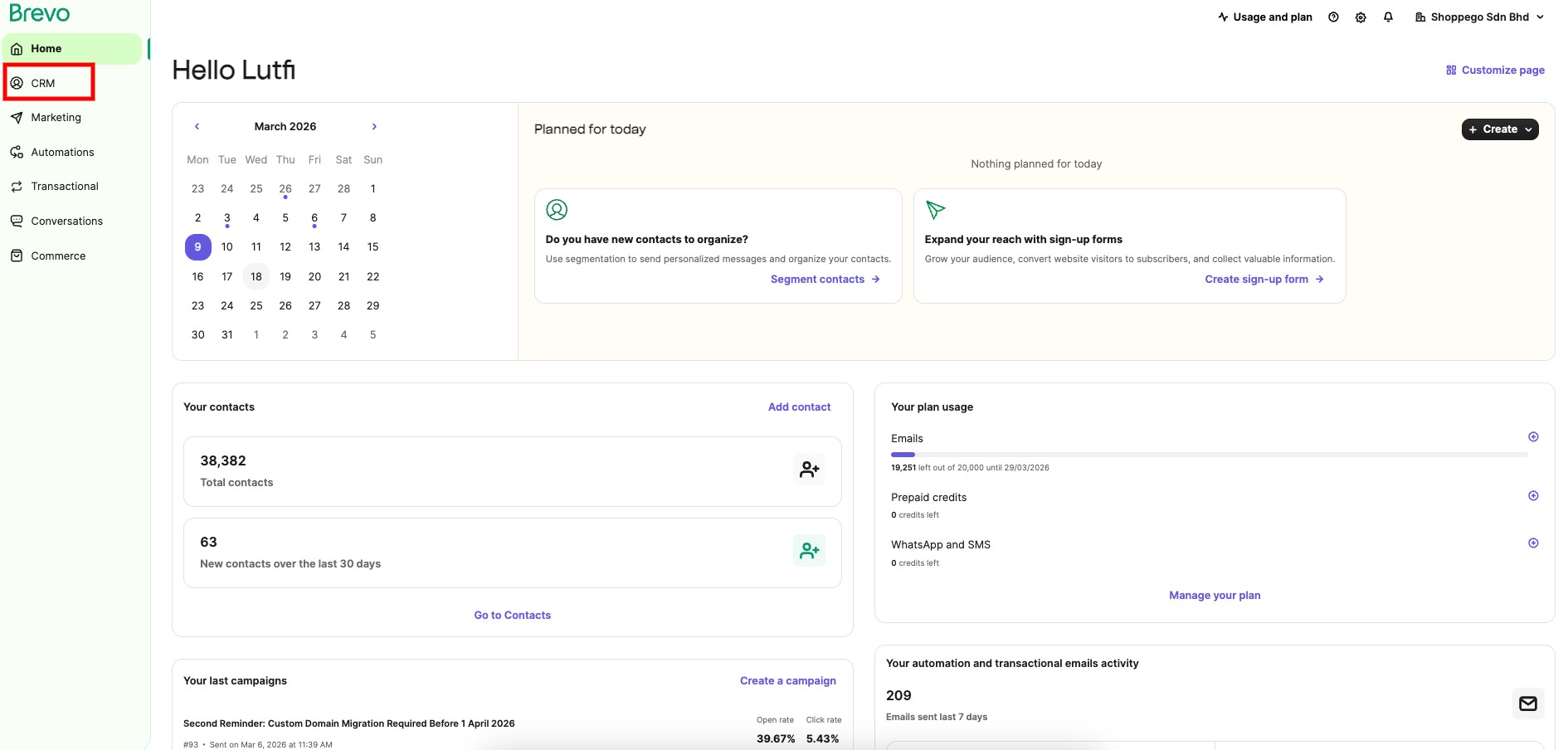
2. Click on the **CRM** menu

<figure><img src="https://3359028955-files.gitbook.io/~/files/v0/b/gitbook-x-prod.appspot.com/o/spaces%2F-Lh09fNwqqta5Vj6Wr8p%2Fuploads%2Fgit-blob-4a7bf4fb764c19c9fc2953ac212d3360add1227b%2FLzznb1s9pw28FVbLxG4h.jpg?alt=media" alt=""><figcaption></figcaption></figure>

3. Click on the **Lists** menu.

<figure><img src="https://3359028955-files.gitbook.io/~/files/v0/b/gitbook-x-prod.appspot.com/o/spaces%2F-Lh09fNwqqta5Vj6Wr8p%2Fuploads%2Fgit-blob-3bdb767cc63e2ca7f8d1a8831ef61953751cacf0%2FtdQ8eET7VLRYN6jS5ksb.jpg?alt=media" alt=""><figcaption></figcaption></figure>

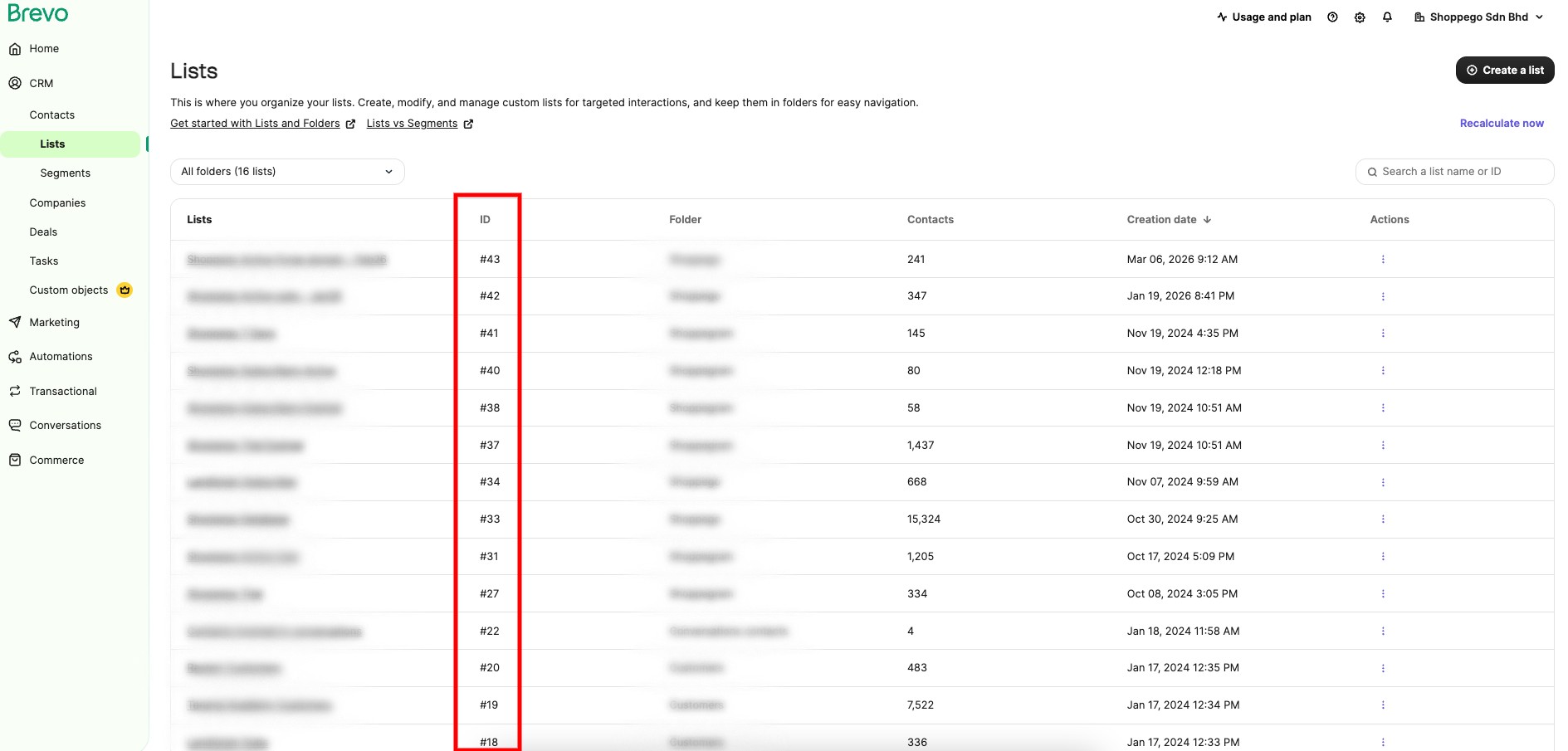
4. Later, you will be able to see the "**List ID**" information for the list you want to use.

<figure><img src="https://3359028955-files.gitbook.io/~/files/v0/b/gitbook-x-prod.appspot.com/o/spaces%2F-Lh09fNwqqta5Vj6Wr8p%2Fuploads%2Fgit-blob-f1727e0ad7b1191d83304d5012912818878f0906%2FwTruqvXGJI4cZi0I29ke.jpg?alt=media" alt=""><figcaption></figcaption></figure>

## Setting up in Shoppego

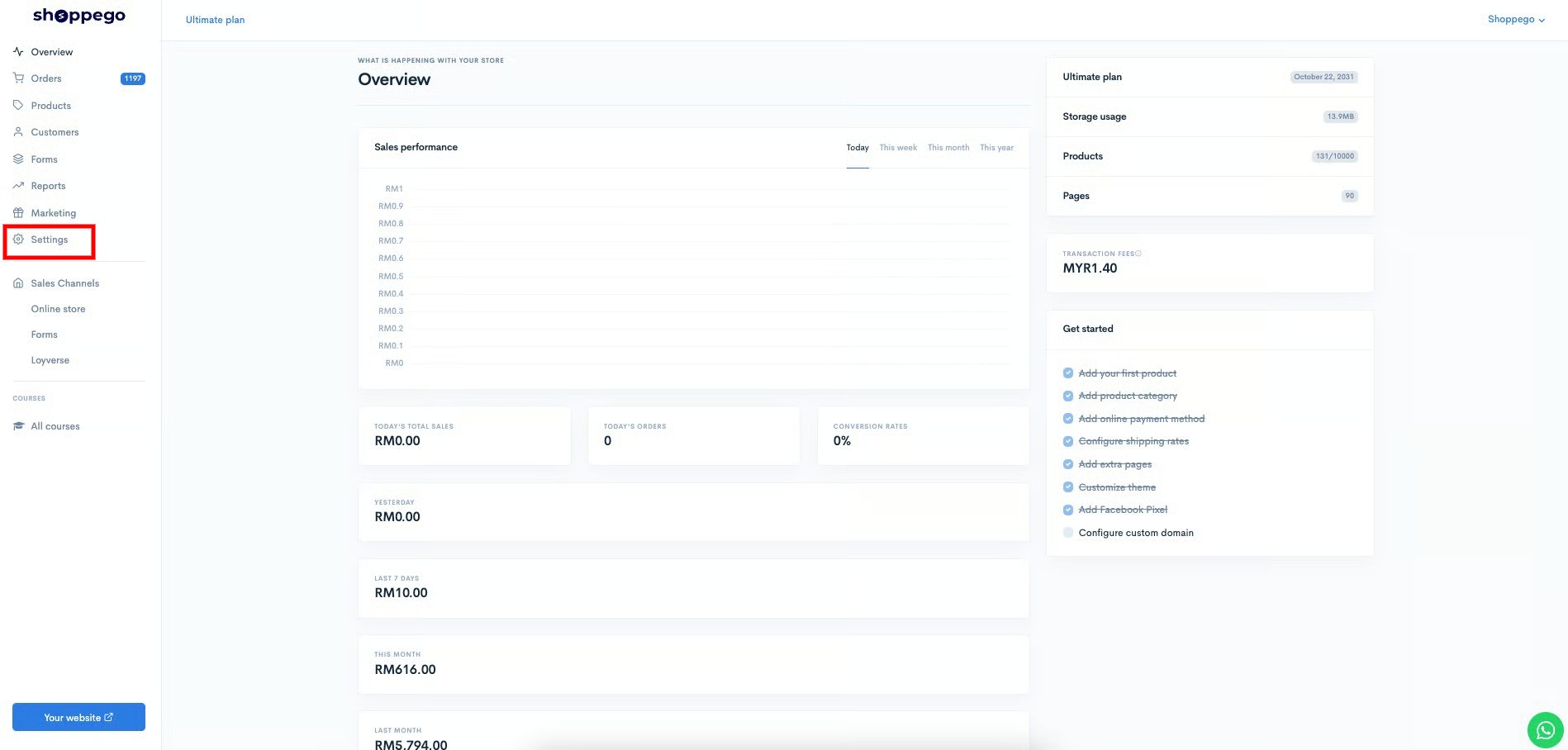
1. On the Dashboard Overview, you can go to **Settings**.

<figure><img src="https://3359028955-files.gitbook.io/~/files/v0/b/gitbook-x-prod.appspot.com/o/spaces%2F-Lh09fNwqqta5Vj6Wr8p%2Fuploads%2Fgit-blob-9ae8b66b366958146673b78216b78ff0e8f12b90%2FVsK9zs6aZtUfKK1hcCiM.jpg?alt=media" alt=""><figcaption></figcaption></figure>

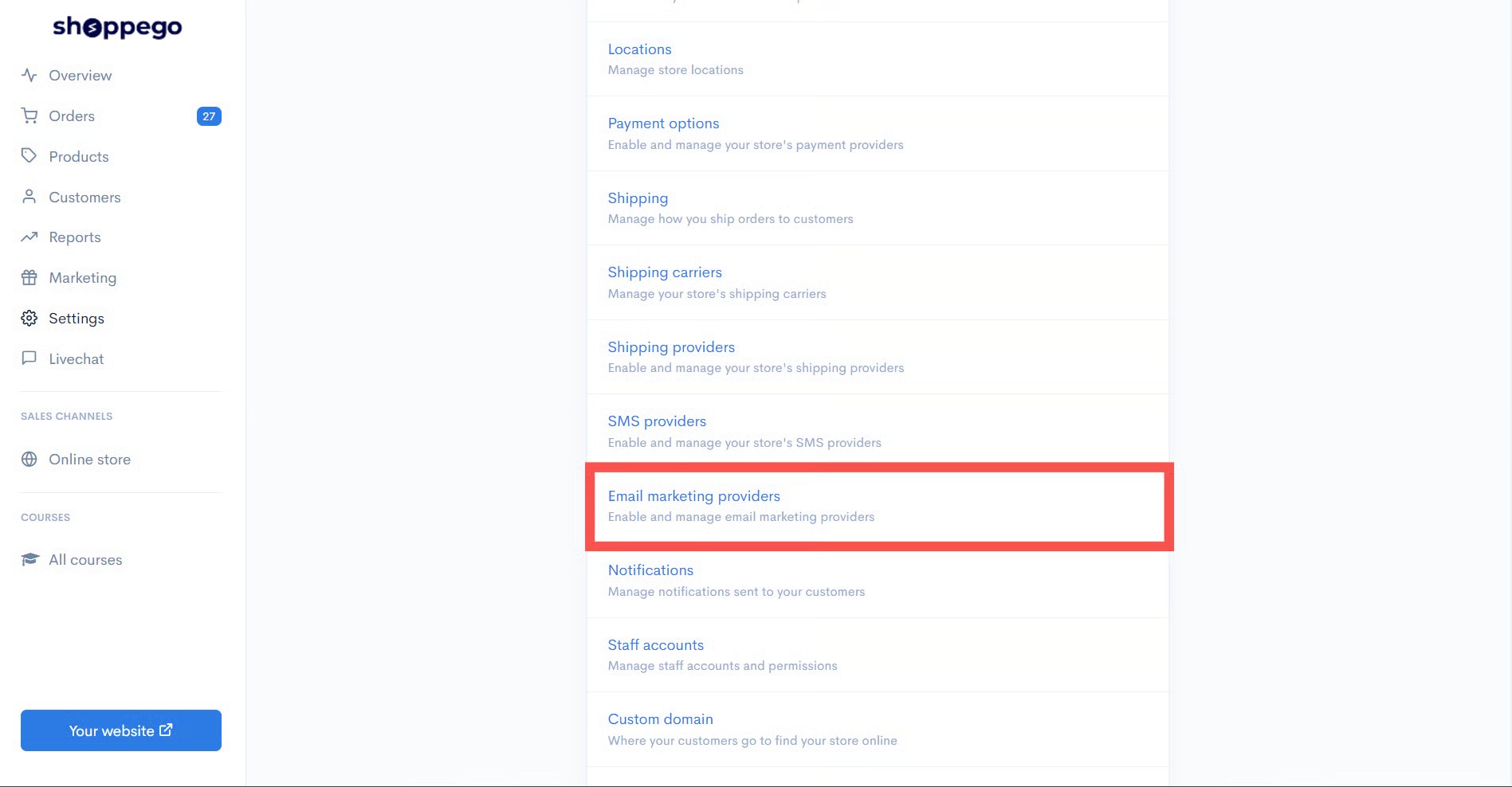
2. After that, you can click on **Email Marketing Provider**.

<figure><img src="https://3359028955-files.gitbook.io/~/files/v0/b/gitbook-x-prod.appspot.com/o/spaces%2F-Lh09fNwqqta5Vj6Wr8p%2Fuploads%2Fgit-blob-6e16175afc3558859b77f27ba8d6807bac275bcf%2FG7jjXYelY1uP9ZamRoMj.jpg?alt=media" alt=""><figcaption></figcaption></figure>

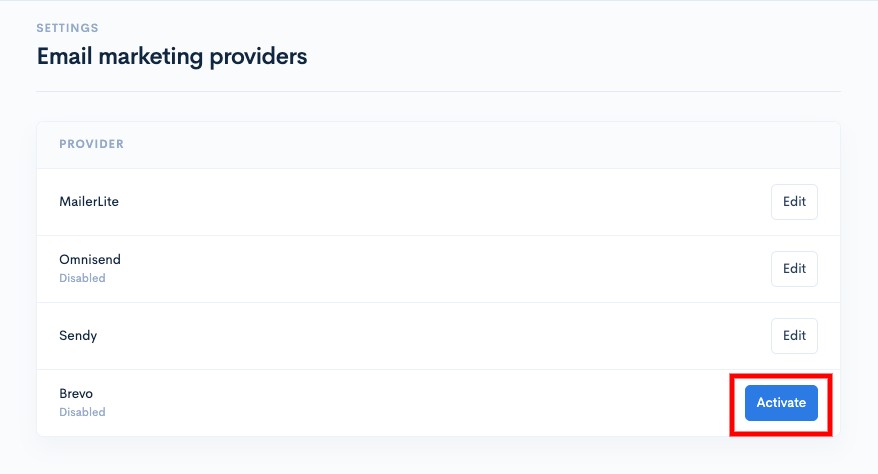
3. On this page, you will need to press the **Activate** button to activate **Brevo** and press **Edit**.

<figure><img src="https://3359028955-files.gitbook.io/~/files/v0/b/gitbook-x-prod.appspot.com/o/spaces%2F-Lh09fNwqqta5Vj6Wr8p%2Fuploads%2Fgit-blob-ec57a8b9b52a743ece78ae4ec947ae324d6d4327%2F98ol7Evq70YE9P5xzPw3.jpg?alt=media" alt=""><figcaption></figcaption></figure>

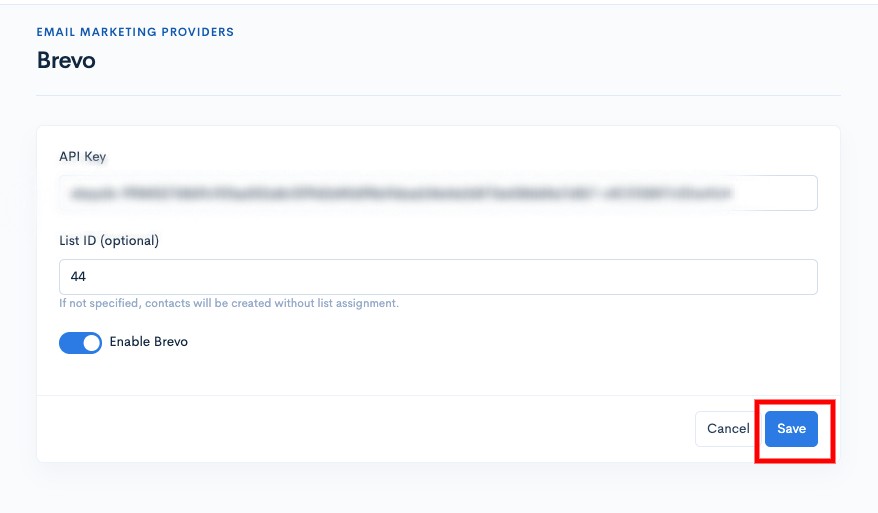
4. You need to enter the **API key** you got from **Brevo** into the space provided. You can also enter the **List ID**.

{% hint style="info" %}
\*\*<mark style="color:red;">Note</mark>:

* **List ID** - Used to place registered customers into the group you want.
  {% endhint %}

5. Make sure you turn on the **Enable** toggle to use Brevo

<figure><img src="https://3359028955-files.gitbook.io/~/files/v0/b/gitbook-x-prod.appspot.com/o/spaces%2F-Lh09fNwqqta5Vj6Wr8p%2Fuploads%2Fgit-blob-ca4b614fd83938b9d88618ecc4669e1c5fe2cd06%2FuoDecMaz0Gb3ESfLyfuR.jpg?alt=media" alt=""><figcaption></figcaption></figure>

<mark style="color:blue;">Congratulations</mark>! Your **Brevo** setup has been successful.

Sync Shoppego customer information with Brevo List

**If you want to set up your Brevo List Sync with your customer information from the Shoppego platform, you need to make sure you have set up "**[**Deactivated Blocking Unauthorized IP Address**](#deactivated-blocking-unauthorized-ip-address)**" first.**

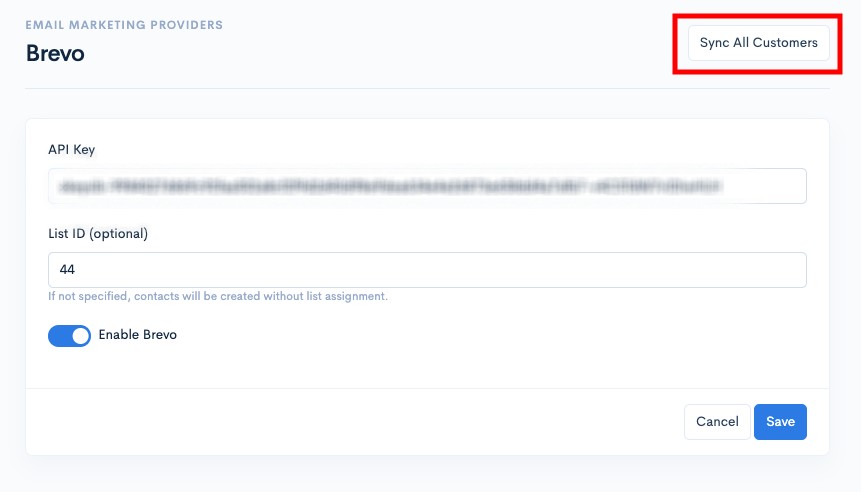
To sync information, you just need to click on the **Sync All Customers/Sync button**.

<figure><img src="https://3359028955-files.gitbook.io/~/files/v0/b/gitbook-x-prod.appspot.com/o/spaces%2F-Lh09fNwqqta5Vj6Wr8p%2Fuploads%2Fgit-blob-ef1e3d3024207d2ca27aed61446fa475b9d89ab4%2FAtrJQEHnOcl8dZK8lmOv.jpg?alt=media" alt=""><figcaption></figcaption></figure>

## Additional information

### Deactivated Blocking Unauthorized IP Address

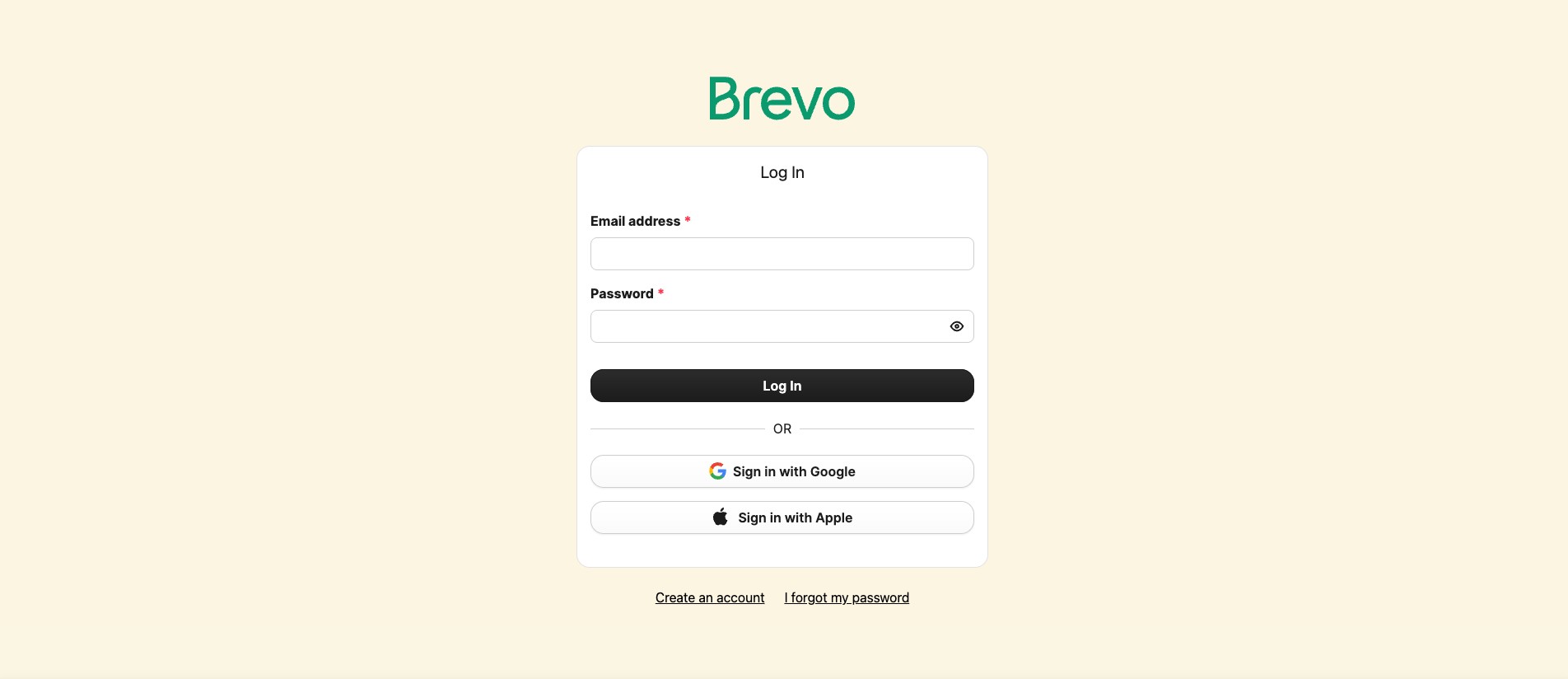
1. Log in to your Brevo account

<figure><img src="https://3359028955-files.gitbook.io/~/files/v0/b/gitbook-x-prod.appspot.com/o/spaces%2F-Lh09fNwqqta5Vj6Wr8p%2Fuploads%2Fgit-blob-f7bedb8992f4d74cdb587989ae16c648ed72fde2%2Fe2GOuF3oQdluWYcEdpZh.jpg?alt=media" alt=""><figcaption></figcaption></figure>

2. Click on the **profile menu** and click **Settings**

<figure><img src="https://3359028955-files.gitbook.io/~/files/v0/b/gitbook-x-prod.appspot.com/o/spaces%2F-Lh09fNwqqta5Vj6Wr8p%2Fuploads%2Fgit-blob-b532583a28aa64ea440615ccb458ee27e26cff39%2FrRpt5Rvrtdk1rfcQ90eh.jpg?alt=media" alt=""><figcaption></figcaption></figure>

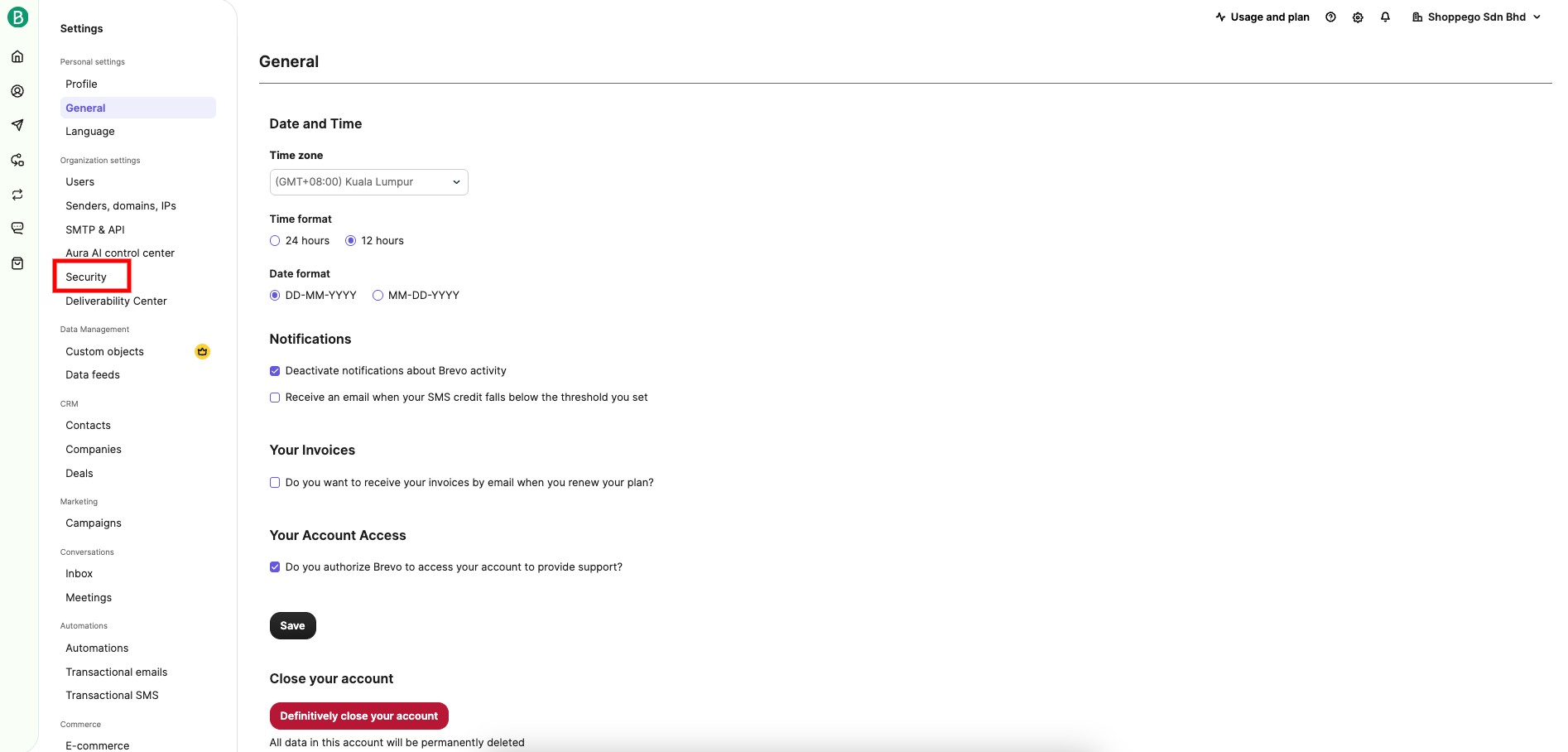
3. Click on the **Security** menu

<figure><img src="https://3359028955-files.gitbook.io/~/files/v0/b/gitbook-x-prod.appspot.com/o/spaces%2F-Lh09fNwqqta5Vj6Wr8p%2Fuploads%2Fgit-blob-2dc9d89e3cdf58002d87888d4968bbb7940bdea9%2FkyViw0acN8tehAG7jO97.jpg?alt=media" alt=""><figcaption></figcaption></figure>

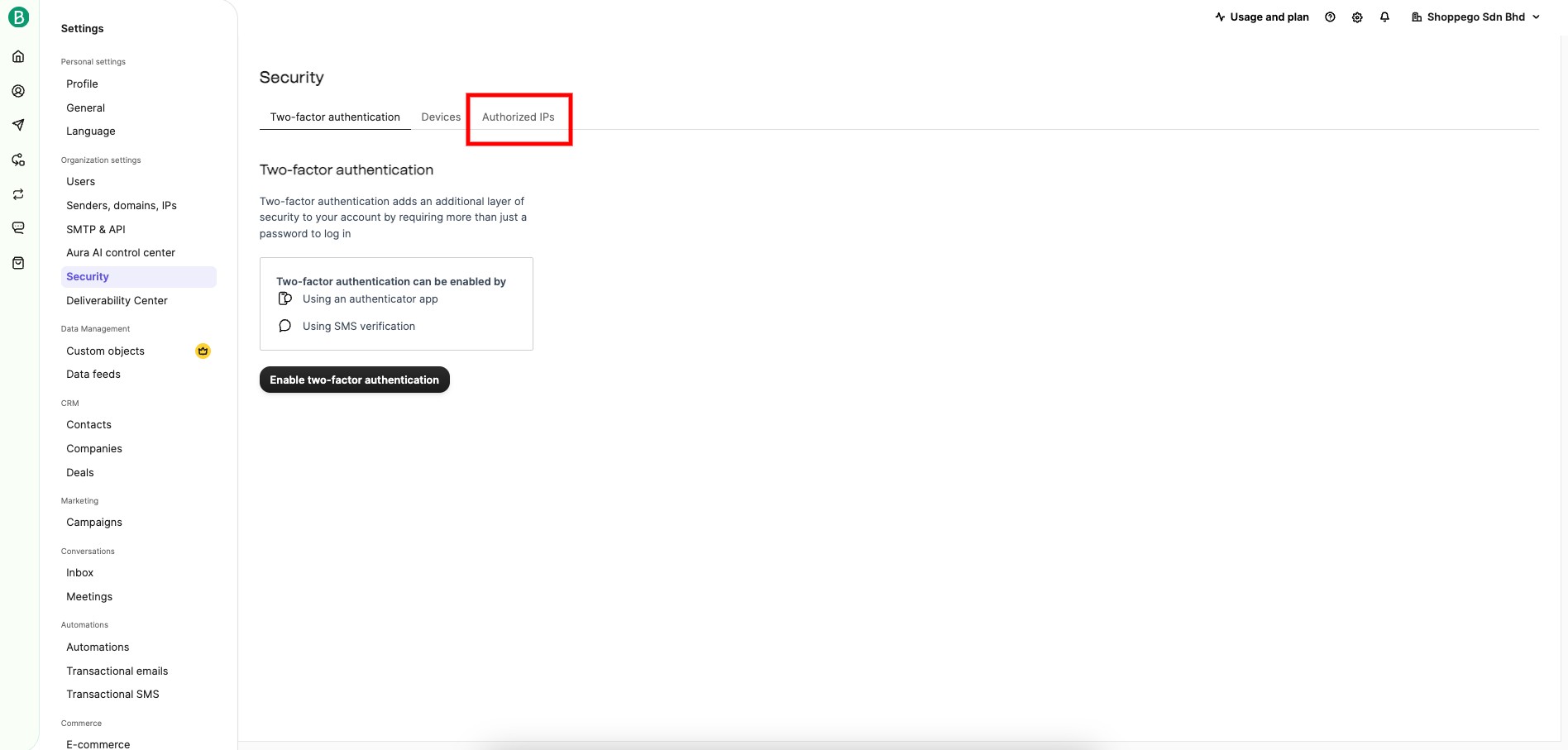
4. Click on **Authorized IPs**

<figure><img src="https://3359028955-files.gitbook.io/~/files/v0/b/gitbook-x-prod.appspot.com/o/spaces%2F-Lh09fNwqqta5Vj6Wr8p%2Fuploads%2Fgit-blob-52bfc911cac439043321db88246c6b5b3c4565e0%2F2r74gjNt6L74XQq9HwSF.jpg?alt=media" alt=""><figcaption></figcaption></figure>

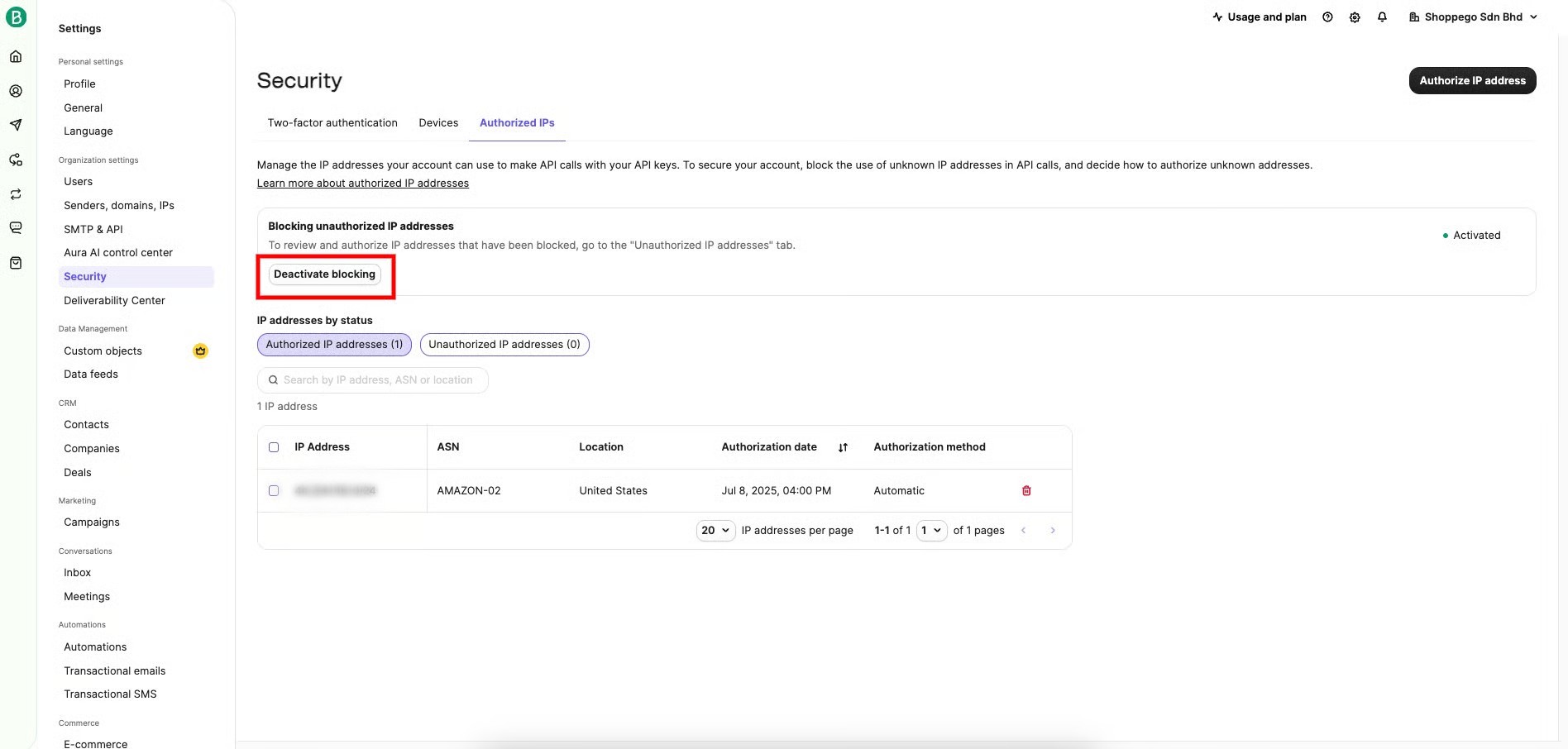
5. Click on the **Deactivate blocking** button
<figure><img src="https://3359028955-files.gitbook.io/~/files/v0/b/gitbook-x-prod.appspot.com/o/spaces%2F-Lh09fNwqqta5Vj6Wr8p%2Fuploads%2Fgit-blob-1eb0ee1958bf16f212ef2e8fc7a1a1f3a13e4e10%2FV4Cxe8ORM02NwNvLRs98.jpg?alt=media" alt=""><figcaption></figcaption></figure>