> For the complete documentation index, see [llms.txt](https://docs.shoppego.my/tutorials/llms.txt). Markdown versions of documentation pages are available by appending `.md` to page URLs; this page is available as [Markdown](https://docs.shoppego.my/tutorials/en/settings/email-marketing-providers/mailerlite.md).

# Mailerlite

To set up integration with Mailerlite, you need to get the API key and Subscriber group ID in your Mailerlite account.

For information, Mailerlite has 2 types of versions namely **Mailerlite classic V1** and **Mailerlite V2**. In this setting tutorial, we will only teach about setting using **Mailerlite V2** only.

## Settings in the Mailerlite account

### Create Group in Mailerlite

1\. You can log in to your [Mailerlite account](https://dashboard.mailerlite.com/login)

<figure><img src="https://3359028955-files.gitbook.io/~/files/v0/b/gitbook-x-prod.appspot.com/o/spaces%2F-Lh09fNwqqta5Vj6Wr8p%2Fuploads%2Fgit-blob-035005376515366bc18c678baf1cfcc37ccf0c7d%2Fg6HGDXOJBSN08QuWEJ5i.jpg?alt=media" alt=""><figcaption></figcaption></figure>

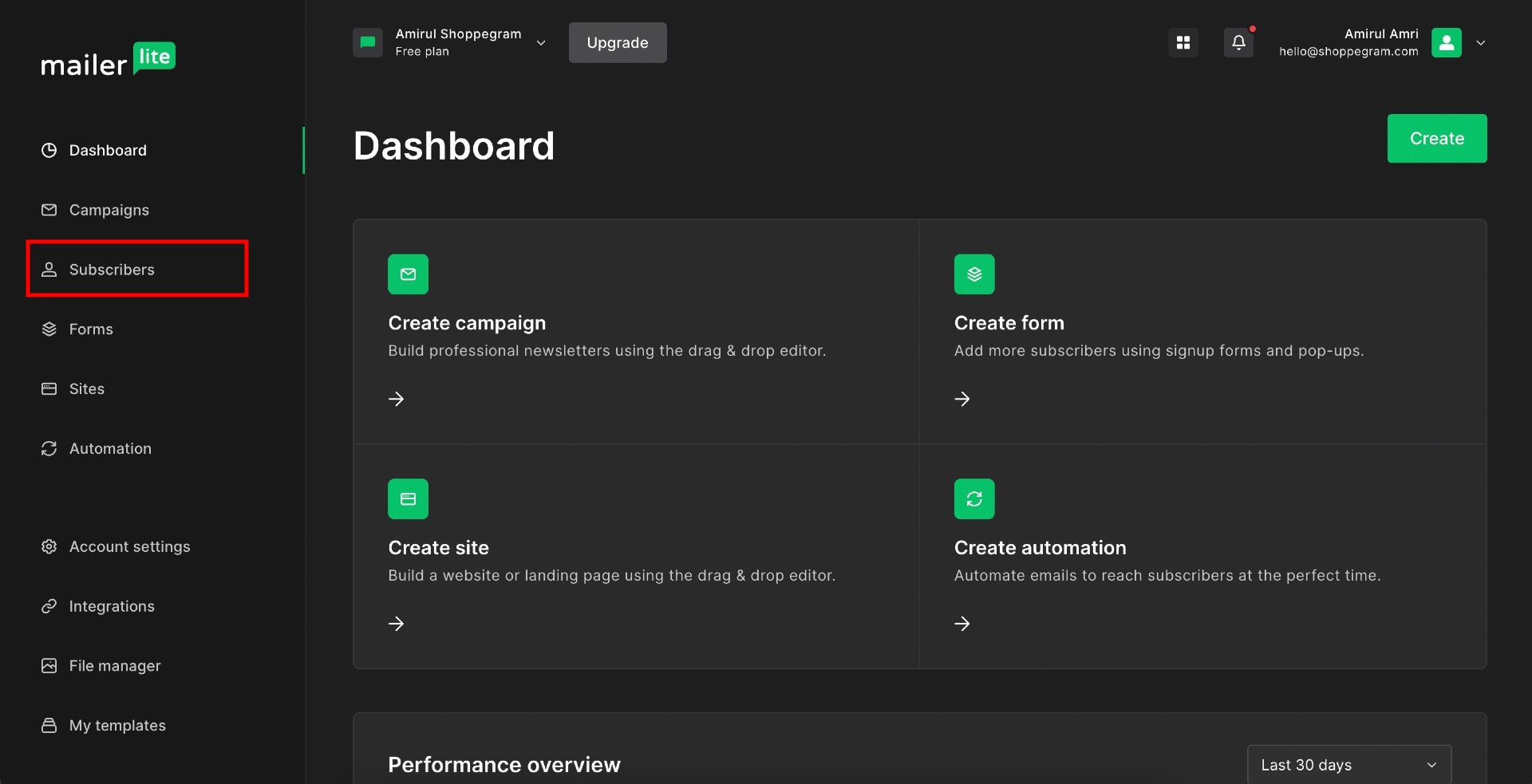
2\. Click on the **Subscribers button or text**

<figure><img src="https://3359028955-files.gitbook.io/~/files/v0/b/gitbook-x-prod.appspot.com/o/spaces%2F-Lh09fNwqqta5Vj6Wr8p%2Fuploads%2Fgit-blob-9d7e627f005c4581134113fec6403b6e6c61002b%2F16NQxpWcl5qlAWdelNYa.jpg?alt=media" alt=""><figcaption></figcaption></figure>

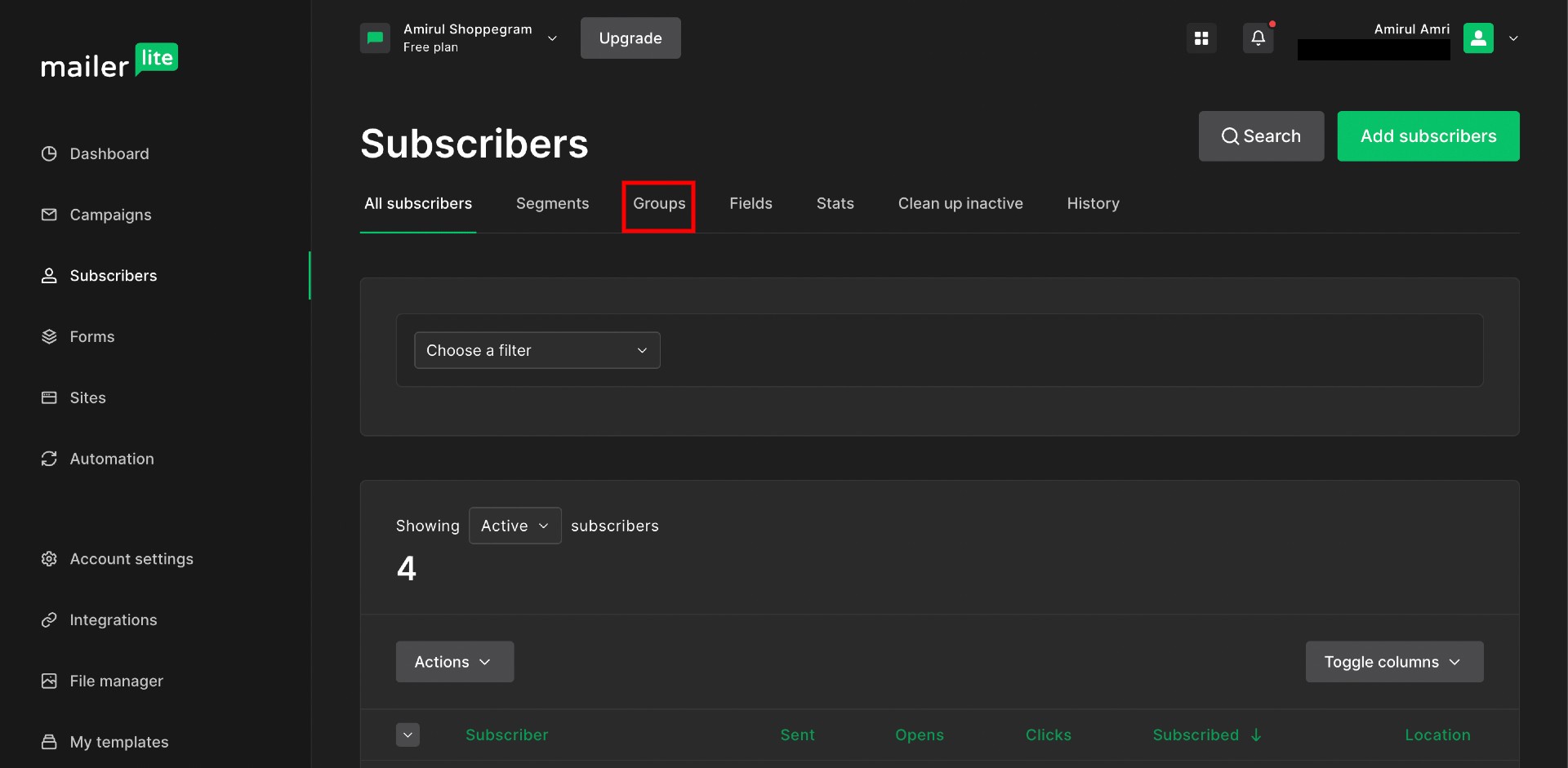
3\. Click on the **Groups button or text**

<figure><img src="https://3359028955-files.gitbook.io/~/files/v0/b/gitbook-x-prod.appspot.com/o/spaces%2F-Lh09fNwqqta5Vj6Wr8p%2Fuploads%2Fgit-blob-e9fb81cd744d960bf5712c238f107eb156f25bba%2FZbJU1mWIl0uj6YuBC7dp.jpg?alt=media" alt=""><figcaption></figcaption></figure>

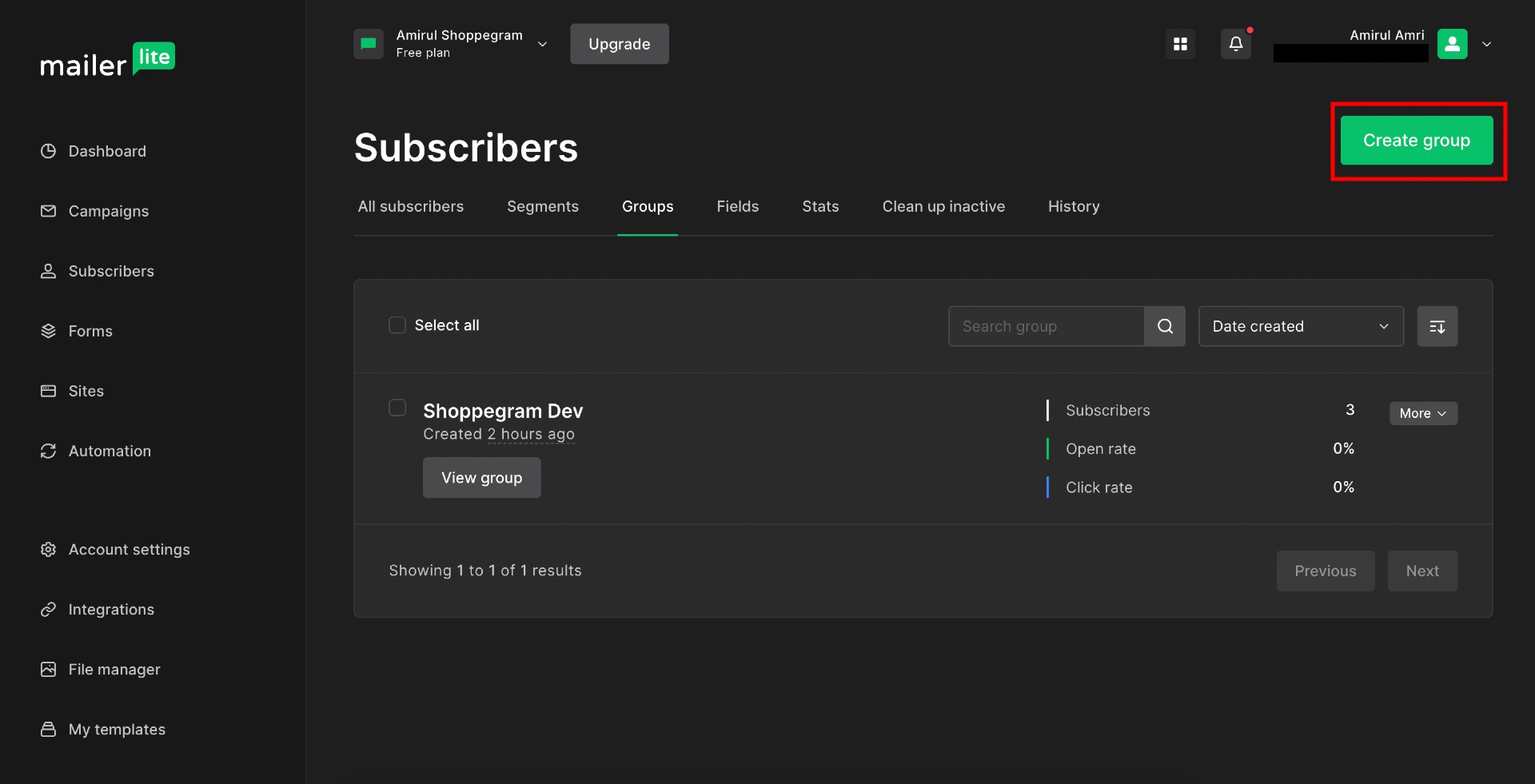
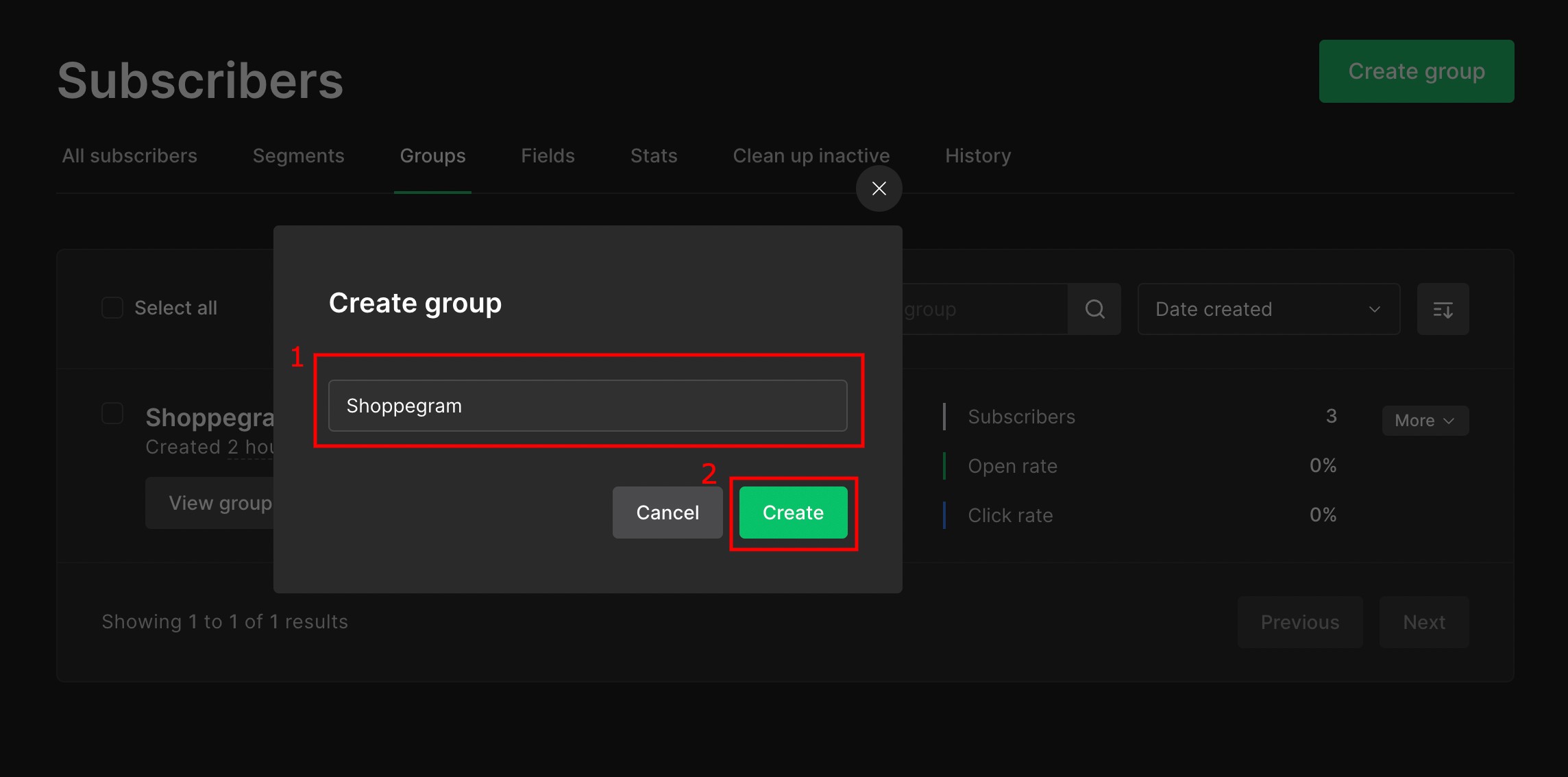
4\. Click on the **Create group button**

<figure><img src="https://3359028955-files.gitbook.io/~/files/v0/b/gitbook-x-prod.appspot.com/o/spaces%2F-Lh09fNwqqta5Vj6Wr8p%2Fuploads%2Fgit-blob-039c893a83979d7badf38be6560e4d3372c5e27b%2FgmDLTfdBkibwewYONLxp.jpg?alt=media" alt=""><figcaption></figcaption></figure>

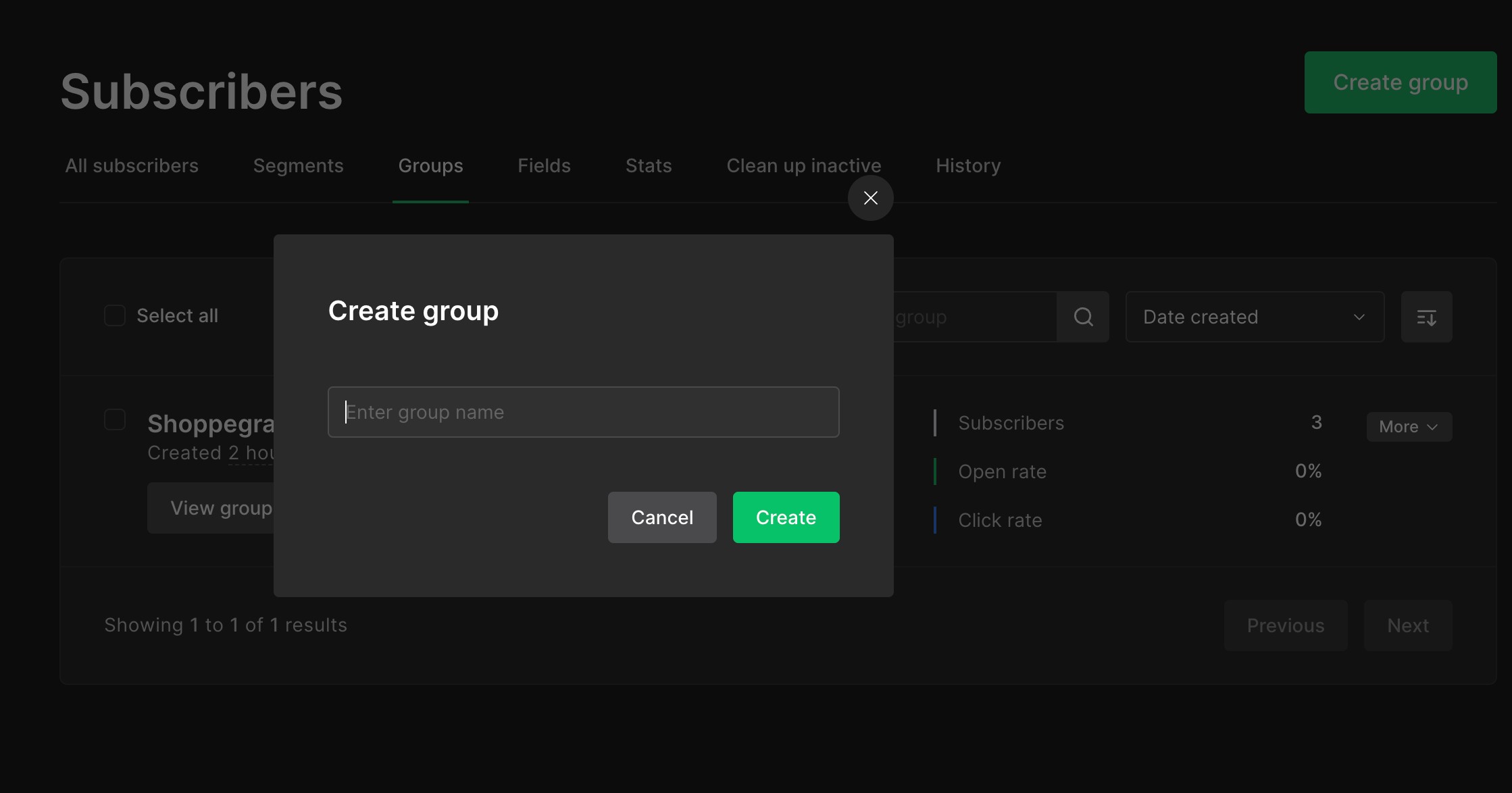
5\. Then, in this pop up you can enter the group name for your subscriber list in the space that has been prepared to be used as your reference later.

<figure><img src="https://3359028955-files.gitbook.io/~/files/v0/b/gitbook-x-prod.appspot.com/o/spaces%2F-Lh09fNwqqta5Vj6Wr8p%2Fuploads%2Fgit-blob-b4ee1809e72ee61148eb1f0614b16d6703087db7%2Fz7zbFQHdUCMcM73yuV73.jpg?alt=media" alt=""><figcaption></figcaption></figure>

6\. Once done, you can click on the **Create button**

<figure><img src="https://3359028955-files.gitbook.io/~/files/v0/b/gitbook-x-prod.appspot.com/o/spaces%2F-Lh09fNwqqta5Vj6Wr8p%2Fuploads%2Fgit-blob-fed3ef3d0fb5487c9e2f6fb1107c982ecc880c0b%2FXMX92OYhjuekQauulC7d.jpg?alt=media" alt=""><figcaption></figcaption></figure>

### Get all the required key

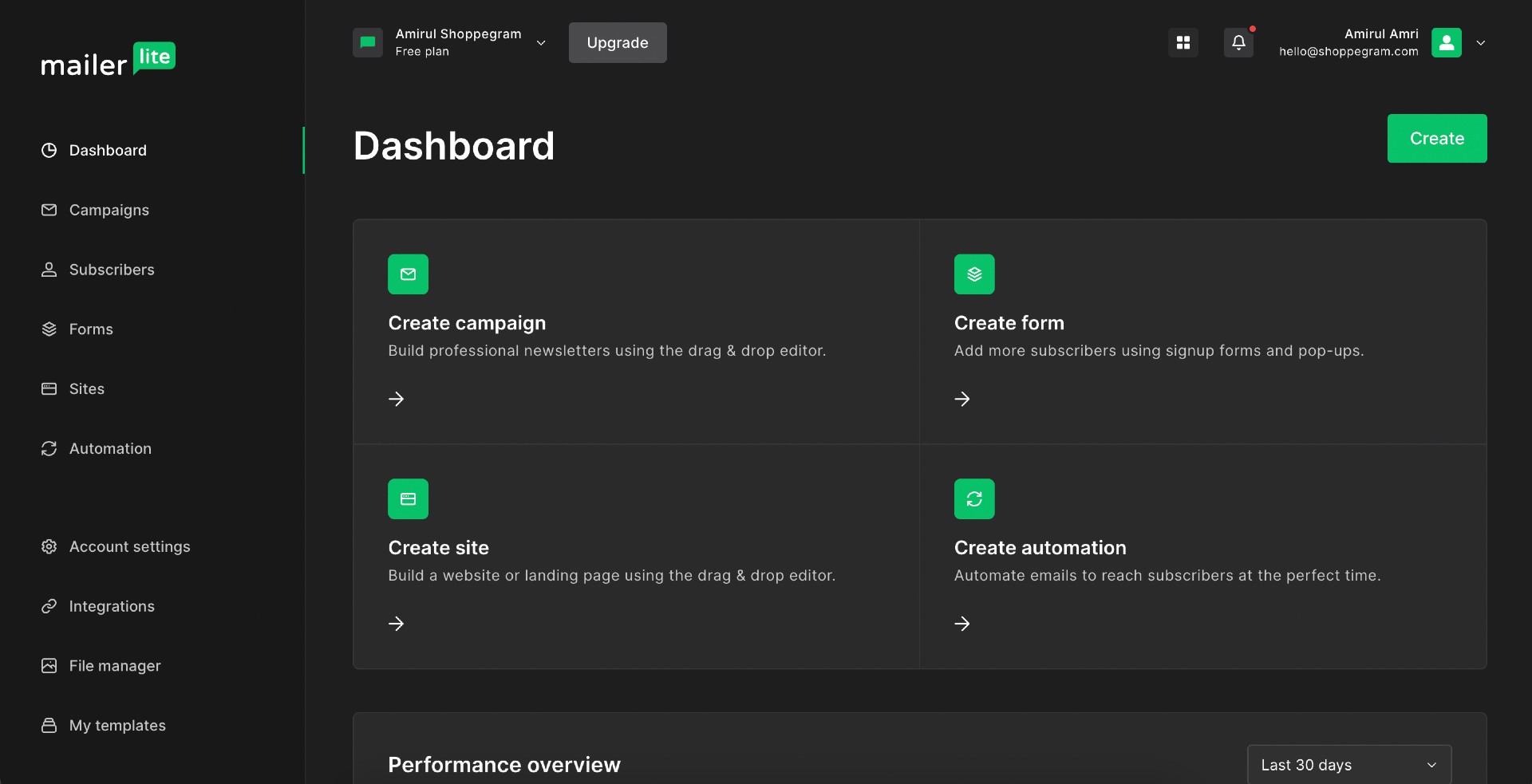
1\. You can login to your Mailerlite account or go to your Mailerlite account dashboard again

<figure><img src="https://3359028955-files.gitbook.io/~/files/v0/b/gitbook-x-prod.appspot.com/o/spaces%2F-Lh09fNwqqta5Vj6Wr8p%2Fuploads%2Fgit-blob-6563cf068de67142fc1668da5d472f5891eecc12%2FUzz2BCUZ4hb2P0HRGm24.jpg?alt=media" alt=""><figcaption></figcaption></figure>

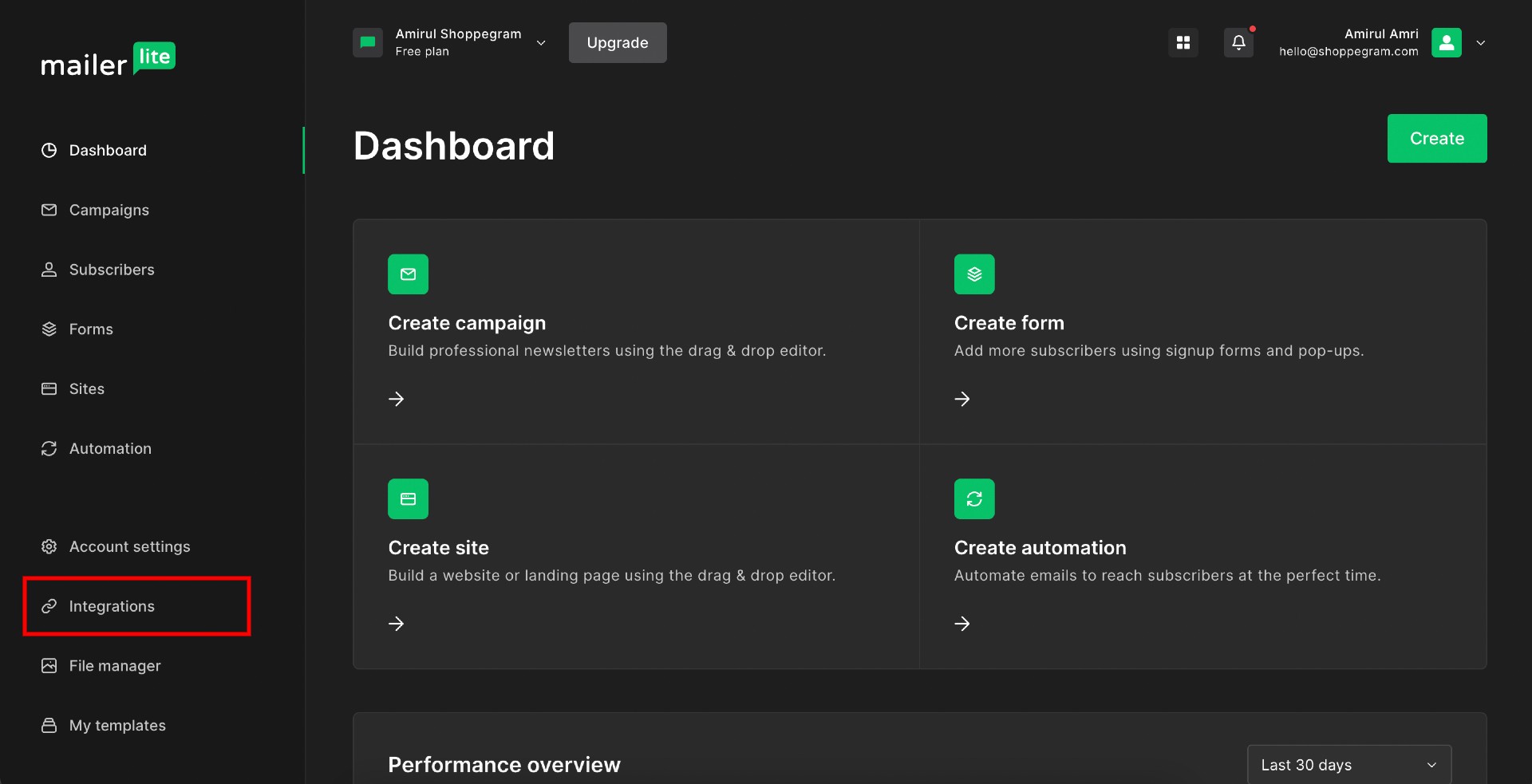
2\. Click on the **Integrations button or text**

<figure><img src="https://3359028955-files.gitbook.io/~/files/v0/b/gitbook-x-prod.appspot.com/o/spaces%2F-Lh09fNwqqta5Vj6Wr8p%2Fuploads%2Fgit-blob-4d9ddb459a3d3e9cf507ec25a147dd7ab8b2f443%2FsN5nhF6UwuVUIPxHg1Sv.jpg?alt=media" alt=""><figcaption></figcaption></figure>

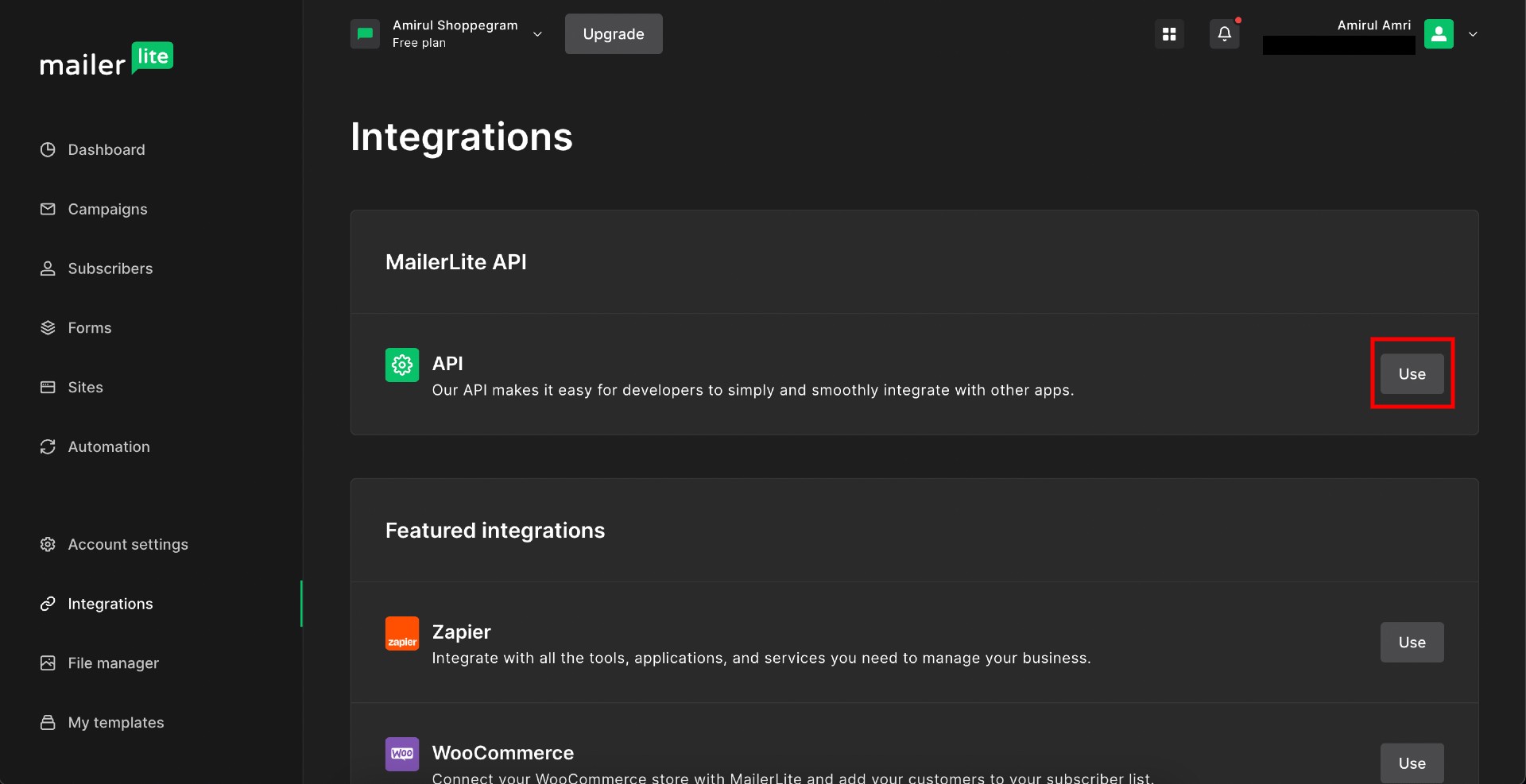
3\. Click on the **Use button in the API box**

<figure><img src="https://3359028955-files.gitbook.io/~/files/v0/b/gitbook-x-prod.appspot.com/o/spaces%2F-Lh09fNwqqta5Vj6Wr8p%2Fuploads%2Fgit-blob-aa1482a67b27db62076317bd99a22e7fe9d4390d%2Fy4E7rp9QiJBunkbY4v7g.jpg?alt=media" alt=""><figcaption></figcaption></figure>

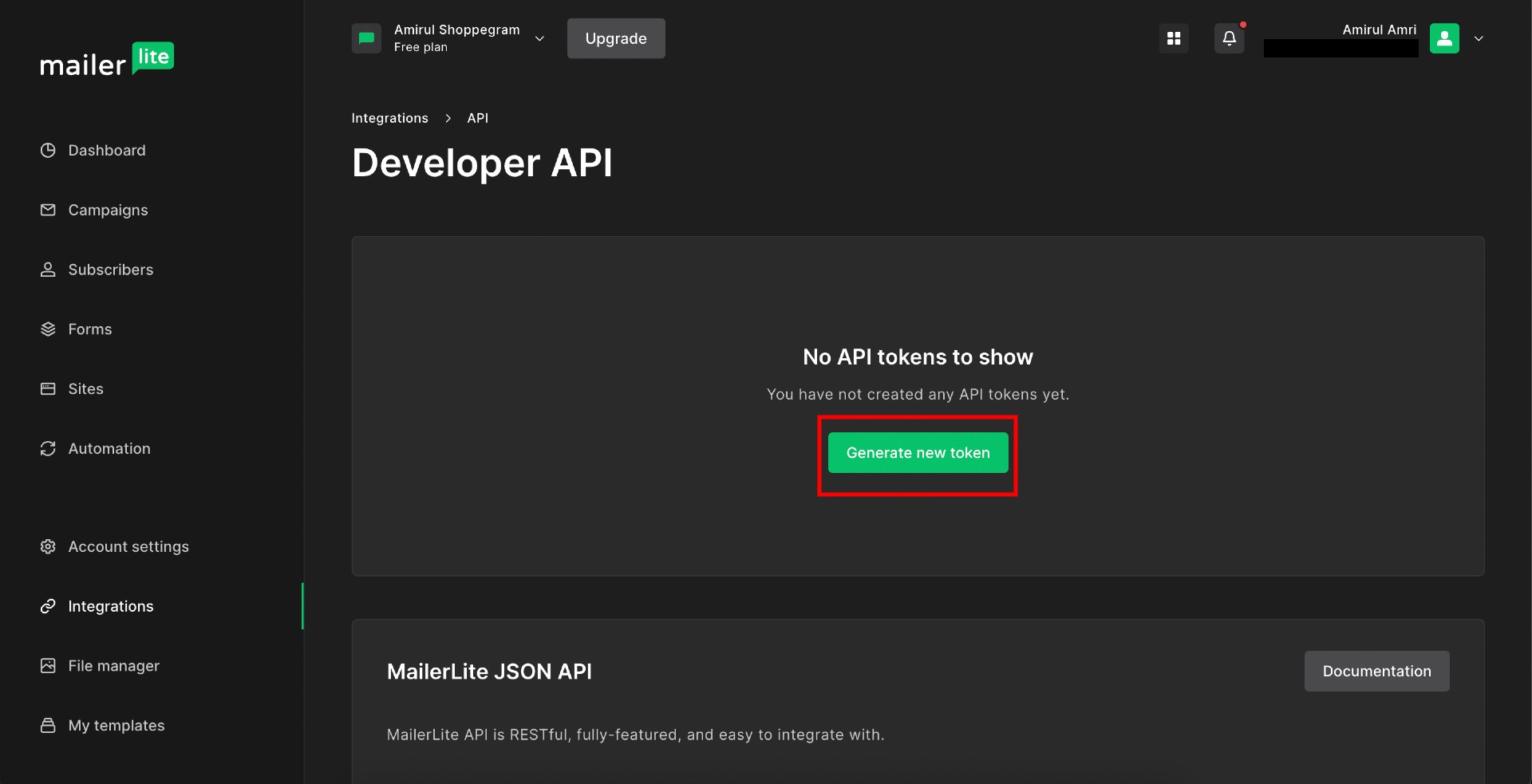
4\. Then, you can click on the **Generate new token button**

<figure><img src="https://3359028955-files.gitbook.io/~/files/v0/b/gitbook-x-prod.appspot.com/o/spaces%2F-Lh09fNwqqta5Vj6Wr8p%2Fuploads%2Fgit-blob-84beb17fc42635d95ed3546c7e63080da14467da%2FsDIFIxI2O25r5bz81CxC.jpg?alt=media" alt=""><figcaption></figcaption></figure>

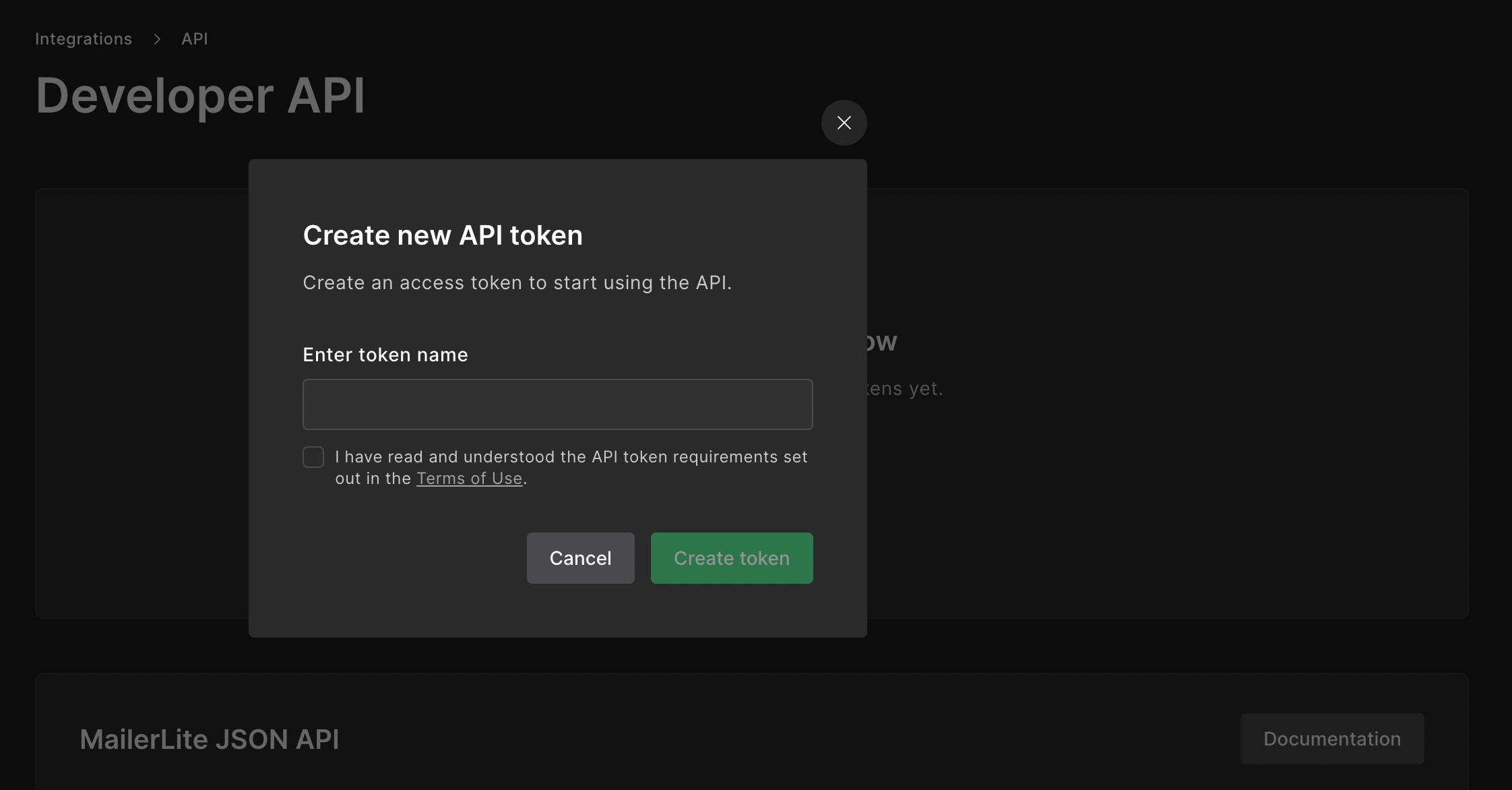
5\. In the pop up that appears later, you can enter the name you want to assign to your token in the space provided to be used as your reference and also **tick the available checkbox**.

<figure><img src="https://3359028955-files.gitbook.io/~/files/v0/b/gitbook-x-prod.appspot.com/o/spaces%2F-Lh09fNwqqta5Vj6Wr8p%2Fuploads%2Fgit-blob-2196decbf520151fa98adb311149ffbaf6e63c1c%2F1nB2K3h9SgrdOwpyH4HT.jpg?alt=media" alt=""><figcaption></figcaption></figure>

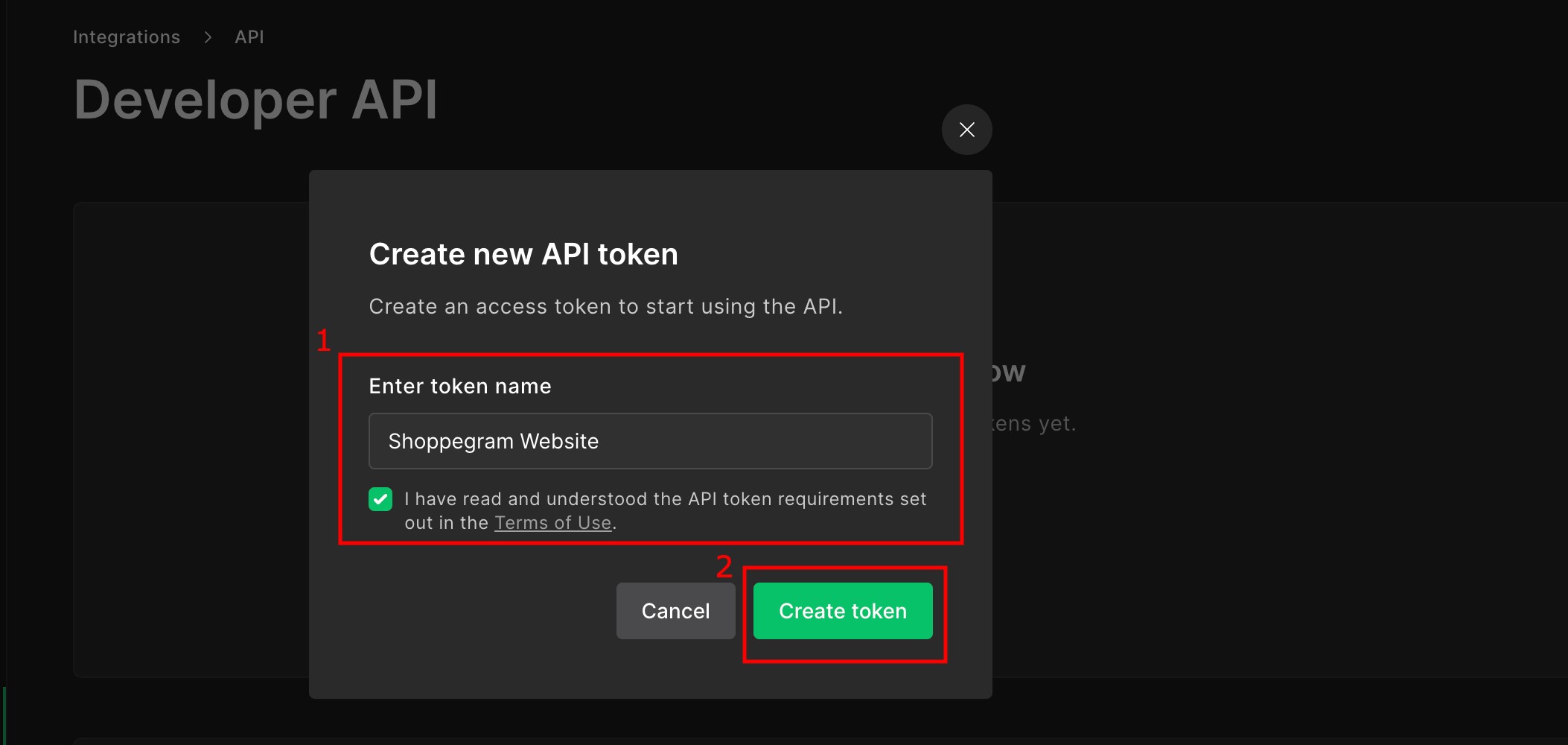
6\. Once done, you can click on the **Create token button**

<figure><img src="https://3359028955-files.gitbook.io/~/files/v0/b/gitbook-x-prod.appspot.com/o/spaces%2F-Lh09fNwqqta5Vj6Wr8p%2Fuploads%2Fgit-blob-d97f840a1a0525c99a6cc363434cdc55c9203698%2FW3sPQmpht5eROjEeliwh.jpg?alt=media" alt=""><figcaption></figcaption></figure>

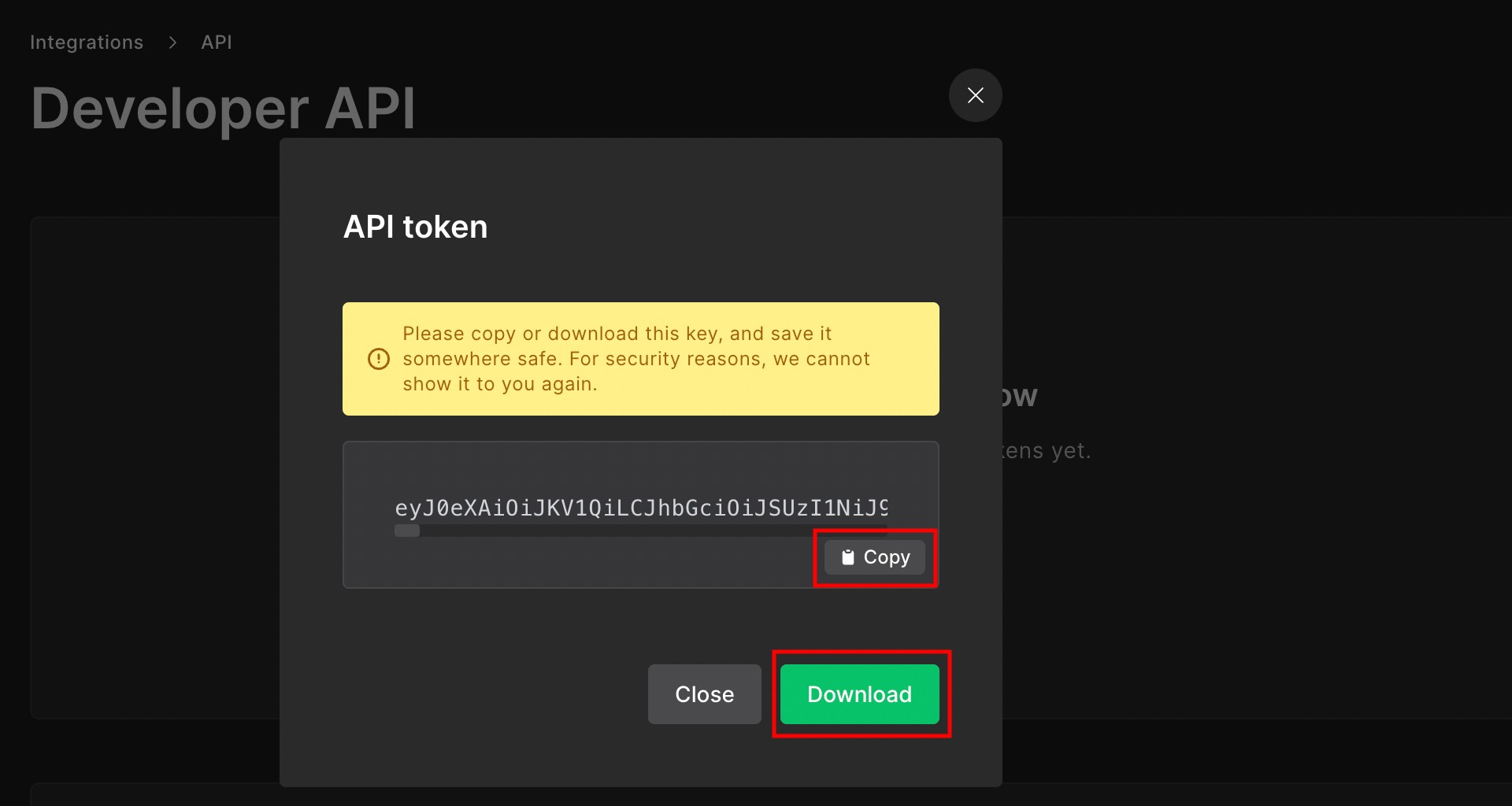
7\. Then, you can click on the **Copy or Download button** to save your token for later use in Shoppego. **Make sure you have saved this token because it will not be displayed again after this**.

<figure><img src="https://3359028955-files.gitbook.io/~/files/v0/b/gitbook-x-prod.appspot.com/o/spaces%2F-Lh09fNwqqta5Vj6Wr8p%2Fuploads%2Fgit-blob-baf61013350c11ab8ac30dbf1b25a61eeb873734%2FnCoZUbl2dum6BoRpIyIh.jpg?alt=media" alt=""><figcaption></figcaption></figure>

8\. On the same page later after you close the pop up, you can scroll down to get your Subscriber Group ID.

<figure><img src="https://3359028955-files.gitbook.io/~/files/v0/b/gitbook-x-prod.appspot.com/o/spaces%2F-Lh09fNwqqta5Vj6Wr8p%2Fuploads%2Fgit-blob-3e8c4fbc70cefcee0a7a4e432e0263a15d4c3623%2F9ma14mh1eQJpIyurCXgc.jpg?alt=media" alt=""><figcaption></figcaption></figure>

9\. You can **save that Subscriber Group ID** to use in Shoppego.

<figure><img src="https://3359028955-files.gitbook.io/~/files/v0/b/gitbook-x-prod.appspot.com/o/spaces%2F-Lh09fNwqqta5Vj6Wr8p%2Fuploads%2Fgit-blob-69ebf2f3116ffe11af6882f8d7e8f7ffb7ffe62e%2FJuVQjMApKPaBJpjoywhM.jpg?alt=media" alt=""><figcaption></figcaption></figure>

## Setup in Shoppego

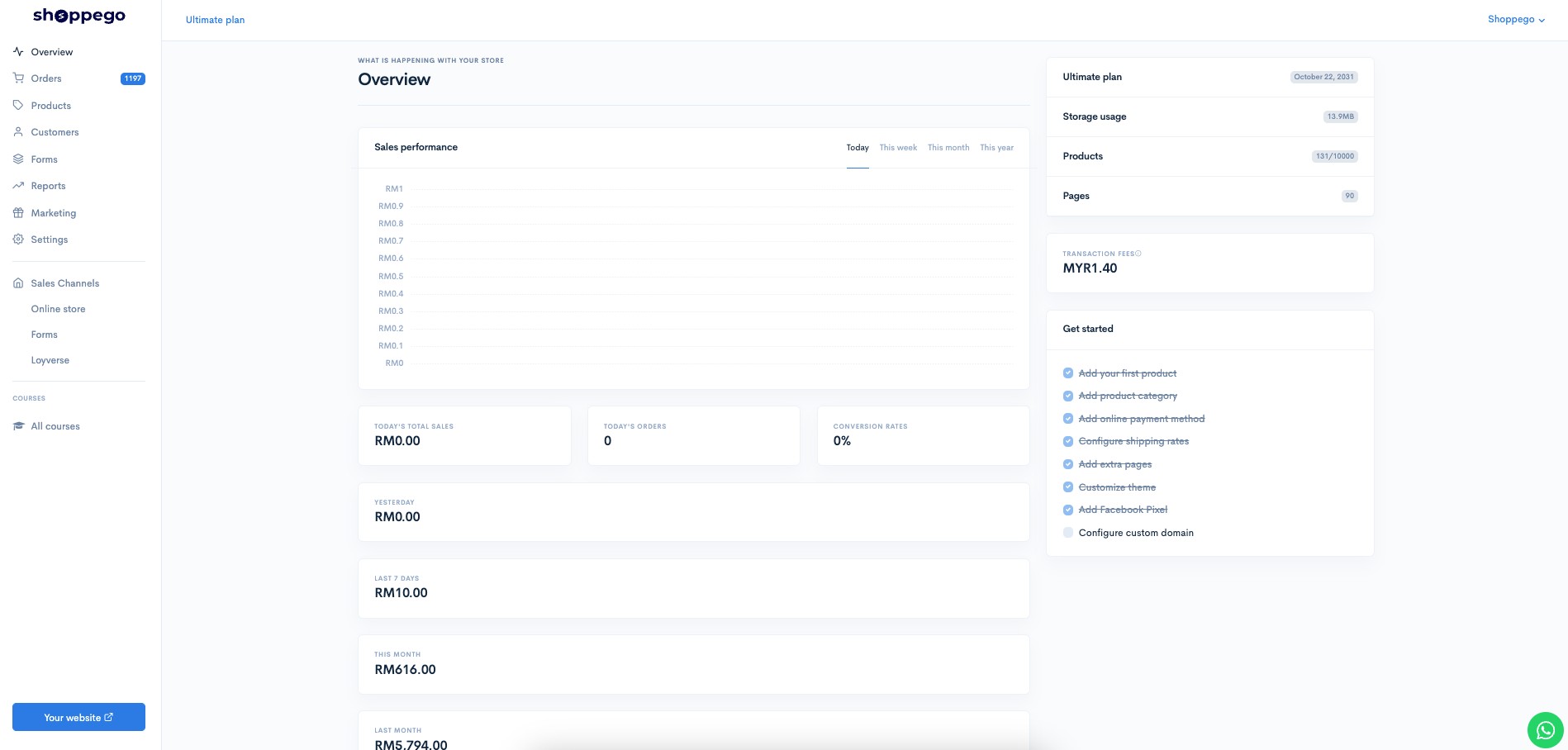
1\. Log in to your Shoppego account

<figure><img src="https://3359028955-files.gitbook.io/~/files/v0/b/gitbook-x-prod.appspot.com/o/spaces%2F-Lh09fNwqqta5Vj6Wr8p%2Fuploads%2Fgit-blob-b853fc0189b34fb1d3990f5b1f53fa71deb9d384%2FlCN7aw3FznaFFoOAyya2.jpg?alt=media" alt=""><figcaption></figcaption></figure>

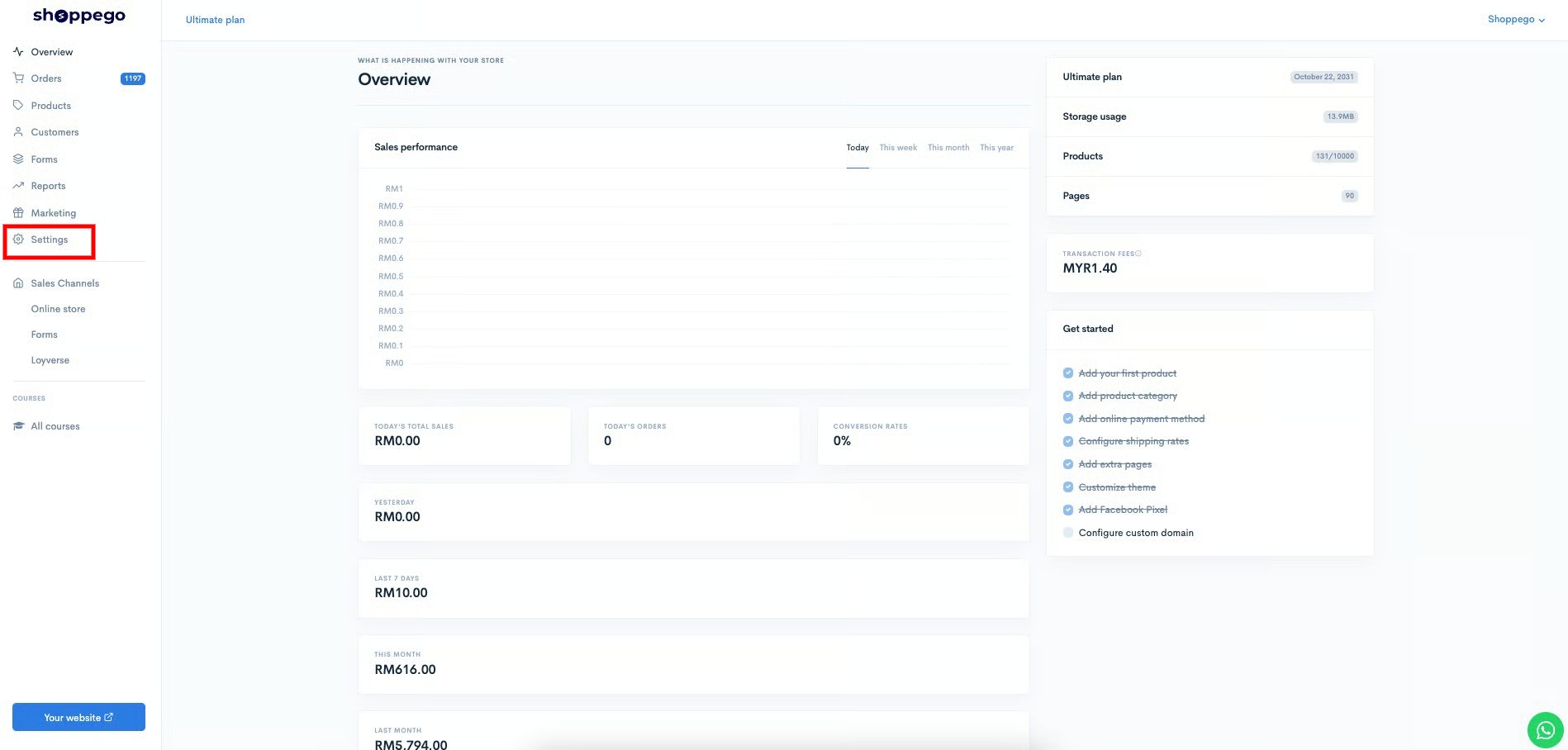
2\. Click on **Settings**

<figure><img src="https://3359028955-files.gitbook.io/~/files/v0/b/gitbook-x-prod.appspot.com/o/spaces%2F-Lh09fNwqqta5Vj6Wr8p%2Fuploads%2Fgit-blob-9ae8b66b366958146673b78216b78ff0e8f12b90%2FVsK9zs6aZtUfKK1hcCiM.jpg?alt=media" alt=""><figcaption></figcaption></figure>

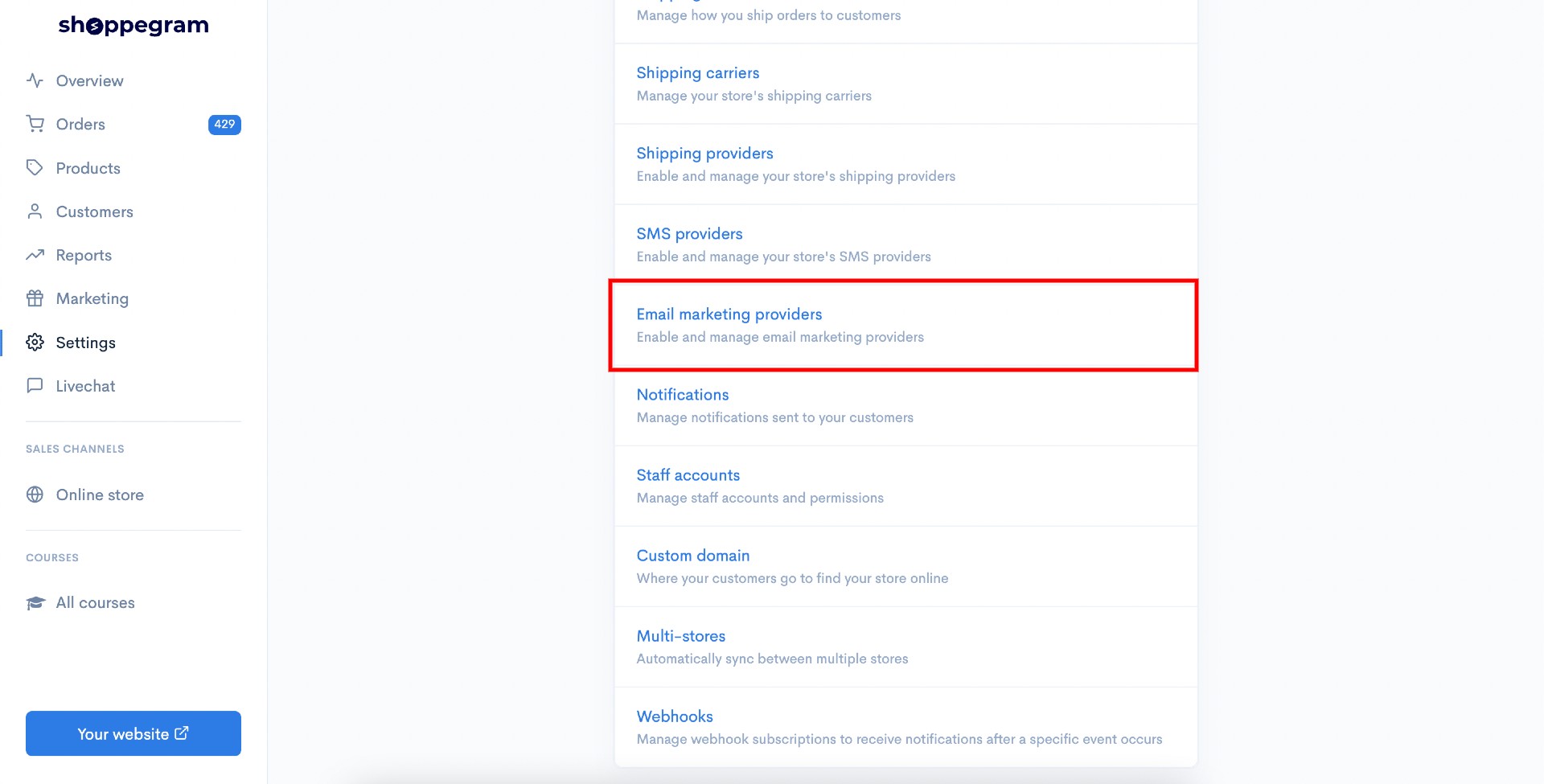
3\. Click on **Email marketing providers**

<figure><img src="https://3359028955-files.gitbook.io/~/files/v0/b/gitbook-x-prod.appspot.com/o/spaces%2F-Lh09fNwqqta5Vj6Wr8p%2Fuploads%2Fgit-blob-d39aa84da16ce00380cf029389df9f3aee4356c6%2FlZuWOiWKBXqoUtS3Hqhx.jpg?alt=media" alt=""><figcaption></figcaption></figure>

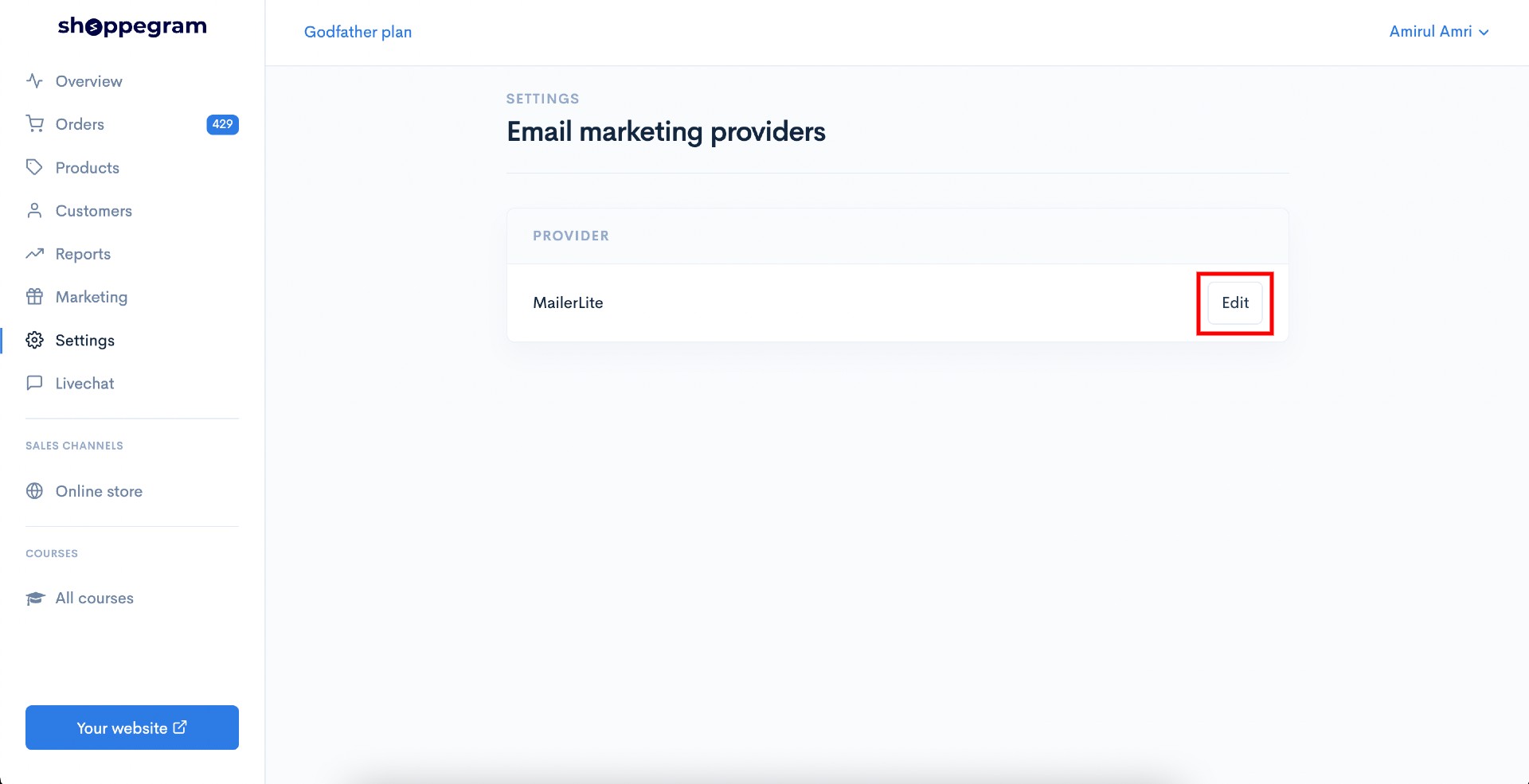
4\. Click on the **Edit/Activate button inside the Mailerlite box.**

<figure><img src="https://3359028955-files.gitbook.io/~/files/v0/b/gitbook-x-prod.appspot.com/o/spaces%2F-Lh09fNwqqta5Vj6Wr8p%2Fuploads%2Fgit-blob-485f88d74a5f11b4bcd7731c98677a4d25a266cf%2FG7sRU8Sp77m97AatZ7ws.jpg?alt=media" alt=""><figcaption></figcaption></figure>

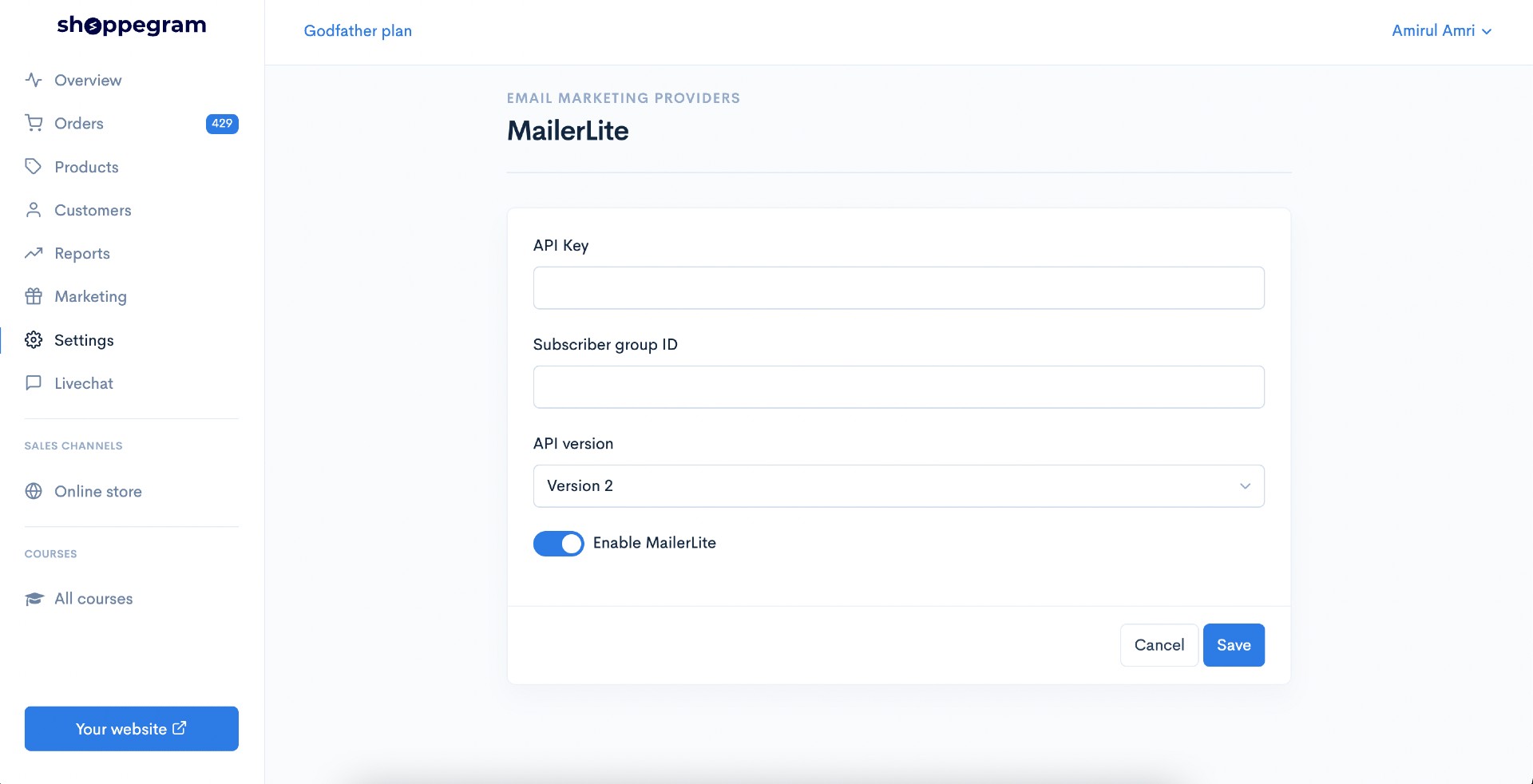
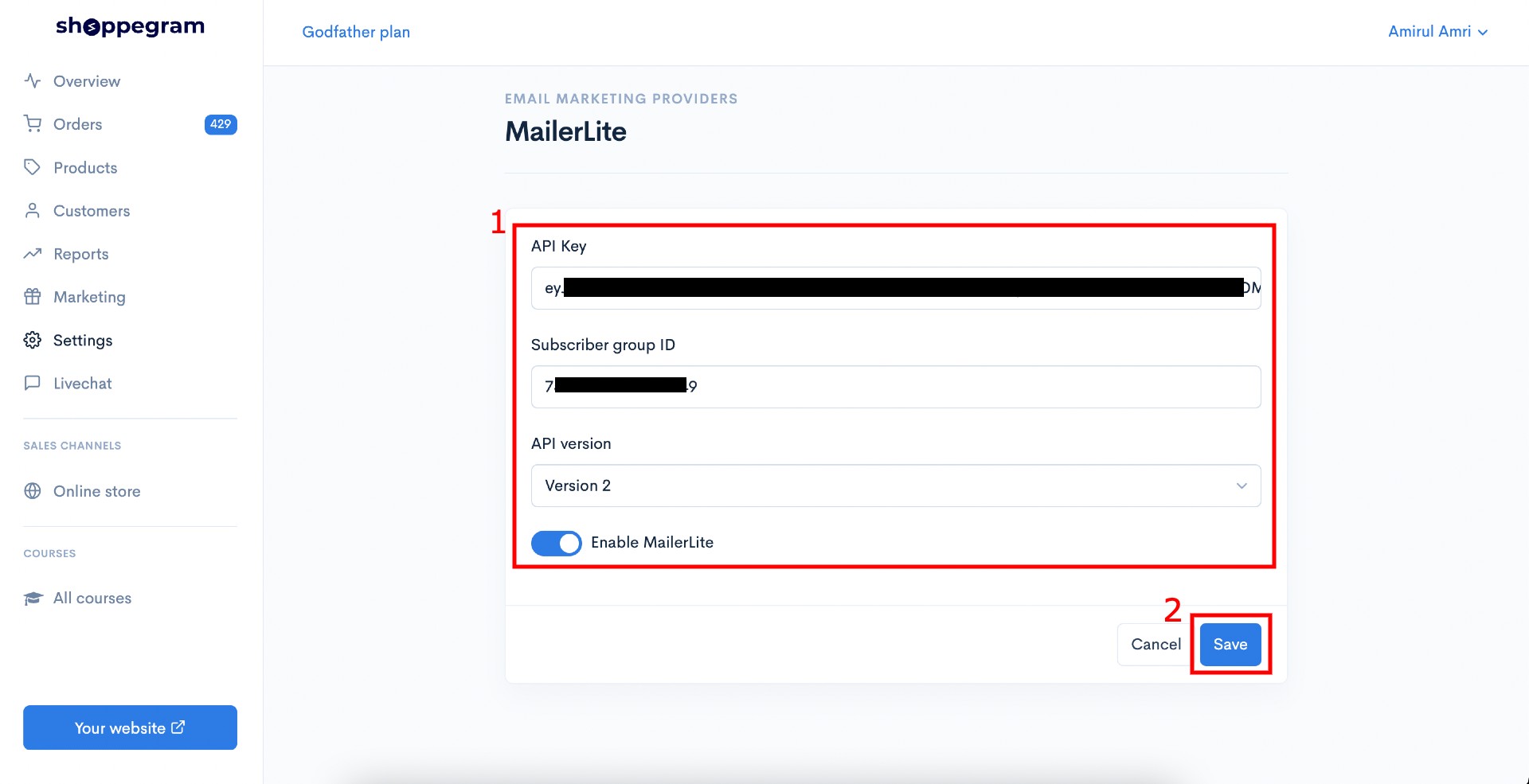
5\. Then, you can enter all the keys you have obtained in the space provided. Make sure in the API version box you have selected Version 2.

<figure><img src="https://3359028955-files.gitbook.io/~/files/v0/b/gitbook-x-prod.appspot.com/o/spaces%2F-Lh09fNwqqta5Vj6Wr8p%2Fuploads%2Fgit-blob-e18ee3f837cab46dbedf3d25234d7996d8498c49%2FSnIqzMFvH8wXzwuC1dqF.jpg?alt=media" alt=""><figcaption></figcaption></figure>

6\. Once done, click on the **Save button**

<figure><img src="https://3359028955-files.gitbook.io/~/files/v0/b/gitbook-x-prod.appspot.com/o/spaces%2F-Lh09fNwqqta5Vj6Wr8p%2Fuploads%2Fgit-blob-30e314aa24ad0bfb02b61f2512924f134ee74de4%2FQ68gKNcWuh2vOUhWbpUw.jpg?alt=media" alt=""><figcaption></figcaption></figure>

Now that your setting is complete, you will be able to see your new customer data that will be brought into the Group Subscriber list that you created in Mailerlite.