> For the complete documentation index, see [llms.txt](https://docs.shoppego.my/tutorials/llms.txt). Markdown versions of documentation pages are available by appending `.md` to page URLs; this page is available as [Markdown](https://docs.shoppego.my/tutorials/en/settings/notifications.md).

# Notifications

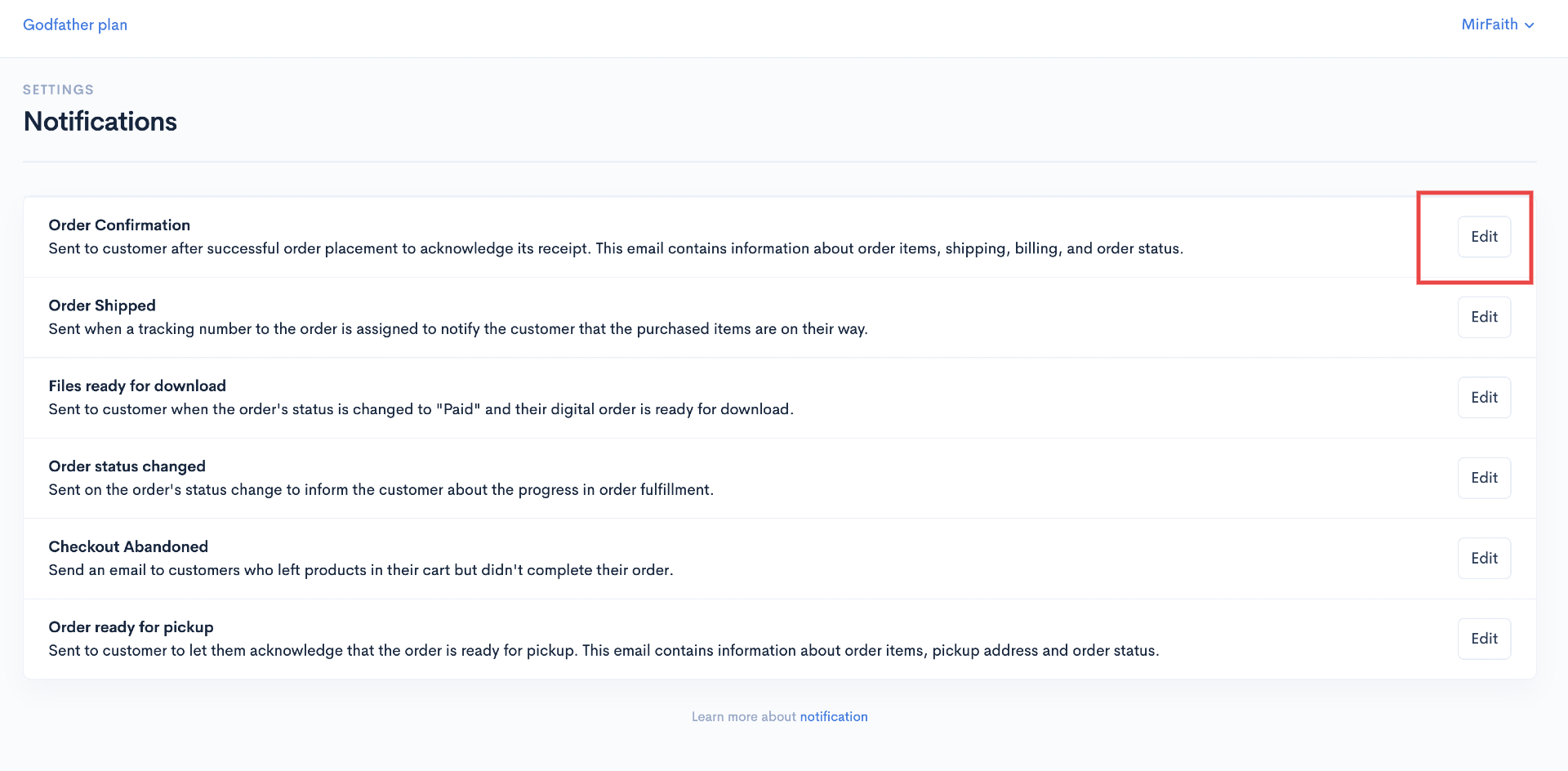
In Commerce, you have access to change the email template for your own store notifications. Among the email templates you can change are:

1. Order Confirmation
2. Order Shipped
3. Files ready for download
4. Order status changed
5. Checkout Abandoned (Available for <mark style="color:red;">**Premium**</mark> and <mark style="color:red;">**Ultimate**</mark>**&#x20;plan** only).

For this Abandoned Checkout email notification, it is no longer sent automatically by the Shoppego system. If you want to send this notification, it can only be done by setting a [webhook](/tutorials/en/settings/webhook.md).

6. Order ready to pickup (Available for <mark style="color:red;">**Ultimate**</mark>**&#x20;plan** only)
7. Order review
8. Order packed

{% content-ref url="/pages/MOAJRBaAo9pWI93icCYX" %}
[Notifications Parameter](/tutorials/en/settings/notifications/notifications-parameter.md)
{% endcontent-ref %}

Changes to the email template can be done if you do have skills in HTML/CSS coding.

To access the email section of the template, you can go to:

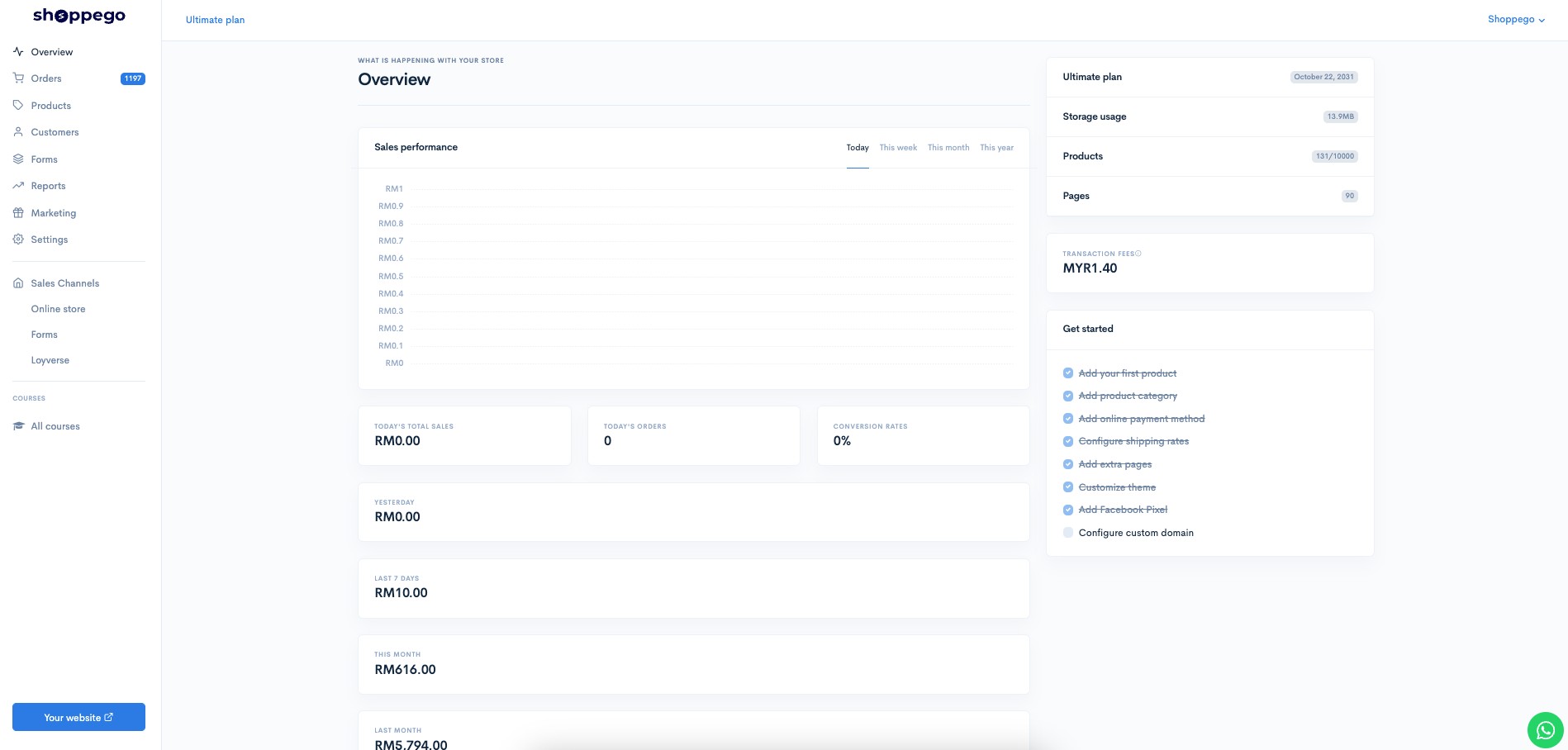
1\. Dashboard Commerce
![](https://3359028955-files.gitbook.io/~/files/v0/b/gitbook-x-prod.appspot.com/o/spaces%2F-Lh09fNwqqta5Vj6Wr8p%2Fuploads%2Fgit-blob-b853fc0189b34fb1d3990f5b1f53fa71deb9d384%2FlCN7aw3FznaFFoOAyya2.jpg?alt=media)

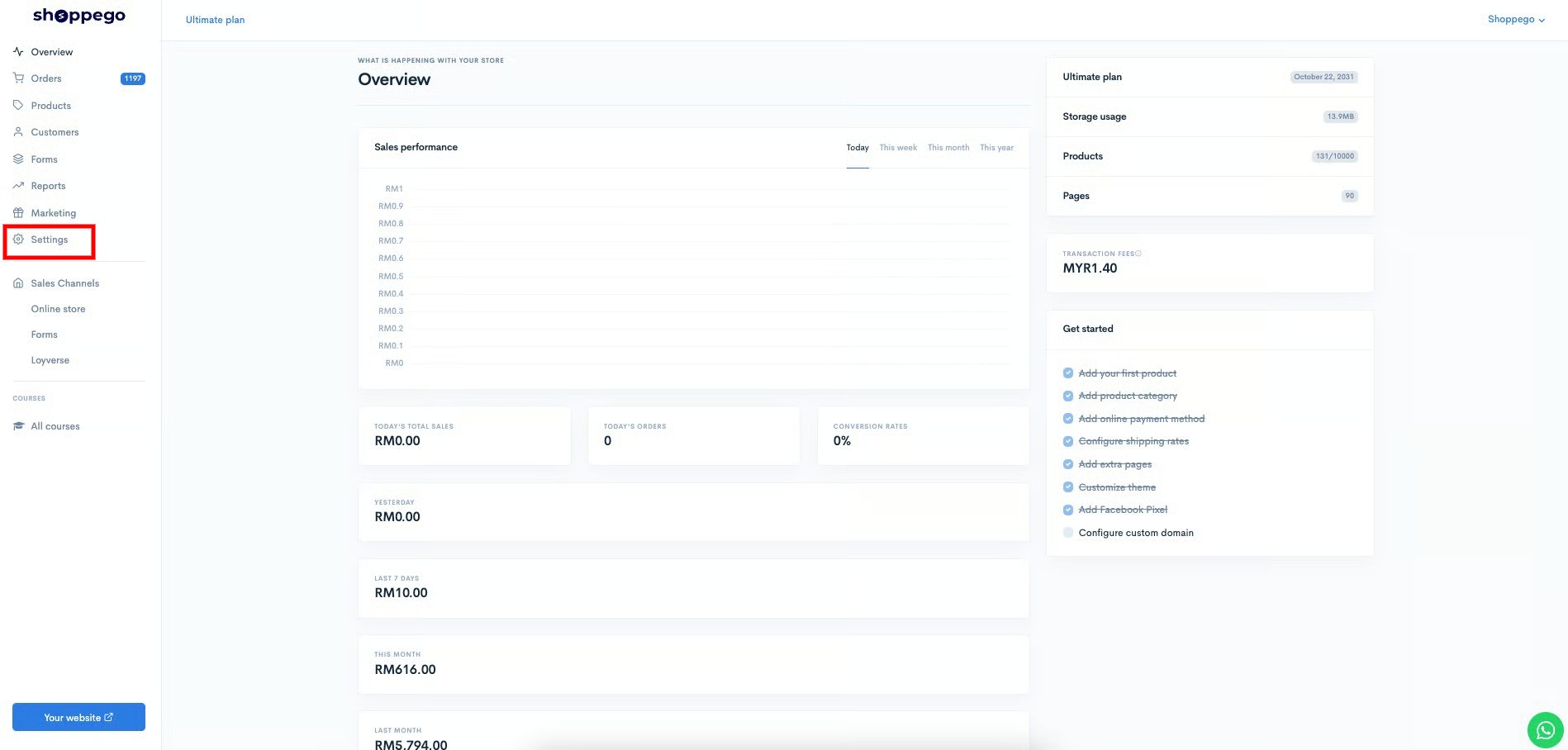
2\. Click **Settings**

![](https://3359028955-files.gitbook.io/~/files/v0/b/gitbook-x-prod.appspot.com/o/spaces%2F-Lh09fNwqqta5Vj6Wr8p%2Fuploads%2Fgit-blob-9ae8b66b366958146673b78216b78ff0e8f12b90%2FVsK9zs6aZtUfKK1hcCiM.jpg?alt=media)

3\. Click **Notifications**

![](https://3359028955-files.gitbook.io/~/files/v0/b/gitbook-x-prod.appspot.com/o/spaces%2F-Lh09fNwqqta5Vj6Wr8p%2Fuploads%2Fgit-blob-36cf895835b2693bb5c52b3376b5b103a96707ca%2Fp3EWNaif0YgzfErhenoY.jpg?alt=media)

4\. Click **Edit** on any email for which you want to change their template

<figure><img src="https://3359028955-files.gitbook.io/~/files/v0/b/gitbook-x-prod.appspot.com/o/spaces%2F-Lh09fNwqqta5Vj6Wr8p%2Fuploads%2Fgit-blob-ef70d99b0fdd8e99c6174a2aa2c0a096aa87ce53%2FGIqI40zzatjxU0QPArah.jpg?alt=media" alt=""><figcaption></figcaption></figure>

5\. Next you will be able to see the display for you to change the email template for the Order Confirmation notification.

![](https://3359028955-files.gitbook.io/~/files/v0/b/gitbook-x-prod.appspot.com/o/spaces%2F-Lh09fNwqqta5Vj6Wr8p%2Fuploads%2Fgit-blob-065d85f36e91095a97d0b2bda1b1c620ef0259d4%2FOyCe5nJQ3uoR7NtPDA3Y.jpg?alt=media)

You can make changes to the **Email body (HTML)** to change the layout/styling of your email template by using HTML/CSS coding

6\. Once you have made the changes you want you can click **Save**

![](https://3359028955-files.gitbook.io/~/files/v0/b/gitbook-x-prod.appspot.com/o/spaces%2F-Lh09fNwqqta5Vj6Wr8p%2Fuploads%2Fgit-blob-600d0d699368cccfb4f562a566626f33058c479f%2FbUYK7aPQBnxhztFKiqnU.jpg?alt=media)

If you want to Preview the changes you have made, you can click **Preview**

![](https://3359028955-files.gitbook.io/~/files/v0/b/gitbook-x-prod.appspot.com/o/spaces%2F-Lh09fNwqqta5Vj6Wr8p%2Fuploads%2Fgit-blob-e1672fd3d211eb22db360f4fd5698e4a471e3e72%2FEFoiOS7HatYm77sTLIY2.jpg?alt=media)

After you click the Preview button, you will be able to see the email display that will be visible to your customers later

![](https://3359028955-files.gitbook.io/~/files/v0/b/gitbook-x-prod.appspot.com/o/spaces%2F-Lh09fNwqqta5Vj6Wr8p%2Fuploads%2Fgit-blob-3b1f0a79f61037d500301ea8dc5259689d0265da%2F-Mfet5ey9zpTzSPCwwbN.png?alt=media)

## Additional info

For older Commerce users, you will need to make additional settings on your Email notifications to ensure you get the latest email notifications templates.

1\. On your email settings, you can click the **More** button

![](https://3359028955-files.gitbook.io/~/files/v0/b/gitbook-x-prod.appspot.com/o/spaces%2F-Lh09fNwqqta5Vj6Wr8p%2Fuploads%2Fgit-blob-12169caf1d7d2adff6bf17ff0194eae1d1016f38%2FaRhzTzplYU6audWf5r7h.png?alt=media)

2\. Next you can select the **Restore to default** button

![](https://3359028955-files.gitbook.io/~/files/v0/b/gitbook-x-prod.appspot.com/o/spaces%2F-Lh09fNwqqta5Vj6Wr8p%2Fuploads%2Fgit-blob-3b1bf3b1a1e63f0c54286efa1117da3495e6d053%2FaaXRv3h2OOrtUSj2FUmW.png?alt=media)

This setting, allows you to get the latest email templates from us.