> For the complete documentation index, see [llms.txt](https://docs.shoppego.my/tutorials/llms.txt). Markdown versions of documentation pages are available by appending `.md` to page URLs; this page is available as [Markdown](https://docs.shoppego.my/tutorials/en/settings/payment-options/cod-payment.md).

# COD payment

## Setting Global Rates

{% hint style="info" %}
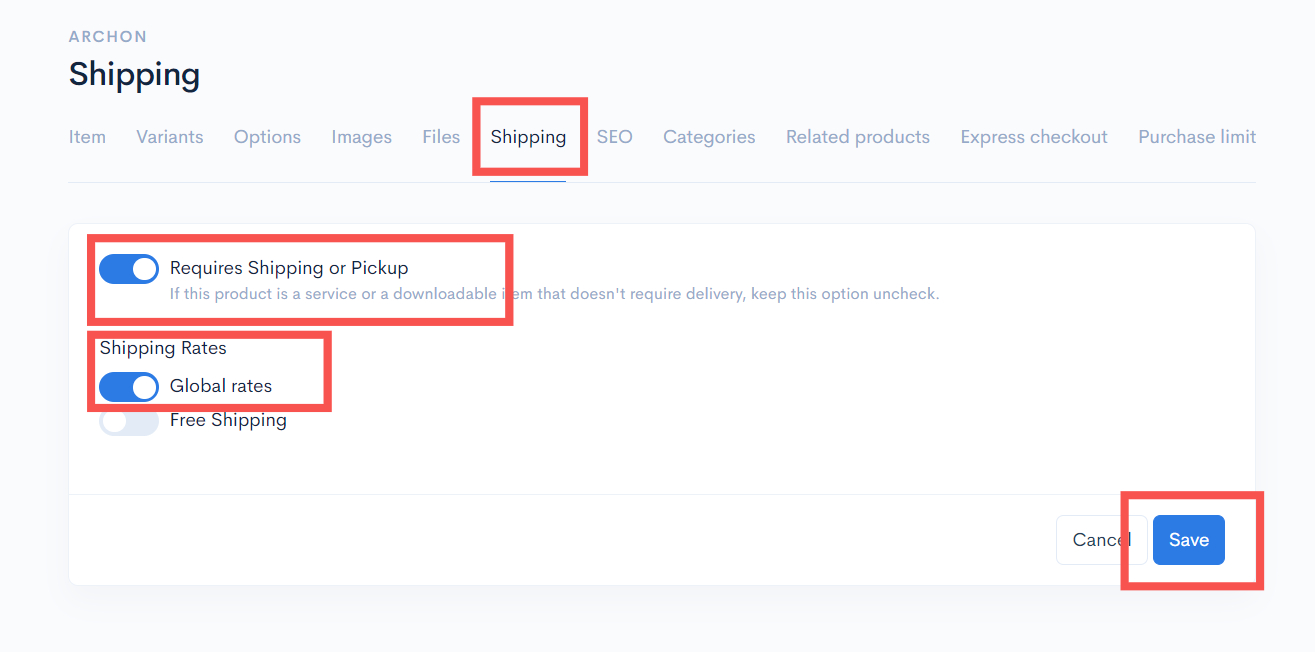
\*\*<mark style="color:red;">**Attention**</mark>: Before you continue with this tutorial, make sure that your products are in the **Global Rates state**.
{% endhint %}

You can go to:

**Dashboard Overview -> Products -> Choose Your Product -> Edit -> Shipping -> Global Rates (On) / Requires Shipping or Pickup (On) -> Save.**

<figure><img src="https://3359028955-files.gitbook.io/~/files/v0/b/gitbook-x-prod.appspot.com/o/spaces%2F-Lh09fNwqqta5Vj6Wr8p%2Fuploads%2Fgit-blob-649a5509d406a9fc940b14cfe8386a98680b7683%2FmhIgqZBYKufkdVUD8Aen.jpg?alt=media" alt=""><figcaption></figcaption></figure>

## Part 1: Setup COD Payment

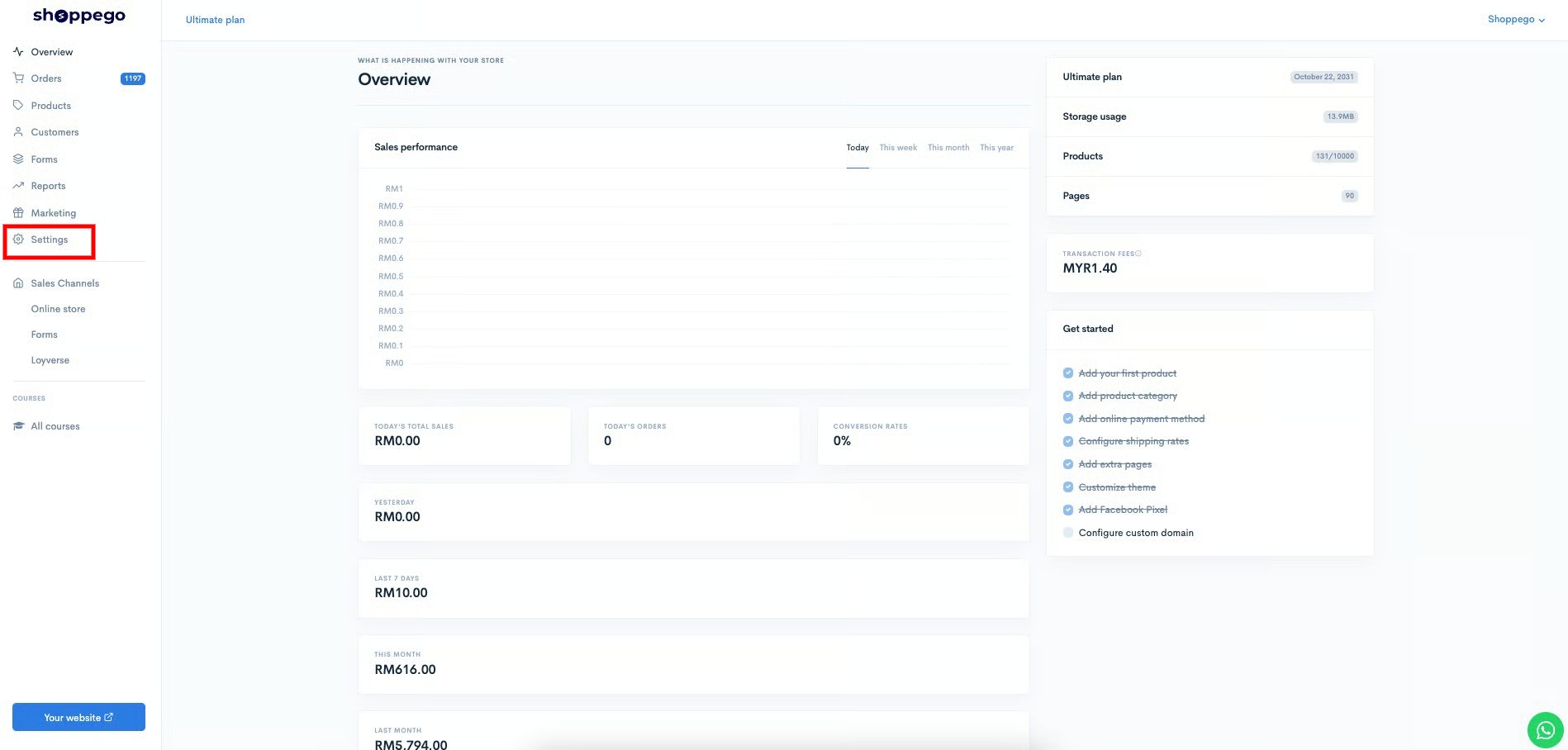
1\. Log in to the Shoppego Dashboard -> **Settings**
![](https://3359028955-files.gitbook.io/~/files/v0/b/gitbook-x-prod.appspot.com/o/spaces%2F-Lh09fNwqqta5Vj6Wr8p%2Fuploads%2Fgit-blob-9ae8b66b366958146673b78216b78ff0e8f12b90%2FVsK9zs6aZtUfKK1hcCiM.jpg?alt=media)

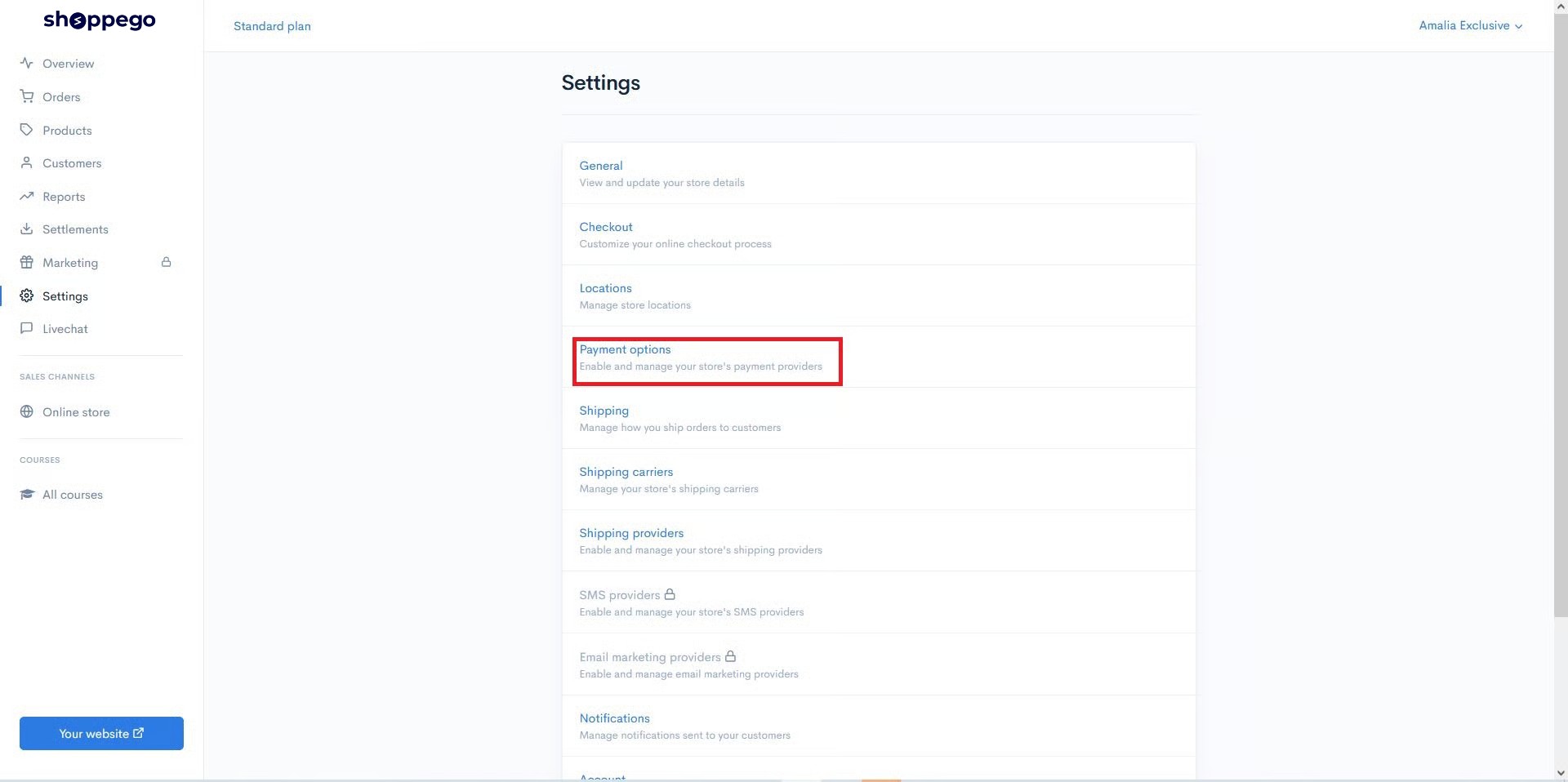
2\. On the Settings page, click **Payment Options**
![](https://3359028955-files.gitbook.io/~/files/v0/b/gitbook-x-prod.appspot.com/o/spaces%2F-Lh09fNwqqta5Vj6Wr8p%2Fuploads%2Fgit-blob-6887bc460f7731261524a21148108938e4436a20%2FCA5qmbxGnMXdjUXh5W4M.jpg?alt=media)

3\. On the Cash On Delivery (COD) option, click **Activate/Edit**

![](https://3359028955-files.gitbook.io/~/files/v0/b/gitbook-x-prod.appspot.com/o/spaces%2F-Lh09fNwqqta5Vj6Wr8p%2Fuploads%2Fgit-blob-983893ac399294595f230eebe9b630d3c5ac7651%2FlmAZAGq8oaxsMRQ7lQFq.jpg?alt=media)

4\. Make sure the display is like the picture below. Enter the information in the space provided.

![](https://3359028955-files.gitbook.io/~/files/v0/b/gitbook-x-prod.appspot.com/o/spaces%2F-Lh09fNwqqta5Vj6Wr8p%2Fuploads%2Fgit-blob-adc6062a3a106d797d82c4bab74ab5f0a12602aa%2F5SuFBWXFj0NgOU2sBIc2.jpg?alt=media)

* Fill in the information in the **form of instructions, reminders, or information** on the "**Additional Details**" form.
* The information filled in this section will be displayed on the "**Checkout Page**" when the user wants to make a purchase.
* **For example "Barang sampai baru bayar".**

So this information will be displayed before the complete order.

![](https://3359028955-files.gitbook.io/~/files/v0/b/gitbook-x-prod.appspot.com/o/spaces%2F-Lh09fNwqqta5Vj6Wr8p%2Fuploads%2Fgit-blob-87711813b2451687a210c14d9f744efff31b1837%2F-MBg0elhGk8HFdiYw_d6.png?alt=media)

This "**Payment Instruction**" form will be displayed on the "**Thank You**" page after the user clicks the "**Complete order**" button. See figure below.

![](https://3359028955-files.gitbook.io/~/files/v0/b/gitbook-x-prod.appspot.com/o/spaces%2F-Lh09fNwqqta5Vj6Wr8p%2Fuploads%2Fgit-blob-3d88aefce2c51cf315b4c38599c0c0823925fcb3%2F-MBg1DKfVbnZJybAemNp.png?alt=media)

{% hint style="info" %}
\*\*<mark style="color:red;">**Attention**</mark>: Make sure the "**Enable"** box is marked and continue to press the "**Save**" button.
{% endhint %}
<figure><img src="https://3359028955-files.gitbook.io/~/files/v0/b/gitbook-x-prod.appspot.com/o/spaces%2F-Lh09fNwqqta5Vj6Wr8p%2Fuploads%2Fgit-blob-626aceafe51cf9a4e7a92e31fdc7e4b44c6657eb%2FAa2b6FA8VySOcbyP17lb.jpg?alt=media" alt=""><figcaption></figcaption></figure>
