> For the complete documentation index, see [llms.txt](https://docs.shoppego.my/tutorials/llms.txt). Markdown versions of documentation pages are available by appending `.md` to page URLs; this page is available as [Markdown](https://docs.shoppego.my/tutorials/en/settings/payment-options/payment-gateway/chip.md).

# Chip

To use Chip please make sure you have created a Chip account first.

{% hint style="success" %}
For the **Chip account registration** process, you need to make sure you **already:**

* **Have SSM.**
* **A current Bank Account.**
  {% endhint %}

{% hint style="info" %}
**Account verification, charges and transaction money are fully managed by Chip.**
{% endhint %}

## Chip Settings

To integrate Chip payment gateway with Shoppego, you need to get **Brand ID**, **Secret key.**\
\
If you have not yet registered a Chip account, you can use this link:\
<https://onboarding.chip-in.asia/>

### Get Brand ID

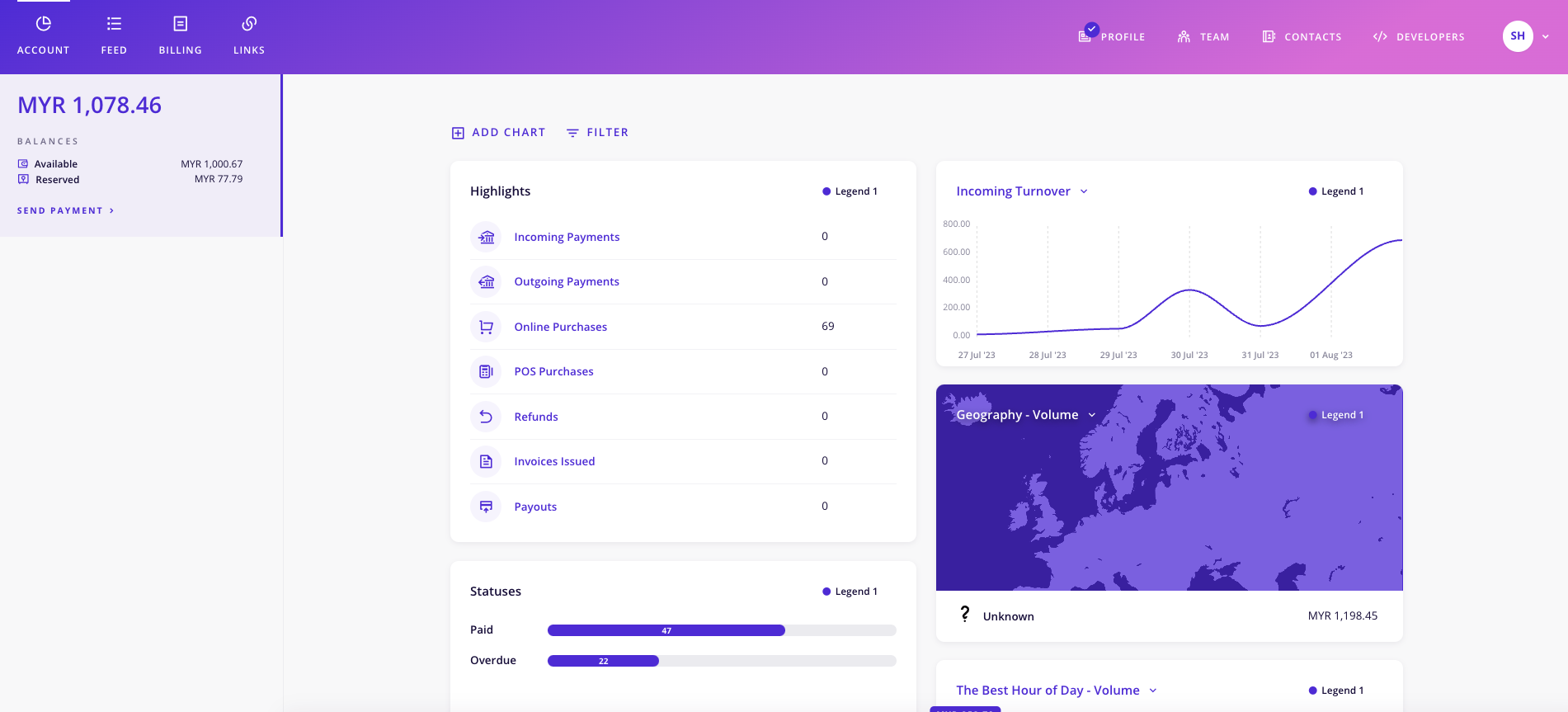
1. Log in to your Chip account.

<figure><img src="https://3359028955-files.gitbook.io/~/files/v0/b/gitbook-x-prod.appspot.com/o/spaces%2F-Lh09fNwqqta5Vj6Wr8p%2Fuploads%2Fgit-blob-9c69c8366173b0fea485625e2378d3731d4c5730%2FvG67oKqRpQdGbzkyFYnK.png?alt=media" alt=""><figcaption></figcaption></figure>

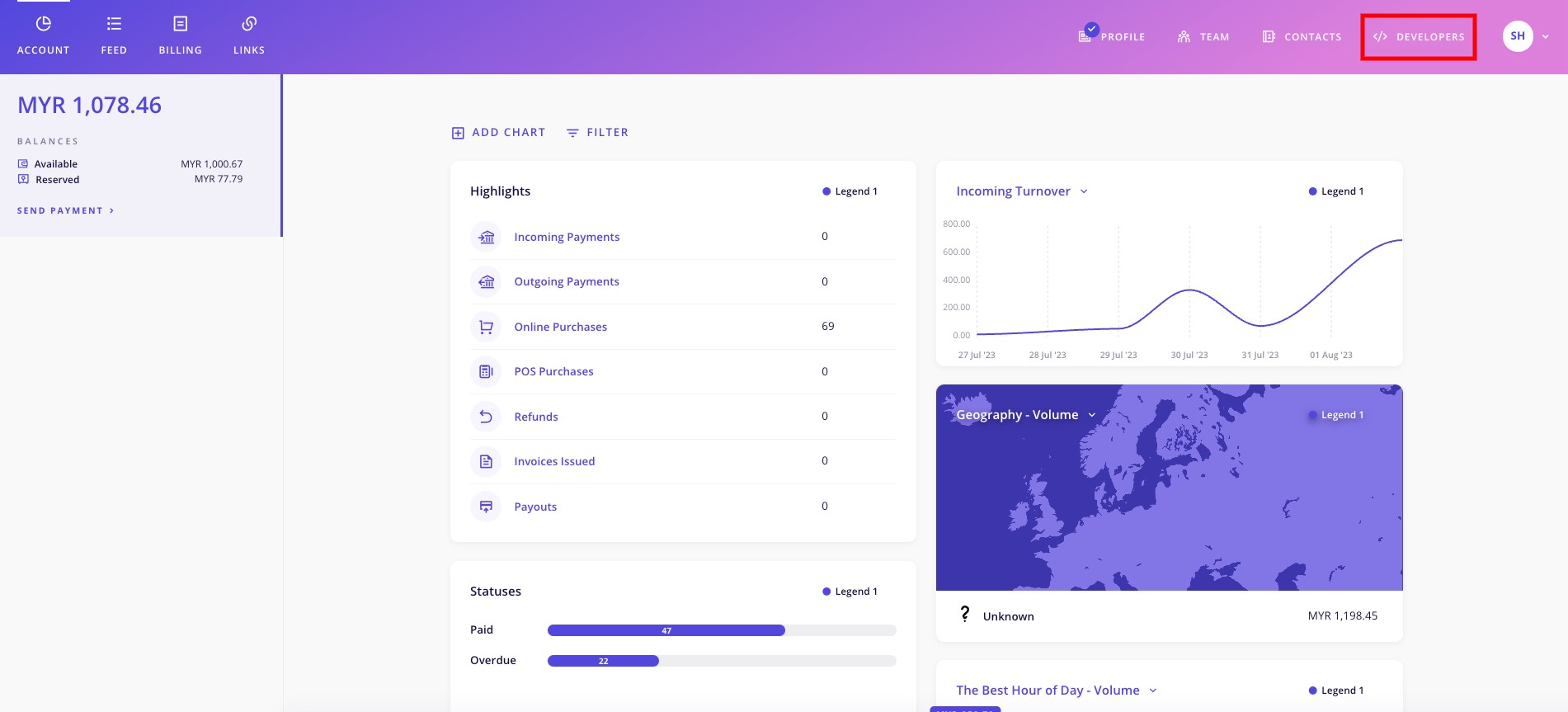
2. Click on the **Developers** button/text.

<figure><img src="https://3359028955-files.gitbook.io/~/files/v0/b/gitbook-x-prod.appspot.com/o/spaces%2F-Lh09fNwqqta5Vj6Wr8p%2Fuploads%2Fgit-blob-0d4ae045e120a6405bb06ab4f1b13792910169ed%2Fy3xhqMXHs6ajXiBz50HV.jpg?alt=media" alt=""><figcaption></figcaption></figure>

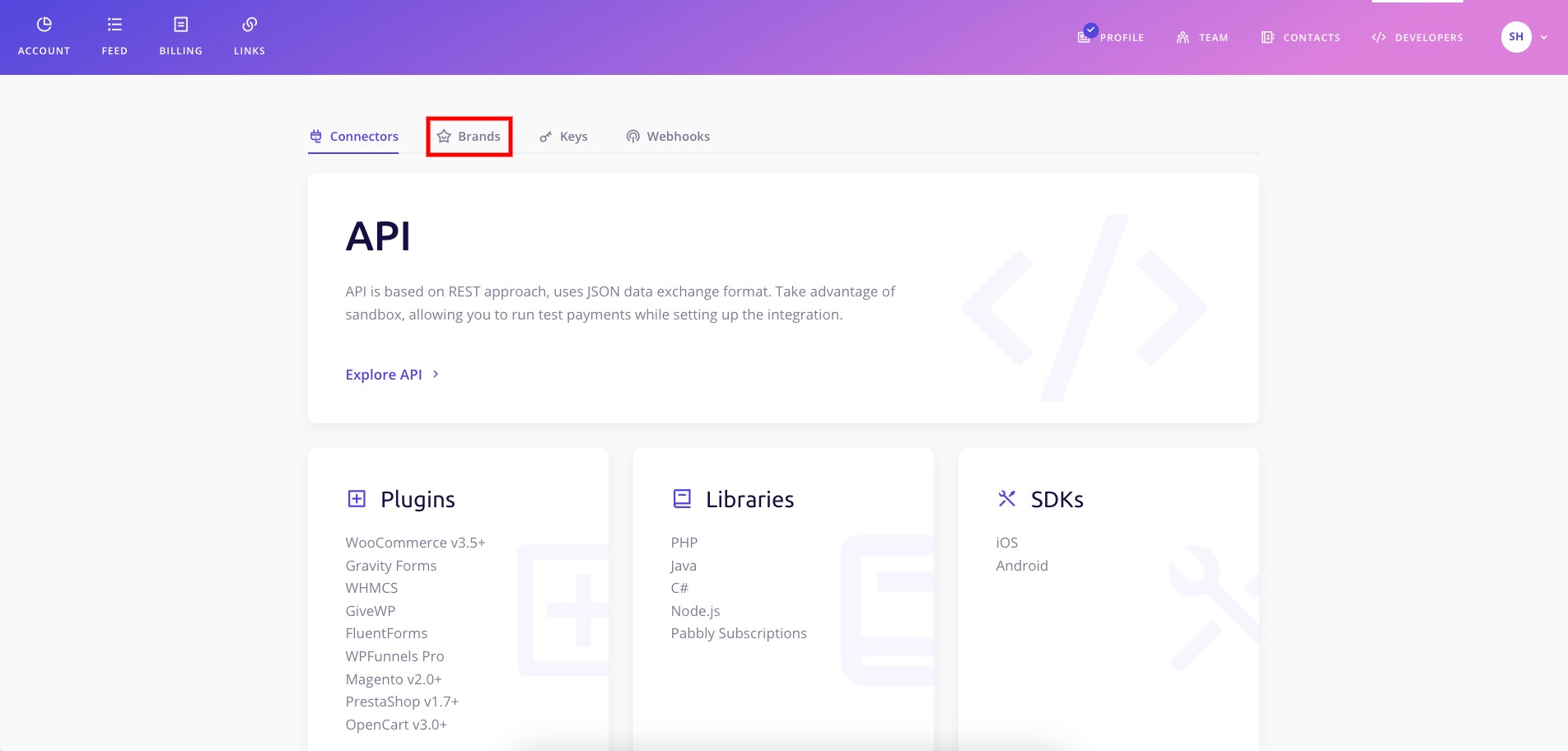
3. Click on the **Brands** button/text

<figure><img src="https://3359028955-files.gitbook.io/~/files/v0/b/gitbook-x-prod.appspot.com/o/spaces%2F-Lh09fNwqqta5Vj6Wr8p%2Fuploads%2Fgit-blob-f7000356d17c09729e62039b39e373f5b16937c7%2FOBbjjBjC1apTBFfGRpi7.jpg?alt=media" alt=""><figcaption></figcaption></figure>

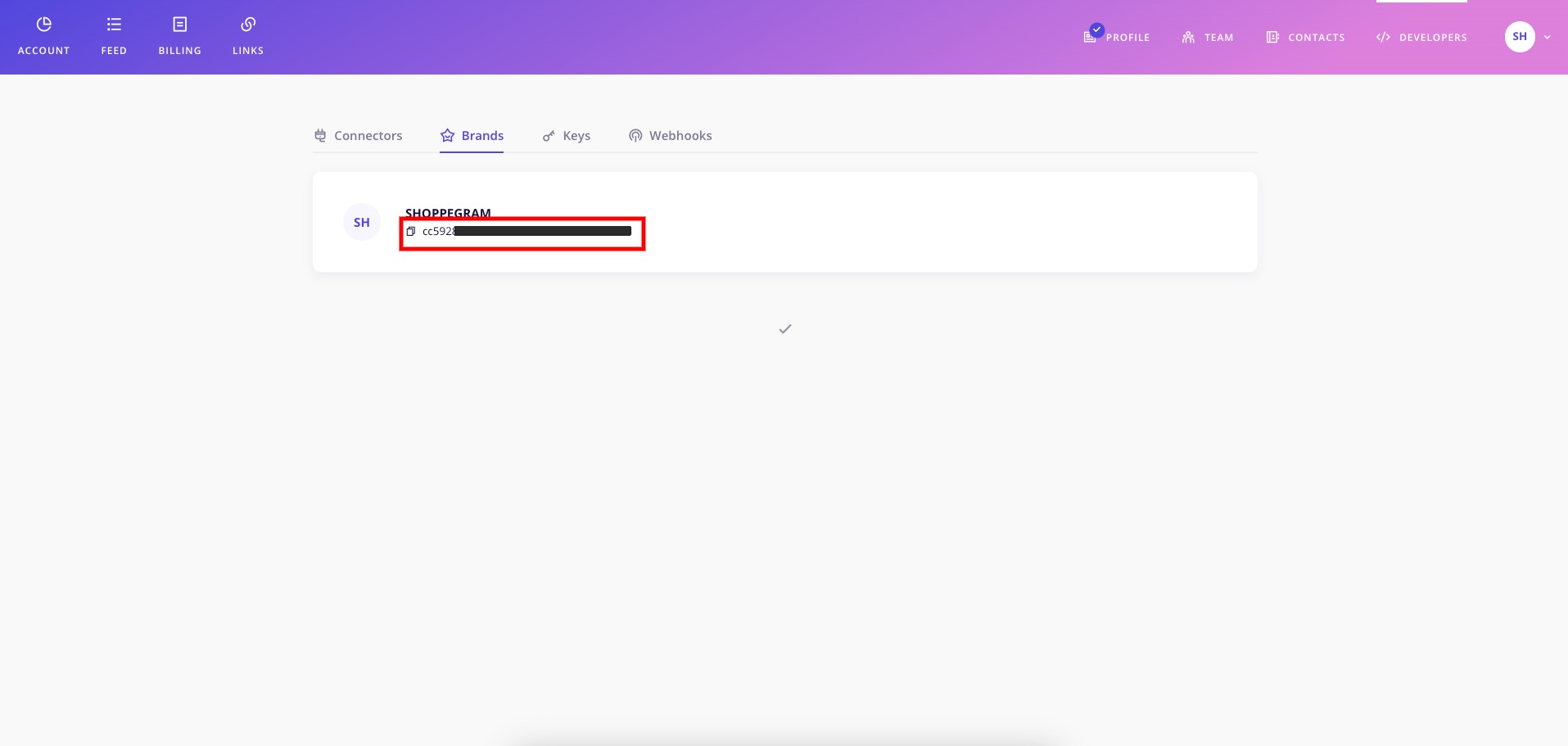
4. Then, you can **copy your Brand ID** as shown below. You need to **save this Brand ID for setting in Shoppego later.**

<figure><img src="https://3359028955-files.gitbook.io/~/files/v0/b/gitbook-x-prod.appspot.com/o/spaces%2F-Lh09fNwqqta5Vj6Wr8p%2Fuploads%2Fgit-blob-e799cabcd8964f1bd17d3b135b3d0a6ef85623c6%2FylGIpR2ZGvgy3ROV7N35.jpg?alt=media" alt=""><figcaption></figcaption></figure>

### Get Secret Key

1. From the **Developers** page, you can also click on the **Keys** button/text.

<figure><img src="https://3359028955-files.gitbook.io/~/files/v0/b/gitbook-x-prod.appspot.com/o/spaces%2F-Lh09fNwqqta5Vj6Wr8p%2Fuploads%2Fgit-blob-850cec7a8cd4b5cf5c9dad63bba68b942c5e3016%2FfafsVFJDy1U16c71bHwr.jpg?alt=media" alt=""><figcaption></figcaption></figure>

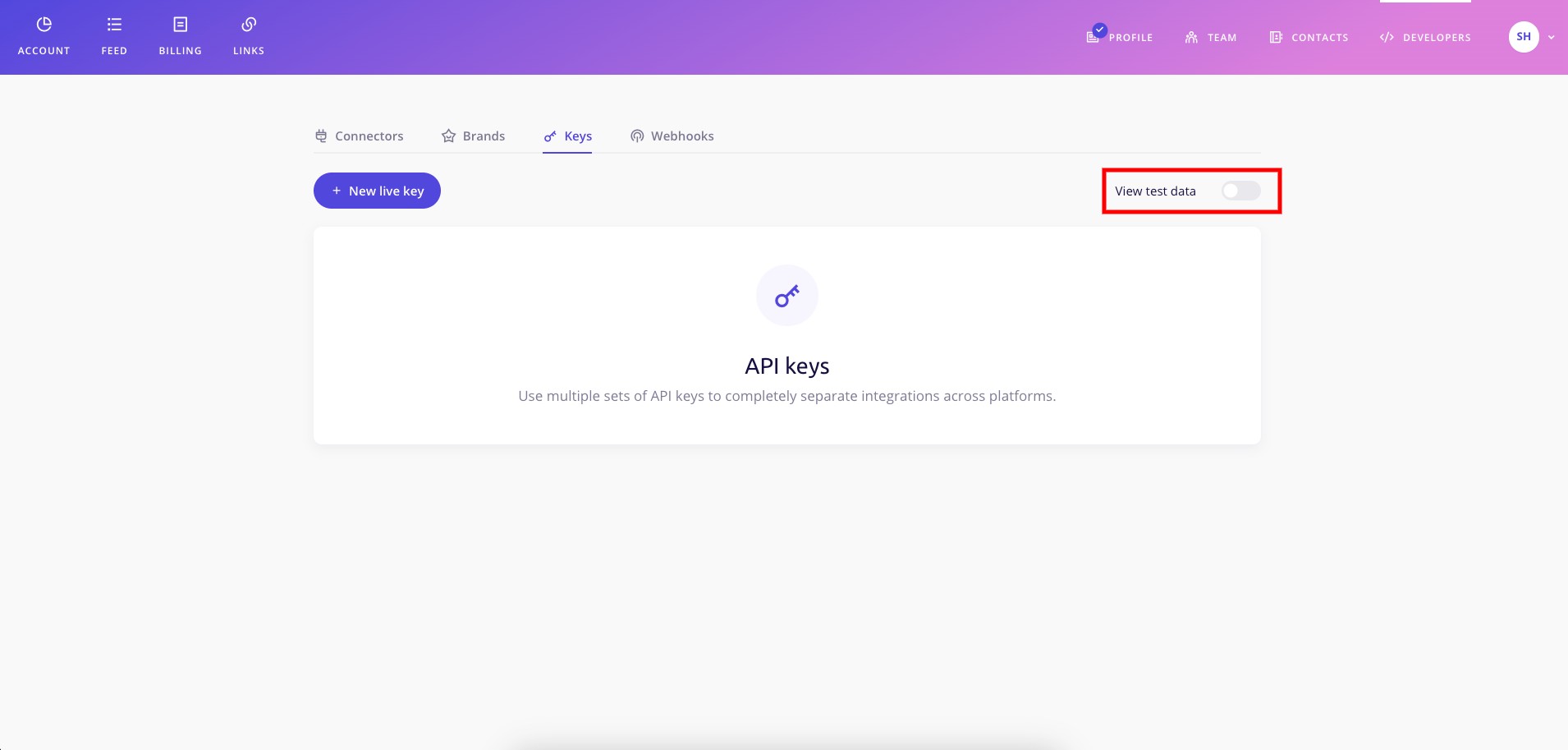
2. Then, make sure the V**iew/Viewing test data toggle is deactivated (grey)**.

<figure><img src="https://3359028955-files.gitbook.io/~/files/v0/b/gitbook-x-prod.appspot.com/o/spaces%2F-Lh09fNwqqta5Vj6Wr8p%2Fuploads%2Fgit-blob-7c7288718b6a876f369f5e645b520b03365bd887%2Flj69nkTqv7tDNbHCkSqm.jpg?alt=media" alt=""><figcaption></figcaption></figure>

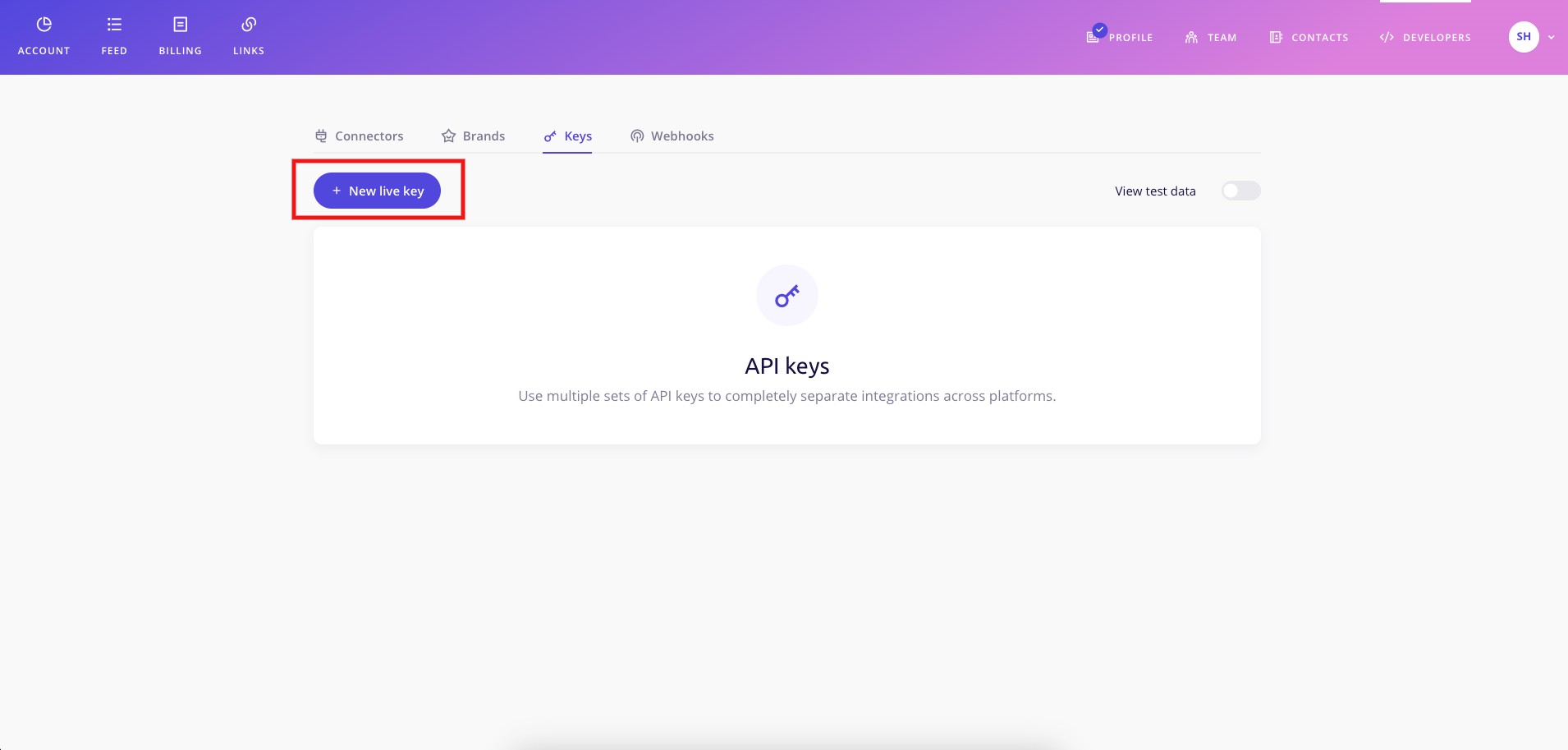
3. Next, you can click on the **New live key** button.

<figure><img src="https://3359028955-files.gitbook.io/~/files/v0/b/gitbook-x-prod.appspot.com/o/spaces%2F-Lh09fNwqqta5Vj6Wr8p%2Fuploads%2Fgit-blob-cf21403426522870ac8f2dce777819db8201954a%2FMlaNWaQdHZbP20IjTp2P.jpg?alt=media" alt=""><figcaption></figcaption></figure>

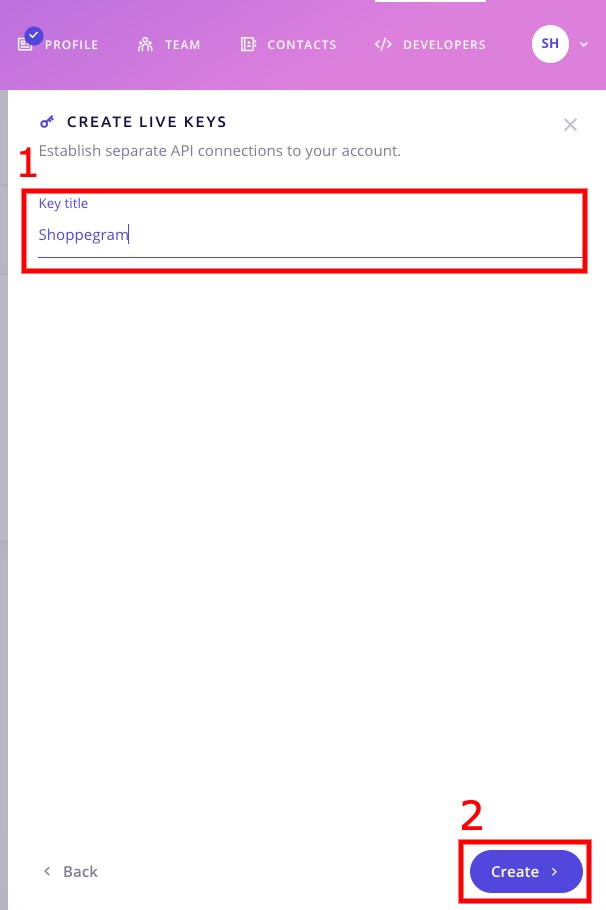
3. Then, you will be asked to **enter the Key title in the field that has been provided**. This key title acts as a reference for you to know where this key is used later. For example we enter Shoppego and after that click **Create**.

<figure><img src="https://3359028955-files.gitbook.io/~/files/v0/b/gitbook-x-prod.appspot.com/o/spaces%2F-Lh09fNwqqta5Vj6Wr8p%2Fuploads%2Fgit-blob-b7cac3634d93c52dbad3f030e09a70c82249722f%2FiZ55pW97NGpQRiGIp2vM.jpg?alt=media" alt=""><figcaption></figcaption></figure>

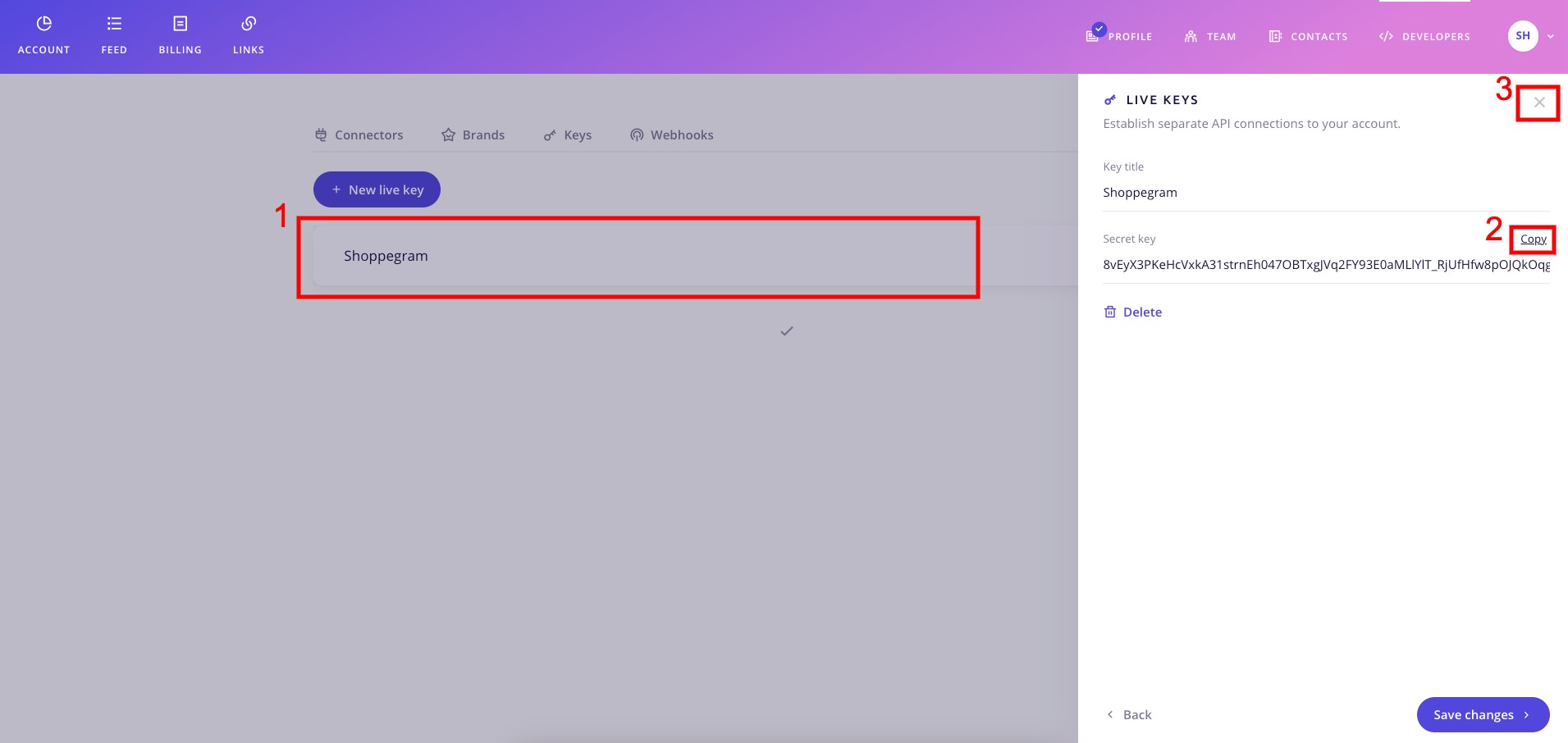
4. Once you have created the key, you can **click on the key again** and you can click on the **Copy** button/text. You need to **save this key to set it up in Shoppego later.**

<figure><img src="https://3359028955-files.gitbook.io/~/files/v0/b/gitbook-x-prod.appspot.com/o/spaces%2F-Lh09fNwqqta5Vj6Wr8p%2Fuploads%2Fgit-blob-5718805dd1686117cdff94f07e12958ee5a15a12%2F4U1yAruNefJebqkM7PN5.jpg?alt=media" alt=""><figcaption></figcaption></figure>

## Settings in Shoppego

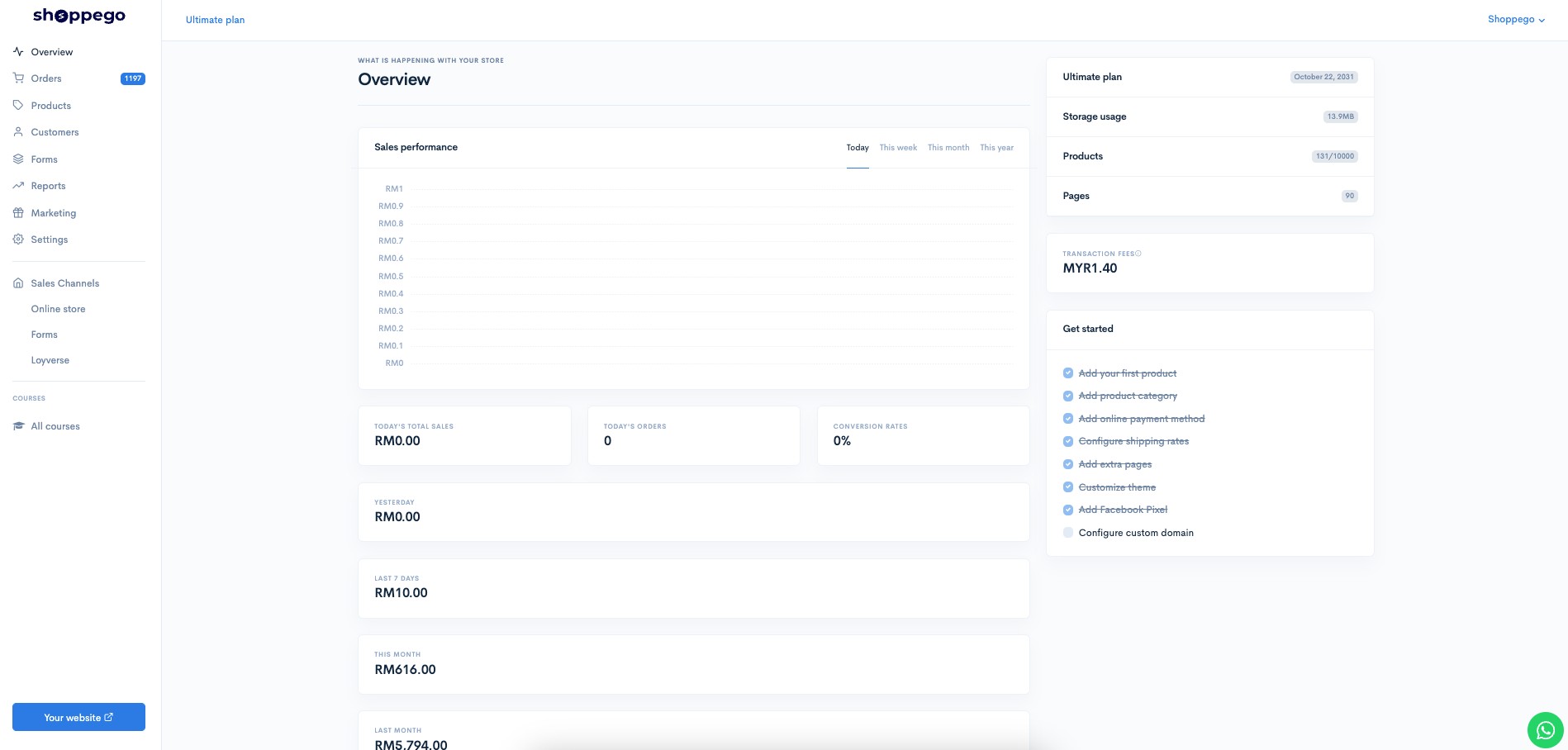
1\. Log in to your Shoppego account.
![](https://3359028955-files.gitbook.io/~/files/v0/b/gitbook-x-prod.appspot.com/o/spaces%2F-Lh09fNwqqta5Vj6Wr8p%2Fuploads%2Fgit-blob-b853fc0189b34fb1d3990f5b1f53fa71deb9d384%2FlCN7aw3FznaFFoOAyya2.jpg?alt=media)

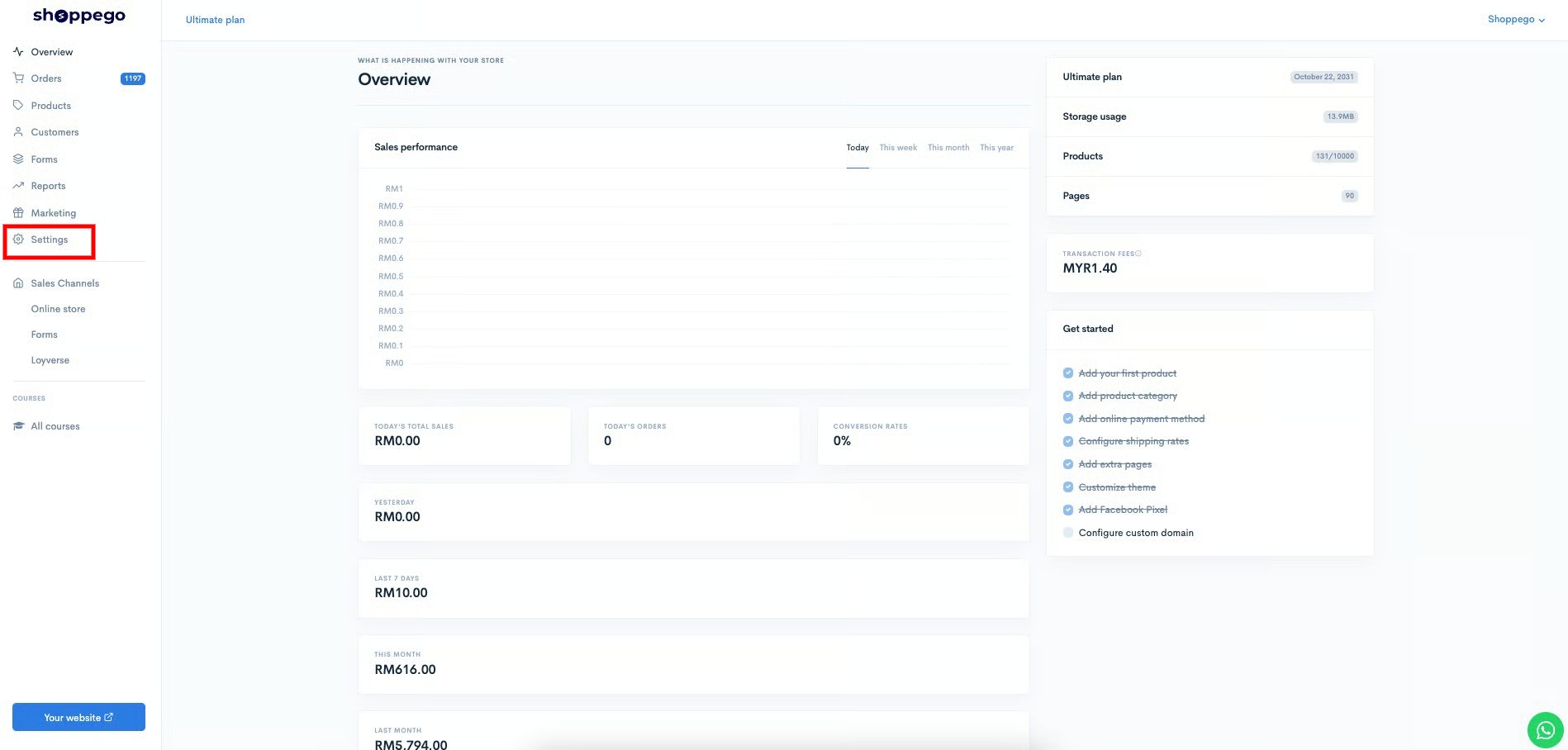
2\. Click on **Settings**

![](https://3359028955-files.gitbook.io/~/files/v0/b/gitbook-x-prod.appspot.com/o/spaces%2F-Lh09fNwqqta5Vj6Wr8p%2Fuploads%2Fgit-blob-9ae8b66b366958146673b78216b78ff0e8f12b90%2FVsK9zs6aZtUfKK1hcCiM.jpg?alt=media)

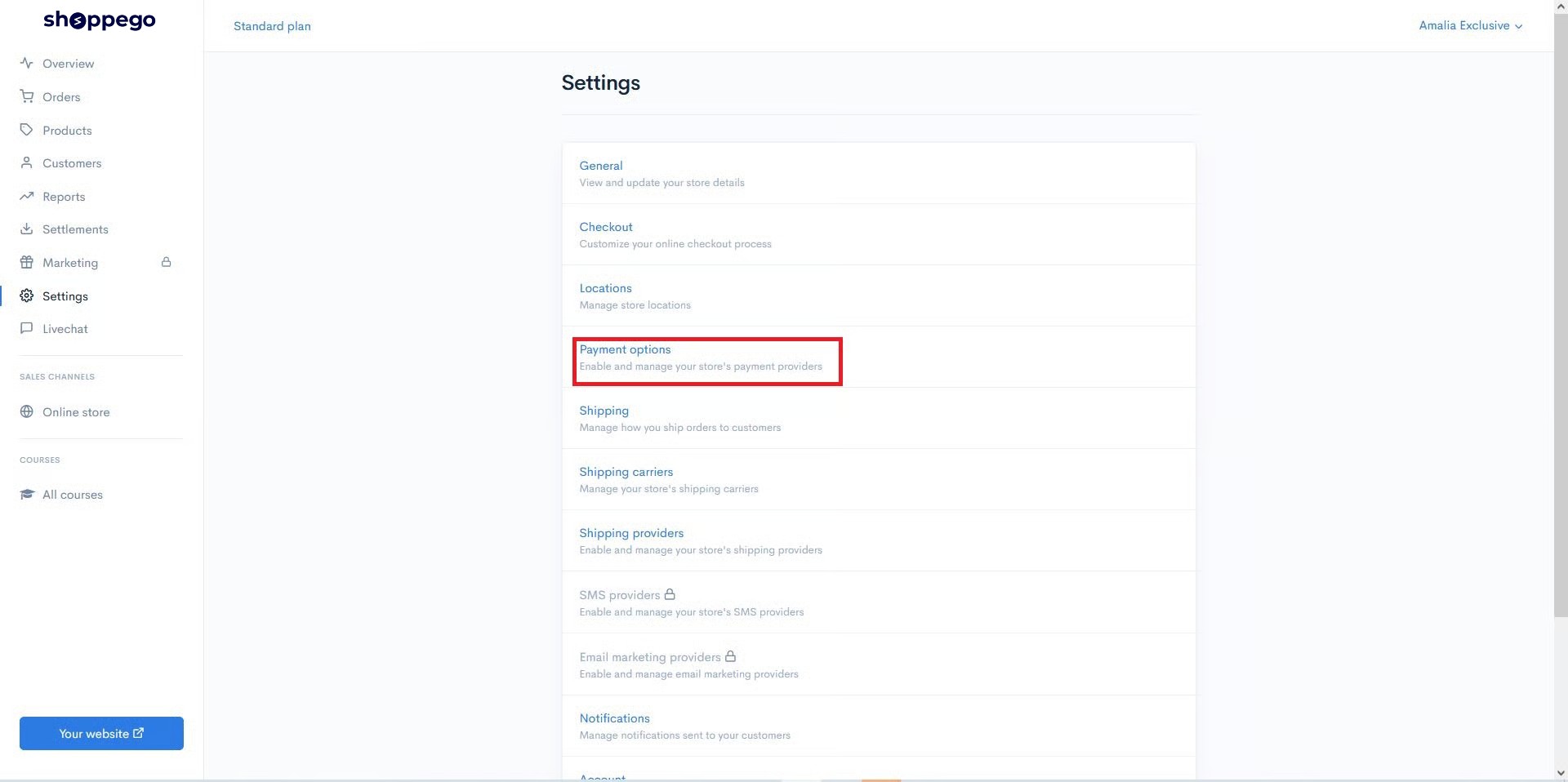
3\. Click on **Payment options**

![](https://3359028955-files.gitbook.io/~/files/v0/b/gitbook-x-prod.appspot.com/o/spaces%2F-Lh09fNwqqta5Vj6Wr8p%2Fuploads%2Fgit-blob-6887bc460f7731261524a21148108938e4436a20%2FCA5qmbxGnMXdjUXh5W4M.jpg?alt=media)

4\. If you have not activated the payment option for Chip. Click the **Activate** button on the **Alternative Payments** section for Chip. If you have activated the payment option for Chip, click the **Edit** button.

![](https://3359028955-files.gitbook.io/~/files/v0/b/gitbook-x-prod.appspot.com/o/spaces%2F-Lh09fNwqqta5Vj6Wr8p%2Fuploads%2Fgit-blob-f3da28286116a0bc18e816085ca83808d6c88eeb%2FLh0e3bJ2ljzdooESDyvW.jpg?alt=media)

5\. Next, a display will appear as below, you can fill in the information:

![](https://3359028955-files.gitbook.io/~/files/v0/b/gitbook-x-prod.appspot.com/o/spaces%2F-Lh09fNwqqta5Vj6Wr8p%2Fuploads%2Fgit-blob-7732fffc103c6082cf3fe277dd549914f73361eb%2FKRk9znifIZqSXZssPLaS.jpg?alt=media)

* **Display name at checkout : Enter the name of the payment you want (Example Chip)**
* **Secret key : Enter the Secret key that you have obtained in your Chip account.**
* **Brand ID : Enter the Brand ID that you have obtained in your Chip account.**

6\. After finishing, make sure you have clicked **Enable** and click the **Save** button.

{% hint style="info" %}
**For information, the&#x20;**<mark style="color:red;">**Test mode toggle**</mark>**&#x20;is only used by Developers. For Shoppego users, please make sure you&#x20;**<mark style="color:red;">**deactivate**</mark>**&#x20;the toggle.**
{% endhint %}

![](https://3359028955-files.gitbook.io/~/files/v0/b/gitbook-x-prod.appspot.com/o/spaces%2F-Lh09fNwqqta5Vj6Wr8p%2Fuploads%2Fgit-blob-284f0f47734b399053b46cf2555a9c8c8bd7c9ad%2FVxNwkeQT1Ci4gDLYEJiu.jpg?alt=media)

After saving you can make a purchase attempt on your website to see the Chip payment option during checkout for the setting you just set a moment ago.