> For the complete documentation index, see [llms.txt](https://docs.shoppego.my/tutorials/llms.txt). Markdown versions of documentation pages are available by appending `.md` to page URLs; this page is available as [Markdown](https://docs.shoppego.my/tutorials/en/settings/shipping-providers/sendparcel.md).
# Sendparcel
This setting contains 3 parts, namely:
{% hint style="success" %}
This function is available for the **Premium** and **Ultimate plans.**
{% endhint %}
* **Part 1**: On the Sendparcel platform
* **Part 2**: On the Shoppego platform
* **Part 3**: How to Fulfill Orders
## Part 1: Sendparcel Configuration
Make sure you already have a Sendparcel account.
{% hint style="info" %}
[Click here ](https://www.pos.com.my/send/sendparcel.html)to register for [Sendparcel](https://www.pos.com.my/send/sendparcel.html). Registration for Sendparcel is **free of charge.**
{% endhint %}
1\. Log in to your **Sendparcel account**. In the left panel, click on **Integration -> New Store**.

2\. Select **Shoppego** as your store, enter the **store name and URL**, then click **Next**.

3\. Copy the **API key** and **API secret.**

## Part 2: Configuration in Shoppego
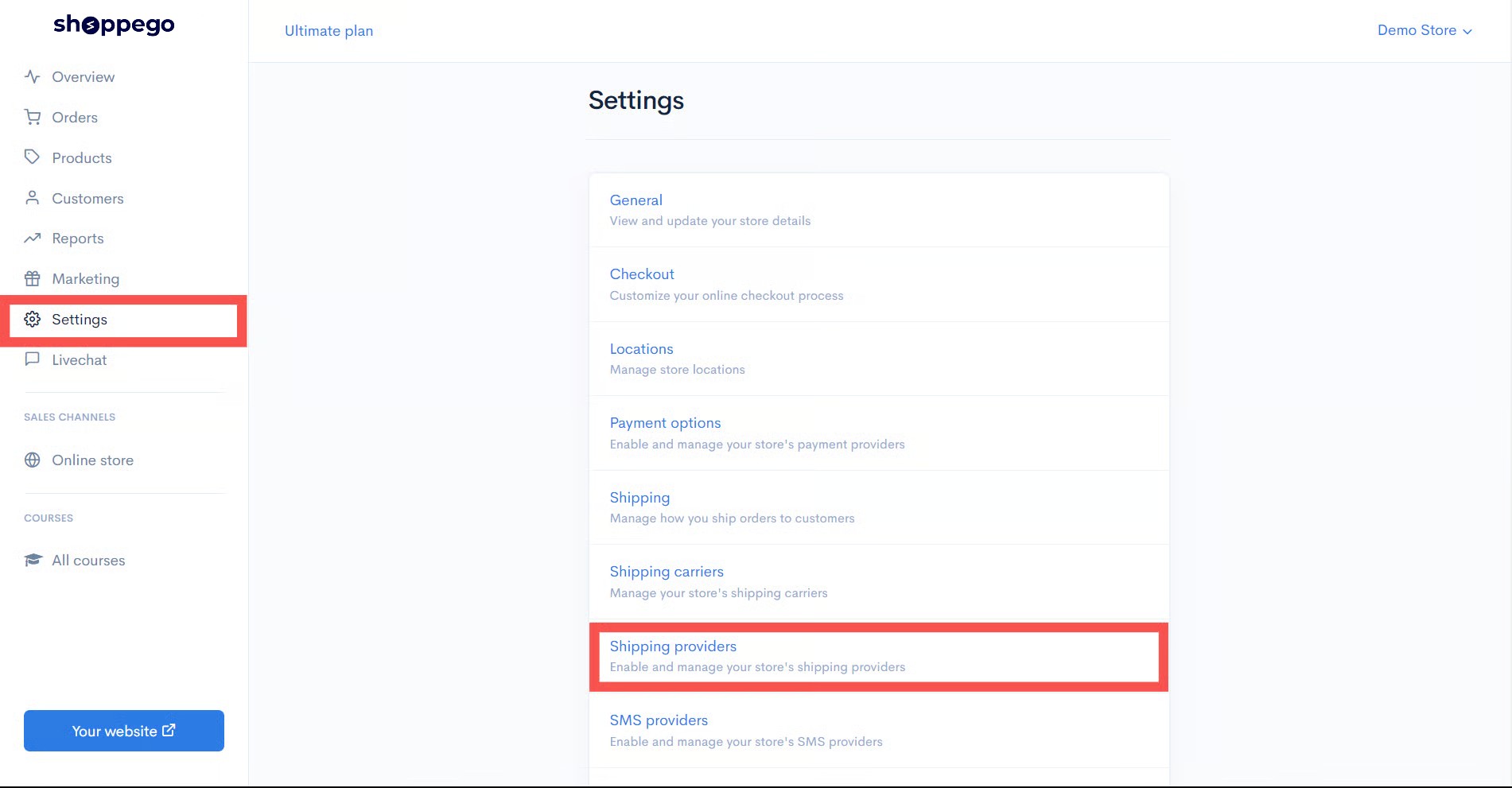
1. Login to **Shoppego Dashboard -> Settings -> Shipping Providers.**
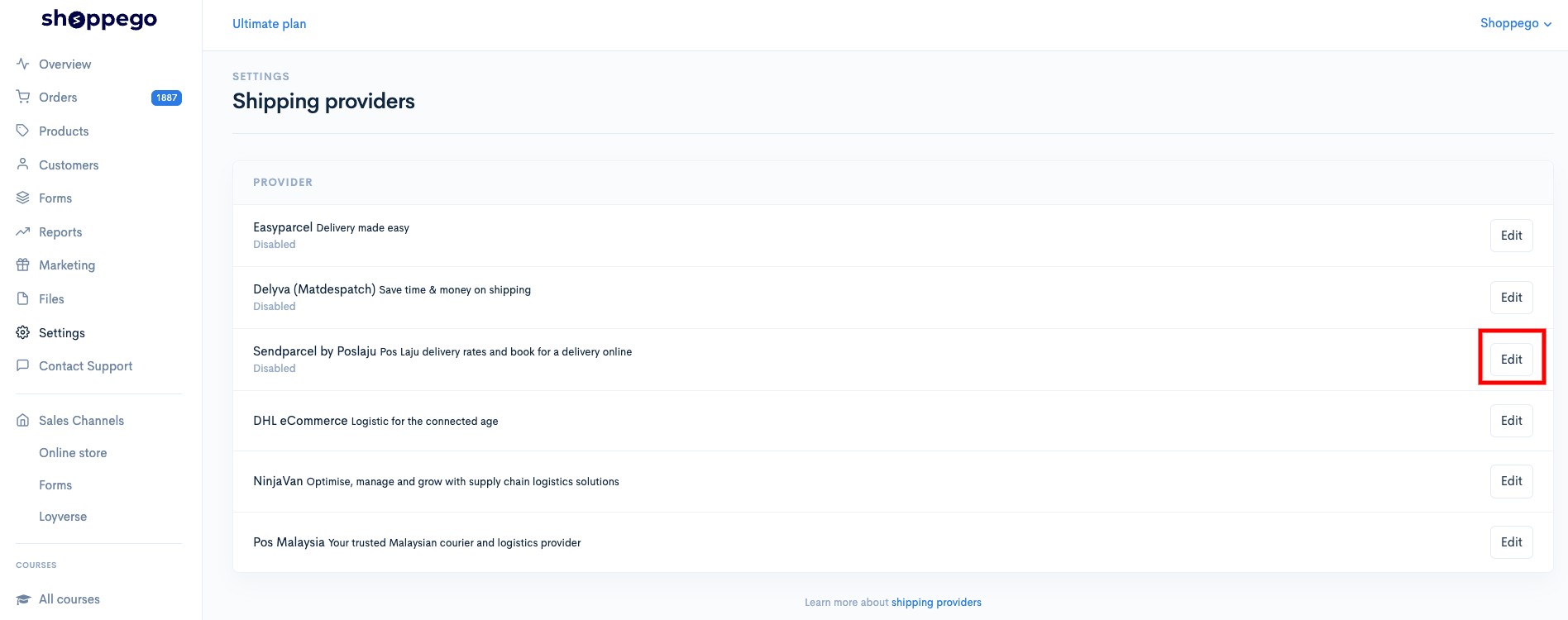
2. Click on the **Edit** button for **Sendparcel**.
3. Enter the **API key** and **API secret** obtained from the **Sendparcel website.** Click the **Save** button.
{% hint style="info" %}
**Tick the Enable content** to ensure that the product name purchased by your customer is included in the AWB section.
{% endhint %}

Now your Shoppego is **ready to be connected** to the Sendparcel platform.
{% hint style="success" %}
Make sure your Sendparcel account has **sufficient credits** to start using it.
{% endhint %}
## Part 3: How to Fulfill Orders
A tutorial on how to set up the order management process to **generate Airway Bill** on the Sendparcel platform **without logging in** and **only using the Shoppego platform.**
1. Log in to the **Shoppego Dashboard -> Orders.**

2. **Select** and click on the order that you want to **ship using Sendparcel** and the display will appear as below. Click on the **Arrange Shipment** button.

3. Click on the **Create Shipment button**.

4. Click on your **preferred courier** option and then click the **Submit** button.

5. On that order, you will be able to see the available shipment. Your order will also receive a tracking number as shown in the image below.
{% hint style="info" %}
**Method**
* **Pickup** - The courier will send a vehicle to pick up the ordered items at the address specified in your Location settings.
* **Dropoff** - You will personally go to the nearby post office and send the items.
\
At this point, an AWB (Airwaybill) for this order has been **generated automatically**, and you just **need to print the AWB** from the Sendparcel platform.
{% endhint %}

6. Update the Tracking Number by clicking on the "**Add Tracking**" button, and a display like the one below will appear. Click on the "**Save**" button.

7. When the Save button is clicked, your customer will **automatically receive an email** about their **tracking number** from the Shoppego system. The tracking number will also **appear** on the **right-hand side of the Order tab** after it is saved.

8. You can also check the **Orders list** to ensure that the tracking has been added to the order.
{% hint style="info" %}
You can click on the **"i"** icon to quickly **check the tracking number** for that order in the Fulfillment section.
{% endhint %}