> For the complete documentation index, see [llms.txt](https://docs.shoppego.my/tutorials/llms.txt). Markdown versions of documentation pages are available by appending `.md` to page URLs; this page is available as [Markdown](https://docs.shoppego.my/tutorials/en/settings/shipping/based-on-country.md).

# Based on Country

In Shoppego there is a country function that you can use to create shipping methods for countries outside of Malaysia.

To set shipping for each country, this can be done by adding a new Shipping Zone.

## Shipping Zone Settings

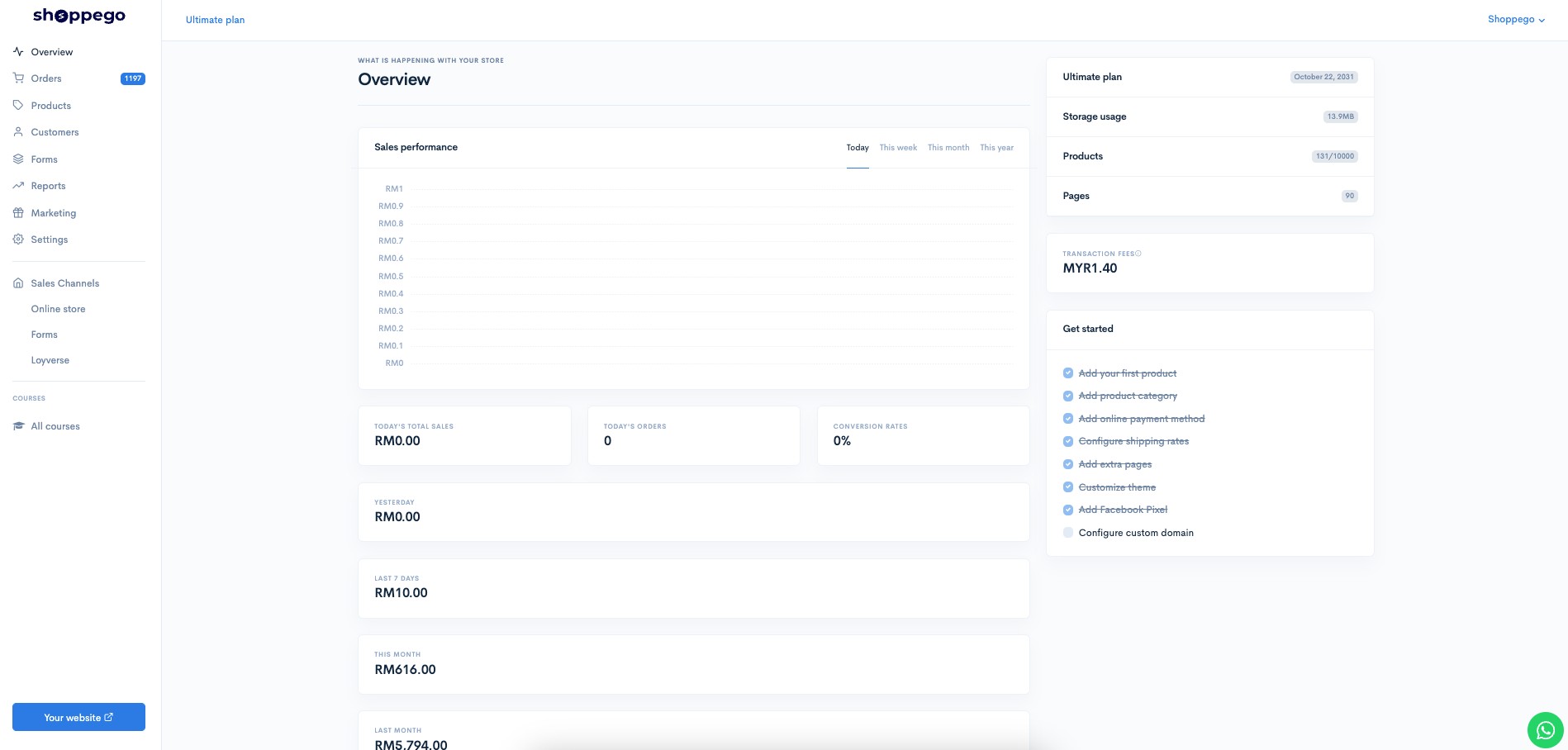
1\. Log in to your Shoppego account.
![](https://3359028955-files.gitbook.io/~/files/v0/b/gitbook-x-prod.appspot.com/o/spaces%2F-Lh09fNwqqta5Vj6Wr8p%2Fuploads%2Fgit-blob-b853fc0189b34fb1d3990f5b1f53fa71deb9d384%2FlCN7aw3FznaFFoOAyya2.jpg?alt=media)

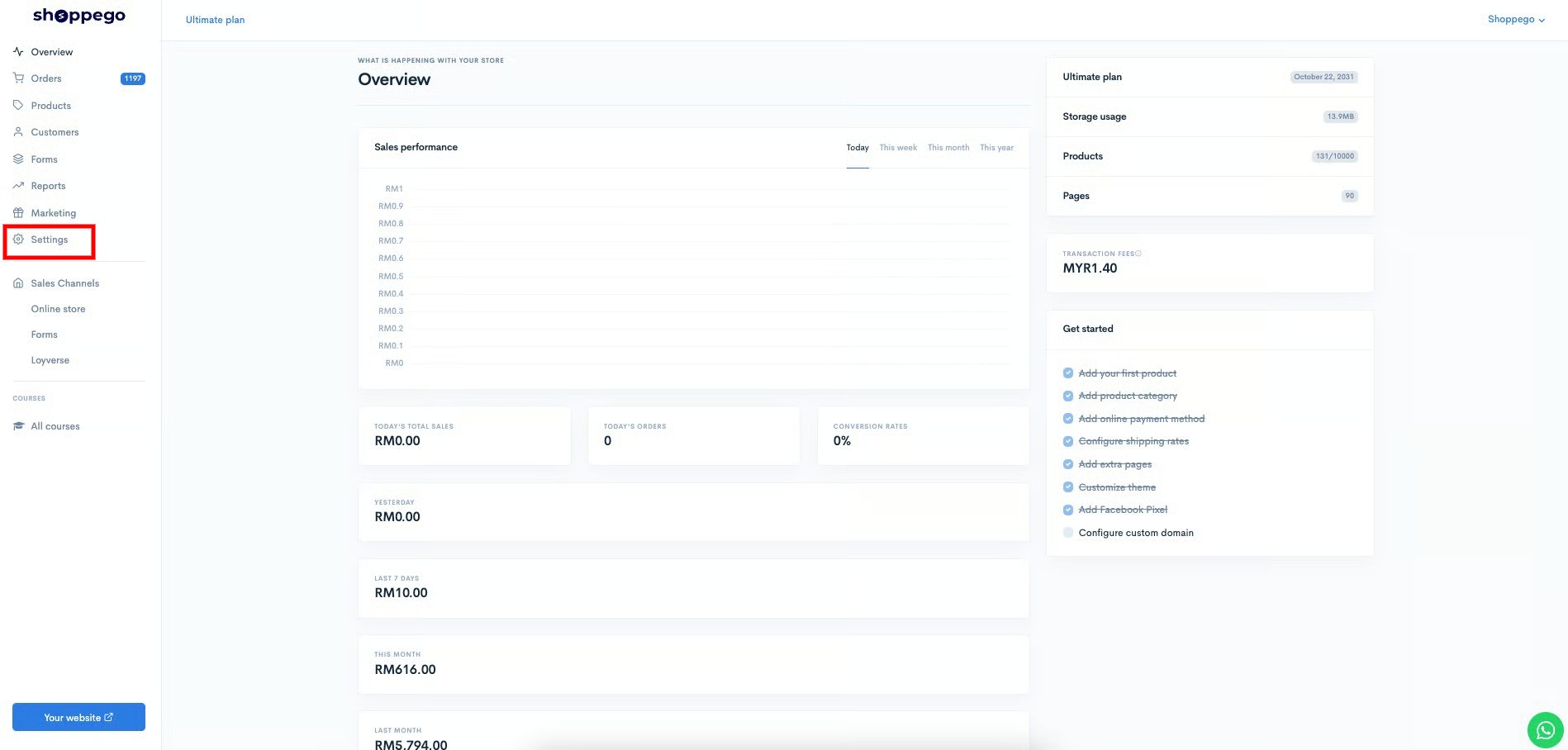
2\. Click on **Settings**

![](https://3359028955-files.gitbook.io/~/files/v0/b/gitbook-x-prod.appspot.com/o/spaces%2F-Lh09fNwqqta5Vj6Wr8p%2Fuploads%2Fgit-blob-9ae8b66b366958146673b78216b78ff0e8f12b90%2FVsK9zs6aZtUfKK1hcCiM.jpg?alt=media)

3\. Click on **Shipping**

![](https://3359028955-files.gitbook.io/~/files/v0/b/gitbook-x-prod.appspot.com/o/spaces%2F-Lh09fNwqqta5Vj6Wr8p%2Fuploads%2Fgit-blob-3c2c829c04820d4a9571b3dce8561872737f4e9b%2FcpHcQpRr3fHr8hcZX0RH.png?alt=media)

4\. Click on the **Add Shipping Zones** button

![](https://3359028955-files.gitbook.io/~/files/v0/b/gitbook-x-prod.appspot.com/o/spaces%2F-Lh09fNwqqta5Vj6Wr8p%2Fuploads%2Fgit-blob-d19604004bb6299982fd20ebf9f744f800e6af0c%2FQNvdkB3yybmxYabOh6sz.jpg?alt=media)

5\. Enter any name that represents your Zone Name. For example, you can enter the name of a country.

![](https://3359028955-files.gitbook.io/~/files/v0/b/gitbook-x-prod.appspot.com/o/spaces%2F-Lh09fNwqqta5Vj6Wr8p%2Fuploads%2Fgit-blob-b6a925d39ee665437ae2893e67ba3ff428c932f7%2FMcffe8ncCMKWPdpefuEV.jpg?alt=media)

6. Select your desired country:

### Automatic Country Selection

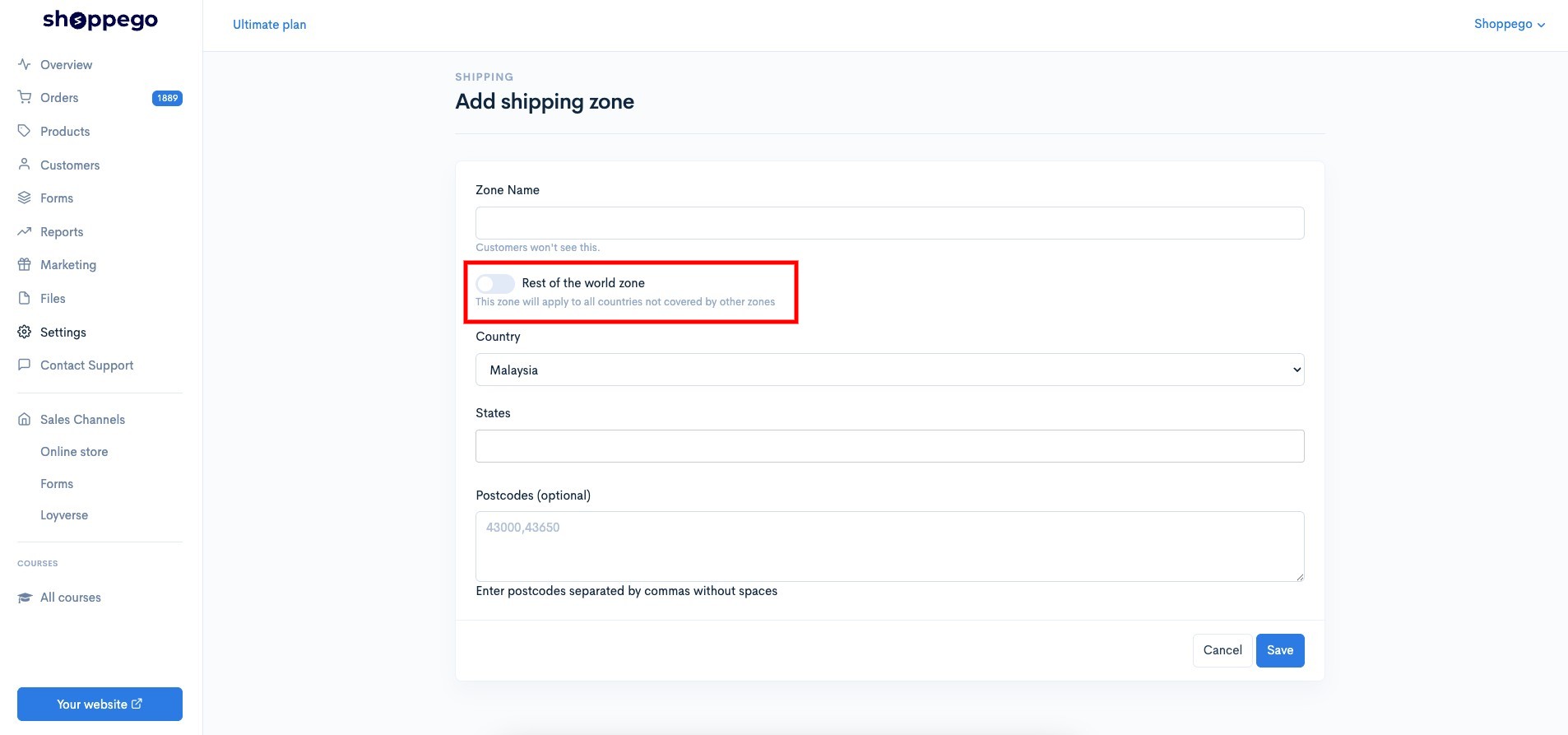
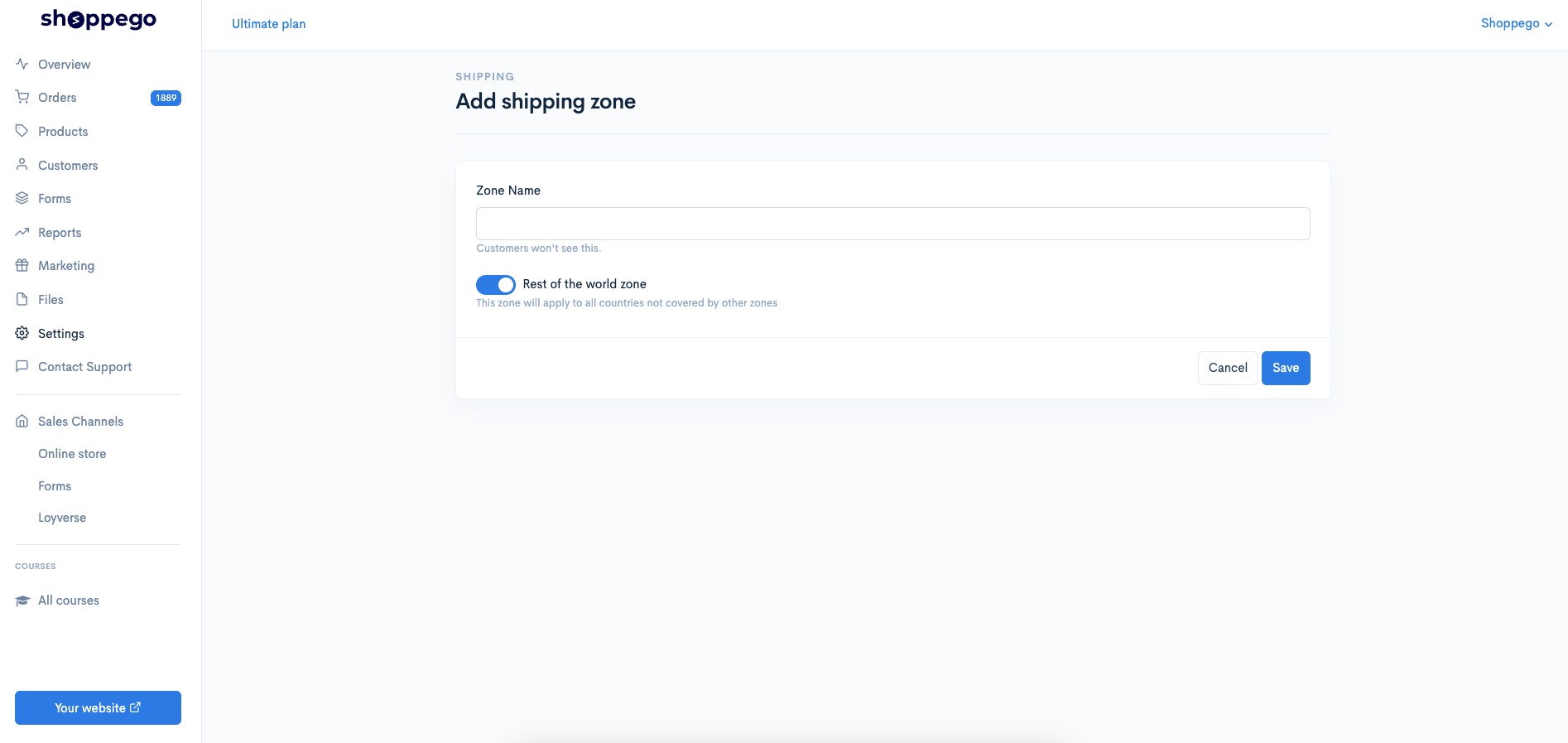
If you want to continue creating shipping zones for all other countries that still do not have their own shipping zone designation, you can simply tick the "Rest of the world zone" toggle.

<figure><img src="https://3359028955-files.gitbook.io/~/files/v0/b/gitbook-x-prod.appspot.com/o/spaces%2F-Lh09fNwqqta5Vj6Wr8p%2Fuploads%2Fgit-blob-56733cbf96319b597ef2810bc0e122ba0f145958%2F20SmLIFlIoIuSNa0wSDV.jpg?alt=media" alt=""><figcaption></figcaption></figure>

After you tick later, you don't need to select "Country, States, Postcode".

<figure><img src="https://3359028955-files.gitbook.io/~/files/v0/b/gitbook-x-prod.appspot.com/o/spaces%2F-Lh09fNwqqta5Vj6Wr8p%2Fuploads%2Fgit-blob-04217276d6fe608e0424b3e8d22033b28cca500a%2FfBP7eSa1Yp4cuus2jLZK.jpg?alt=media" alt=""><figcaption></figcaption></figure>

### Country Selection on a 1 by 1 basis

![](https://3359028955-files.gitbook.io/~/files/v0/b/gitbook-x-prod.appspot.com/o/spaces%2F-Lh09fNwqqta5Vj6Wr8p%2Fuploads%2Fgit-blob-c26a56fe1ba4c352412a0fbe564b1cb8baa0c022%2FBGQdJ77h9dKNRsH0DS4j.jpg?alt=media)

7\. Click the **Save** button

![](https://3359028955-files.gitbook.io/~/files/v0/b/gitbook-x-prod.appspot.com/o/spaces%2F-Lh09fNwqqta5Vj6Wr8p%2Fuploads%2Fgit-blob-2106b0903d079e6a9eb5152832544cc8f51c082b%2FVqdQTM27cxtnCanyLTVp.jpg?alt=media)

**\*\* To set shipping for countries that have states, you can select the states that will be shown automatically.**

![](https://3359028955-files.gitbook.io/~/files/v0/b/gitbook-x-prod.appspot.com/o/spaces%2F-Lh09fNwqqta5Vj6Wr8p%2Fuploads%2Fgit-blob-f441014c628acb935e9f0b3eeddb2992afc4ae72%2FPKSKCh3bcRkkXbW8xRGy.jpg?alt=media)

Now your zone has been successfully created and click the **Edit** button on the special zone.

![](https://3359028955-files.gitbook.io/~/files/v0/b/gitbook-x-prod.appspot.com/o/spaces%2F-Lh09fNwqqta5Vj6Wr8p%2Fuploads%2Fgit-blob-2a63376dac93d6de643f46b9a3b976cca5c5df87%2FFCb1PaWUCbJG3hDtztsZ.jpg?alt=media)

## Setting Shipping Rates

1. Next, click on the **Weight based rates** tab

![](https://3359028955-files.gitbook.io/~/files/v0/b/gitbook-x-prod.appspot.com/o/spaces%2F-Lh09fNwqqta5Vj6Wr8p%2Fuploads%2Fgit-blob-a1349aeb9fb73cec6079a929e3f7ca544b8c8ba0%2Fg8LGzU065t5i0NcpknBI.jpg?alt=media)

2. Click **Add rate**

![](https://3359028955-files.gitbook.io/~/files/v0/b/gitbook-x-prod.appspot.com/o/spaces%2F-Lh09fNwqqta5Vj6Wr8p%2Fuploads%2Fgit-blob-d0af4233c7b033ed1803382a92ab83bbf526796f%2F12h4lpKtgxEboDBODr27.jpg?alt=media)

Fill in your special delivery information in this field:

* In the **Name** section, please fill in a little more detail, as this information will be displayed when the customer makes a delivery choice later.
* In the **Minimum weight** and **Maximum weight** sections, you can enter the minimum and maximum weight for the rates.
* Enter the price you want in the **Price** section.
* Once finished, you can click the **Save** button.

![](https://3359028955-files.gitbook.io/~/files/v0/b/gitbook-x-prod.appspot.com/o/spaces%2F-Lh09fNwqqta5Vj6Wr8p%2Fuploads%2Fgit-blob-11bfb6f6de9de0a0e8851331511ada1a318637ac%2FImMRmu0scIsEiS92Epii.jpg?alt=media)

## Example

The settings that have been made are:

* During the checkout process, in the shipping information section, customers will be able to see the country selection for shipping that you have set at the top.

![](https://3359028955-files.gitbook.io/~/files/v0/b/gitbook-x-prod.appspot.com/o/spaces%2F-Lh09fNwqqta5Vj6Wr8p%2Fuploads%2Fgit-blob-f405e76ad092566dc4ad1862f811598385439b71%2FsRKERNIYMKtYwHLo6q0N.jpg?alt=media)

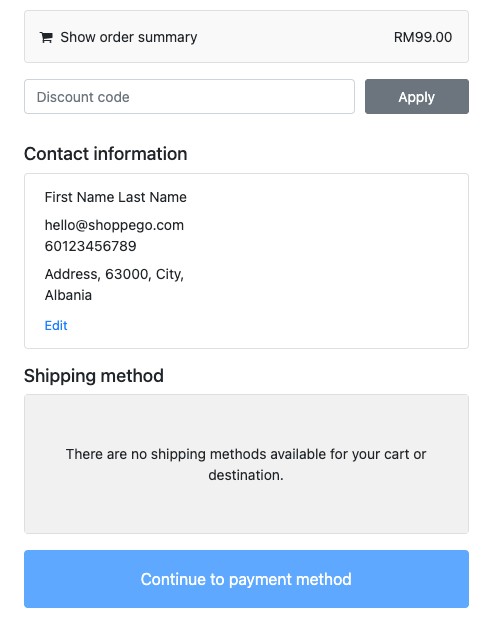
* If you do not specify shipping for that country, then when selecting shipping rates later, customers will not be able to see any shipping rate selections.
<figure><img src="https://3359028955-files.gitbook.io/~/files/v0/b/gitbook-x-prod.appspot.com/o/spaces%2F-Lh09fNwqqta5Vj6Wr8p%2Fuploads%2Fgit-blob-0c518d9b46fba65623ed4f4e388af3a57f979dee%2FajjWlXli7dhlhKV1OHzm.jpg?alt=media" alt=""><figcaption></figcaption></figure>