> For the complete documentation index, see [llms.txt](https://docs.shoppego.my/tutorials/llms.txt). Markdown versions of documentation pages are available by appending `.md` to page URLs; this page is available as [Markdown](https://docs.shoppego.my/tutorials/en/settings/shipping/cod-shipping.md).

# COD Shipping

## Setup COD Shipping

1\. Click on **Settings ->** **Shipping**

![](https://3359028955-files.gitbook.io/~/files/v0/b/gitbook-x-prod.appspot.com/o/spaces%2F-Lh09fNwqqta5Vj6Wr8p%2Fuploads%2Fgit-blob-3c2c829c04820d4a9571b3dce8561872737f4e9b%2FcpHcQpRr3fHr8hcZX0RH.png?alt=media)

2. After clicking the **Shipping** button, there will be **2 zones** available for **editing :**

   * **Peninsular Malaysia** **Zone**
   * **Sabah Sarawak Zone**

   Both zones can be used for editing.

![](https://3359028955-files.gitbook.io/~/files/v0/b/gitbook-x-prod.appspot.com/o/spaces%2F-Lh09fNwqqta5Vj6Wr8p%2Fuploads%2Fgit-blob-25f3845d082720c373d19142218711b65f29f30f%2FuvsBSoqDZUVNlcVP5JFd.jpg?alt=media)

‌3. Select **Peninsular** or **Sabah Sarawak** and click the **Edit** button and the display will appear as follows.

![](https://3359028955-files.gitbook.io/~/files/v0/b/gitbook-x-prod.appspot.com/o/spaces%2F-Lh09fNwqqta5Vj6Wr8p%2Fuploads%2Fgit-blob-de218c03a85838d60646fe34406cd02898710c6e%2FWSrlXZxo0iRo0nGE5JIt.jpg?alt=media)

4. You can determine the **COD price** based on 2 ways:

* **Weight Based Rates** cost **Shipping Rate Based On Weight.**
* **Price Based Rates**" cost **Shipping Rate Based On Price.**

{% hint style="info" %} <mark style="color:red;">\*\*Note\*\*</mark>: If you wish to make a \*\*Free Shipping\*\* functions. Click on \[\*\*Weight Based Rates\*\*]\(free-shipping/weight-based-rates.md) and \[\*\*Price Based Rates\*\*]\(free-shipping/price-based-rates.md) for further explanation.
{% endhint %}

{% content-ref url="/pages/qcQZuvBu6cseiiMNifT2" %}
[Price Based Rates](/tutorials/en/settings/shipping/free-shipping/price-based-rates.md)
{% endcontent-ref %}

{% content-ref url="/pages/Rg0eChCQ5vQahY8c0FCj" %}
[Weight Based Rates](/tutorials/en/settings/shipping/free-shipping/weight-based-rates.md)
{% endcontent-ref %}

### Example Setting Up Price Based Rates.

1. Click the **Price based rates** tab -> **Add rate**

![](https://3359028955-files.gitbook.io/~/files/v0/b/gitbook-x-prod.appspot.com/o/spaces%2F-Lh09fNwqqta5Vj6Wr8p%2Fuploads%2Fgit-blob-f975b0ca944aaee9f527ea297e25548927a4c86e%2FVkszzyVH9LeCMXuXoMc9.jpg?alt=media)

2. A **display** will appear to fill in the information.

<table><thead><tr><th width="266">Field</th><th>Description</th></tr></thead><tbody><tr><td><strong>Name</strong></td><td>Enter your Shipping name</td></tr><tr><td><strong>Minimum Order Price (RM)</strong></td><td>Enter the value that the customer needs to reach to get the Shipping rates.</td></tr><tr><td><strong>Maximum Order Price (RM)</strong></td><td>Enter the maximum value for the rates.</td></tr><tr><td><strong>Price</strong></td><td>Shipping Price.</td></tr><tr><td><strong>Cash On Delivery (RM)</strong></td><td><strong>Turn on</strong> if your shipping method is using COD.</td></tr></tbody></table>

3. Proceed to click the Add button and toggle on the Cash On Delivery (COD) option.

![](https://3359028955-files.gitbook.io/~/files/v0/b/gitbook-x-prod.appspot.com/o/spaces%2F-Lh09fNwqqta5Vj6Wr8p%2Fuploads%2Fgit-blob-89b04188dcf133b11bd1db19dea000cf79c9a080%2FD8tvp5QVxznVs1gaWELL.jpg?alt=media)

## Toggle Cash On Delivery (COD)

For setting up two types of Shipping Methods, you can make the configuration on the **Cash On Delivery toggle.**

{% hint style="info" %} <mark style="color:red;">\*\*Attention\*\*</mark>: If the \*\*Cash On Delivery\*\* option is \*\*not enabled\*\*, your customers \*\*will see\*\* other \*\*payment options\*\* such as \*\*Securepay, Bizzapay,\*\* and others \*\*instead of COD\*\*.
{% endhint %}

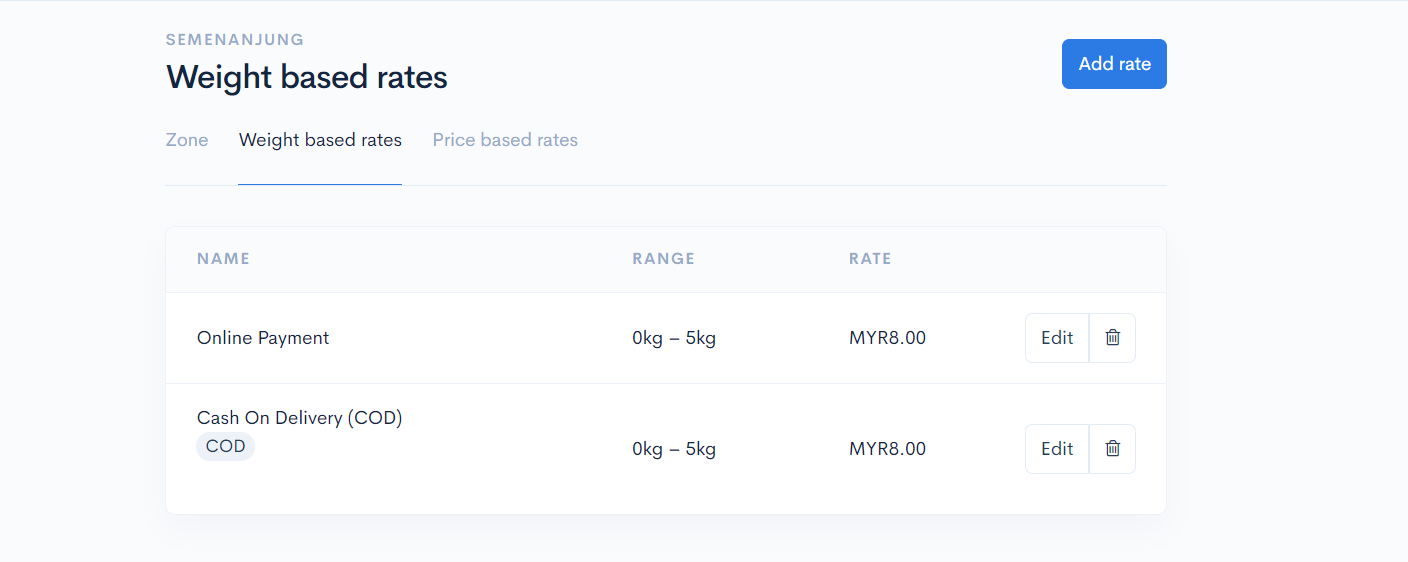
If you want to have 2 types of payment methods, you need to **create 2 types of rates**:

* **Online Payment**
* **Cash On Delivery.**

{% hint style="info" %}
The **name of the rate** can be **based on each individual's creativity**.
{% endhint %}

<figure><img src="https://3359028955-files.gitbook.io/~/files/v0/b/gitbook-x-prod.appspot.com/o/spaces%2F-Lh09fNwqqta5Vj6Wr8p%2Fuploads%2Fgit-blob-891c898cc2f72f8887d9f7c607a003d67bcc7698%2Ftol4esuHFeXCDuzaxjvh.png?alt=media" alt=""><figcaption></figcaption></figure>

The display that will appear on your page is as follows.

<figure><img src="https://3359028955-files.gitbook.io/~/files/v0/b/gitbook-x-prod.appspot.com/o/spaces%2F-Lh09fNwqqta5Vj6Wr8p%2Fuploads%2Fgit-blob-5b68cf65ed37a51e6a7dbdba1aa2ab2dd75711ab%2FUsPm89AzoIByjLTQO8sM.png?alt=media" alt=""><figcaption></figcaption></figure>

### Frequently Asked Questions:

1. Why have I activated COD payment, but there is no selection at checkout?\
   Answer: For that, you need to make sure that you have created COD type shipping rates on your website.
2. Can I have a selection of payment types other than COD at checkout?\
   Answer: Yes, you can, but you need to make sure that you have created 2 types of shipping rates, namely regular shipping (not COD) and COD shipping. If the customer chooses regular shipping, they will only be able to see payment options other than COD. Meanwhile, if the customer chooses regular shipping, they will only be able to see COD payment options.
