> For the complete documentation index, see [llms.txt](https://docs.shoppego.my/tutorials/llms.txt). Markdown versions of documentation pages are available by appending `.md` to page URLs; this page is available as [Markdown](https://docs.shoppego.my/tutorials/en/settings/sms-provider.md).

# SMS Provider

In Commerce, you can connect your website with the SMS Provider system such as:

{% content-ref url="/pages/JkSAA5Y0JgKFxKRPxOrm" %}
[Twilio](/tutorials/en/settings/sms-provider/twilio.md)
{% endcontent-ref %}

{% content-ref url="/pages/ZgSOIrVeTxIfRpXi0iKI" %}
[KlasikSMS](/tutorials/en/settings/sms-provider/klasiksms.md)
{% endcontent-ref %}

Before starting the following settings, you need to set the SMS message notification that will be sent first.

{% hint style="info" %}

* These features are only available for <mark style="color:red;">**Premium**</mark> and <mark style="color:red;">**Ultimate**</mark>**&#x20;plans** onl&#x79;**.**
* SMS/Notifications that can be sent to customers are only <mark style="color:red;">**Order confirmation, Order shipped**</mark>**&#x20;and&#x20;**<mark style="color:red;">**Order ready for pickup**</mark> for now.
  {% endhint %}

## Additional info

**For users who have been using the Commerce system for a long time, you need to click make the Restore to default setting first** to use this function.

On the **Order Confirmation** -> **SMS page**, you can click the **More** -> **Restore to default** button

![](https://3359028955-files.gitbook.io/~/files/v0/b/gitbook-x-prod.appspot.com/o/spaces%2F-Lh09fNwqqta5Vj6Wr8p%2Fuploads%2Fgit-blob-13539bb19b6fc9dc53ec4a6b7a52717c32022245%2F-MMTZwBb3a3Lx4hbES1p.png?alt=media)

## Setup in Commerce

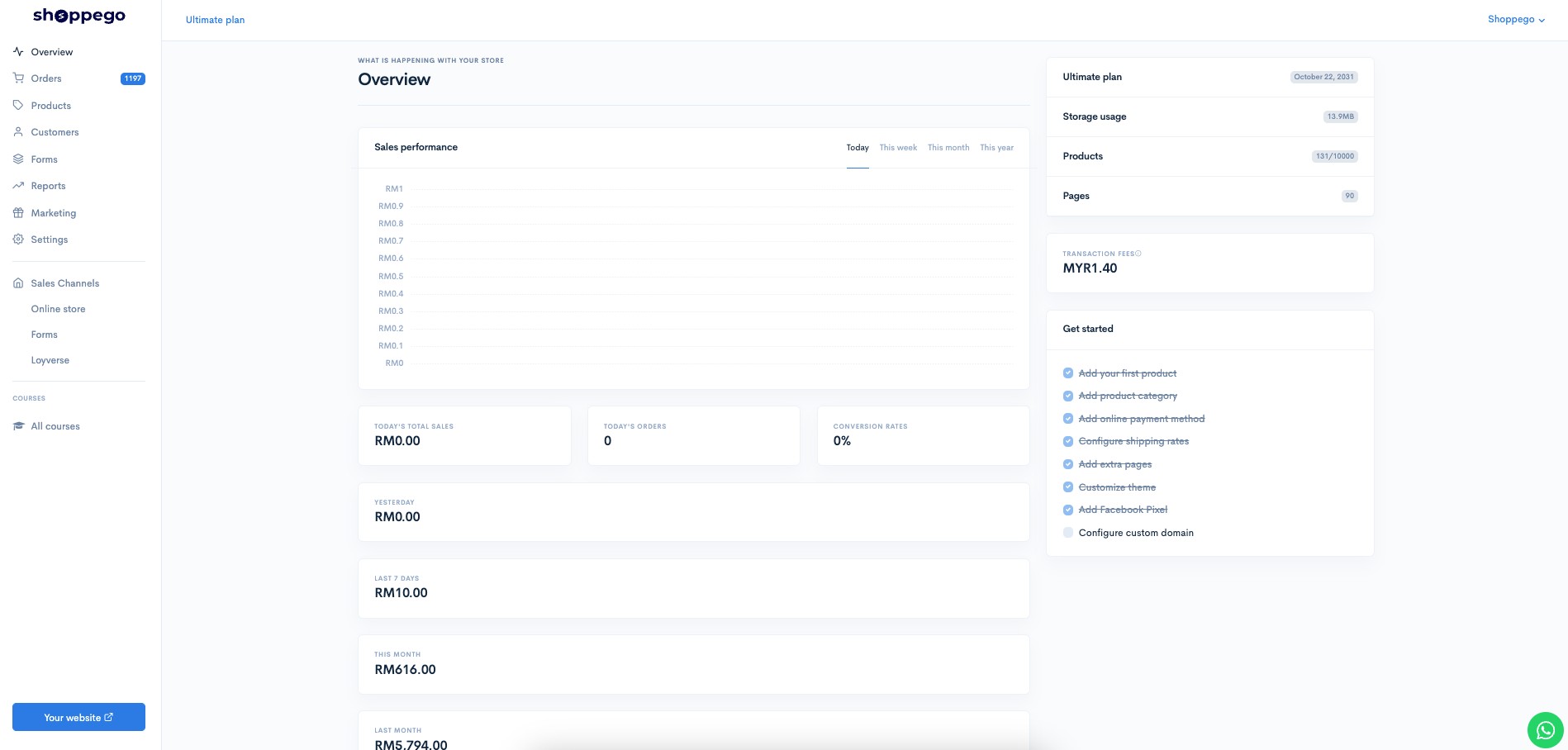
1\. Log in to your Commerce account.
![](https://3359028955-files.gitbook.io/~/files/v0/b/gitbook-x-prod.appspot.com/o/spaces%2F-Lh09fNwqqta5Vj6Wr8p%2Fuploads%2Fgit-blob-b853fc0189b34fb1d3990f5b1f53fa71deb9d384%2FlCN7aw3FznaFFoOAyya2.jpg?alt=media)

2\. Click on the **Settings** tab

![](https://3359028955-files.gitbook.io/~/files/v0/b/gitbook-x-prod.appspot.com/o/spaces%2F-Lh09fNwqqta5Vj6Wr8p%2Fuploads%2Fgit-blob-9ae8b66b366958146673b78216b78ff0e8f12b90%2FVsK9zs6aZtUfKK1hcCiM.jpg?alt=media)

3\. Click on the **Notifications** tab

![](https://3359028955-files.gitbook.io/~/files/v0/b/gitbook-x-prod.appspot.com/o/spaces%2F-Lh09fNwqqta5Vj6Wr8p%2Fuploads%2Fgit-blob-59ed081c553dd95a4a53d6d3f3cc5c0b0799a426%2F-MMTSrPUzxtd_uQjJuXz.png?alt=media)

4\. Click the **Edit** button on the Order Confirmation tab

![](https://3359028955-files.gitbook.io/~/files/v0/b/gitbook-x-prod.appspot.com/o/spaces%2F-Lh09fNwqqta5Vj6Wr8p%2Fuploads%2Fgit-blob-7c4be3401af4e9cec3ed60e15d6fdfd00e15a9bd%2F-MMTTHn_Hyktv6-TGxhv.png?alt=media)

5\. Click on the **SMS** tab

![](https://3359028955-files.gitbook.io/~/files/v0/b/gitbook-x-prod.appspot.com/o/spaces%2F-Lh09fNwqqta5Vj6Wr8p%2Fuploads%2Fgit-blob-fbf0f86a75f8201236dae43efd009fdd86b97318%2F-MMTTOBreCOJbRfyh6tJ.jpg?alt=media)

6\. In the **Content** field, you can enter the text/message you want to send to customers after they make a payment on your website.

![](https://3359028955-files.gitbook.io/~/files/v0/b/gitbook-x-prod.appspot.com/o/spaces%2F-Lh09fNwqqta5Vj6Wr8p%2Fuploads%2Fgit-blob-adaac8b2e892ee469c103c14c50cab62202ed36a%2F-MMTTSeLnMj1uBcSX8FX.jpg?alt=media)

7\. Once done you can click **Save**

![](https://3359028955-files.gitbook.io/~/files/v0/b/gitbook-x-prod.appspot.com/o/spaces%2F-Lh09fNwqqta5Vj6Wr8p%2Fuploads%2Fgit-blob-ebe288a964cd603d0870663518e5f7d854b7eede%2F-MMTTWGB8_TC4Qlg3A6_.png?alt=media)

8\. You need to make sure that the Order Confirmation is in the **Enable** state. (Make sure it's blue)

![](https://3359028955-files.gitbook.io/~/files/v0/b/gitbook-x-prod.appspot.com/o/spaces%2F-Lh09fNwqqta5Vj6Wr8p%2Fuploads%2Fgit-blob-8c7b04cbdc5e214c122fd83c70815a90958805d2%2F-MMTTrJqW94er8_6XNSl.jpg?alt=media)

Once done, you can make the settings of the SMS notification system of your choice.