> For the complete documentation index, see [llms.txt](https://docs.shoppego.my/tutorials/llms.txt). Markdown versions of documentation pages are available by appending `.md` to page URLs; this page is available as [Markdown](https://docs.shoppego.my/tutorials/en/settings/tax-rates.md).

# Tax Rates

At Shoppego, you can now add tax charges to your customers for each of their purchases.

## Create Tax Rate

To do this setting, you can go to the section:

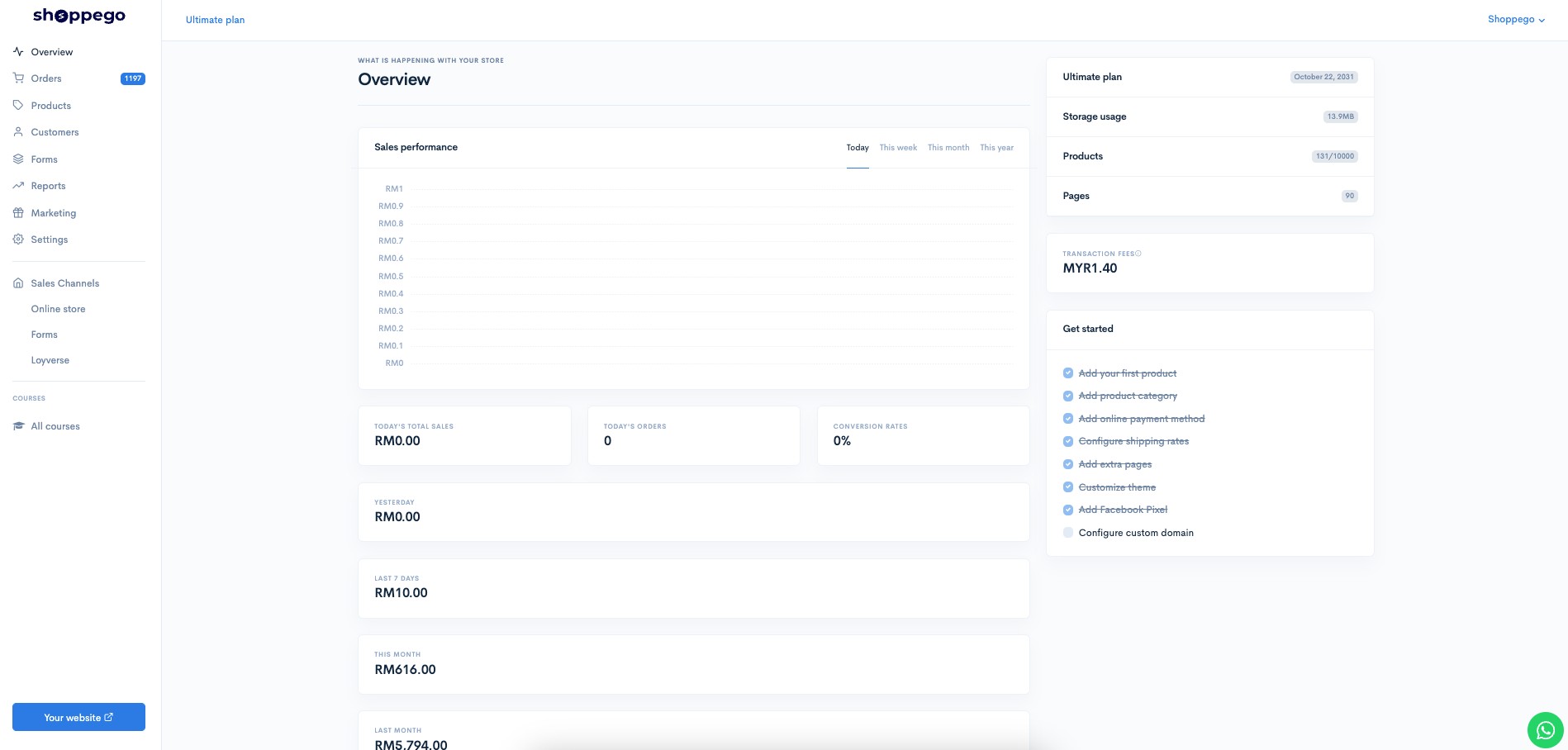
1. Log in to your Shoppego account

<figure><img src="https://3359028955-files.gitbook.io/~/files/v0/b/gitbook-x-prod.appspot.com/o/spaces%2F-Lh09fNwqqta5Vj6Wr8p%2Fuploads%2Fgit-blob-b853fc0189b34fb1d3990f5b1f53fa71deb9d384%2FlCN7aw3FznaFFoOAyya2.jpg?alt=media" alt=""><figcaption></figcaption></figure>

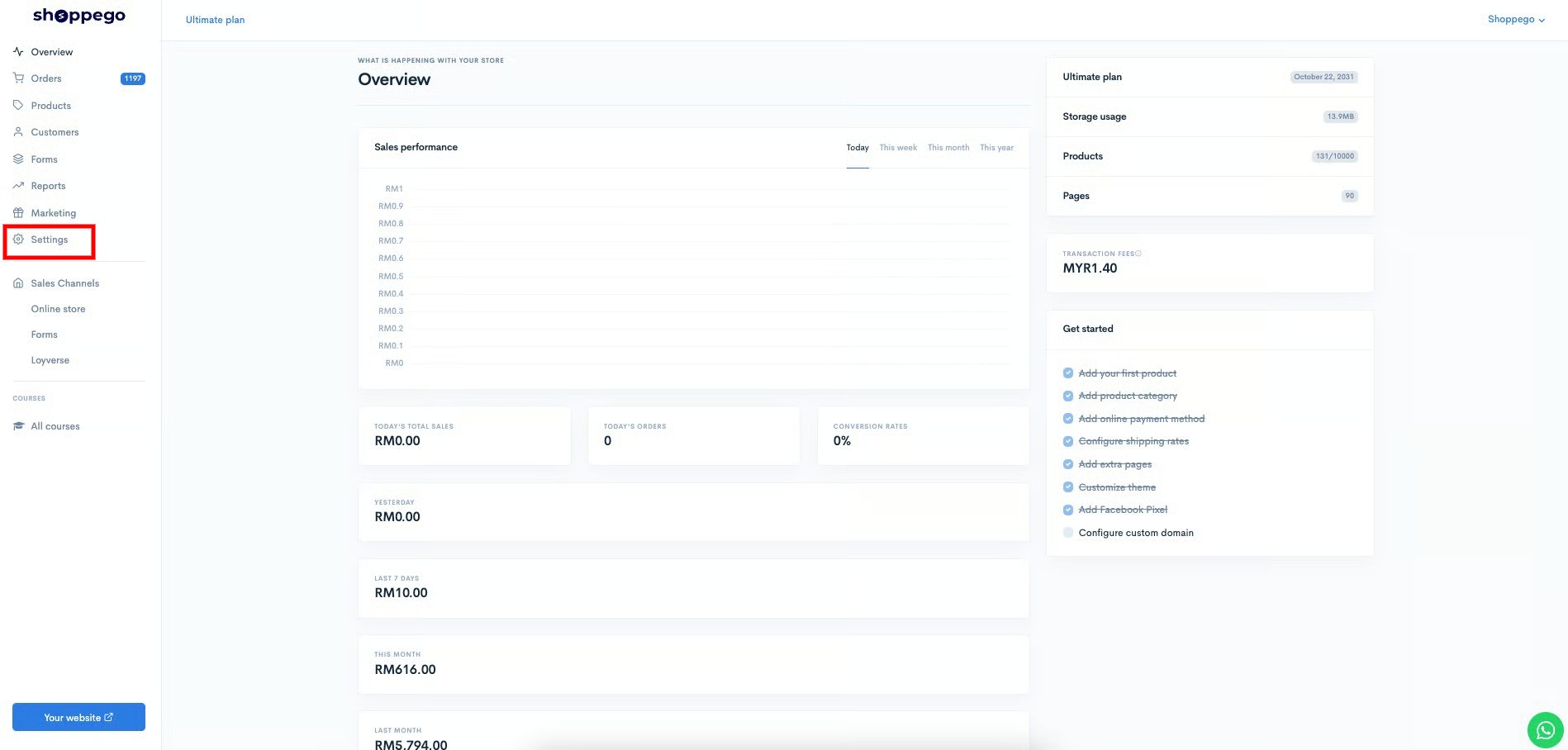
2. Click on **Settings**

<figure><img src="https://3359028955-files.gitbook.io/~/files/v0/b/gitbook-x-prod.appspot.com/o/spaces%2F-Lh09fNwqqta5Vj6Wr8p%2Fuploads%2Fgit-blob-9ae8b66b366958146673b78216b78ff0e8f12b90%2FVsK9zs6aZtUfKK1hcCiM.jpg?alt=media" alt=""><figcaption></figcaption></figure>

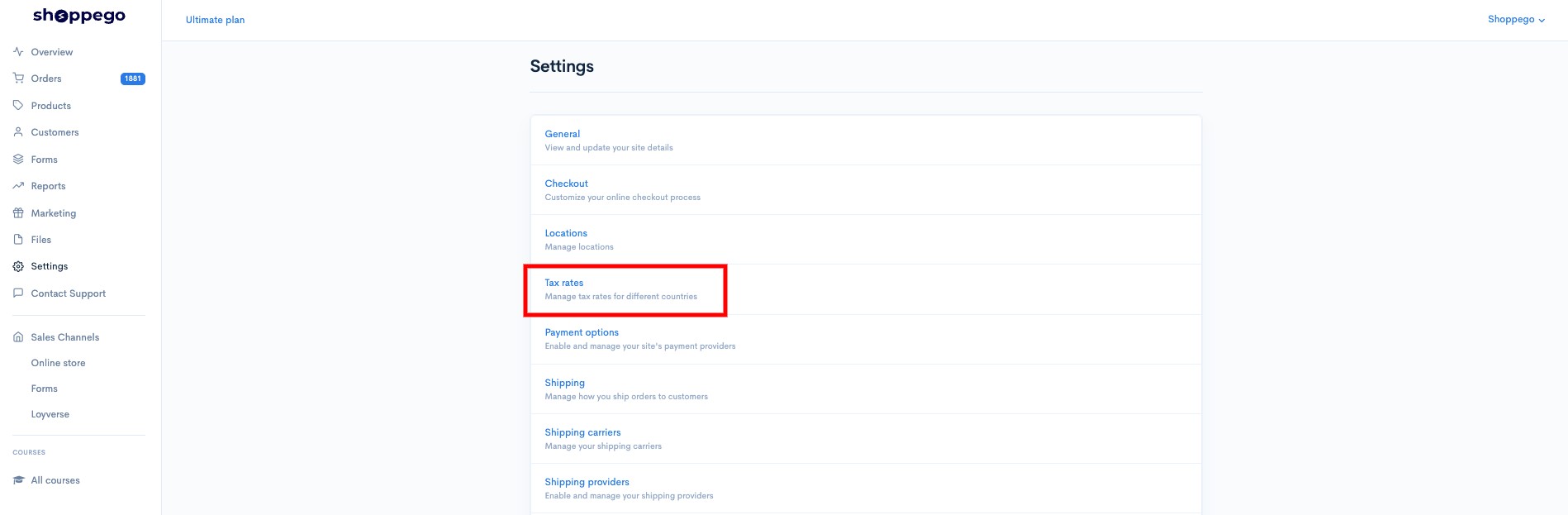
3. Click on **Tax rates**

<figure><img src="https://3359028955-files.gitbook.io/~/files/v0/b/gitbook-x-prod.appspot.com/o/spaces%2F-Lh09fNwqqta5Vj6Wr8p%2Fuploads%2Fgit-blob-268c33273512d124980dd875e178c2a8025b78c8%2F76e7DOMRd4psnJVc81MA.jpg?alt=media" alt=""><figcaption></figcaption></figure>

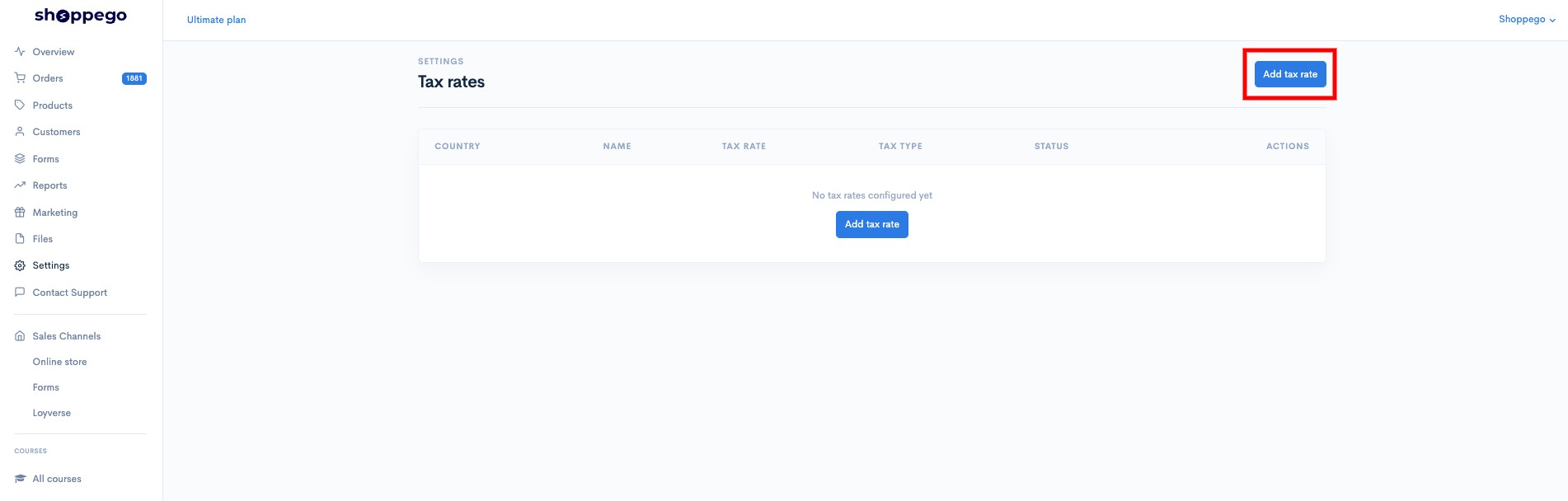
4. Click on the **Add tax rate** button.

<figure><img src="https://3359028955-files.gitbook.io/~/files/v0/b/gitbook-x-prod.appspot.com/o/spaces%2F-Lh09fNwqqta5Vj6Wr8p%2Fuploads%2Fgit-blob-8e58fba524eff5812f969672751b3b6606f73806%2Fd8XgKRi0bRvCkvQbTXHD.jpg?alt=media" alt=""><figcaption></figcaption></figure>

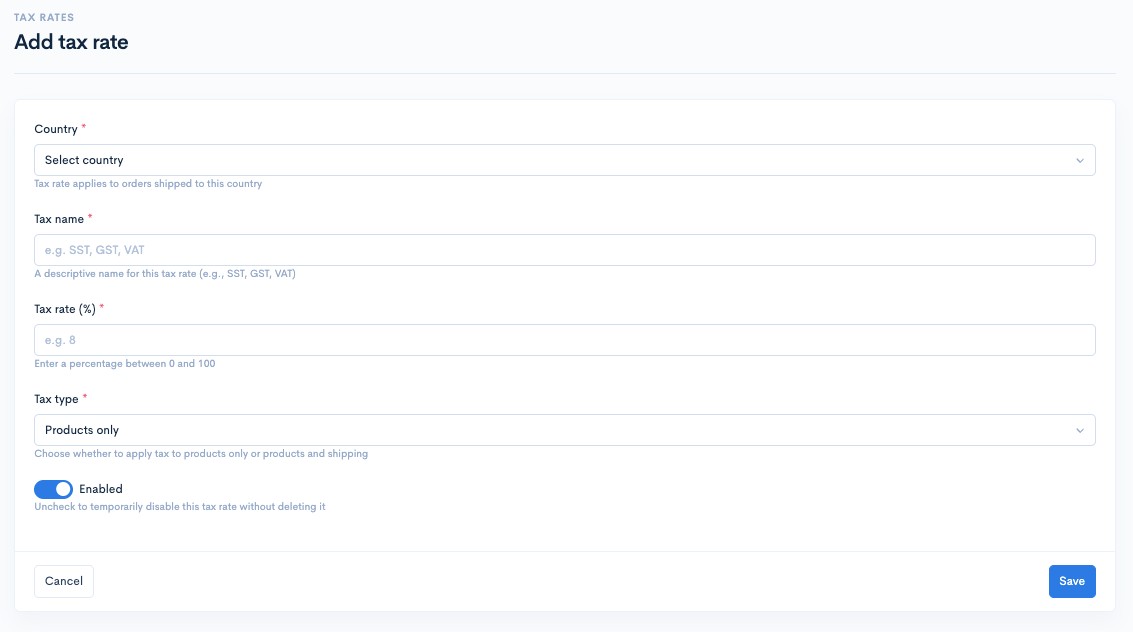
5. Next, you can make settings for your tax information.

<figure><img src="https://3359028955-files.gitbook.io/~/files/v0/b/gitbook-x-prod.appspot.com/o/spaces%2F-Lh09fNwqqta5Vj6Wr8p%2Fuploads%2Fgit-blob-302305687bf115ef8a218d50ac35d5876511c373%2FqjxxEjth949fmgiq58cq.jpg?alt=media" alt=""><figcaption></figcaption></figure>

| Parameter    | Description                                                                                                  |
| ------------ | ------------------------------------------------------------------------------------------------------------ |
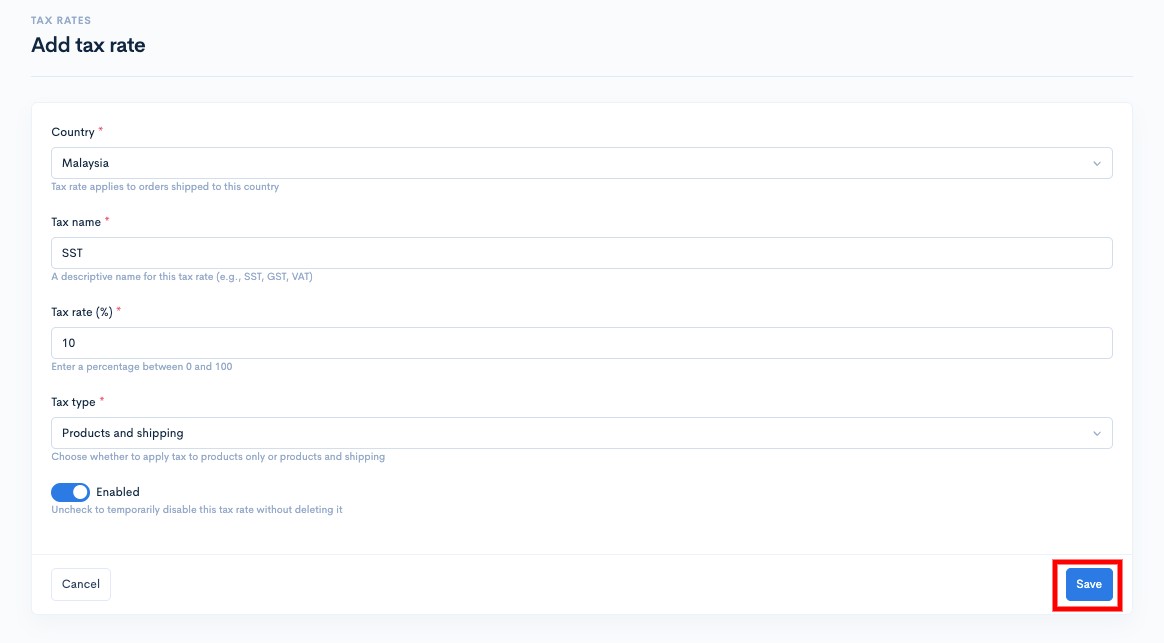
| Country      | You can choose the country you want to charge this tax to.                                                   |
| Tax name     | You can enter the name for the tax you are charging. For example SST, GST, etc.                              |
| Tax rate (%) | You can enter the tax percentage you will charge.                                                            |
| Tax type     | You can choose to charge this tax based on the total purchase price of products only or products + shipping. |
| Enabled      | You can tick (Enabled) or untick (Disabled) this toggle to activate or deactivate this tax.                  |

6. Once finished, click **Save**

<figure><img src="https://3359028955-files.gitbook.io/~/files/v0/b/gitbook-x-prod.appspot.com/o/spaces%2F-Lh09fNwqqta5Vj6Wr8p%2Fuploads%2Fgit-blob-210b9d9640987dadf6dbbe2af2b0c1c2866d198a%2F0nopTimDEuatNZlP9414.jpg?alt=media" alt=""><figcaption></figcaption></figure>

**Next, you need to set the tax on the product you want to tax.**

## Taxation on products

1. Log in to your Shoppego account

<figure><img src="https://3359028955-files.gitbook.io/~/files/v0/b/gitbook-x-prod.appspot.com/o/spaces%2F-Lh09fNwqqta5Vj6Wr8p%2Fuploads%2Fgit-blob-b853fc0189b34fb1d3990f5b1f53fa71deb9d384%2FlCN7aw3FznaFFoOAyya2.jpg?alt=media" alt=""><figcaption></figcaption></figure>

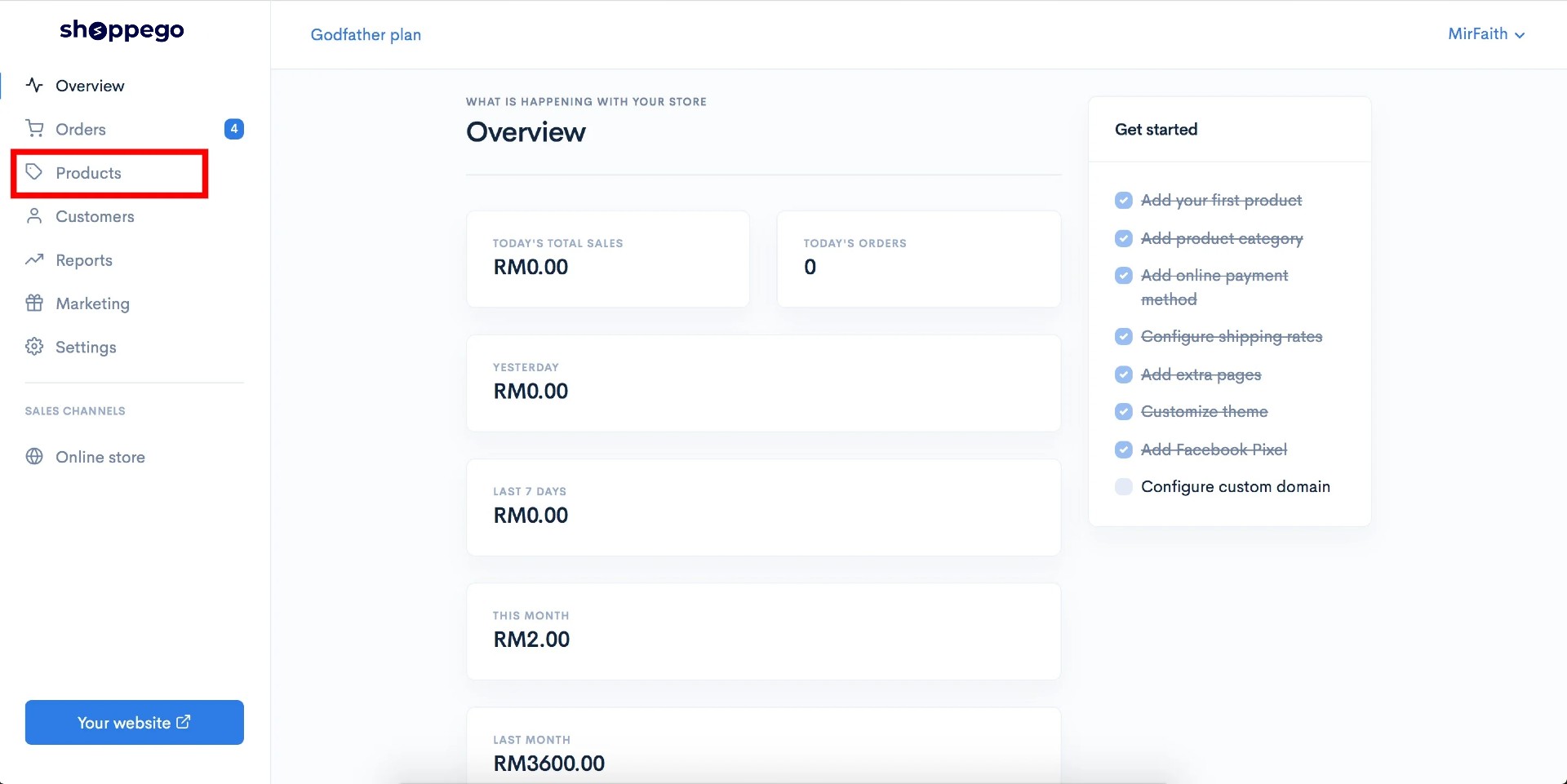
2. Click on **Products**

<figure><img src="https://3359028955-files.gitbook.io/~/files/v0/b/gitbook-x-prod.appspot.com/o/spaces%2F-Lh09fNwqqta5Vj6Wr8p%2Fuploads%2Fgit-blob-ed85fb87f9932975c9fe432eb80476f0c54bfd3b%2F3QYpKlTI5mdyrdLeiYts.jpg?alt=media" alt=""><figcaption></figcaption></figure>

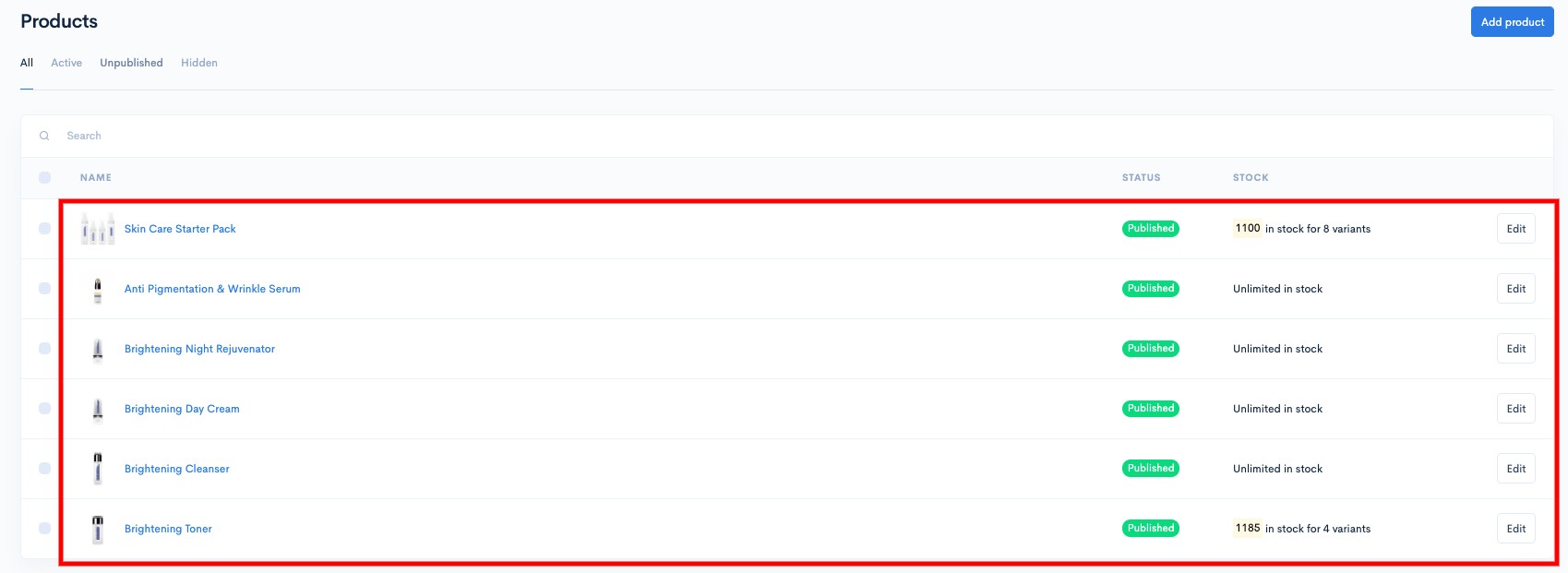
3. Click on the product you want to tax

<figure><img src="https://3359028955-files.gitbook.io/~/files/v0/b/gitbook-x-prod.appspot.com/o/spaces%2F-Lh09fNwqqta5Vj6Wr8p%2Fuploads%2Fgit-blob-7e12cb195a624e31554cca65a2b3af533767b7e7%2FrGpapV4QmAslmyzaG71Y.jpg?alt=media" alt=""><figcaption></figcaption></figure>

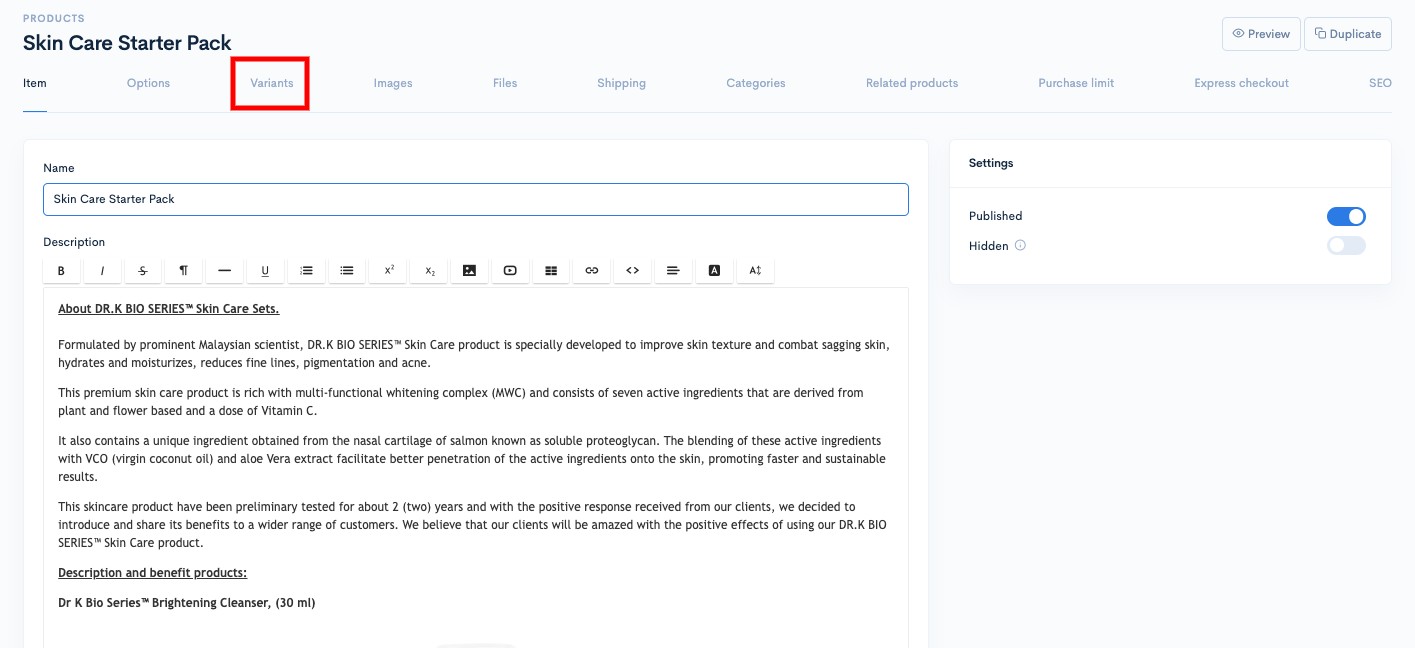
4. Click on the **Variants** tab.

<figure><img src="https://3359028955-files.gitbook.io/~/files/v0/b/gitbook-x-prod.appspot.com/o/spaces%2F-Lh09fNwqqta5Vj6Wr8p%2Fuploads%2Fgit-blob-30ab6cefa624da35cf0cc9d4b2c83d376b7279b0%2FIlvCLWZTHhlTmPX1MtvS.jpg?alt=media" alt=""><figcaption></figcaption></figure>

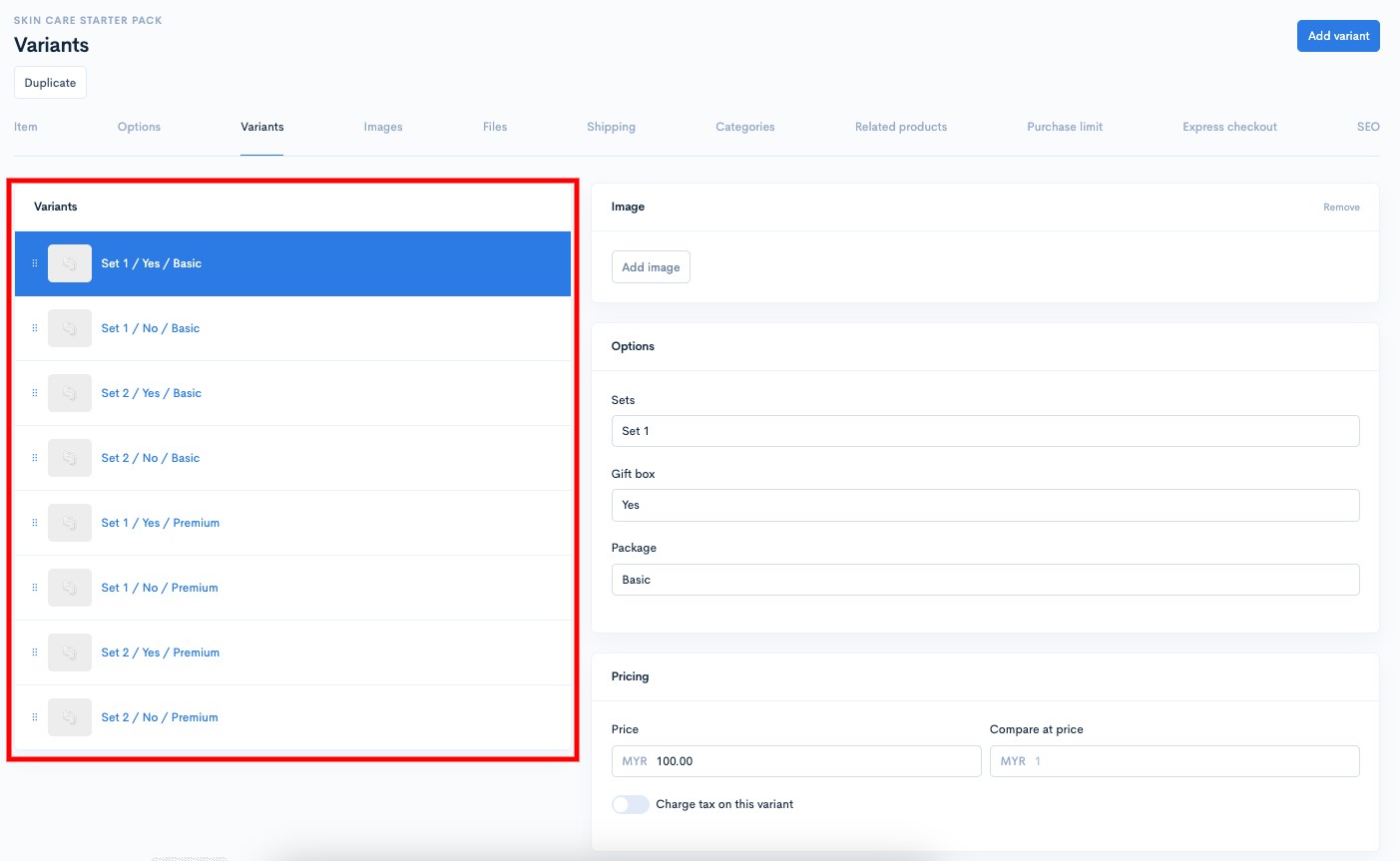
5. Next, you need to click on the **variant selection** that you want to charge the tax on.

<figure><img src="https://3359028955-files.gitbook.io/~/files/v0/b/gitbook-x-prod.appspot.com/o/spaces%2F-Lh09fNwqqta5Vj6Wr8p%2Fuploads%2Fgit-blob-30bde3b7fa490ed57515b9473afa2cf671735c95%2FTcIivurXaYTU56Ch8N3B.jpg?alt=media" alt=""><figcaption></figcaption></figure>

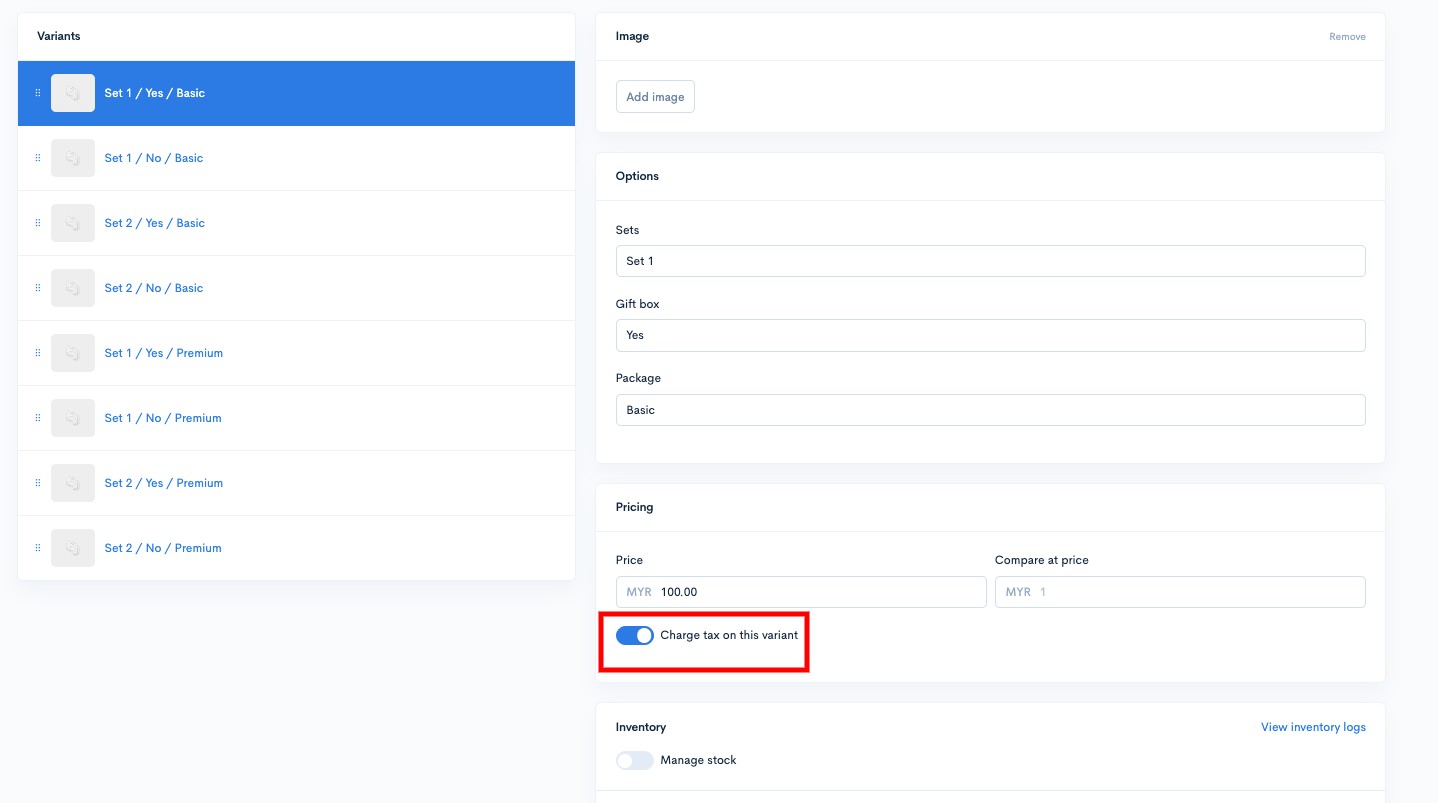
6. Tick ​​on the toggle **Charge tax on this variant**

<figure><img src="https://3359028955-files.gitbook.io/~/files/v0/b/gitbook-x-prod.appspot.com/o/spaces%2F-Lh09fNwqqta5Vj6Wr8p%2Fuploads%2Fgit-blob-2ba9ddc976b7464f9dfd48a533ecd403953373a3%2FGeLBn3YxWD86S0kpvRFy.jpg?alt=media" alt=""><figcaption></figcaption></figure>

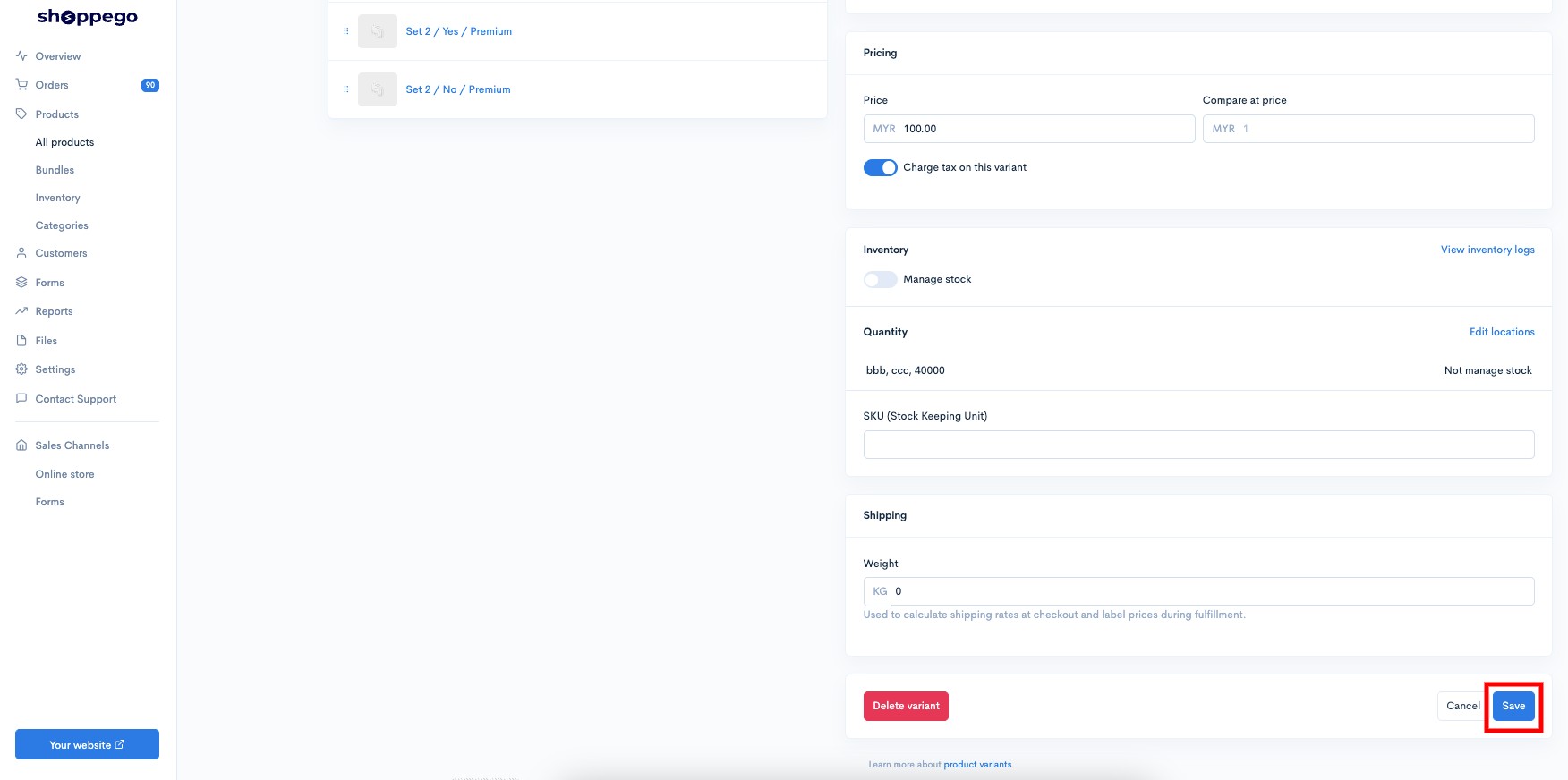
7. Once finished, click **Save**

<figure><img src="https://3359028955-files.gitbook.io/~/files/v0/b/gitbook-x-prod.appspot.com/o/spaces%2F-Lh09fNwqqta5Vj6Wr8p%2Fuploads%2Fgit-blob-a4dda74477ca10c3e7318b42eaab76da9ad621f8%2FYNhr0Co7BDawG1lfMKoe.jpg?alt=media" alt=""><figcaption></figcaption></figure>

**Then, you can repeat** [**this step**](#taxation-on-products) **to select other variants and products that you want to charge tax on.**