> For the complete documentation index, see [llms.txt](https://docs.shoppego.my/tutorials/llms.txt). Markdown versions of documentation pages are available by appending `.md` to page URLs; this page is available as [Markdown](https://docs.shoppego.my/tutorials/en/shopee/products.md).

# Products

To synchronize your products between the Shoppego website and Shopee Seller, you can go to the following section:

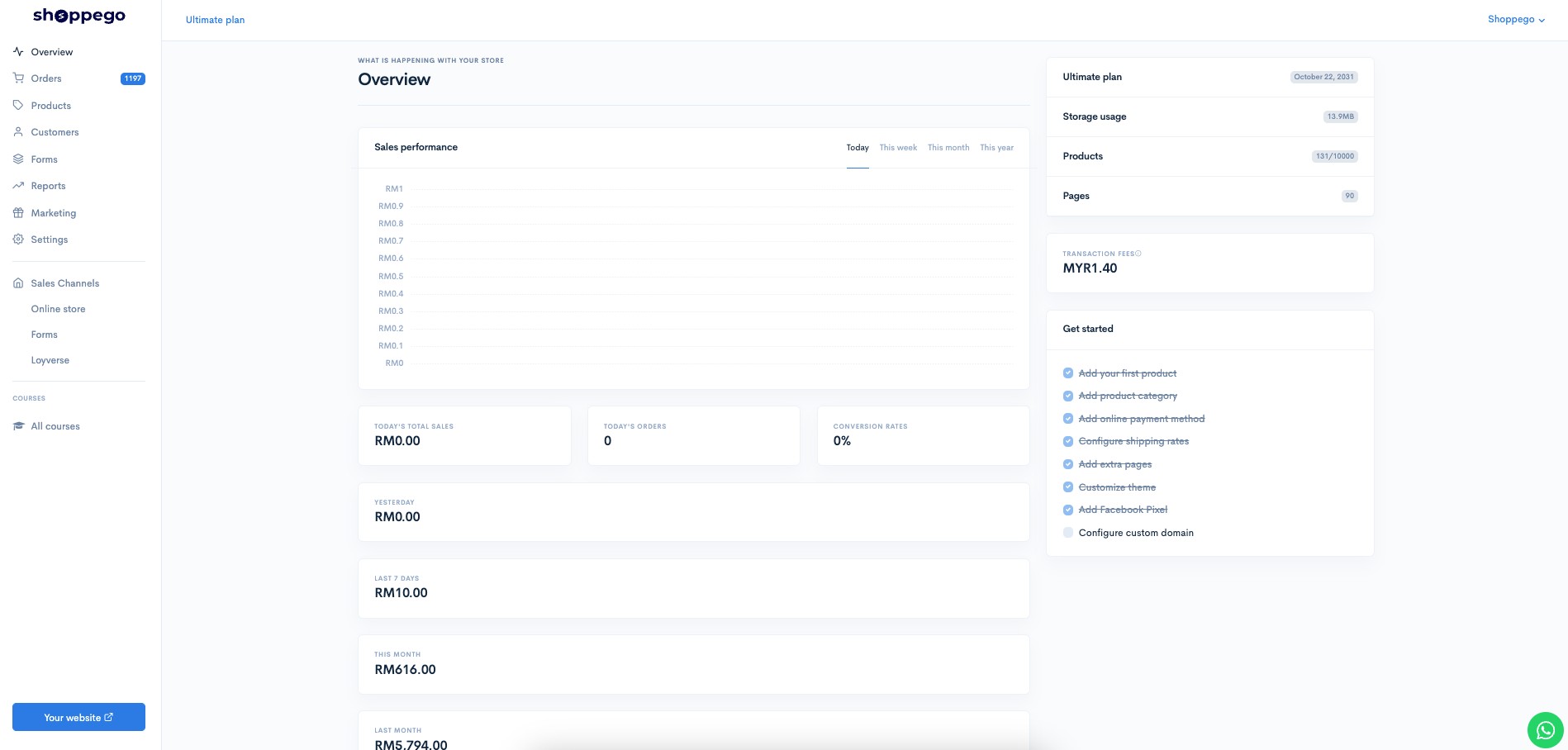
1. Log in to your Shoppego account

<figure><img src="https://3359028955-files.gitbook.io/~/files/v0/b/gitbook-x-prod.appspot.com/o/spaces%2F-Lh09fNwqqta5Vj6Wr8p%2Fuploads%2Fgit-blob-b853fc0189b34fb1d3990f5b1f53fa71deb9d384%2FlCN7aw3FznaFFoOAyya2.jpg?alt=media" alt=""><figcaption></figcaption></figure>

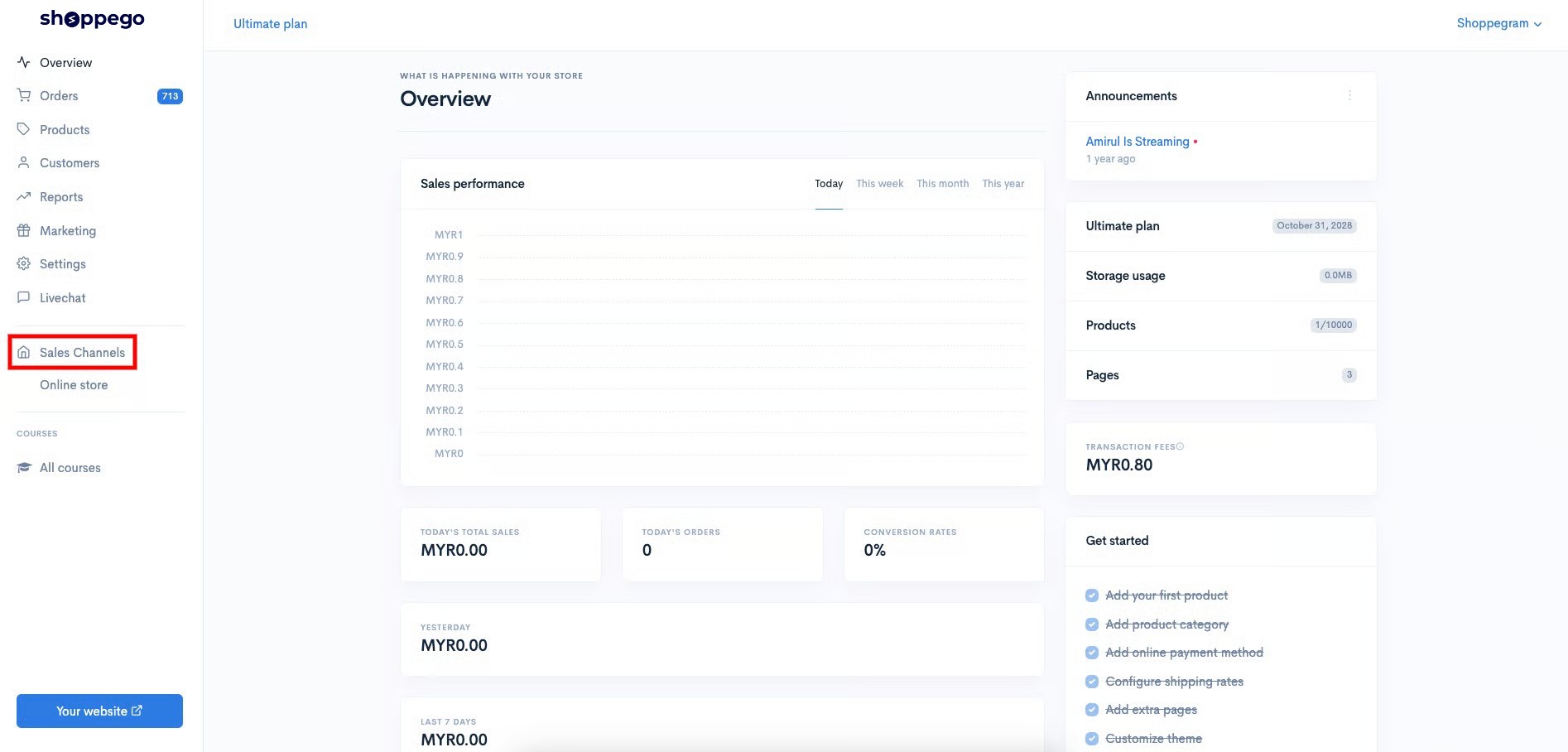
2. Click on **Sales Channels**

<figure><img src="https://3359028955-files.gitbook.io/~/files/v0/b/gitbook-x-prod.appspot.com/o/spaces%2F-Lh09fNwqqta5Vj6Wr8p%2Fuploads%2Fgit-blob-12334f2a8c94ef3ed5b34a4891fea465f7b304d3%2FukUIKKXQHEeJSqpbtcqi.jpg?alt=media" alt=""><figcaption></figcaption></figure>

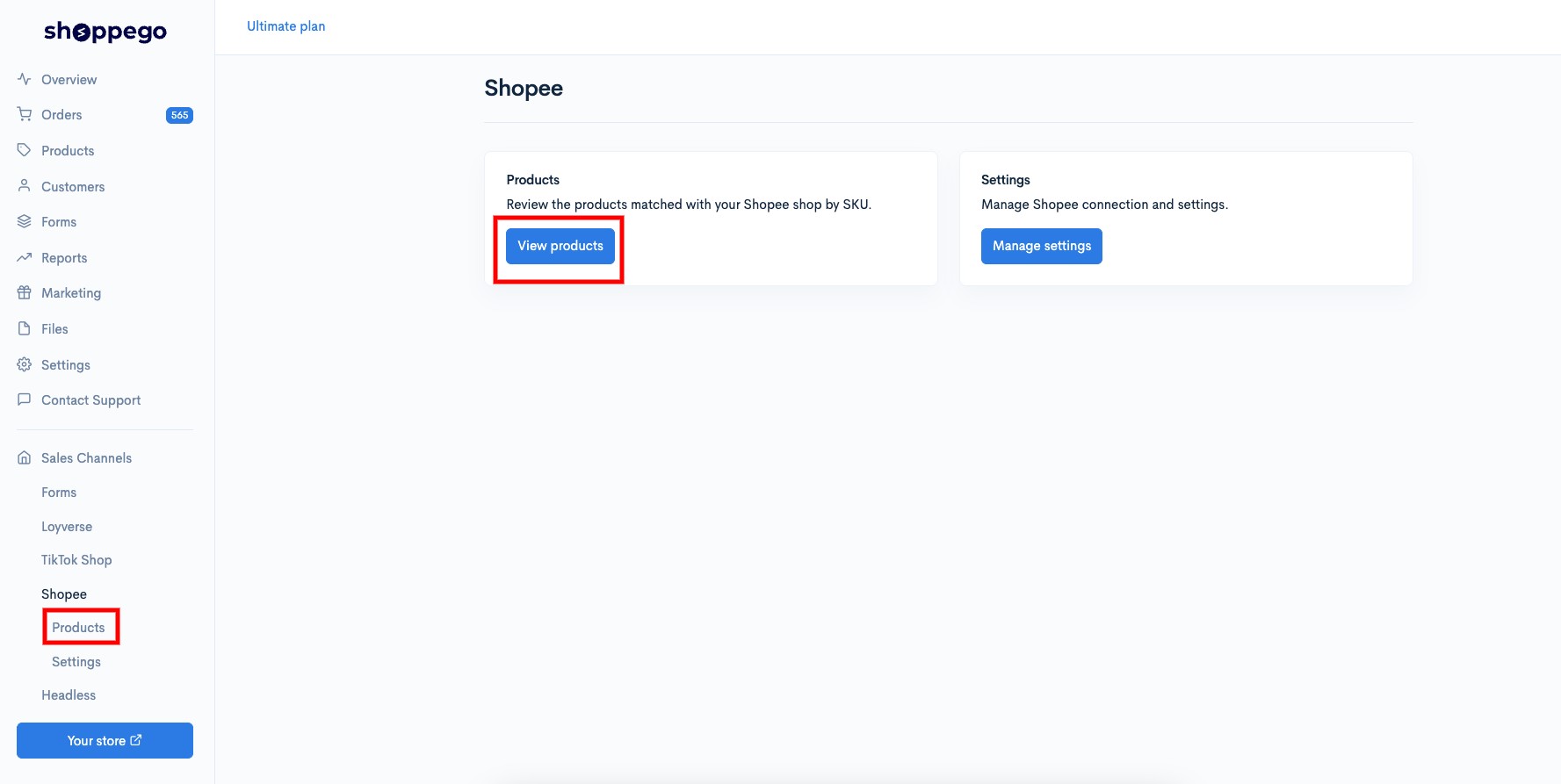
3. Click on **Shopee**

<figure><img src="https://3359028955-files.gitbook.io/~/files/v0/b/gitbook-x-prod.appspot.com/o/spaces%2F-Lh09fNwqqta5Vj6Wr8p%2Fuploads%2Fgit-blob-f86cffc7bdfdf79943d977568923cc1c4d8e59c9%2Fk14o4brp5OcdaxHweyJS.jpg?alt=media" alt=""><figcaption></figcaption></figure>

4. Click on **Products**

<figure><img src="https://3359028955-files.gitbook.io/~/files/v0/b/gitbook-x-prod.appspot.com/o/spaces%2F-Lh09fNwqqta5Vj6Wr8p%2Fuploads%2Fgit-blob-a573edee0181b3ddedf2994203f06782ec1301ea%2FsDh9ALTSX2Q09G3T1EVY.jpg?alt=media" alt=""><figcaption></figcaption></figure>

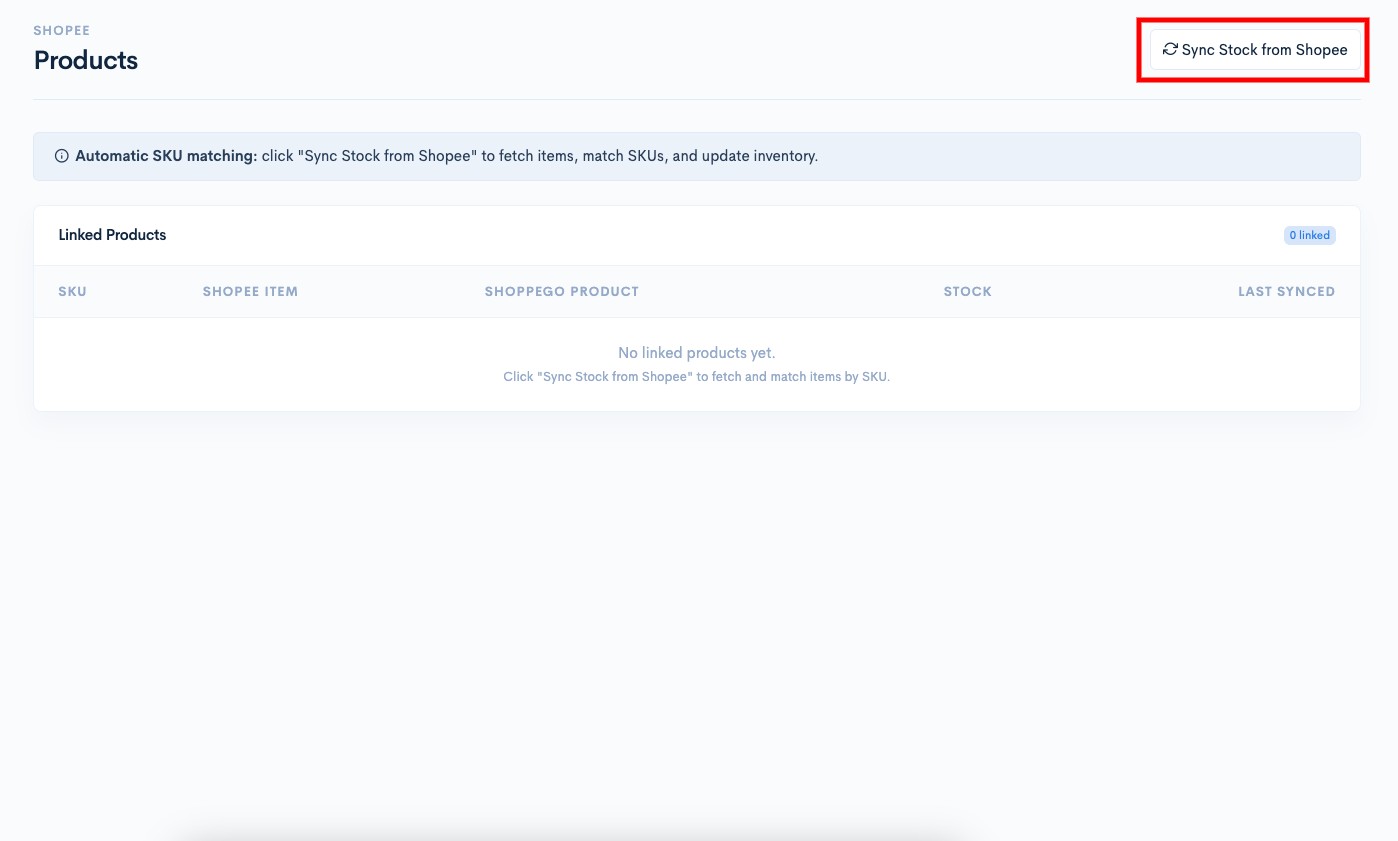
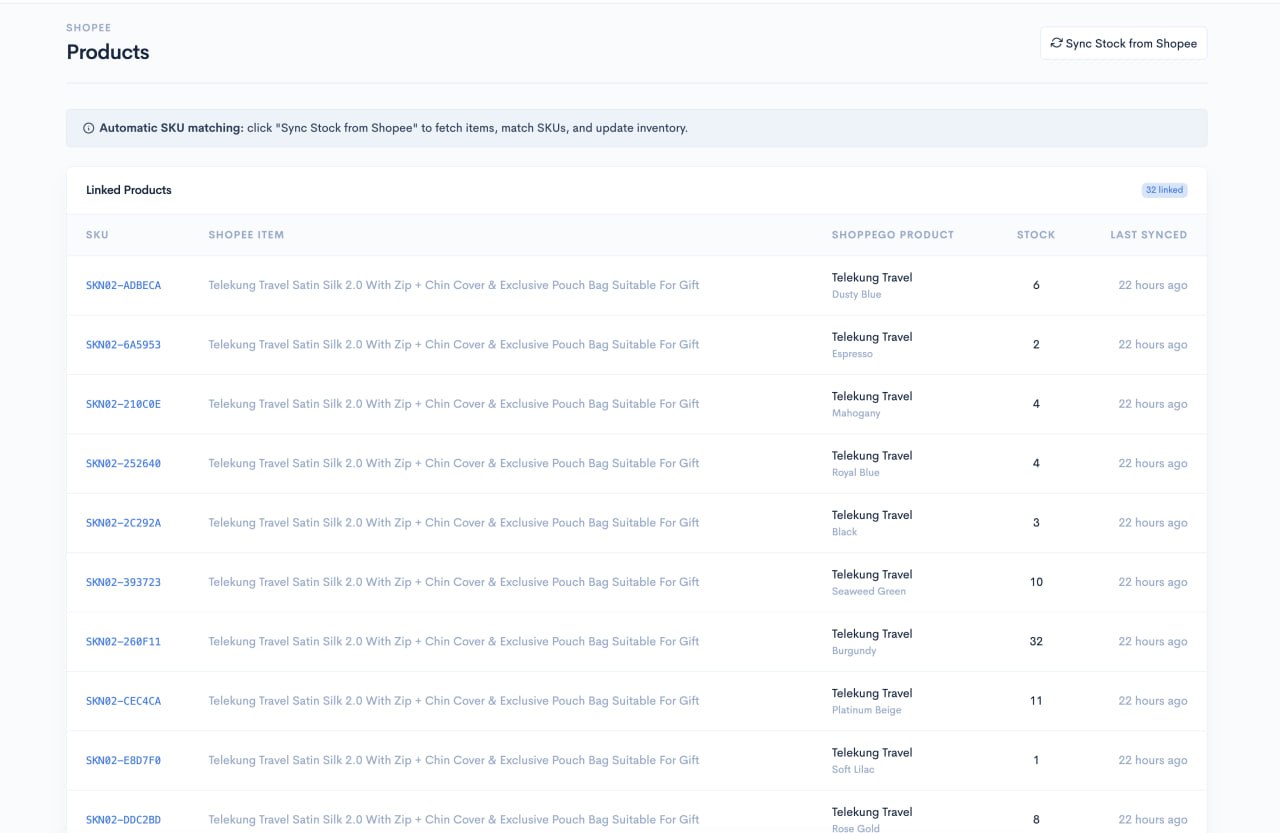
5. Next, you can click the "**Sync Stock from Shopee**" button to synchronize your Shopee products with those in your Shoppego store based on their SKUs.

<figure><img src="https://3359028955-files.gitbook.io/~/files/v0/b/gitbook-x-prod.appspot.com/o/spaces%2F-Lh09fNwqqta5Vj6Wr8p%2Fuploads%2Fgit-blob-387d89fa4cee69cd9ca197beaf54e405ae1773fe%2FJQHaUGVLeKV0uq4S4h1z.jpg?alt=media" alt=""><figcaption></figcaption></figure>

The stock reconciliation setting has now been completed.

<figure><img src="https://3359028955-files.gitbook.io/~/files/v0/b/gitbook-x-prod.appspot.com/o/spaces%2F-Lh09fNwqqta5Vj6Wr8p%2Fuploads%2Fgit-blob-528a25754306ee98dcdc6f409538955b0c881c43%2FjQ9hRroVEMxH8QGfVoMX.jpg?alt=media" alt=""><figcaption></figcaption></figure>

## Additional Information

If you **make manual stock changes on the Shopee platform**, you **need to click the "Sync Stock from Shopee" button again to re-synchronize the product's stock**.

**Automatic stock synchronization only works when the SKU in Shoppego matches the SKU in Shopee exactly.** If the SKUs are different, Shoppego will not be able to sync the product's stock.

**Shoppego should be your master inventory.** We recommend updating your product stock only in Shoppego. Avoid updating stock in both Shoppego and Shopee, as this may cause stock inconsistencies.

If you encounter any errors on the Shopee Seller platform, you can contact their support system for assistance.