> For the complete documentation index, see [llms.txt](https://docs.shoppego.my/tutorials/llms.txt). Markdown versions of documentation pages are available by appending `.md` to page URLs; this page is available as [Markdown](https://docs.shoppego.my/tutorials/ms/online-store/custom-pages/import-json.md).

# Import JSON

Kini pada bahagian Page Builder Shoppego anda boleh menggunakan **fungsi import JSON**. Ini bermakna anda boleh gunakan template yang sedia ada. Berikut merupakan langkah langkah untuk import JSON kepada Page Builder

## Penetapan

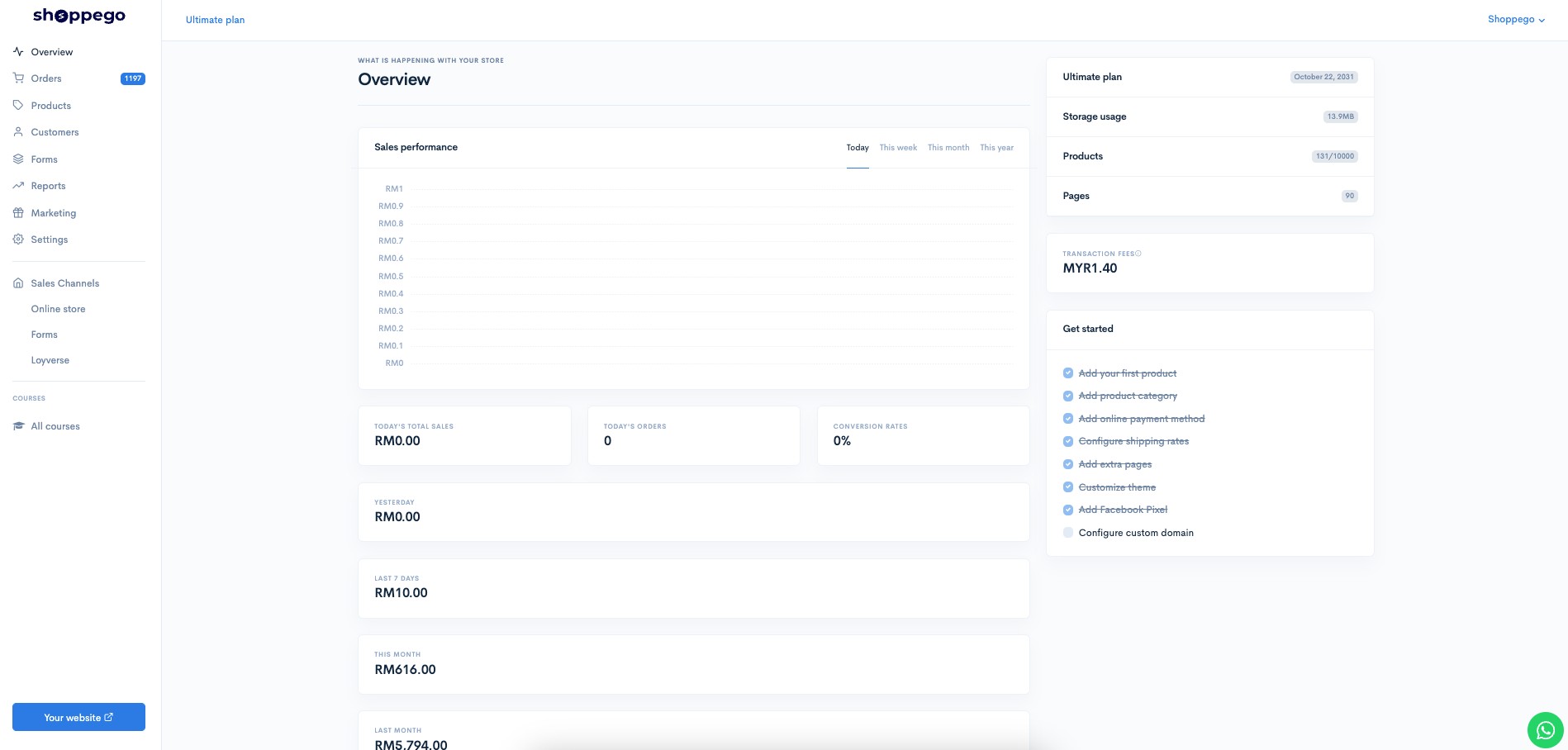
1. Log masuk ke bahagian **Dashboard Shoppego.**
![](https://3359028955-files.gitbook.io/~/files/v0/b/gitbook-x-prod.appspot.com/o/spaces%2F-Lh09fNwqqta5Vj6Wr8p%2Fuploads%2Fgit-blob-b853fc0189b34fb1d3990f5b1f53fa71deb9d384%2FlCN7aw3FznaFFoOAyya2.jpg?alt=media)

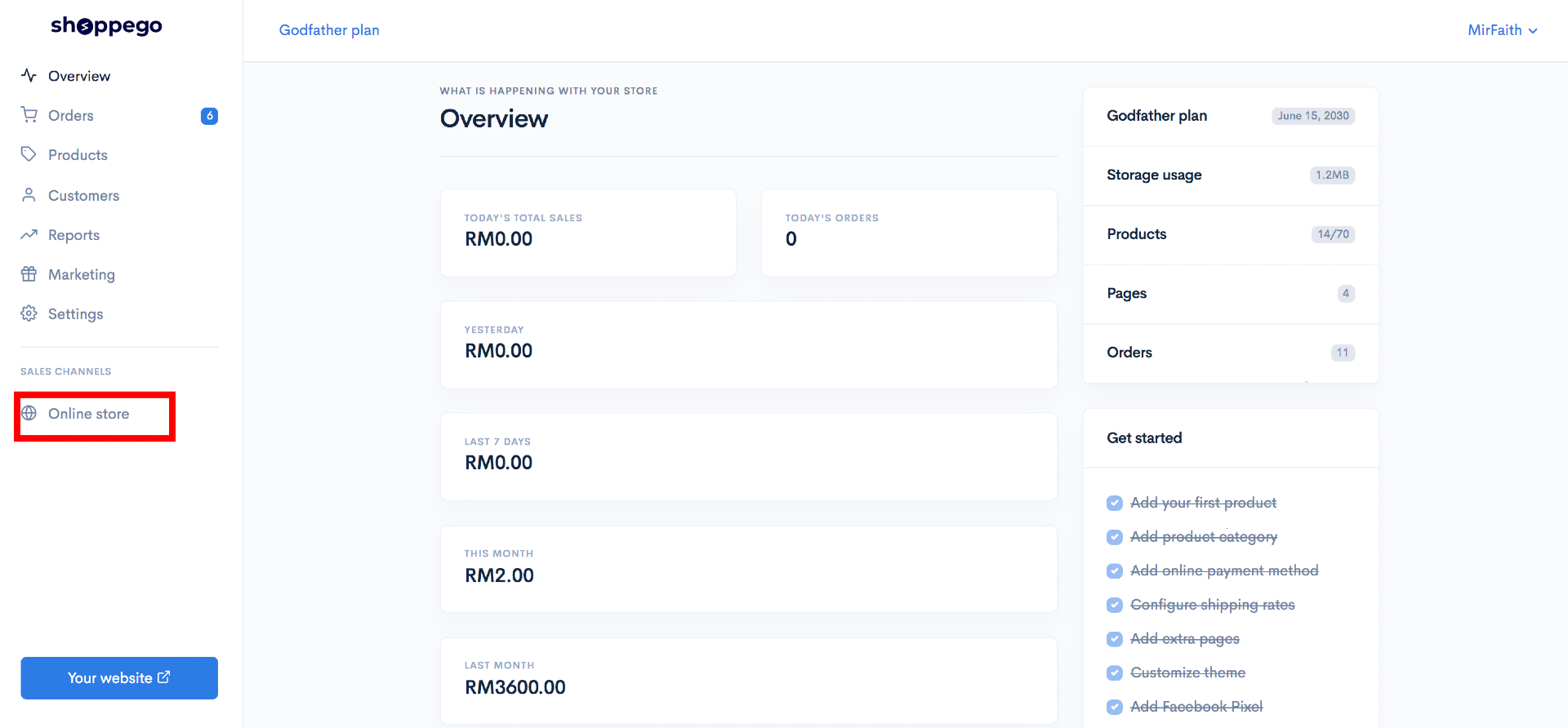
2\. Klik pada bahagian **Online Store**
![](https://3359028955-files.gitbook.io/~/files/v0/b/gitbook-x-prod.appspot.com/o/spaces%2F-Lh09fNwqqta5Vj6Wr8p%2Fuploads%2Fgit-blob-70c4a33377466661b7d9ad083aec0c73abcda6de%2FVCvdwwBNMP2Wl4iZzvCi.png?alt=media)

3\. Klik pada **Pages**

![](https://3359028955-files.gitbook.io/~/files/v0/b/gitbook-x-prod.appspot.com/o/spaces%2F-Lh09fNwqqta5Vj6Wr8p%2Fuploads%2Fgit-blob-8abf662139a794dffcc5c5511b0140940493557b%2FMEN74qBXZhScbOML07E3.jpg?alt=media)

### Laluan untuk pergi ke Setting -> Import JSON.

Untuk bahagian ini adalah mengikut interface Builder tersendiri.

### Default Editor: WYSIWYG

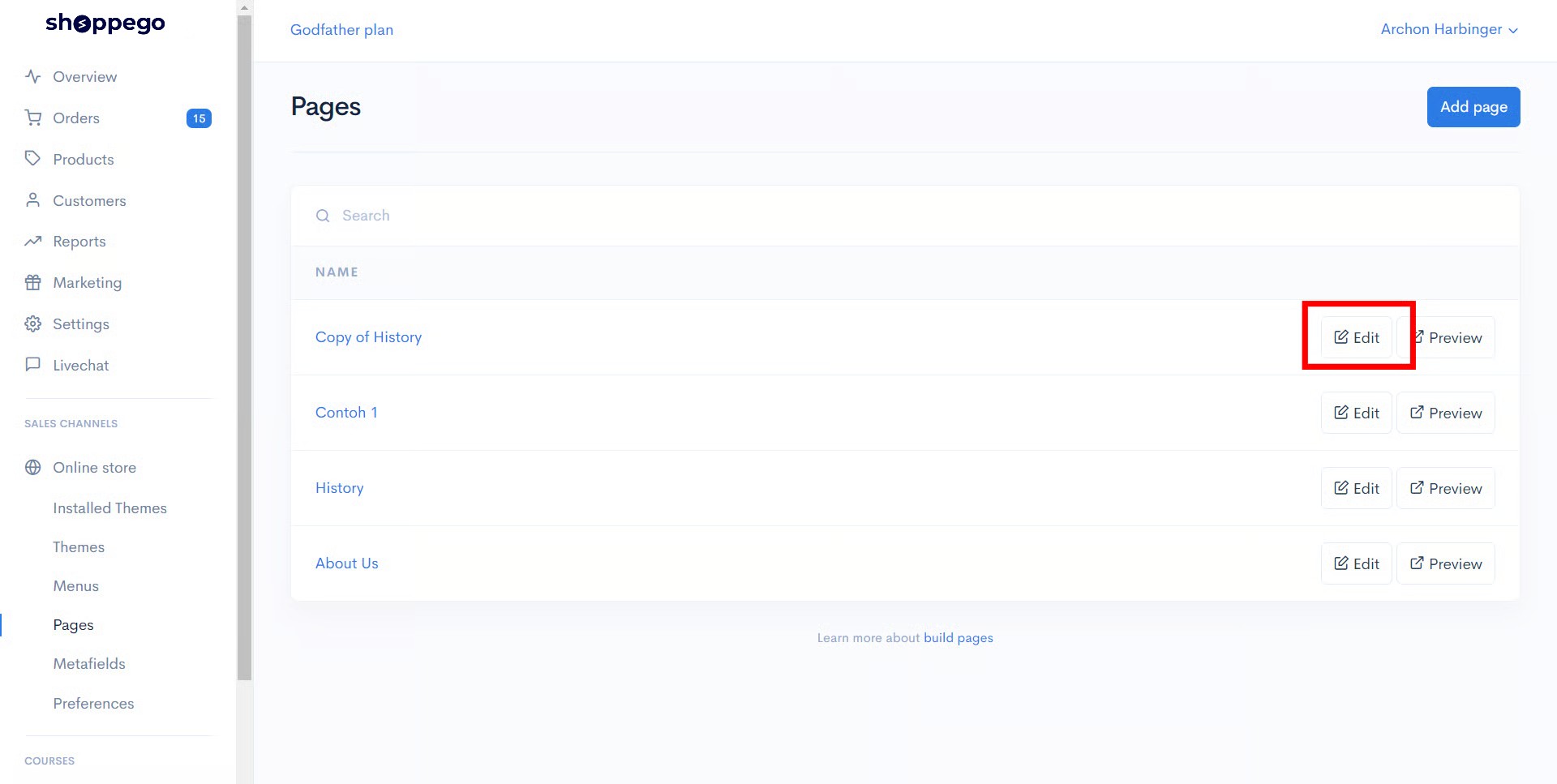
1. Pilih **Pages** yang anda inginkan dan klik **Edit.**
![](https://3359028955-files.gitbook.io/~/files/v0/b/gitbook-x-prod.appspot.com/o/spaces%2F-Lh09fNwqqta5Vj6Wr8p%2Fuploads%2Fgit-blob-9f0cc1bb9c9c59d4b573a003d8699346926868a7%2F0Mfpbph9w1IcAr1DESgX.jpg?alt=media)

2. Klik pada **Edit with Builder.**

![](https://3359028955-files.gitbook.io/~/files/v0/b/gitbook-x-prod.appspot.com/o/spaces%2F-Lh09fNwqqta5Vj6Wr8p%2Fuploads%2Fgit-blob-0bb88dc8a868749bced7c88d6a00d6247bfce86f%2FCkhPYfY1wgDPbLVVuSL1.jpg?alt=media)

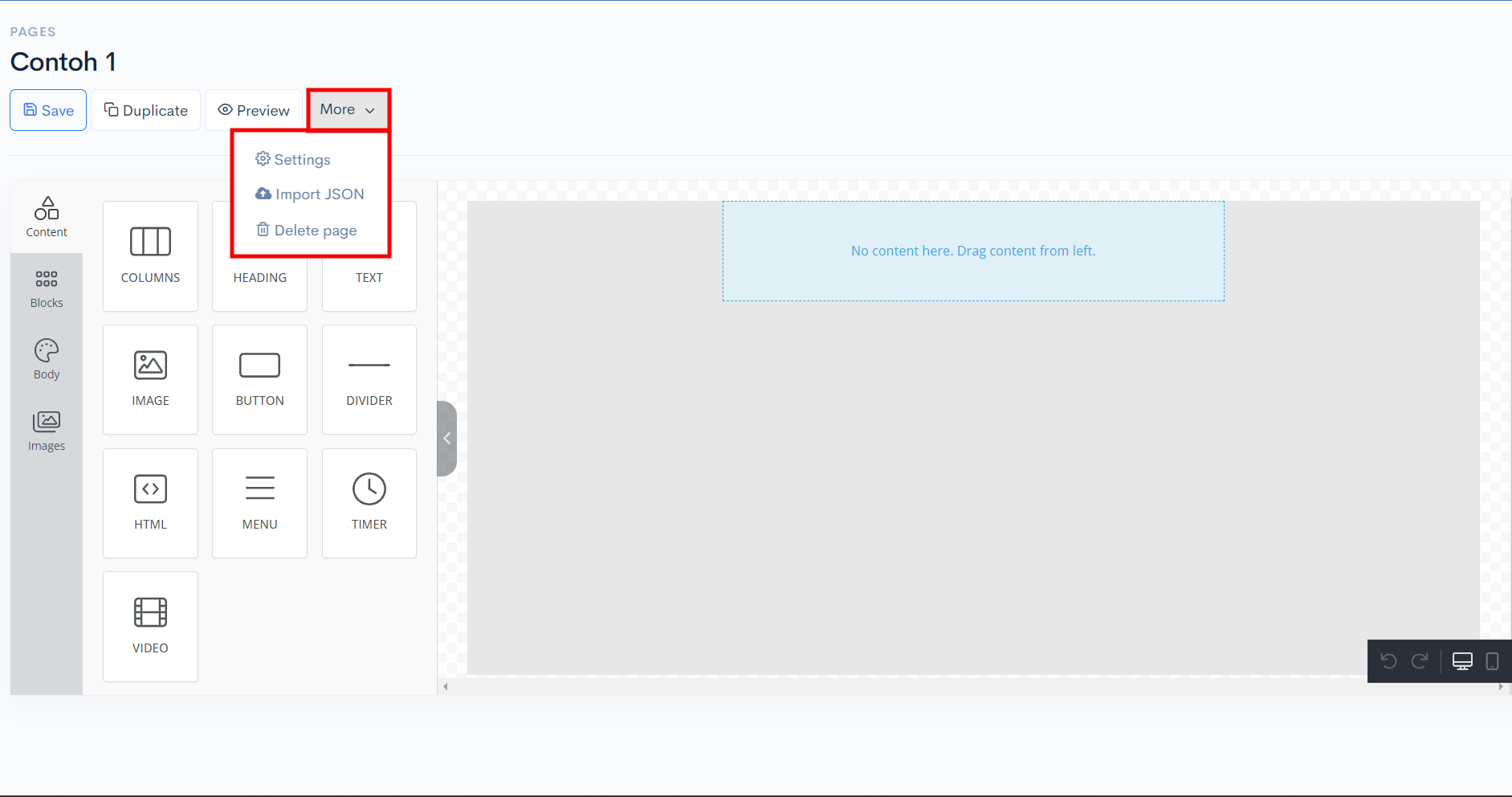
3. Klik pada butang **More** dan pilih **Import JSON**. Perlu diingatkan anda hanya boleh import file berformat .json sahaja.

![](https://3359028955-files.gitbook.io/~/files/v0/b/gitbook-x-prod.appspot.com/o/spaces%2F-Lh09fNwqqta5Vj6Wr8p%2Fuploads%2Fgit-blob-6a8567ff44c91e272ca2094b7b7b089e1076d2b0%2FyMYdVsoCCQoqvWNmqUWr.png?alt=media)

### Default Editor: Builder

1. Pilih **Pages** yang anda inginkan dan klik **Edit.**

<figure><img src="https://3359028955-files.gitbook.io/~/files/v0/b/gitbook-x-prod.appspot.com/o/spaces%2F-Lh09fNwqqta5Vj6Wr8p%2Fuploads%2Fgit-blob-9f0cc1bb9c9c59d4b573a003d8699346926868a7%2F0Mfpbph9w1IcAr1DESgX.jpg?alt=media" alt=""><figcaption></figcaption></figure>

2. Kemudian anda boleh tekan **More** -> dan **Import JSON**.

<figure><img src="https://3359028955-files.gitbook.io/~/files/v0/b/gitbook-x-prod.appspot.com/o/spaces%2F-Lh09fNwqqta5Vj6Wr8p%2Fuploads%2Fgit-blob-c9370ec2448fa1bef36182a01bf83a5cf6b99c4b%2FIdL86YIf2ulusWuKs1O2.jpg?alt=media" alt=""><figcaption></figcaption></figure>

Oleh itu, proses **mengimport file json** anda telah pun selesai.

### Penetapan Default Editor

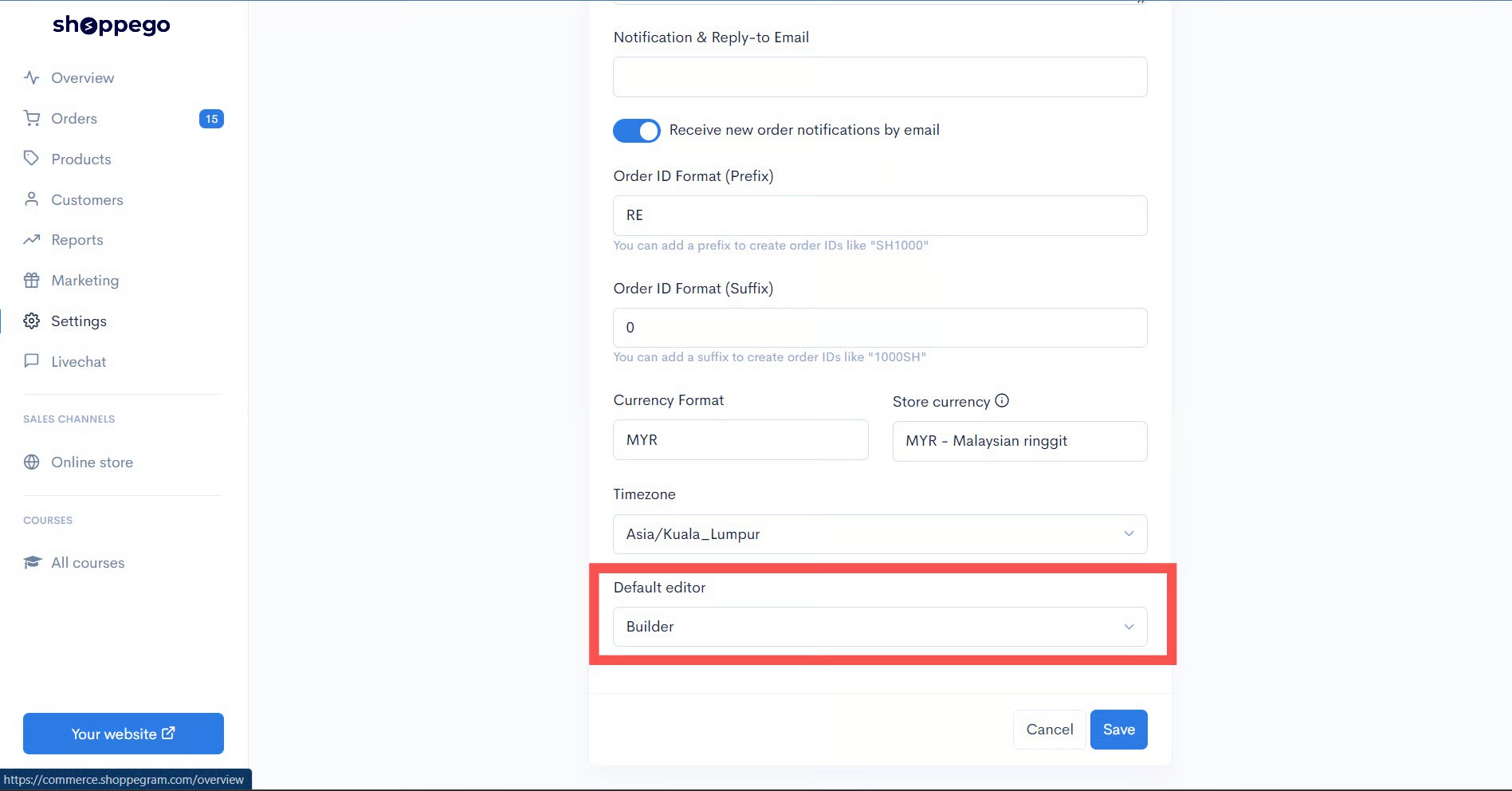
Untuk melihat Default Editor anda sama ada **WYSIWYG** atau **Builder**, anda boleh pergi ke:

Dashboard Overview -> Settings -> General -> Default Editor.

{% hint style="info" %}
\*\*<mark style="color:red;">**Perhatian**</mark>: Jika anda <mark style="color:red;">**tidak melihat Default Editor**</mark>, maka **Default Editor** anda adalah **Builder**.
{% endhint %}

<figure><img src="https://3359028955-files.gitbook.io/~/files/v0/b/gitbook-x-prod.appspot.com/o/spaces%2F-Lh09fNwqqta5Vj6Wr8p%2Fuploads%2Fgit-blob-dbaaf69659a53530fae44f7b20b9991a603f2760%2F0He9XwHeC1oW0U4gShsK.jpg?alt=media" alt=""><figcaption></figcaption></figure>